> ## Documentation Index
> Fetch the complete documentation index at: https://help.eazybe.com/llms.txt
> Use this file to discover all available pages before exploring further.

# Add Label and Funnel

> Learn how to create labels and funnels in EazyBe to organize and categorize your WhatsApp contacts effectively.

Create labels and funnels to organize your contacts and track them through your sales or support process.

## Video Tutorial

<iframe width="560" height="315" src="https://www.youtube.com/embed/q8fTyzI_a6I" title="Add Label and Funnel Tutorial" frameborder="0" allow="accelerometer; autoplay; clipboard-write; encrypted-media; gyroscope; picture-in-picture" allowfullscreen />

## Creating a Label or Funnel

<Steps>
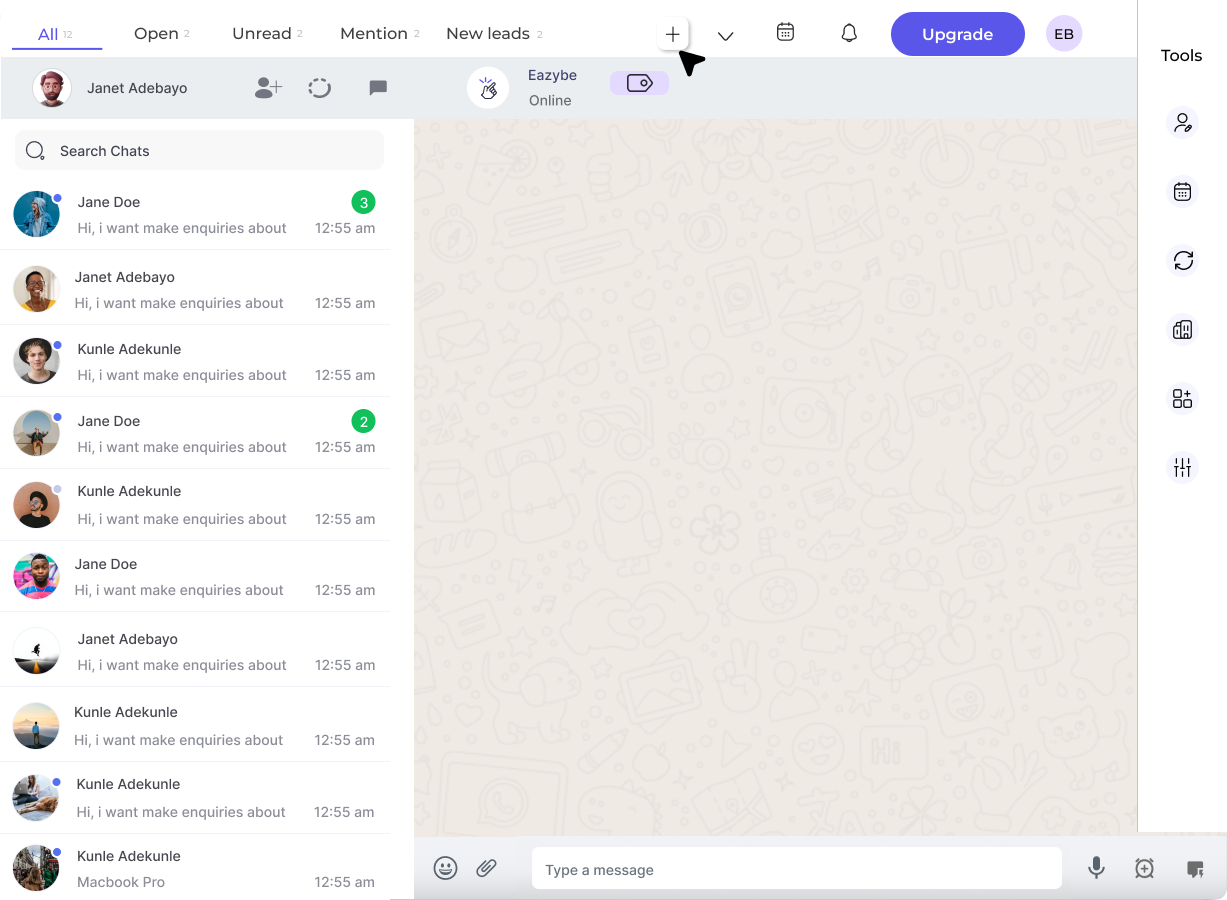
  <Step title="Click Add Label">
    Click the **Add Label** button to begin creating a new label or funnel.

    <img src="https://mintcdn.com/eazybe/C_TvcKVfdR8TnUGH/images/1113048889.png?fit=max&auto=format&n=C_TvcKVfdR8TnUGH&q=85&s=6ef618adaf2758f1948756e9d8394281" alt="Add Label Button" width="1227" height="900" data-path="images/1113048889.png" />
  </Step>

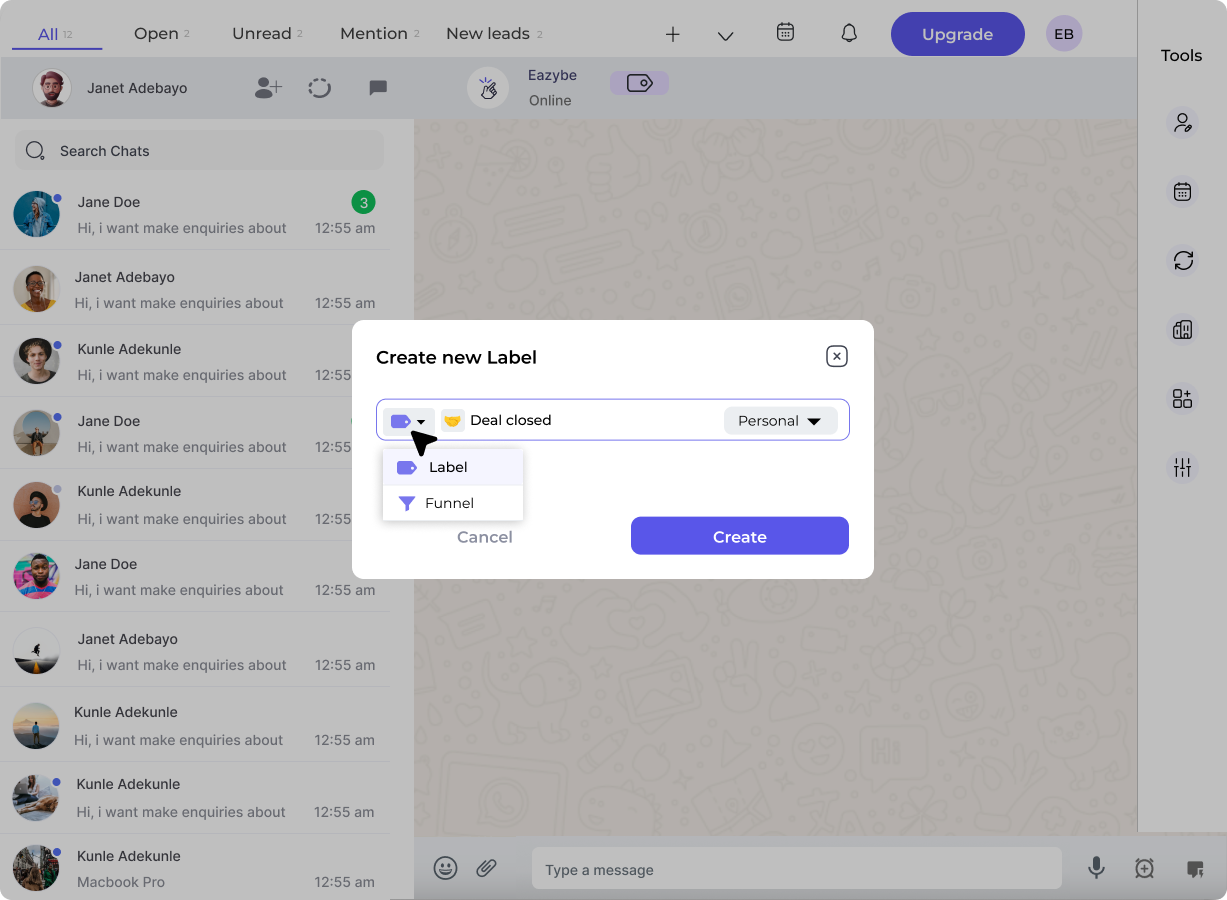
  <Step title="Select Label or Funnel">
    Choose whether you want to create a **Label** or a **Funnel** option.

    <img src="https://mintcdn.com/eazybe/C_TvcKVfdR8TnUGH/images/1113049106.png?fit=max&auto=format&n=C_TvcKVfdR8TnUGH&q=85&s=0bbadeeccaff033ca03b4b1ec8e91a17" alt="Select Label or Funnel" width="1227" height="900" data-path="images/1113049106.png" />
  </Step>

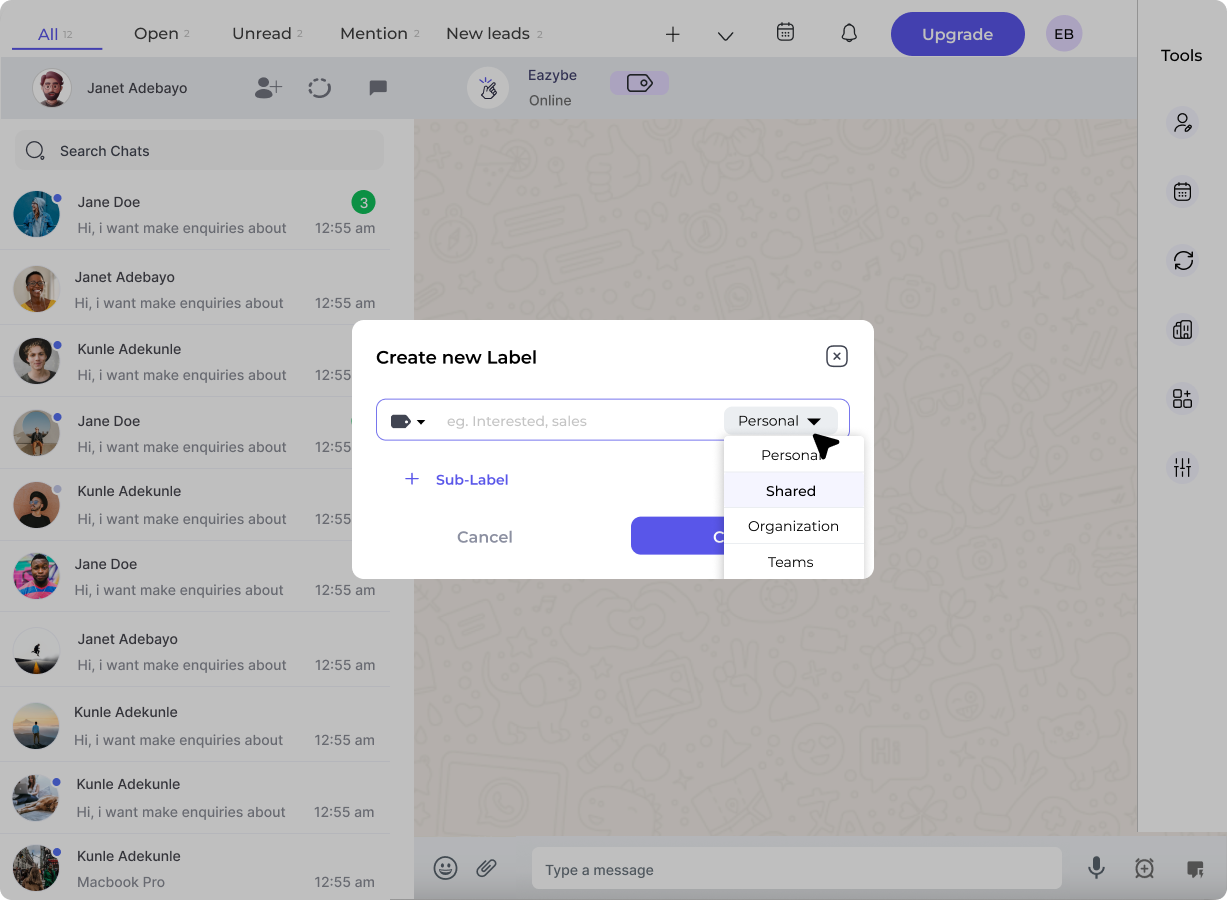
  <Step title="Choose Visibility">
    Select the visibility setting for your label or funnel:

    * **Personal**: Restricted to you only
    * **Shared**: Accessible to your entire organization or team

          <img src="https://mintcdn.com/eazybe/C_TvcKVfdR8TnUGH/images/1113049302.png?fit=max&auto=format&n=C_TvcKVfdR8TnUGH&q=85&s=2b37134baf3002e0a0026b3b2ddeffa0" alt="Choose Visibility" width="1227" height="900" data-path="images/1113049302.png" />
  </Step>

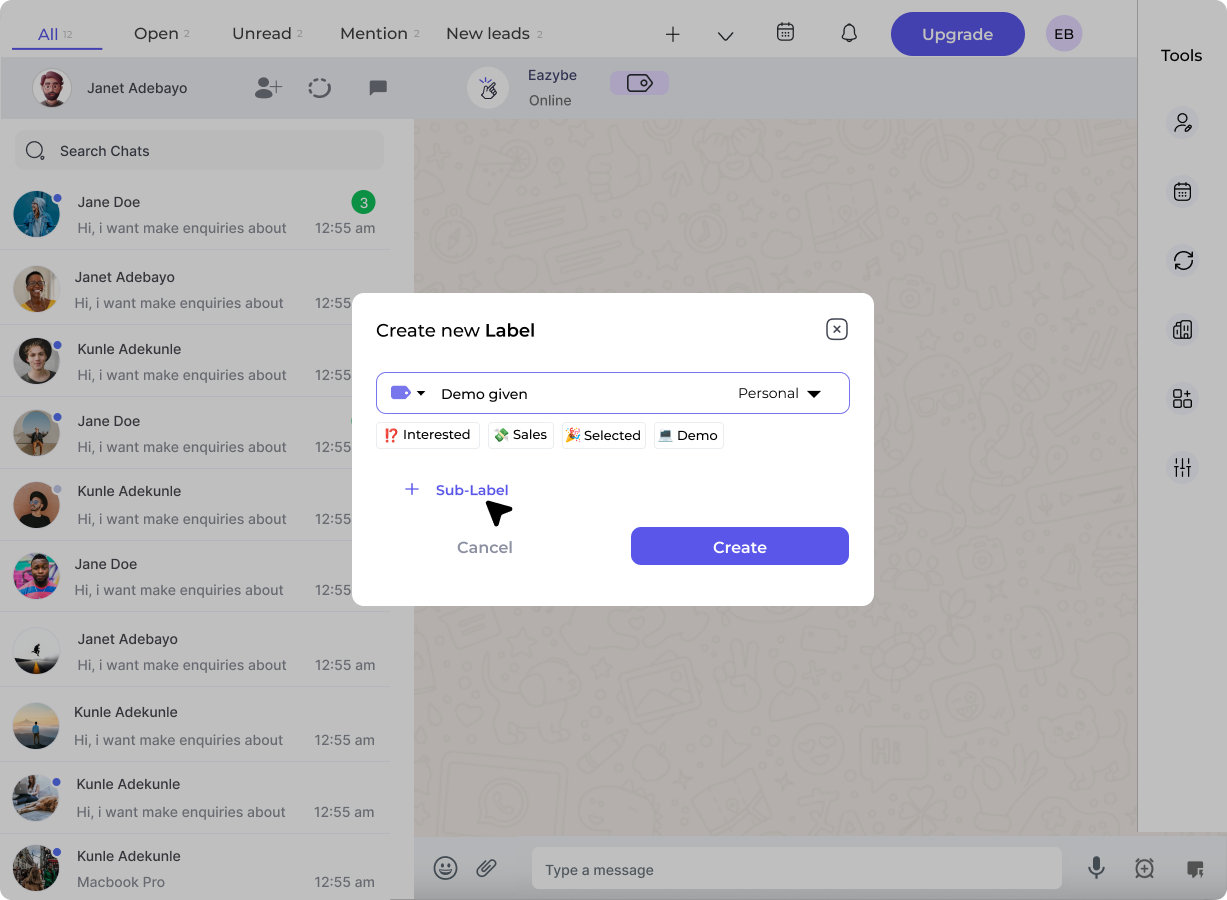
  <Step title="Add Sub-Labels or Stages">
    * For **Labels**: Add sub-labels to further categorize contacts
    * For **Funnels**: Add stages where contacts will move sequentially

          <img src="https://mintcdn.com/eazybe/C_TvcKVfdR8TnUGH/images/1113049518.png?fit=max&auto=format&n=C_TvcKVfdR8TnUGH&q=85&s=4ac28dfd5d29c11aa8a32aa0c52ef93f" alt="Add Sub-Labels or Stages" width="1227" height="900" data-path="images/1113049518.png" />
  </Step>

  <Step title="Create the Label/Funnel">
    Click the **Create** button to save your new label or funnel.

    <img src="https://mintcdn.com/eazybe/C_TvcKVfdR8TnUGH/images/1113049922.png?fit=max&auto=format&n=C_TvcKVfdR8TnUGH&q=85&s=569ffb26e5e36557d72fe1d76049f224" alt="Create Button" width="1227" height="900" data-path="images/1113049922.png" />
  </Step>

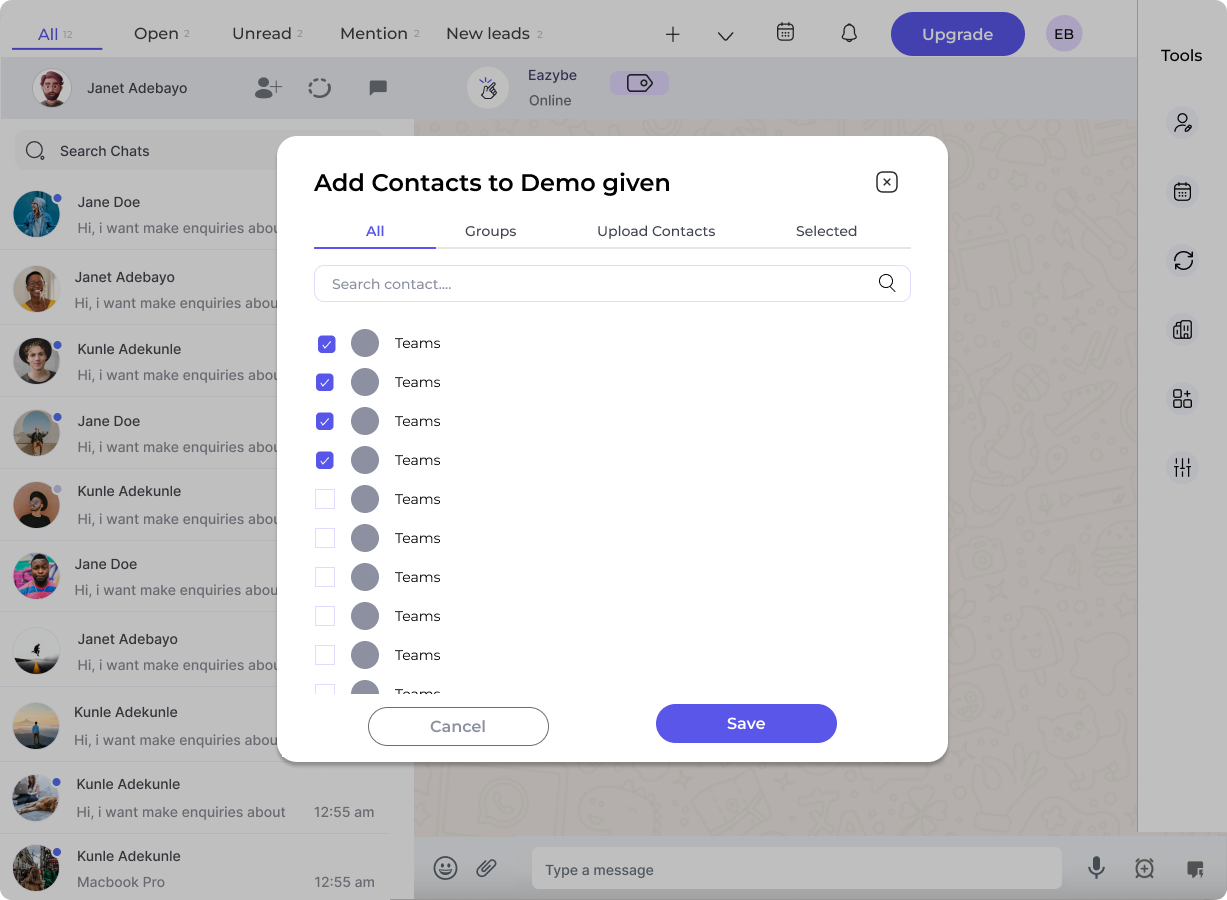
  <Step title="Add Contacts">
    A popup will appear where you can select and add contacts. Click **Save** when done.

    <img src="https://mintcdn.com/eazybe/C_TvcKVfdR8TnUGH/images/1113049995.png?fit=max&auto=format&n=C_TvcKVfdR8TnUGH&q=85&s=26113f6ce2bcf38568a7df9a2f00604c" alt="Add Contacts" width="1227" height="900" data-path="images/1113049995.png" />
  </Step>
</Steps>

<Note>
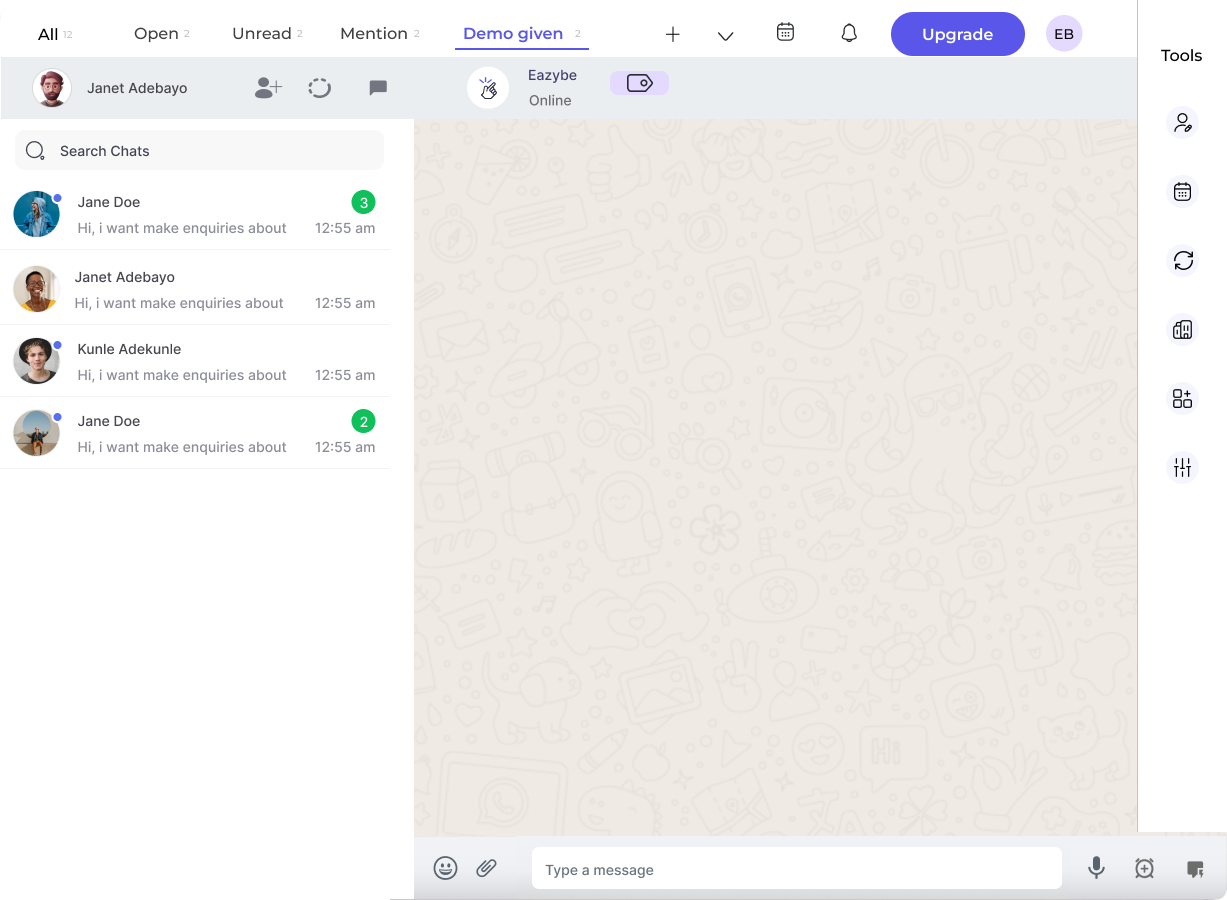
  The newly created label or funnel will appear in the top navigation bar for easy access.
</Note>

## Labels vs Funnels

<CardGroup cols={2}>
  <Card title="Labels" icon="tag">
    * Categorize contacts with sub-labels
    * Contacts can have multiple labels
    * Great for organizing by type, source, or category
  </Card>

  <Card title="Funnels" icon="filter">
    * Feature sequential stages
    * Contacts move through stages one at a time
    * Only one stage per contact at a time
    * Ideal for sales pipelines or support workflows
  </Card>
</CardGroup>

## Visibility Options

| Visibility   | Description                                    |
| ------------ | ---------------------------------------------- |
| **Personal** | Only you can see and access the label/funnel   |
| **Shared**   | Your entire team or organization can access it |

<Tip>
  Use shared labels and funnels for team collaboration, and personal ones for your individual workflow organization.
</Tip>

## Need Help?

If you have any questions or need further assistance, feel free to reach out to us at [hey@eazybe.com](mailto:hey@eazybe.com). We're happy to help!