> ## Documentation Index
> Fetch the complete documentation index at: https://help.eazybe.com/llms.txt
> Use this file to discover all available pages before exploring further.
# Lead Call Logs
> How to add and manage Salesforce lead call logs from WhatsApp using EazyBe
This guide explains how to add Call Logs for your Salesforce Leads using the EazyBe WhatsApp Extension. Track all your call activities directly from WhatsApp.
## Adding a Call Log
Access the WhatsApp conversation for your Salesforce Lead.
Select the Salesforce icon in the right sidebar of the extension.
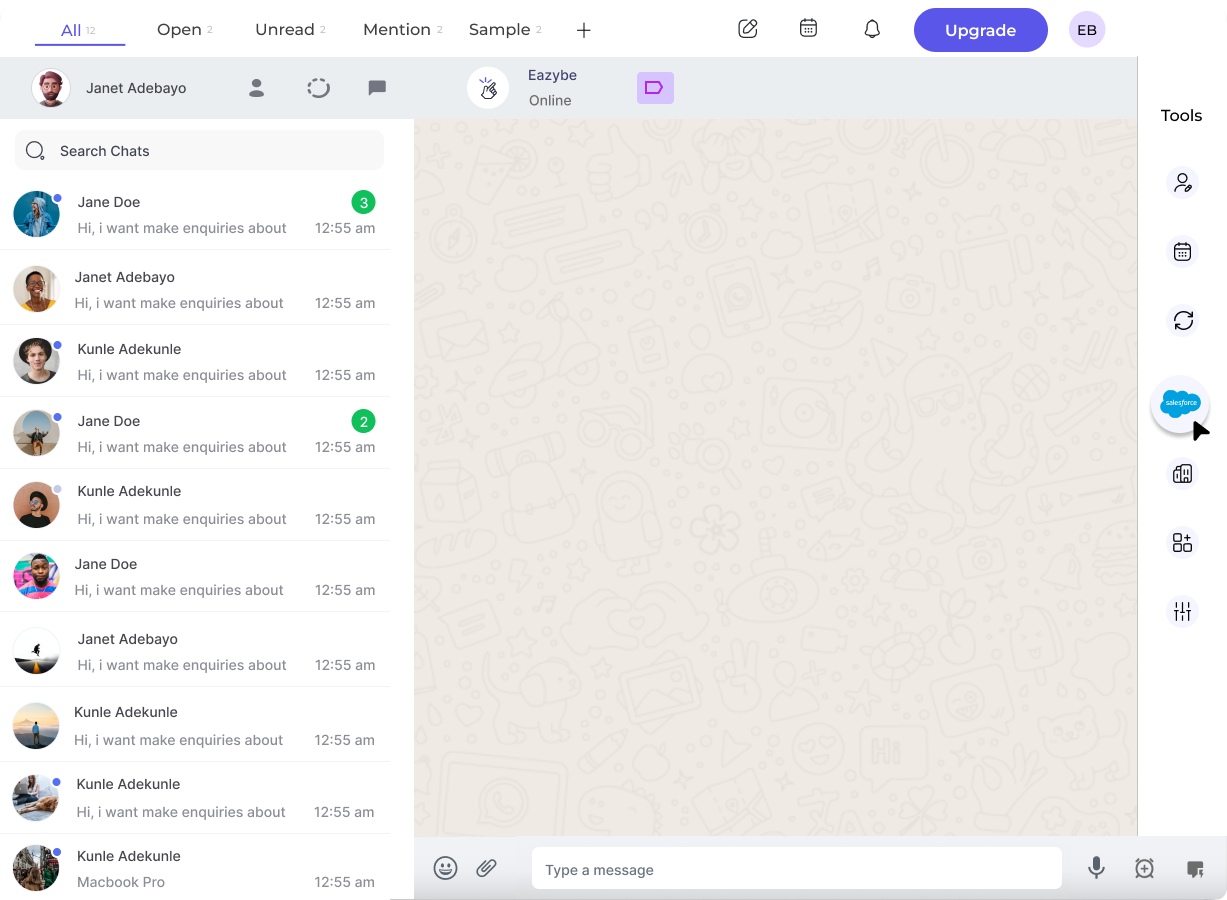 Navigate to the Lead section and scroll to the bottom where you'll find the last header labeled **Call Logs**.
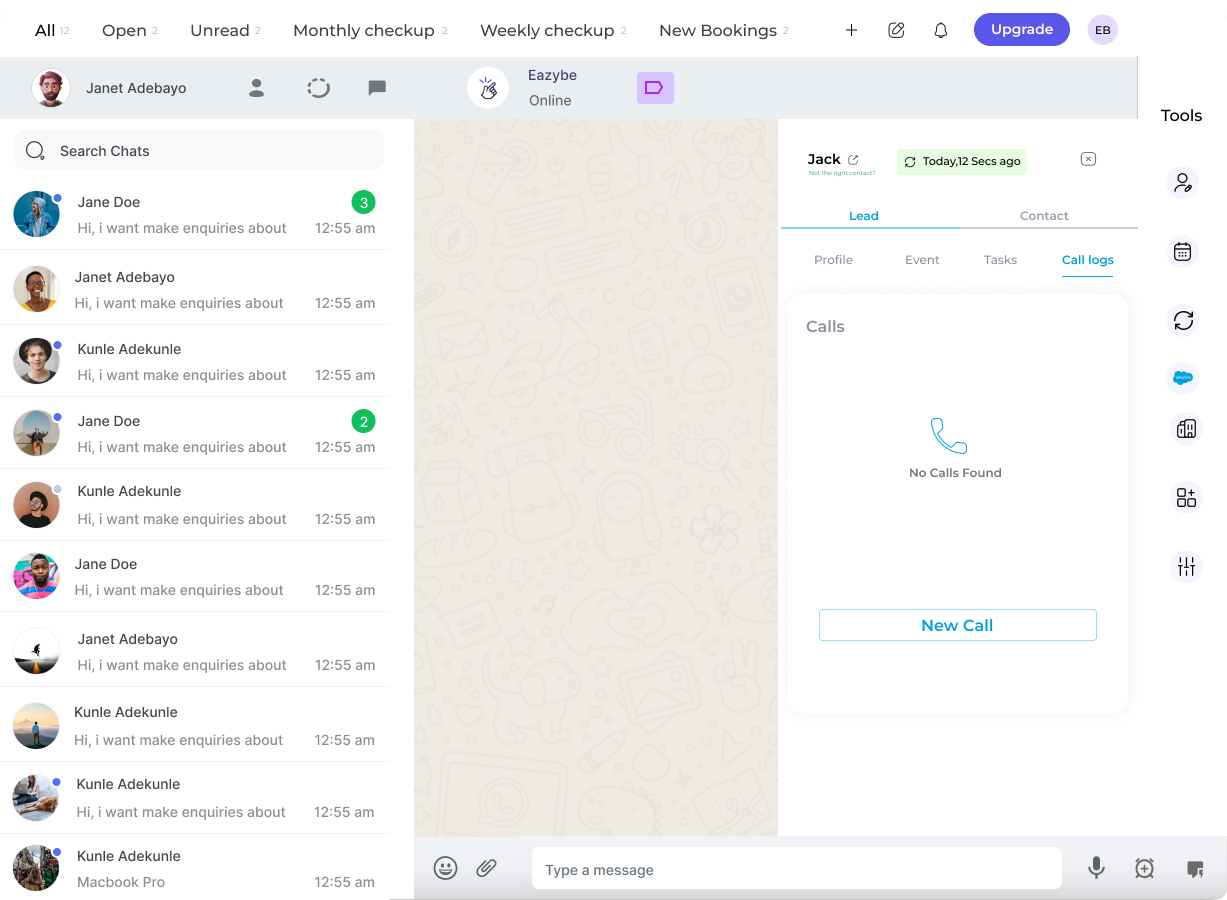
Click the **Add Call Log** button to open the call log form.
Navigate to the Lead section and scroll to the bottom where you'll find the last header labeled **Call Logs**.
Click the **Add Call Log** button to open the call log form.
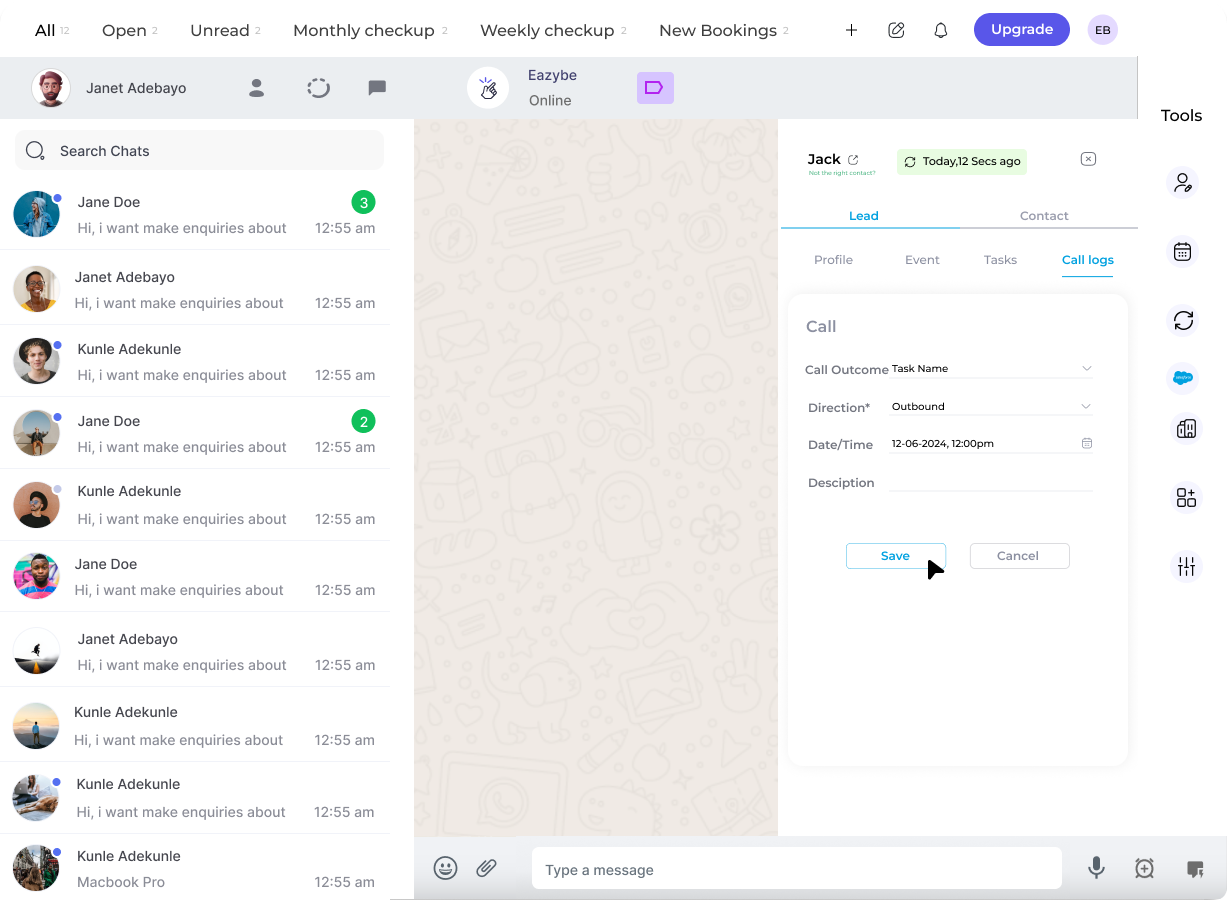
 Enter the necessary details and then click **Save Call Log** button.
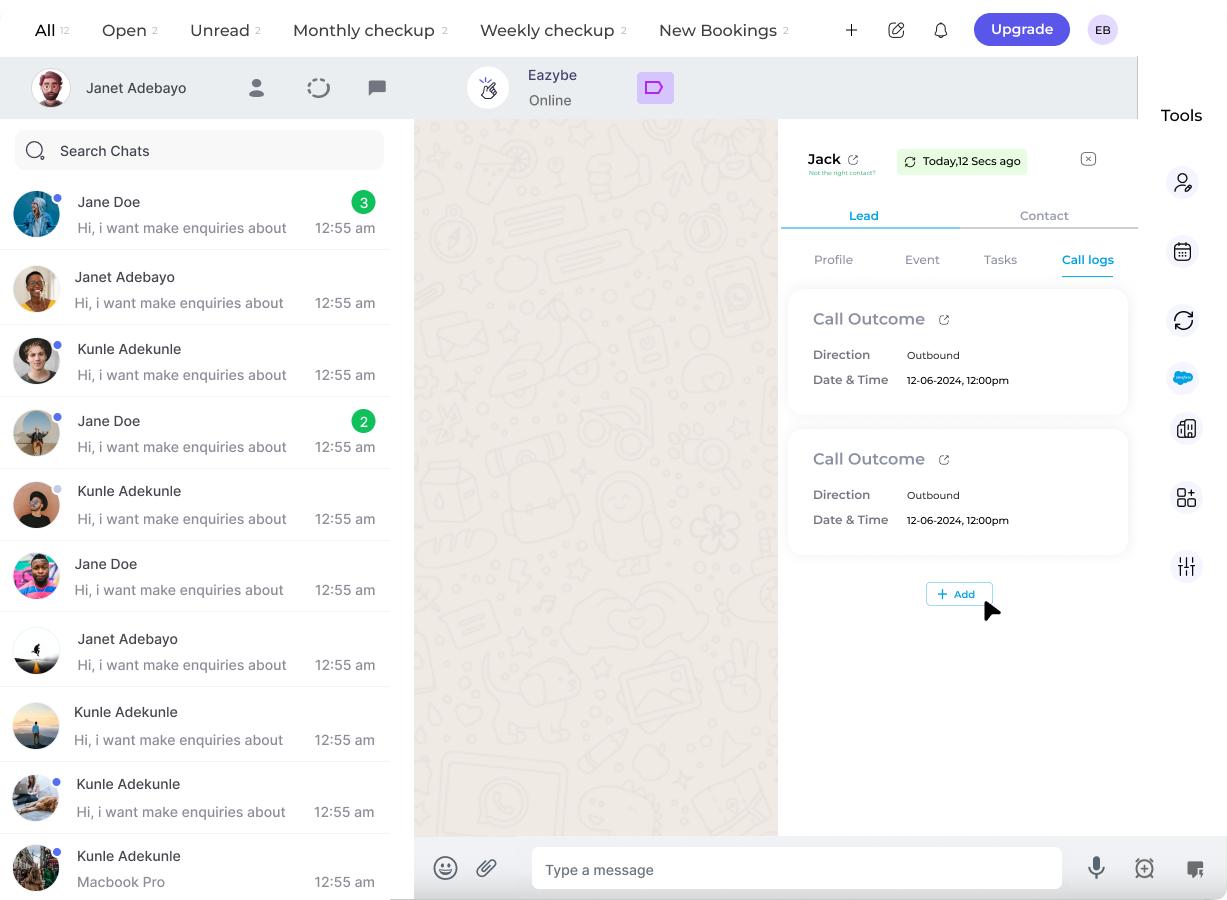
 Review the saved call log once completed.
 ## Managing Call Logs
Once a call log is created, you can manage it using the three-dot menu next to each entry:
* **Edit** - Modify call log details
* **Delete** - Remove the call log
Call logs are synced directly to Salesforce when you save. The call log information will be reflected in your Salesforce Lead record.
## Need Help?
If you have any questions or need assistance, contact our support team at **[hey@eazybe.com](mailto:hey@eazybe.com)**.
## Managing Call Logs
Once a call log is created, you can manage it using the three-dot menu next to each entry:
* **Edit** - Modify call log details
* **Delete** - Remove the call log
Call logs are synced directly to Salesforce when you save. The call log information will be reflected in your Salesforce Lead record.
## Need Help?
If you have any questions or need assistance, contact our support team at **[hey@eazybe.com](mailto:hey@eazybe.com)**.