> ## Documentation Index
> Fetch the complete documentation index at: https://help.eazybe.com/llms.txt
> Use this file to discover all available pages before exploring further.
# Contact Profile
> How to view and manage Salesforce contact profile information from WhatsApp using EazyBe
This guide explains how to access and manage a Salesforce Contact's profile information using the EazyBe WhatsApp Extension.
## Viewing and Editing Contact Profile
Launch the WhatsApp conversation with your intended Salesforce Contact.
Click on the Salesforce icon on the right sidebar of the extension and click on the **Contact** header to access the Contact Section.
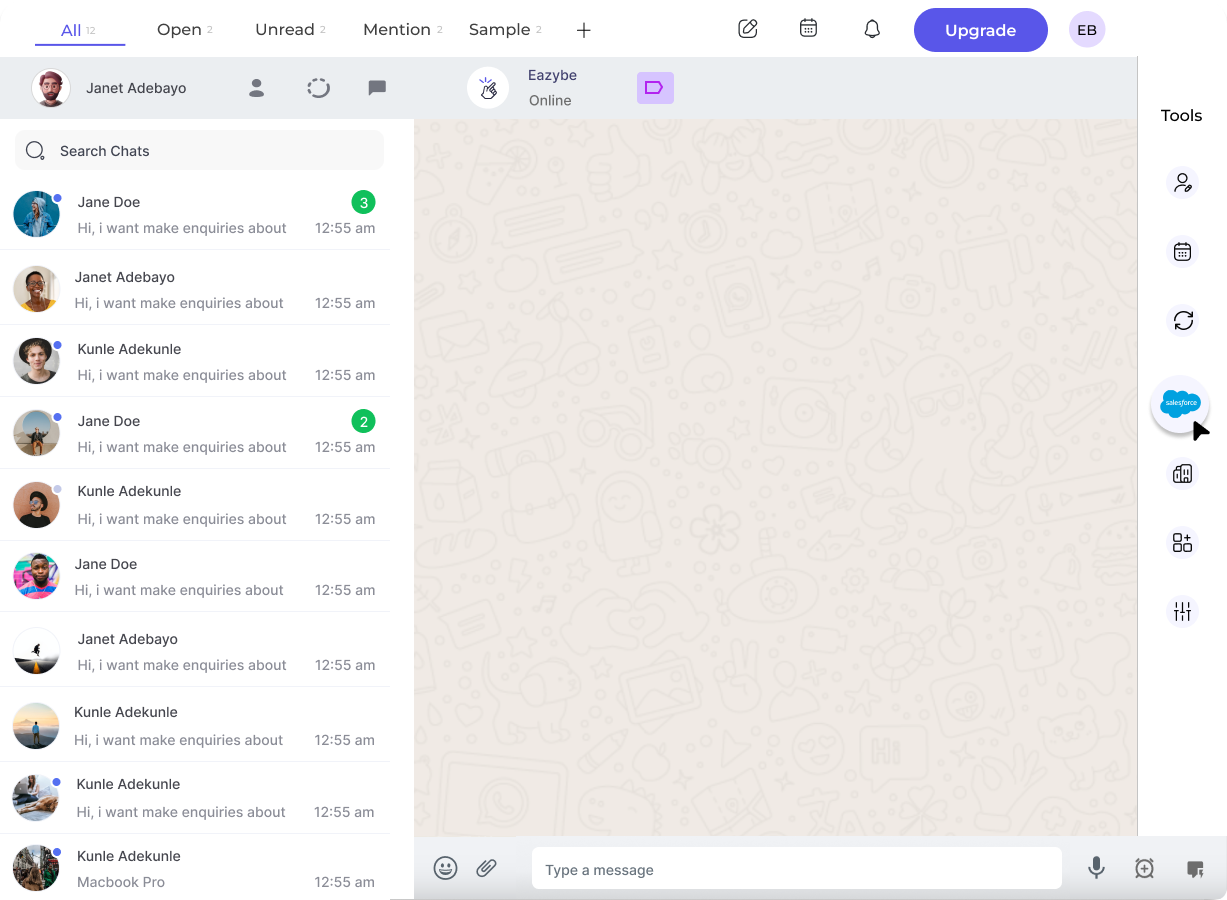 The first header that appears under the Contact section will be the **Profile Section**.
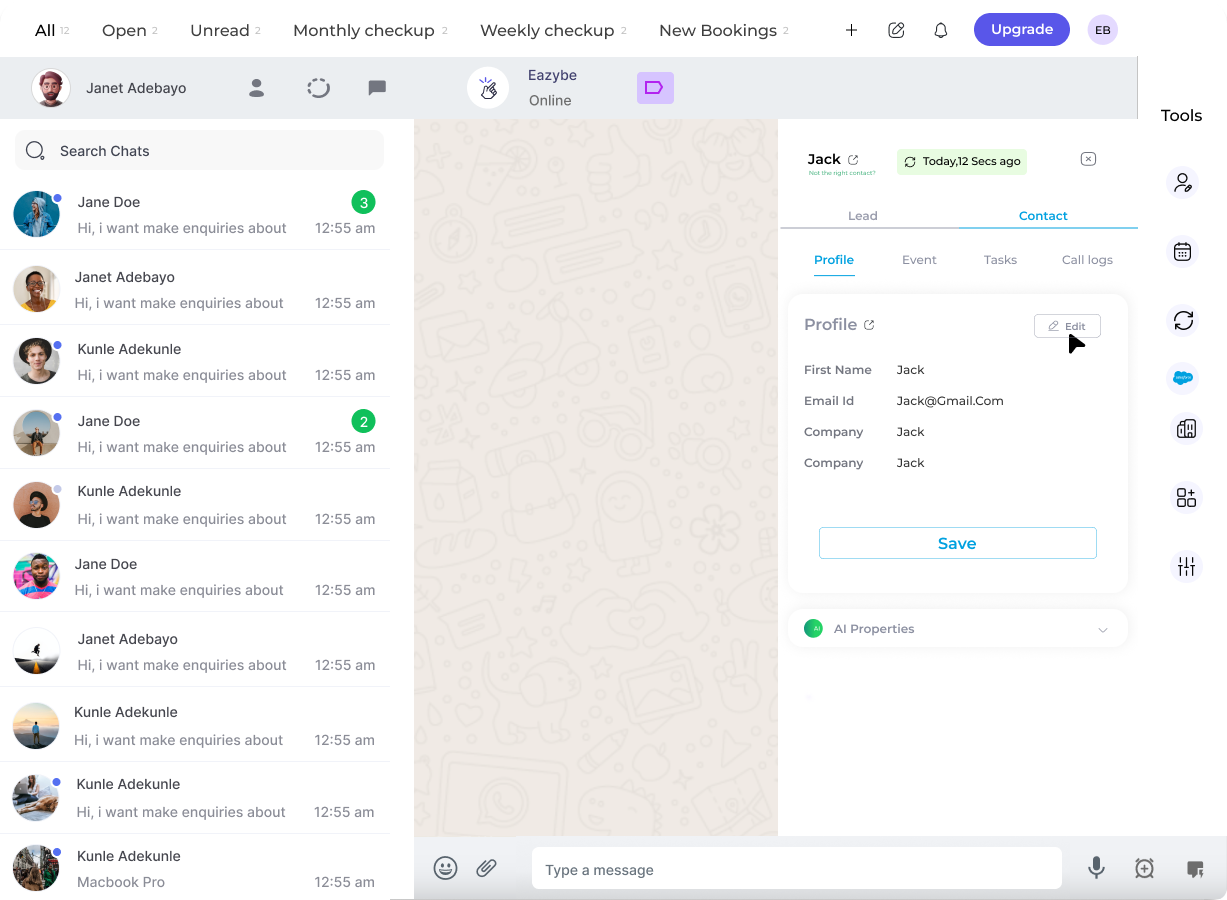 Click the **Edit** button to modify the contact's properties. You can update any available fields as needed.
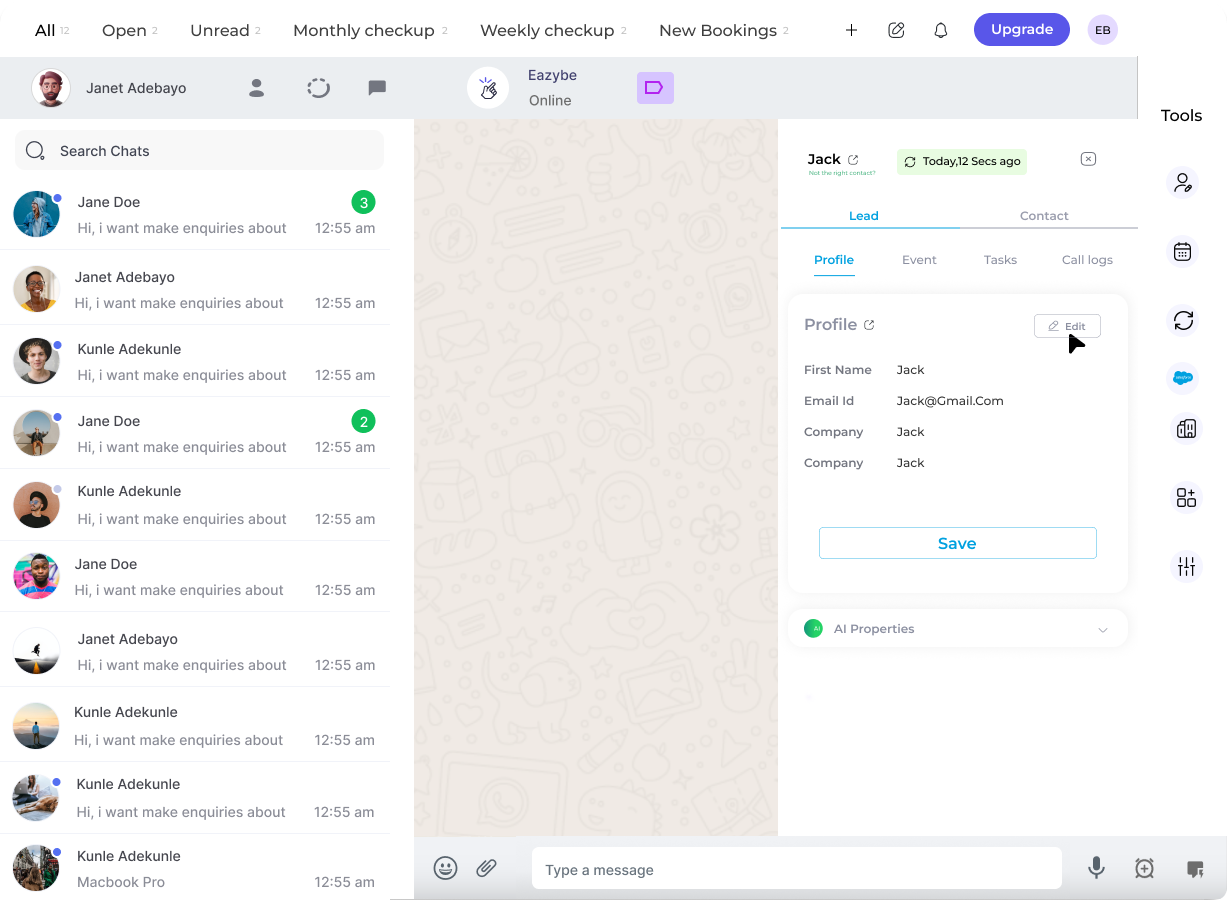 Once you've edited the profile, click on the **Save** button at the bottom to ensure the changes are applied.
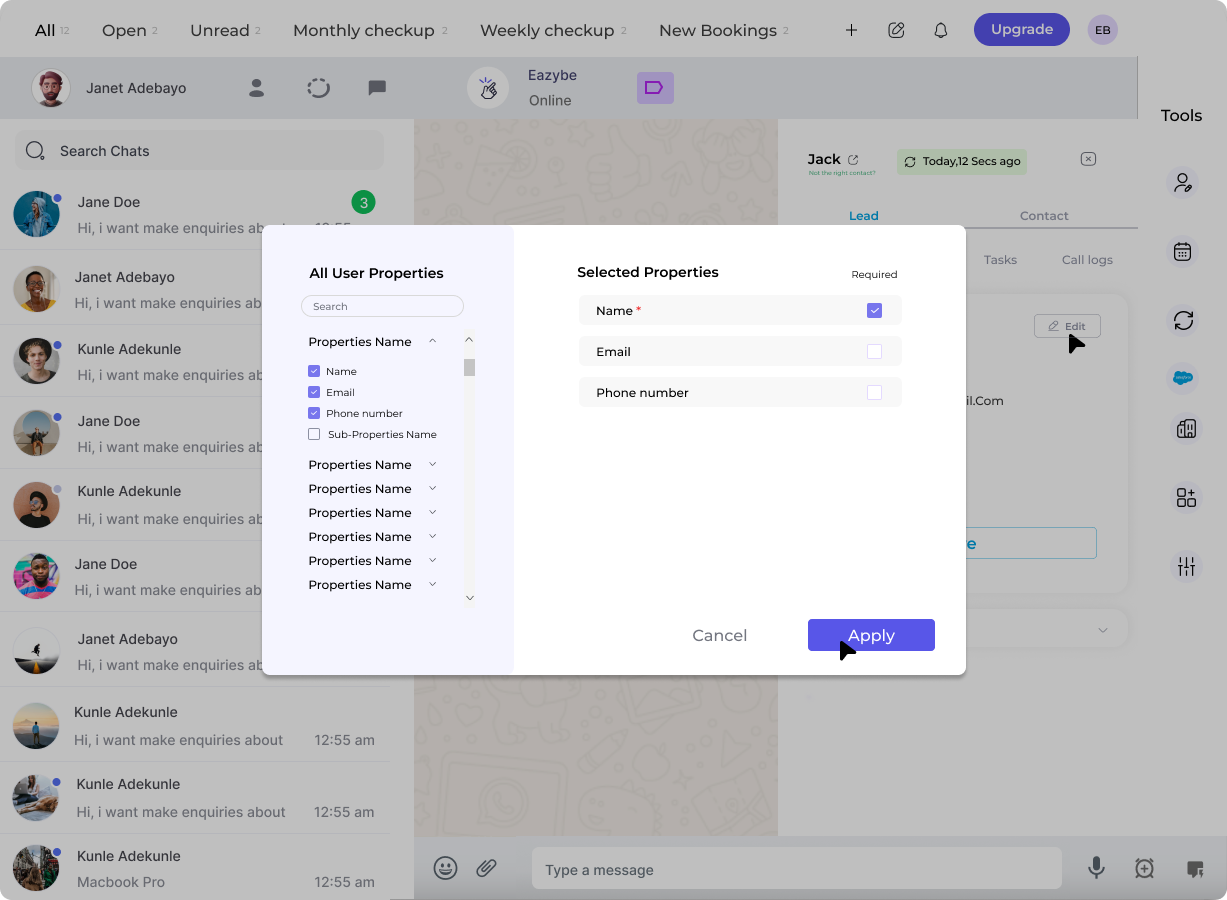 Changes are synced directly to Salesforce when you save. The updated information will be reflected in your Salesforce Contact record.
## Need Help?
If you have any questions or need assistance, contact our support team at **[hey@eazybe.com](mailto:hey@eazybe.com)**.
Changes are synced directly to Salesforce when you save. The updated information will be reflected in your Salesforce Contact record.
## Need Help?
If you have any questions or need assistance, contact our support team at **[hey@eazybe.com](mailto:hey@eazybe.com)**.