> ## Documentation Index
> Fetch the complete documentation index at: https://help.eazybe.com/llms.txt
> Use this file to discover all available pages before exploring further.
# Linking Contacts
> How to link WhatsApp and Salesforce contacts for seamless chat backup
This guide explains how WhatsApp and Salesforce contacts are linked, enabling automatic chat backup and synchronization.
## How Contact Linking Works
WhatsApp and Salesforce contacts link automatically through phone numbers stored in Salesforce's **Phone Number** or **Mobile** fields. You can also:
* Create contacts directly from WhatsApp using EazyBe
* Link existing Salesforce contacts to WhatsApp phone numbers
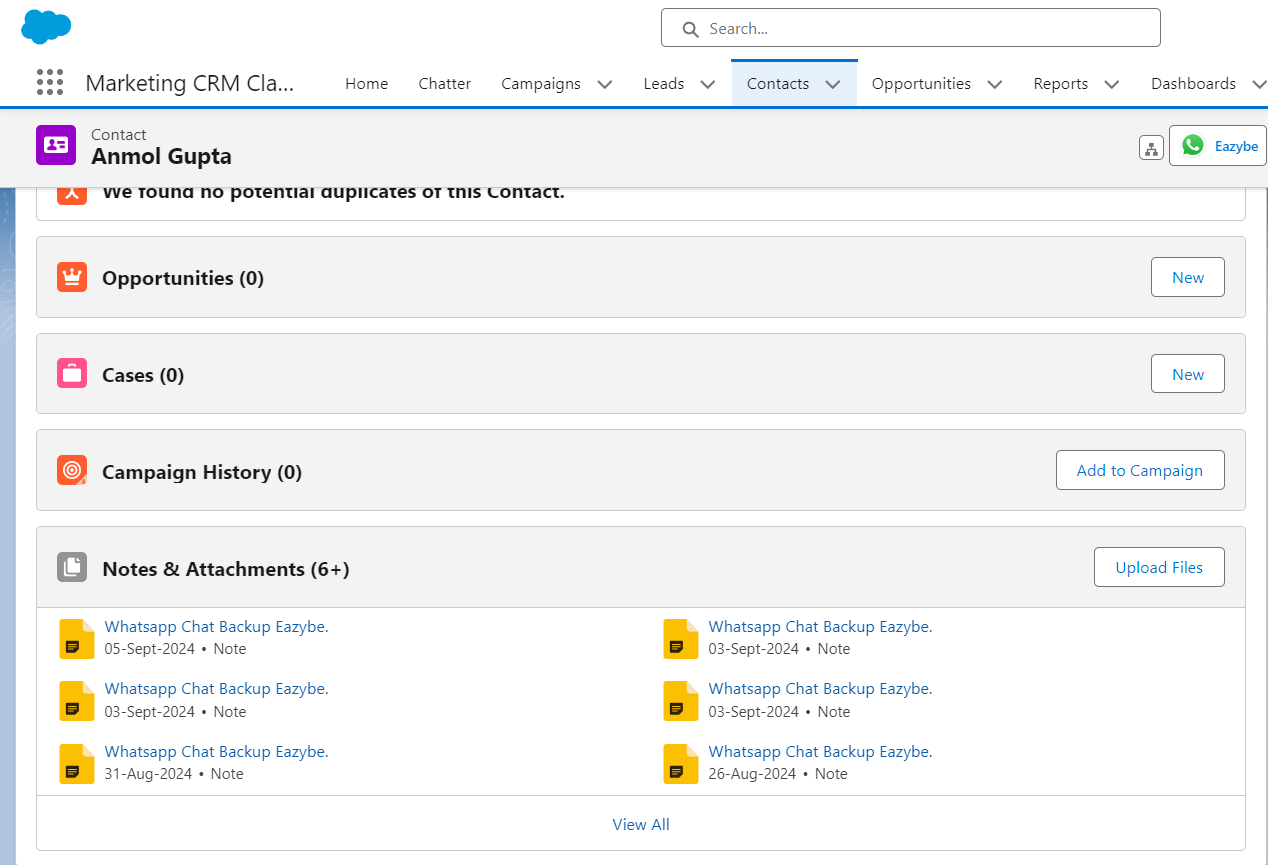 ## What Happens After Linking
Once linked, the contact card appears in EazyBe's Mini-CRM view, giving you instant access to contact details while chatting.
Both 1:1 chats and group chats associated with the contact will be backed up to Salesforce:
* **For Contacts**: Chat content and attachments display in the Notes and Attachments Section and WhatsApp Chats by EazyBe Activity object
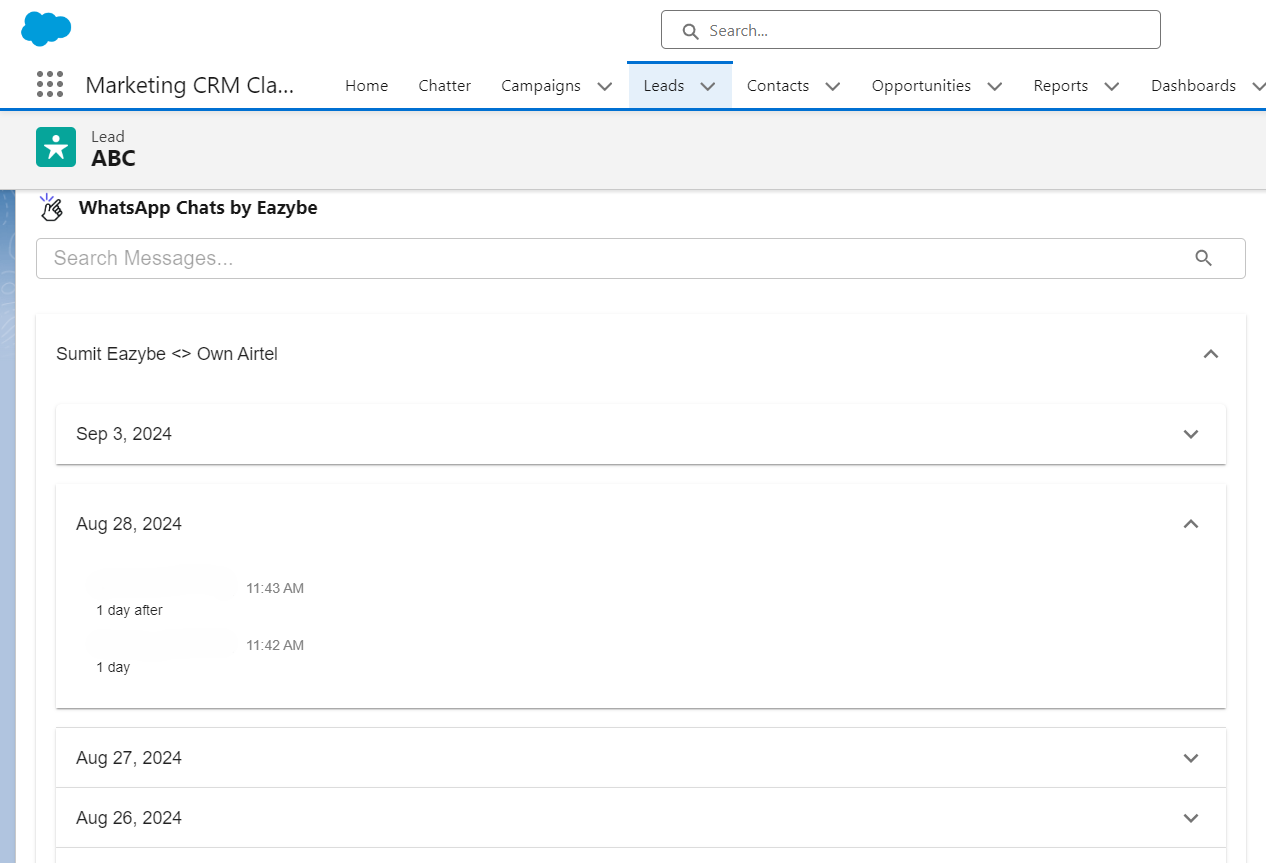
* **For Leads**: Chats appear in the WhatsApp Chats by Activity Objects
## What Happens After Linking
Once linked, the contact card appears in EazyBe's Mini-CRM view, giving you instant access to contact details while chatting.
Both 1:1 chats and group chats associated with the contact will be backed up to Salesforce:
* **For Contacts**: Chat content and attachments display in the Notes and Attachments Section and WhatsApp Chats by EazyBe Activity object
* **For Leads**: Chats appear in the WhatsApp Chats by Activity Objects
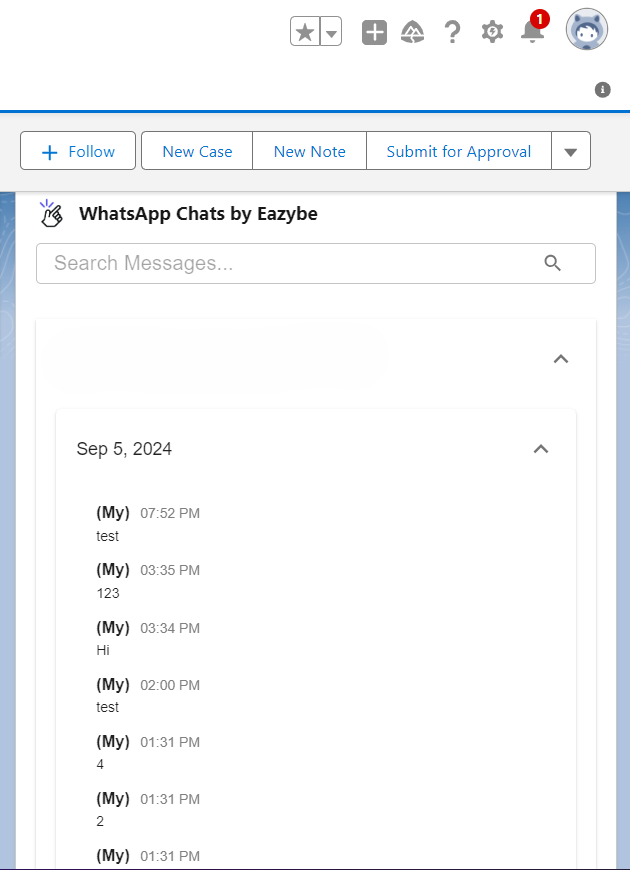 ## Automatic Synchronization
When creating new Salesforce contacts via the EazyBe WhatsApp extension, contacts are automatically linked to Salesforce.
WhatsApp chats are backed up every 3 minutes automatically.
The last sync time updates in the EazyBe workspace so you can verify synchronization.
## Automatic Synchronization
When creating new Salesforce contacts via the EazyBe WhatsApp extension, contacts are automatically linked to Salesforce.
WhatsApp chats are backed up every 3 minutes automatically.
The last sync time updates in the EazyBe workspace so you can verify synchronization.
 Ensure your Salesforce contacts have accurate phone numbers in the Phone Number or Mobile fields for automatic linking to work correctly.
## Need Help?
If you have any questions or need assistance, contact our support team at **[hey@eazybe.com](mailto:hey@eazybe.com)**.
Ensure your Salesforce contacts have accurate phone numbers in the Phone Number or Mobile fields for automatic linking to work correctly.
## Need Help?
If you have any questions or need assistance, contact our support team at **[hey@eazybe.com](mailto:hey@eazybe.com)**.