> ## Documentation Index
> Fetch the complete documentation index at: https://help.eazybe.com/llms.txt
> Use this file to discover all available pages before exploring further.

# Invite Your Team

> How to invite team members to your EazyBe organization with Salesforce integration

This guide explains how to invite team members to your EazyBe organization, enabling collaboration and shared access to resources.

<iframe width="560" height="315" src="https://www.youtube.com/embed/_Nas0exN4dw" title="Invite Your Team" frameBorder="0" allow="accelerometer; autoplay; clipboard-write; encrypted-media; gyroscope; picture-in-picture" allowFullScreen />

## How to Invite Team Members

<Steps>
  <Step title="Navigate to Organization">
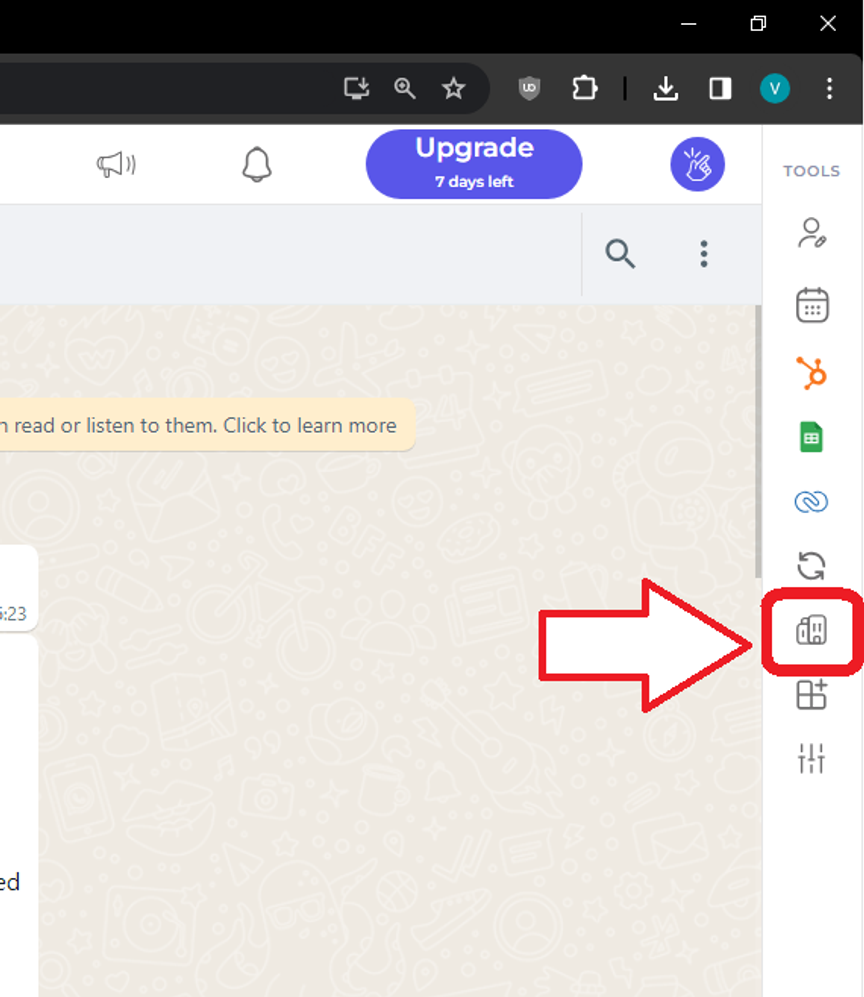
    Go to the Organization section by clicking the **Organization** button in your EazyBe workspace.

    <img src="https://mintcdn.com/eazybe/tecie6w1d2Y98Bjt/images/1347924117.png?fit=max&auto=format&n=tecie6w1d2Y98Bjt&q=85&s=bfbbe0645d726e583d02b86b3357661d" alt="Organization Button" width="864" height="997" data-path="images/1347924117.png" />
  </Step>

  <Step title="Add Employees">
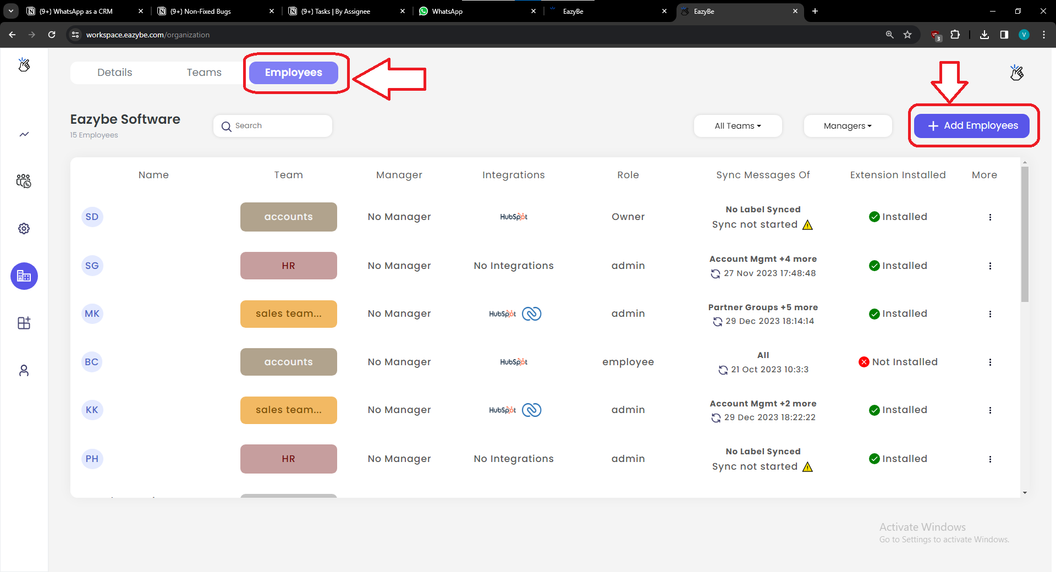
    Select **Employees → Add Employees** from the menu.

    <img src="https://mintcdn.com/eazybe/tecie6w1d2Y98Bjt/images/1347924118.png?fit=max&auto=format&n=tecie6w1d2Y98Bjt&q=85&s=63e008b2f48628a39f61da14c5f3f50d" alt="Add Employees" width="1056" height="572" data-path="images/1347924118.png" />
  </Step>

  <Step title="Complete Employee Information">
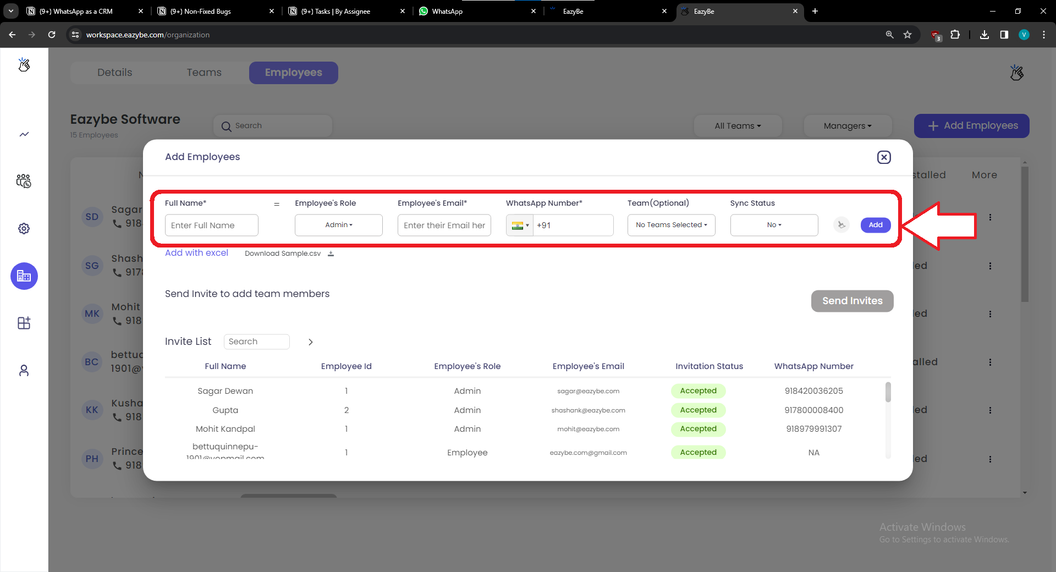
    Fill in the required employee details including Name, Email, and WhatsApp Number. Click **Add** to save the employee, then click **Send Invites** to distribute invitations.

    <img src="https://mintcdn.com/eazybe/tecie6w1d2Y98Bjt/images/1347924116.png?fit=max&auto=format&n=tecie6w1d2Y98Bjt&q=85&s=34320a693459fb74b46856543f09f4b2" alt="Send Invites" width="1056" height="572" data-path="images/1347924116.png" />
  </Step>
</Steps>

## Frequently Asked Questions

<AccordionGroup>
  <Accordion title="What is the purpose of inviting team members?">
    Inviting team members enables task assignment, provides access to shared Quick Replies and Labels, and allows monitoring of team analytics.
  </Accordion>

  <Accordion title="Is my data secure?">
    EazyBe does not store any data on its servers. All data is backed up with the user's WhatsApp number.
  </Accordion>

  <Accordion title="Where is the backup stored?">
    Backups are stored in the Admin's Google Drive via Team Inbox.
  </Accordion>

  <Accordion title="How can I add more seats?">
    You can expand seats through **Accounts → Billing** or through WhatsApp upgrade options.
  </Accordion>

  <Accordion title="What access do invited employees receive?">
    Invitees gain access to shared Quick Replies and Labels configured by the organization.
  </Accordion>
</AccordionGroup>

## Need Help?

If you have any questions or need assistance, contact our support team at **[hey@eazybe.com](mailto:hey@eazybe.com)**.