> ## Documentation Index
> Fetch the complete documentation index at: https://help.eazybe.com/llms.txt
> Use this file to discover all available pages before exploring further.
# Integration Confirmation
> Learn how to confirm that your Salesforce integration with Eazybe WhatsApp extension was successful.
Once your Salesforce integration with the Eazybe WhatsApp extension completes, you will be redirected back to WhatsApp.
## How to Verify Successful Integration
After the integration process completes, look for the **Salesforce icon** in the right sidebar of your WhatsApp interface.
If you can see the Salesforce icon, it indicates that the integration has been successfully completed.
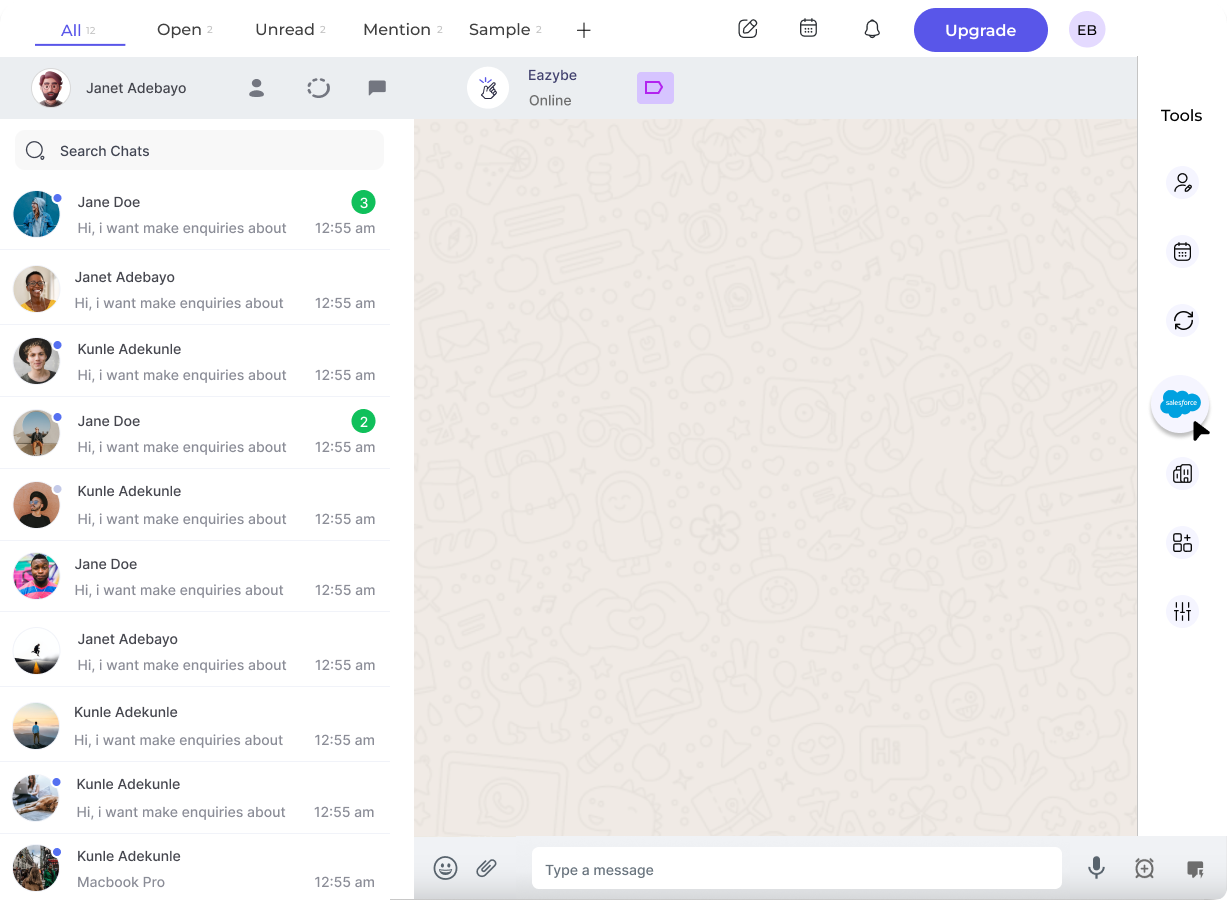 **Success Indicator:** The presence of the Salesforce icon in your right sidebar confirms that Eazybe is properly connected to your Salesforce account.
## Need Help?
For additional assistance, contact us at [hey@eazybe.com](mailto:hey@eazybe.com).
**Success Indicator:** The presence of the Salesforce icon in your right sidebar confirms that Eazybe is properly connected to your Salesforce account.
## Need Help?
For additional assistance, contact us at [hey@eazybe.com](mailto:hey@eazybe.com).