> ## Documentation Index
> Fetch the complete documentation index at: https://help.eazybe.com/llms.txt
> Use this file to discover all available pages before exploring further.
# Disconnect Integration
> Learn how to disconnect your Salesforce integration from the Eazybe WhatsApp Chrome Extension.
Follow these steps to disconnect your Salesforce integration from Eazybe.
## Steps to Disconnect
Click on the **Integration** button in the right sidebar.
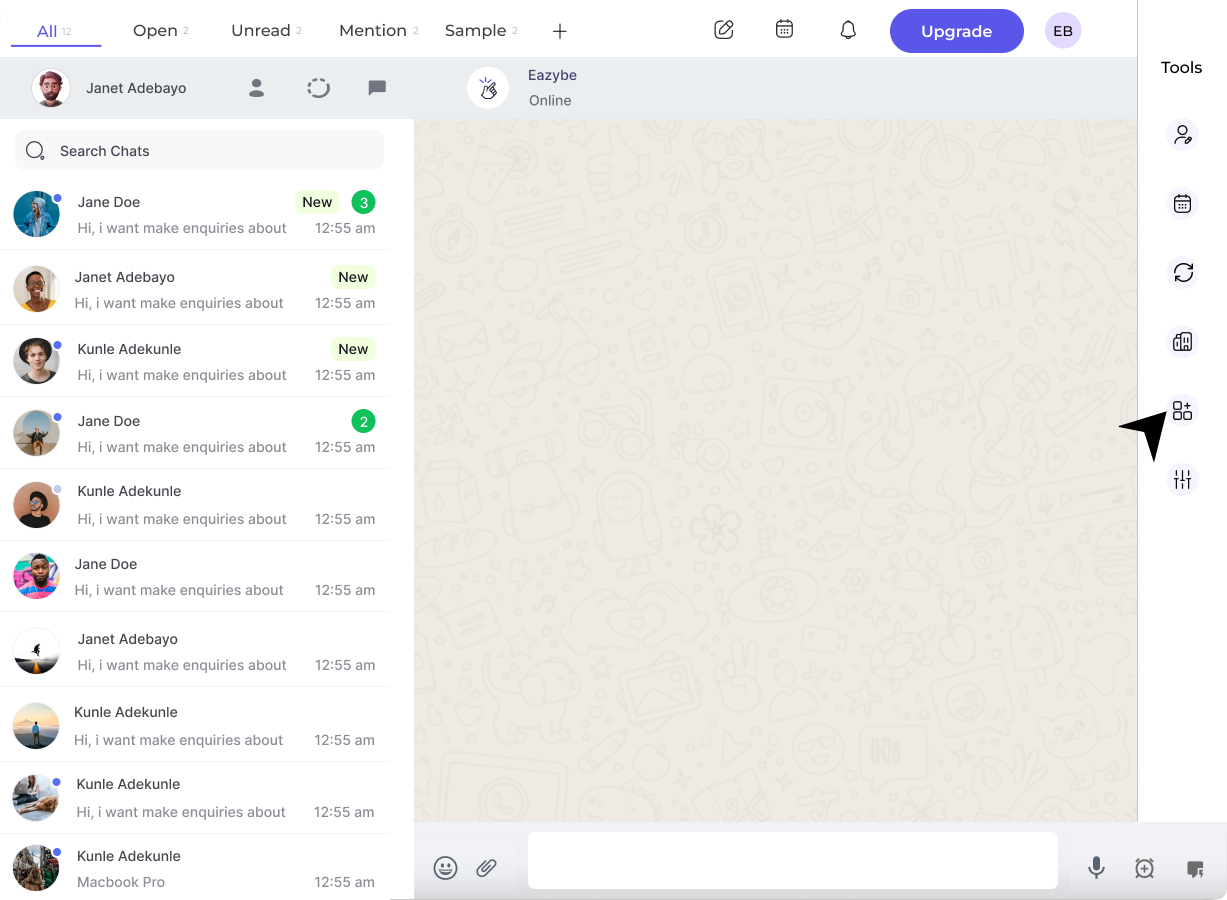 Click on the **Disconnect** button under the Salesforce section.
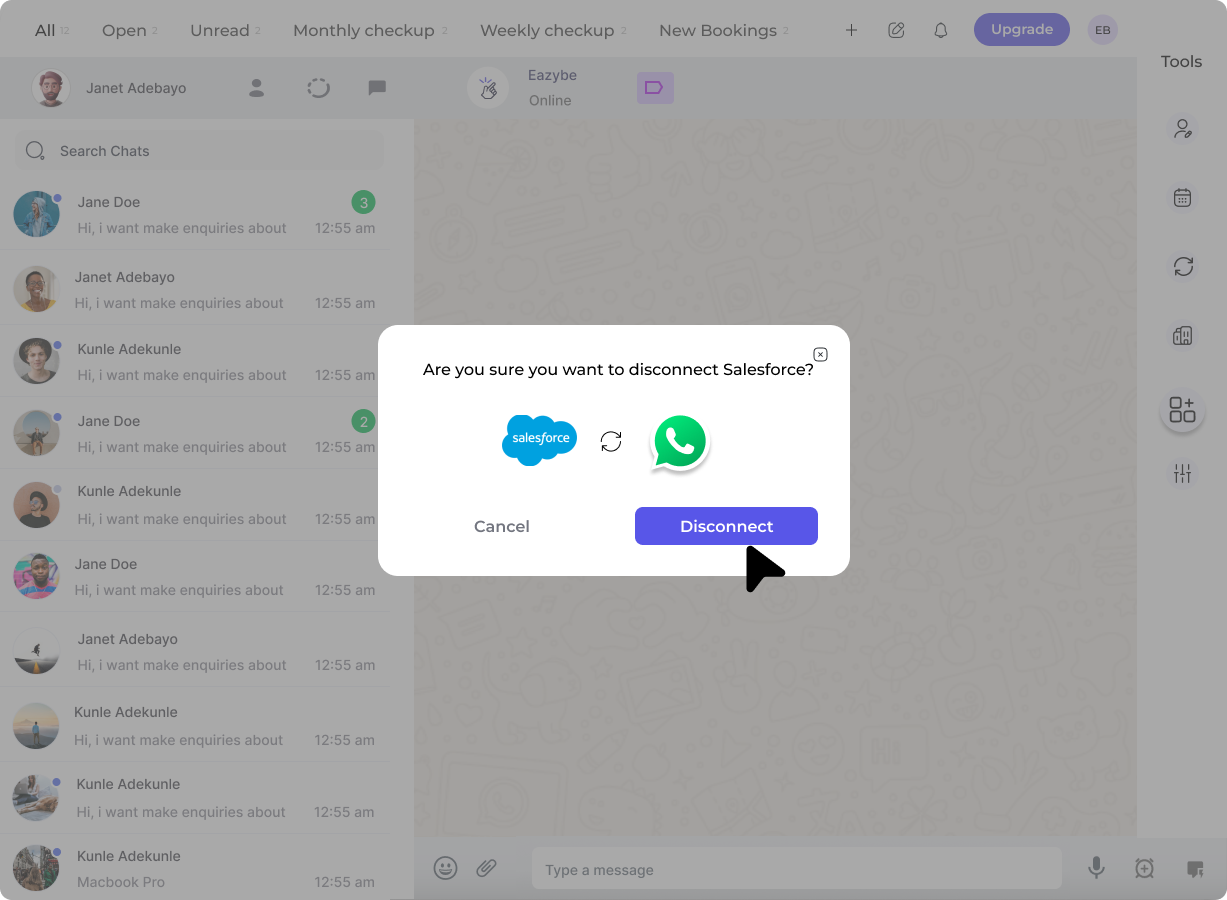 A prompt will appear asking you to confirm the disconnection. Click confirm to complete the process.
Disconnecting the integration will stop syncing your WhatsApp conversations with Salesforce. Make sure to backup any important data before disconnecting.
## Need Help?
For additional assistance, contact us at [hey@eazybe.com](mailto:hey@eazybe.com).
A prompt will appear asking you to confirm the disconnection. Click confirm to complete the process.
Disconnecting the integration will stop syncing your WhatsApp conversations with Salesforce. Make sure to backup any important data before disconnecting.
## Need Help?
For additional assistance, contact us at [hey@eazybe.com](mailto:hey@eazybe.com).