> ## Documentation Index
> Fetch the complete documentation index at: https://help.eazybe.com/llms.txt
> Use this file to discover all available pages before exploring further.
# Disconnect
> How to disconnect your Salesforce integration from EazyBe
This guide explains how to disconnect your Salesforce account from the EazyBe WhatsApp extension. You may need to do this if you integrated the wrong account or wish to remove the integration entirely.
## Method A: Disconnect via EazyBe WhatsApp Extension
Click the **Integrations** icon in your EazyBe WhatsApp extension.
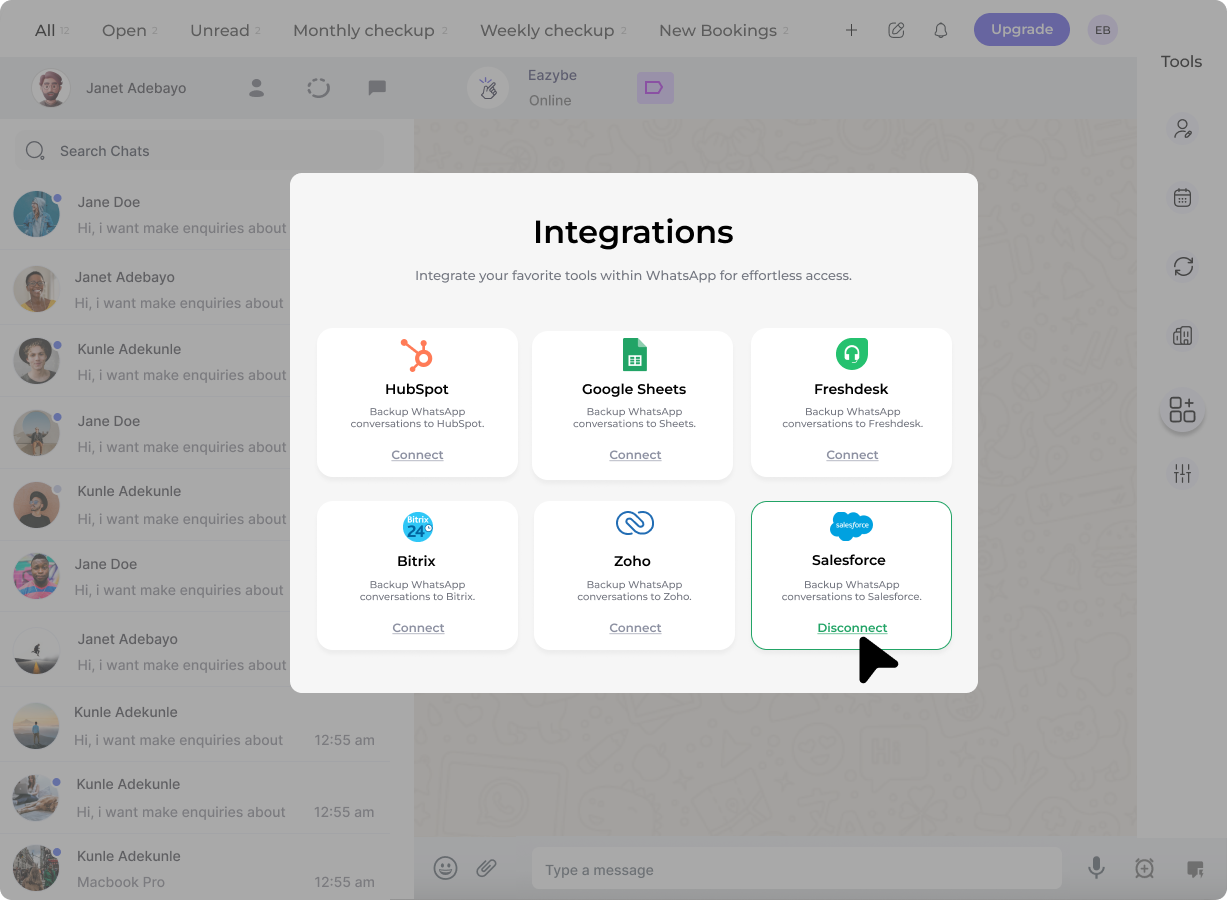
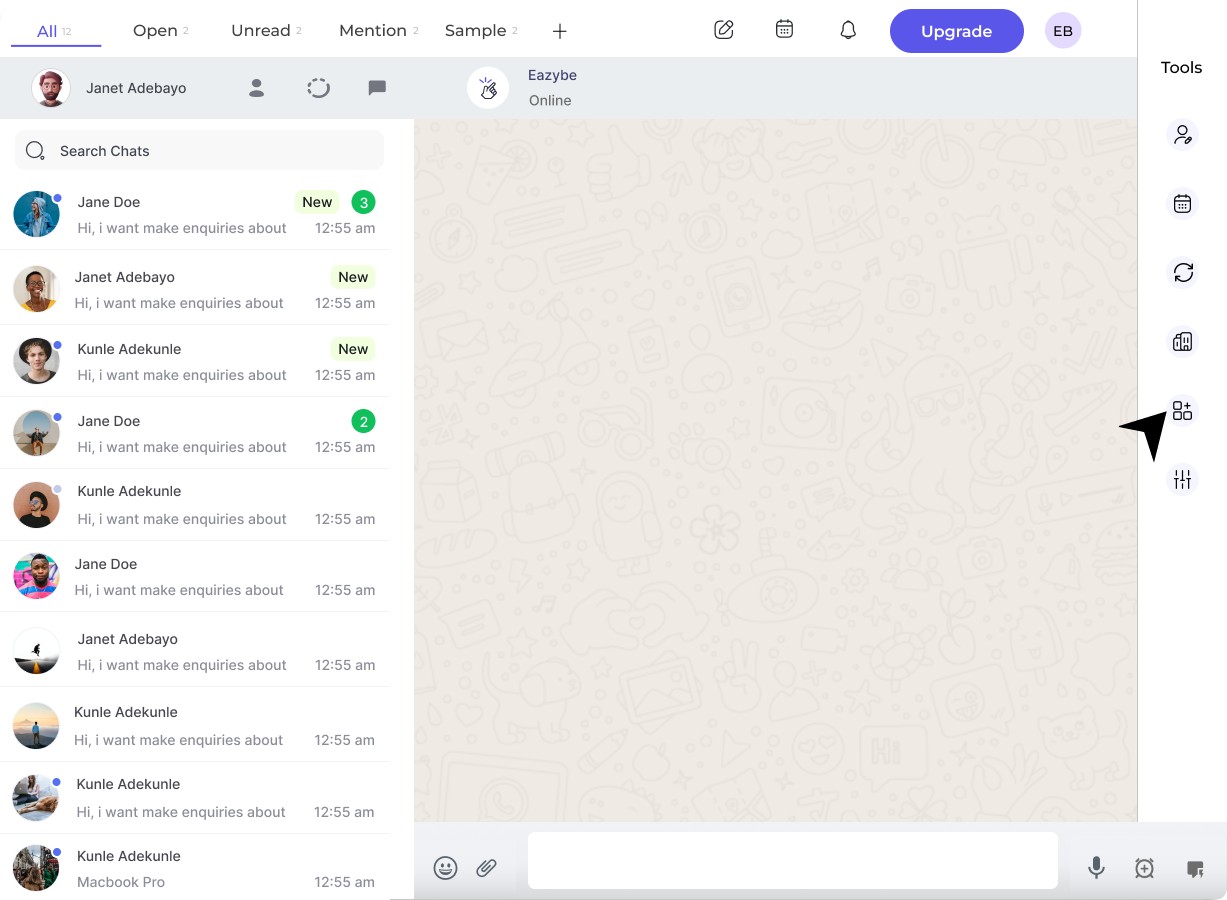 Under the Salesforce section, click the **Disconnect** button.
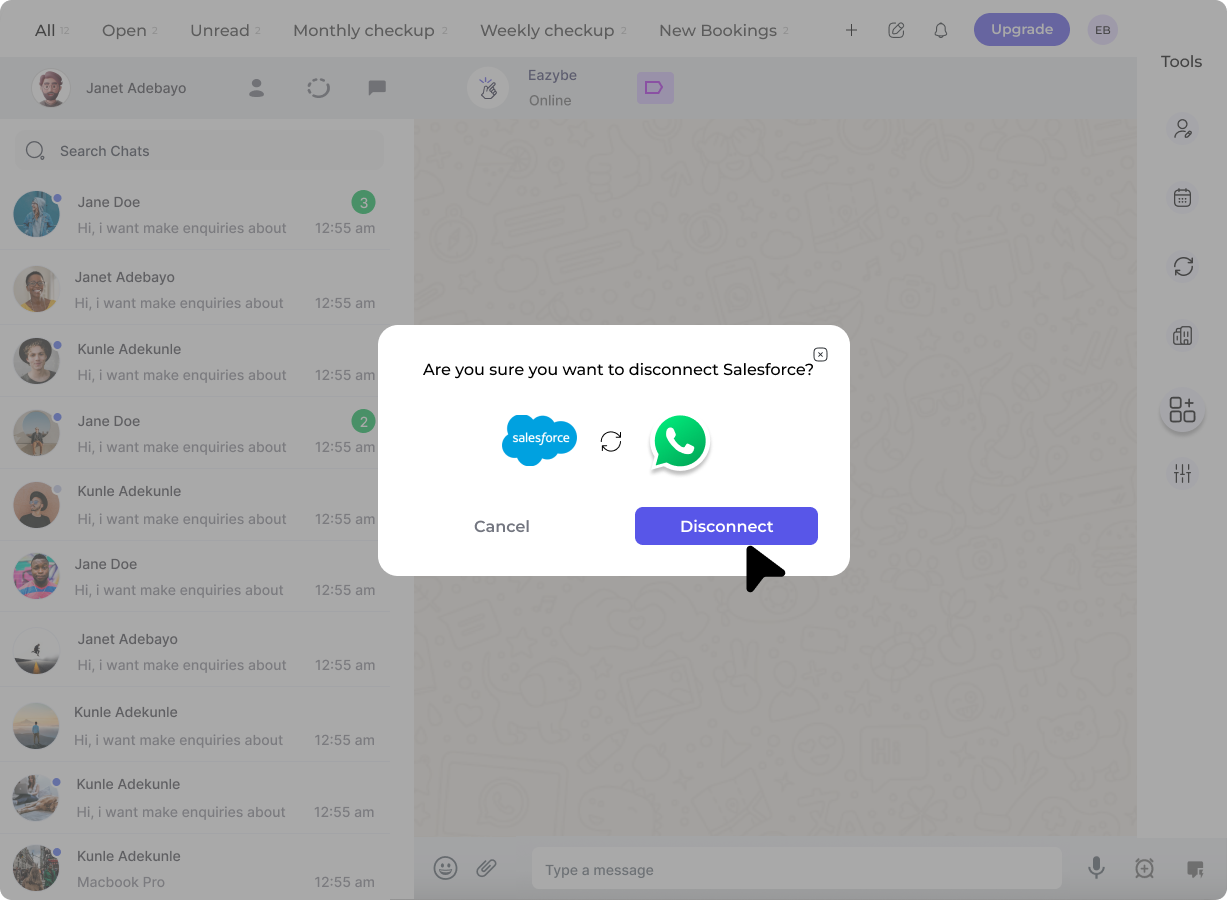
 A confirmation pop-up will appear. Click **Confirm** to complete the disconnection.
 After disconnecting, the Salesforce icon will no longer display in the extension's sidebar.
## Method B: Disconnect via EazyBe Workspace
Click the **Organisation** button in the right sidebar of your EazyBe workspace.
After disconnecting, the Salesforce icon will no longer display in the extension's sidebar.
## Method B: Disconnect via EazyBe Workspace
Click the **Organisation** button in the right sidebar of your EazyBe workspace.
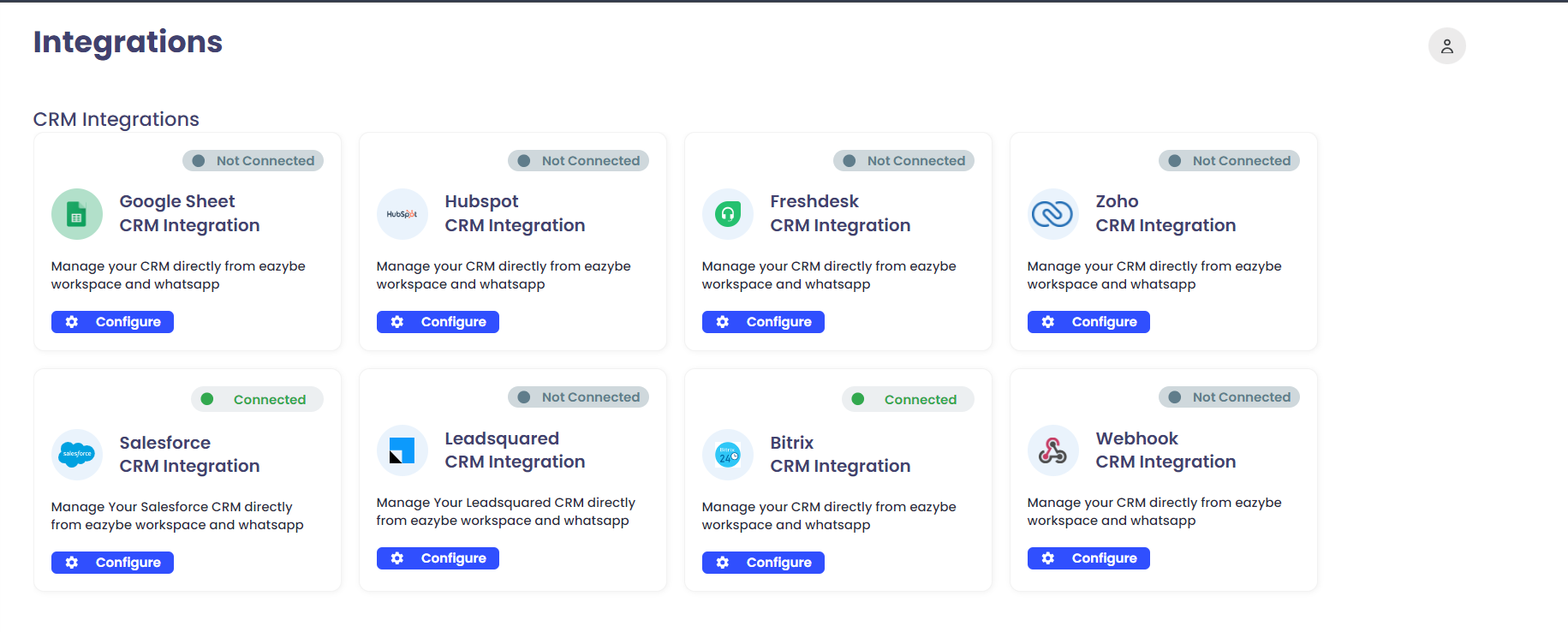 In the left sidebar, navigate to **Integrations** and click **Configure** under the "Salesforce CRM integration" section.
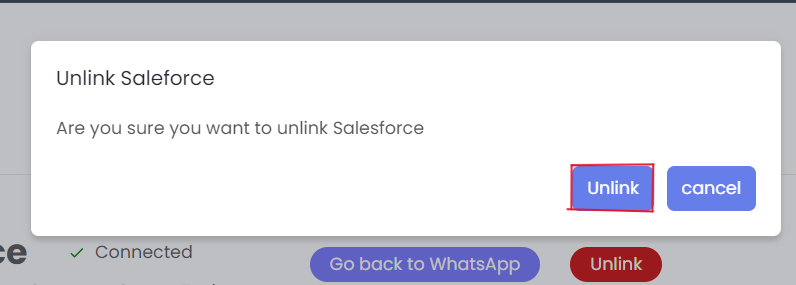
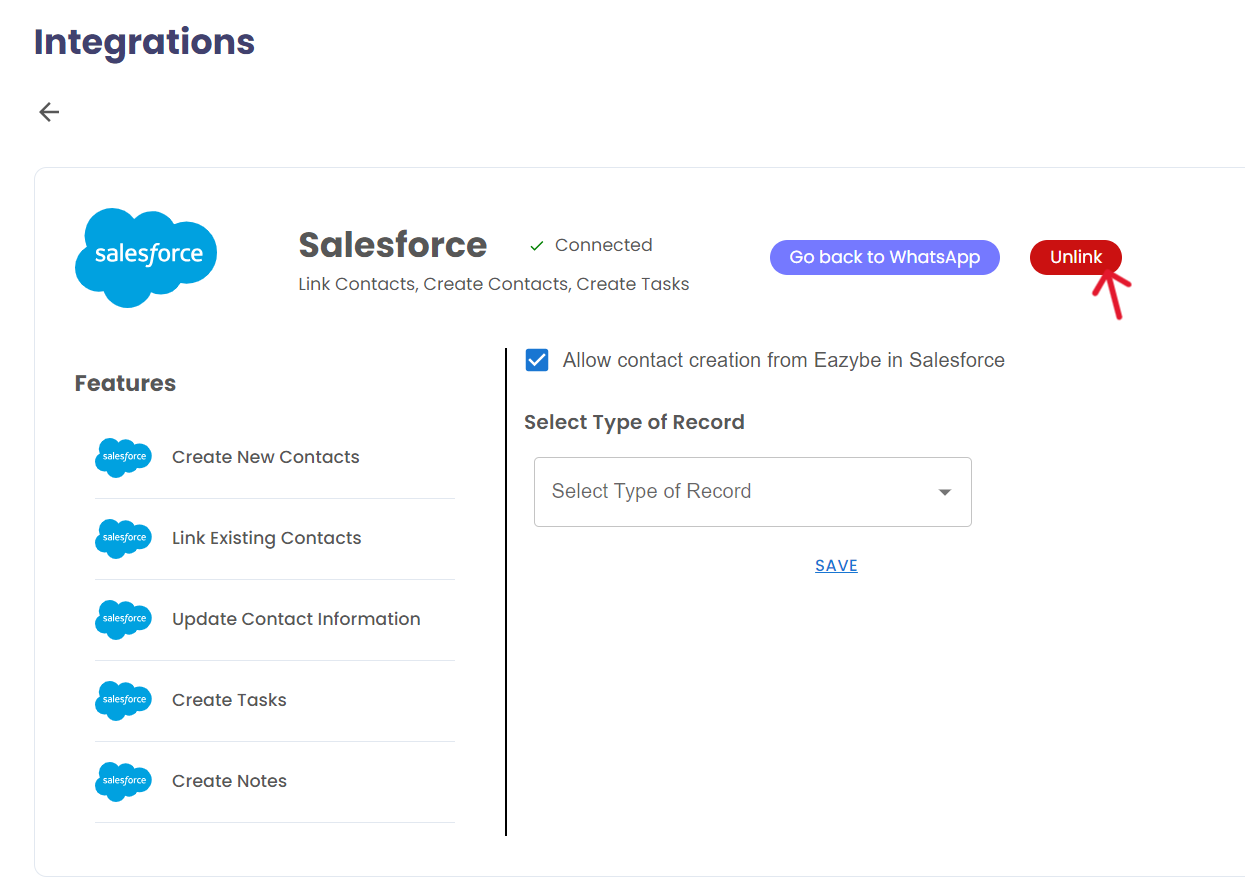 Click the red **Unlink** button and confirm the disconnection in the final pop-up.
 Disconnecting will stop syncing your WhatsApp conversations with Salesforce. You can reconnect at any time by following the setup guide.
## Need Help?
If you have any questions or need assistance, contact our support team at **[hey@eazybe.com](mailto:hey@eazybe.com)**.
Disconnecting will stop syncing your WhatsApp conversations with Salesforce. You can reconnect at any time by following the setup guide.
## Need Help?
If you have any questions or need assistance, contact our support team at **[hey@eazybe.com](mailto:hey@eazybe.com)**.