> ## Documentation Index
> Fetch the complete documentation index at: https://help.eazybe.com/llms.txt
> Use this file to discover all available pages before exploring further.
# Prerequisites
> Pre-requisites to connect Pipedrive with WhatsApp using Eazybe extension
## Overview
Integrating Pipedrive with your Eazybe WhatsApp extension is simple and quick. Before you begin, ensure you meet the following prerequisites for a smooth setup process.
Meeting all prerequisites ensures a seamless integration experience and
prevents common setup issues.
***
## Requirements Checklist
Ensure your Pipedrive account is set up and functioning properly. You'll need access to your Pipedrive portal to complete the integration.
Both **free** and **paid** Pipedrive plans support the Eazybe integration.
Make sure your Eazybe WhatsApp extension is properly installed and connected to WhatsApp Web.
If you haven't installed the extension yet, visit the [Chrome Web Store](https://chromewebstore.google.com/detail/whatsapp-ai-agents-with-c/clgficggccelgifppbcaepjdkklfcefd) to download it.
You'll need your Pipedrive Company Domain for the integration.
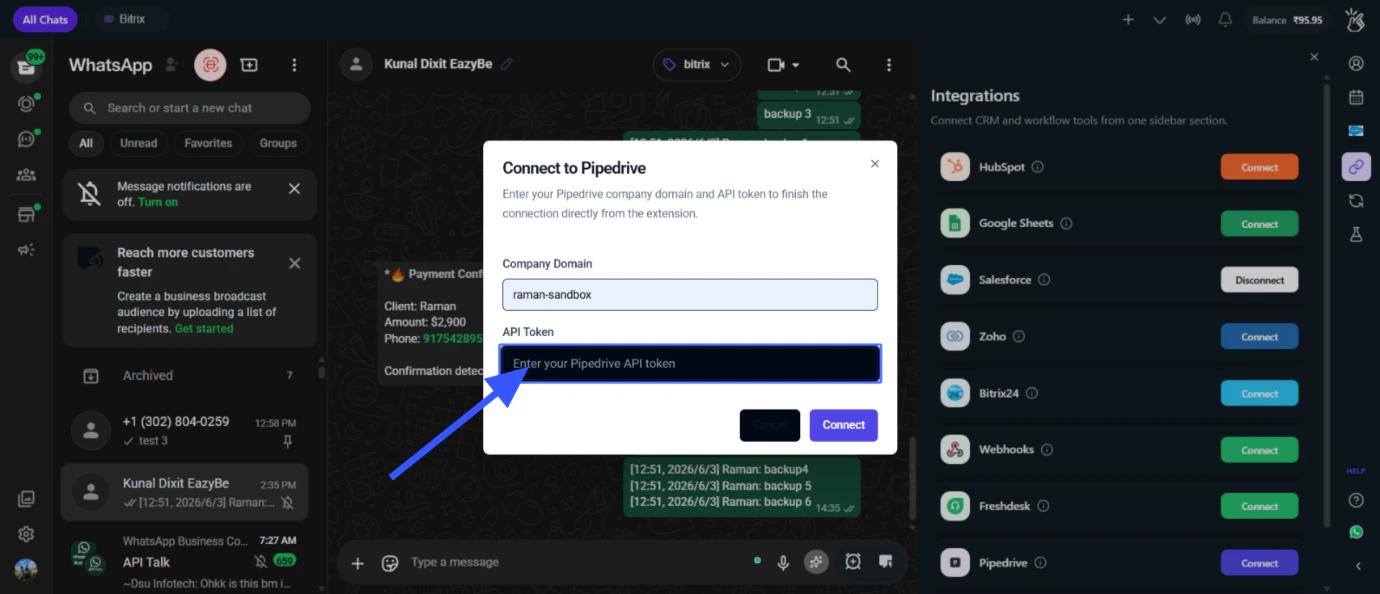 This is the subdomain in your Pipedrive URL. When you're logged into Pipedrive, look at the address bar — it'll read something like:
`https://yourcompany.pipedrive.com`
The part before **.pipedrive.com** is your Company Domain.
You'll need your Pipedrive API Token to authorize the connection.
To get your API Token:
This is the subdomain in your Pipedrive URL. When you're logged into Pipedrive, look at the address bar — it'll read something like:
`https://yourcompany.pipedrive.com`
The part before **.pipedrive.com** is your Company Domain.
You'll need your Pipedrive API Token to authorize the connection.
To get your API Token:
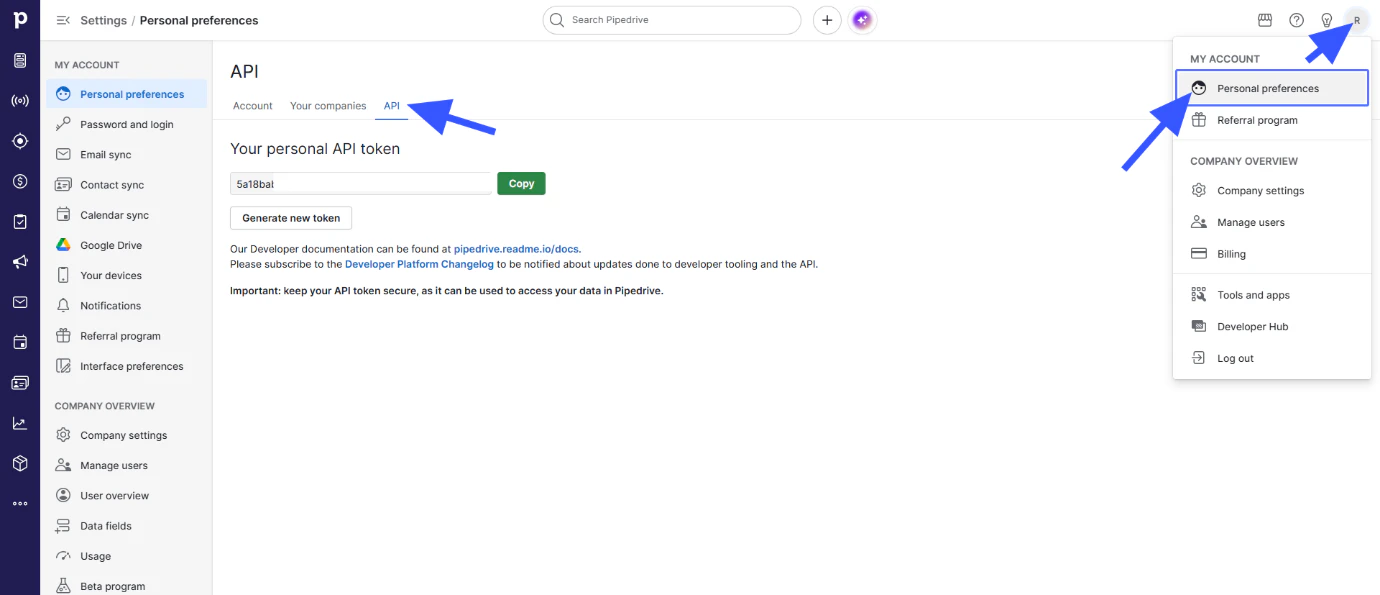 1. Go to your Pipedrive account
2. Click on **Personal Preferences**
3. Click on the **API** tab
4. Copy your existing API Token or generate a new one
***
## Quick Reference
| Requirement | Details |
| --------------------- | --------------------------------------------- |
| **Pipedrive Account** | Active account (free or paid) |
| **Eazybe Extension** | Installed and connected to WhatsApp Web |
| **Company Domain** | Your Pipedrive subdomain |
| **API Token** | Generated from Personal Preferences → API tab |
***
## Next Steps
Follow the step-by-step guide to connect Pipedrive with Eazybe.
Learn how to use the Pipedrive Mini CRM in WhatsApp.
***
## Need Help?
If you have any questions or need further assistance, reach out to us at
**[hey@eazybe.com](mailto:hey@eazybe.com)**. We're happy to help!
1. Go to your Pipedrive account
2. Click on **Personal Preferences**
3. Click on the **API** tab
4. Copy your existing API Token or generate a new one
***
## Quick Reference
| Requirement | Details |
| --------------------- | --------------------------------------------- |
| **Pipedrive Account** | Active account (free or paid) |
| **Eazybe Extension** | Installed and connected to WhatsApp Web |
| **Company Domain** | Your Pipedrive subdomain |
| **API Token** | Generated from Personal Preferences → API tab |
***
## Next Steps
Follow the step-by-step guide to connect Pipedrive with Eazybe.
Learn how to use the Pipedrive Mini CRM in WhatsApp.
***
## Need Help?
If you have any questions or need further assistance, reach out to us at
**[hey@eazybe.com](mailto:hey@eazybe.com)**. We're happy to help!