> ## Documentation Index
> Fetch the complete documentation index at: https://help.eazybe.com/llms.txt
> Use this file to discover all available pages before exploring further.
# Mini CRM Features
> Learn how to use the Pipedrive Mini CRM to manage contacts, notes, tasks, and deals directly from WhatsApp
## Overview
The Pipedrive Mini CRM allows you to manage your sales activities directly from WhatsApp without switching applications. Create contacts, add notes, manage tasks, and create deals based on your WhatsApp conversations.
Make sure you have [connected your Pipedrive
account](/en/integrations/pipedrive/account-connection) before using these
features.
***
## Opening the Mini CRM
In the Eazybe panel, click on the **Pipedrive logo** to open the Mini CRM sidebar.
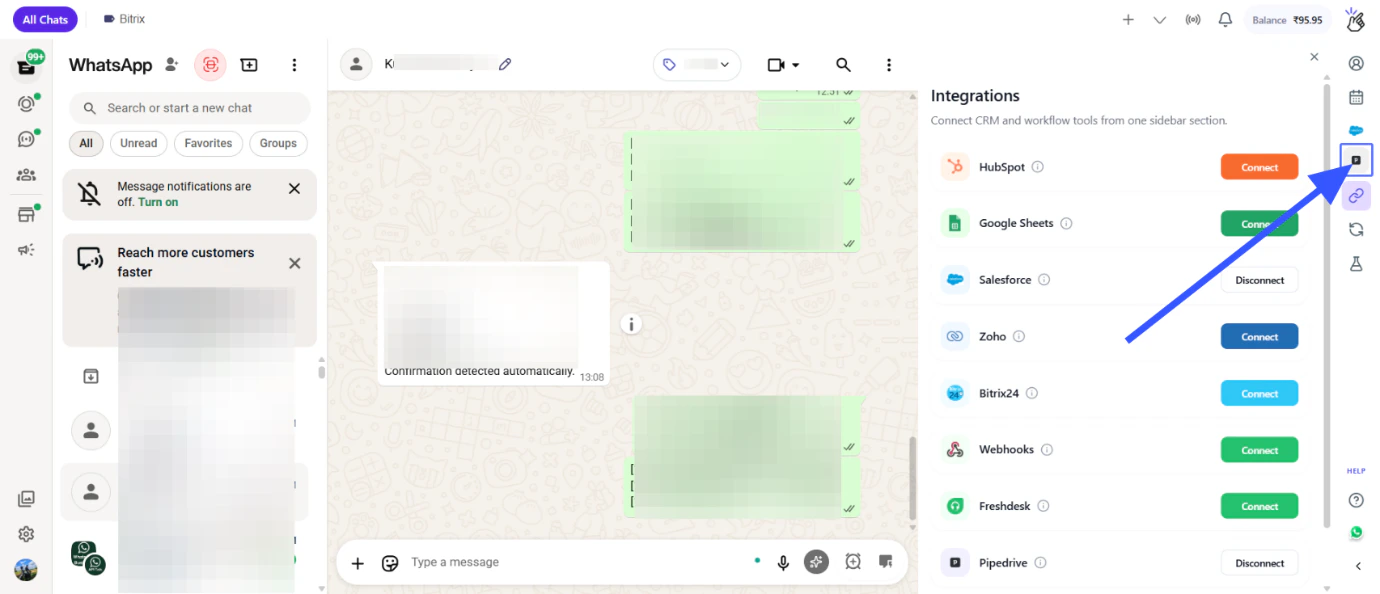 The Mini CRM appears as a sidebar panel within WhatsApp Web, giving you quick access to Pipedrive features.
***
## Mini CRM Features
Under Mini CRM, you can manage your Pipedrive data directly from WhatsApp:
***
## Creating Contacts
Select the chat for which you want to create a contact in Pipedrive.
Click on the Pipedrive logo to open the Mini CRM.
Under Mini CRM, click on **Create Contact**.
The Mini CRM appears as a sidebar panel within WhatsApp Web, giving you quick access to Pipedrive features.
***
## Mini CRM Features
Under Mini CRM, you can manage your Pipedrive data directly from WhatsApp:
***
## Creating Contacts
Select the chat for which you want to create a contact in Pipedrive.
Click on the Pipedrive logo to open the Mini CRM.
Under Mini CRM, click on **Create Contact**.
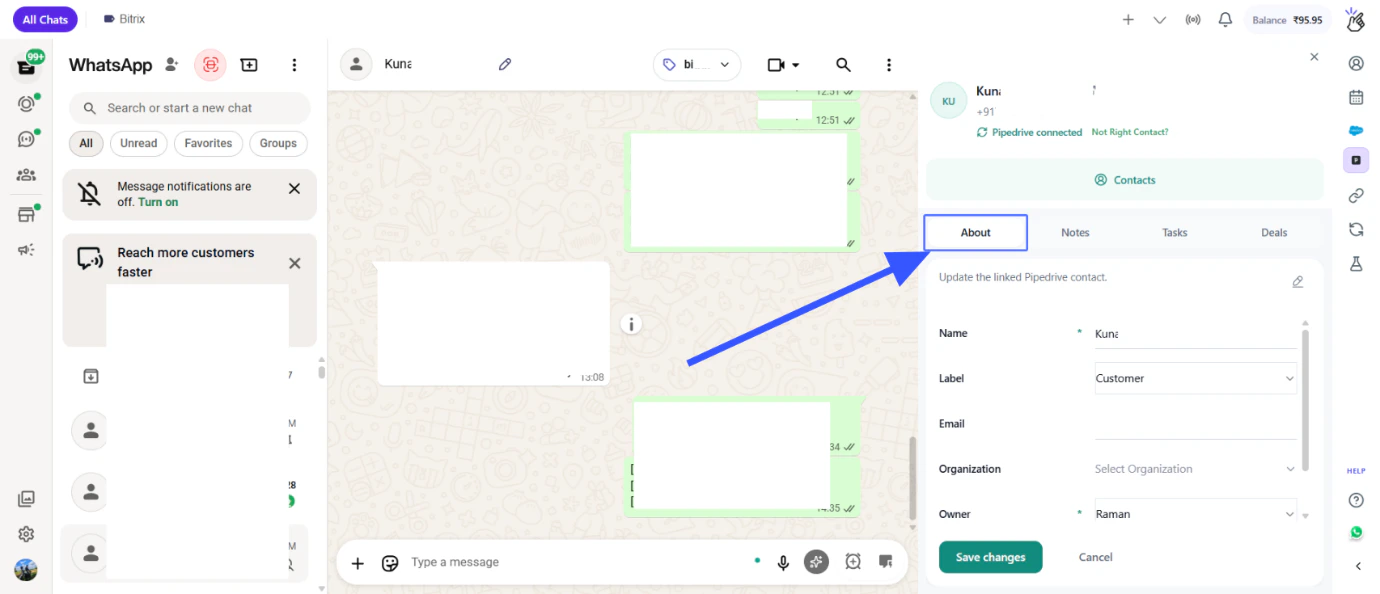 The contact will be created based on the information from the open WhatsApp chat.
***
## Adding Notes and Creating Tasks
Select the chat for which you want to add a note or create a task.
Click on the Pipedrive logo to open the Mini CRM.
Under Mini CRM, you can add notes and create tasks based on your WhatsApp conversations.
Add important details from your WhatsApp conversation to keep your Pipedrive records updated.
***
## Creating Deals
Select the chat for which you want to create a deal.
Click on the Pipedrive logo to open the Mini CRM.
Under Mini CRM, click on **Deals** and create a new deal.
The deal will be associated with the contact from your open WhatsApp chat.
***
## Chat Backup View
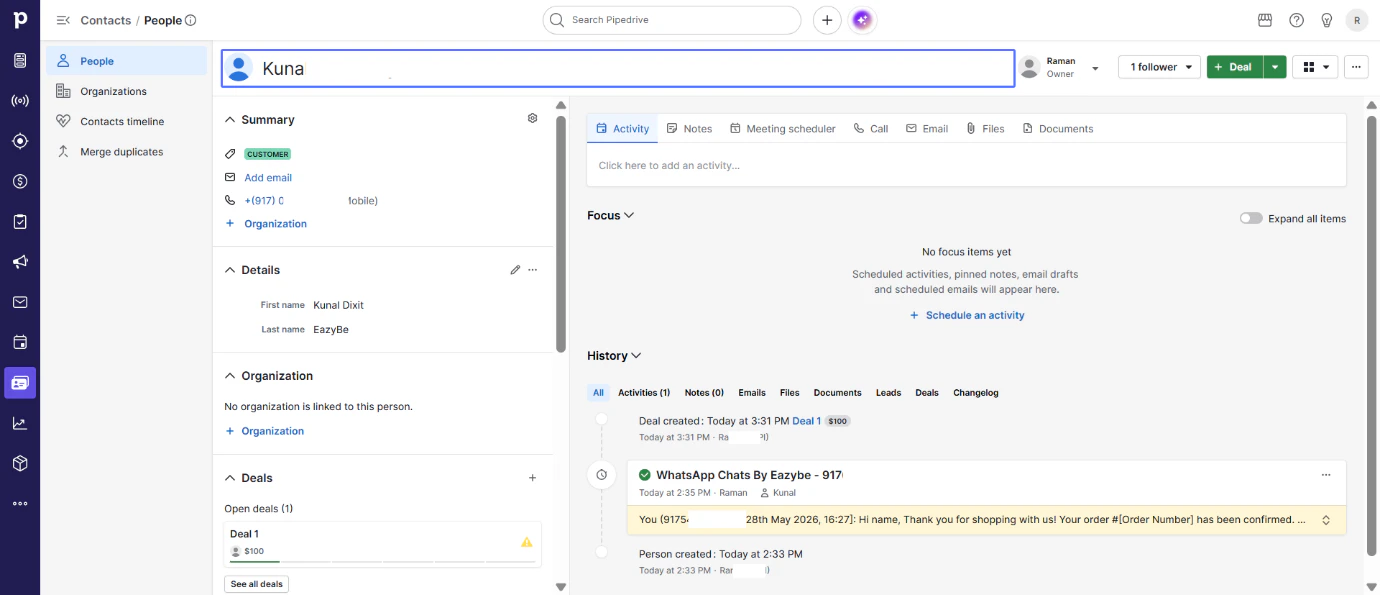
Under Pipedrive contact view, access the **Chat Backup** view to see all WhatsApp conversations associated with contacts.
The contact will be created based on the information from the open WhatsApp chat.
***
## Adding Notes and Creating Tasks
Select the chat for which you want to add a note or create a task.
Click on the Pipedrive logo to open the Mini CRM.
Under Mini CRM, you can add notes and create tasks based on your WhatsApp conversations.
Add important details from your WhatsApp conversation to keep your Pipedrive records updated.
***
## Creating Deals
Select the chat for which you want to create a deal.
Click on the Pipedrive logo to open the Mini CRM.
Under Mini CRM, click on **Deals** and create a new deal.
The deal will be associated with the contact from your open WhatsApp chat.
***
## Chat Backup View
Under Pipedrive contact view, access the **Chat Backup** view to see all WhatsApp conversations associated with contacts.
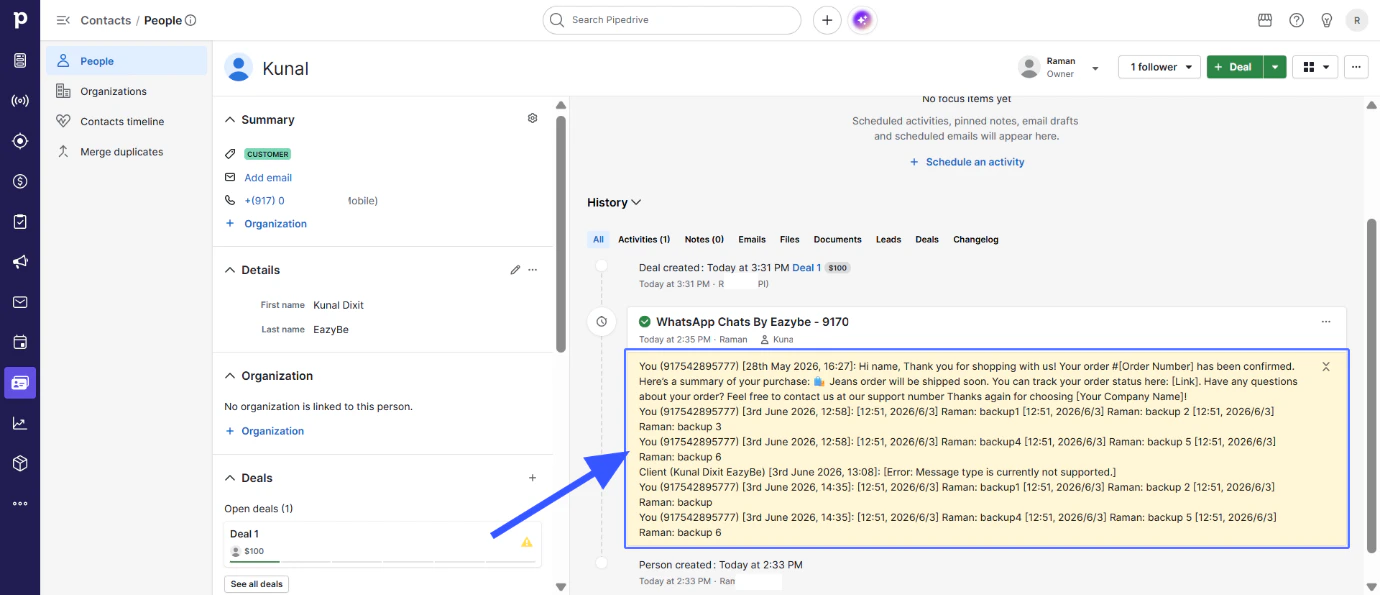 Chat backup allows you to review conversation history directly within the contact view.
***
## One-Click Contact Redirect
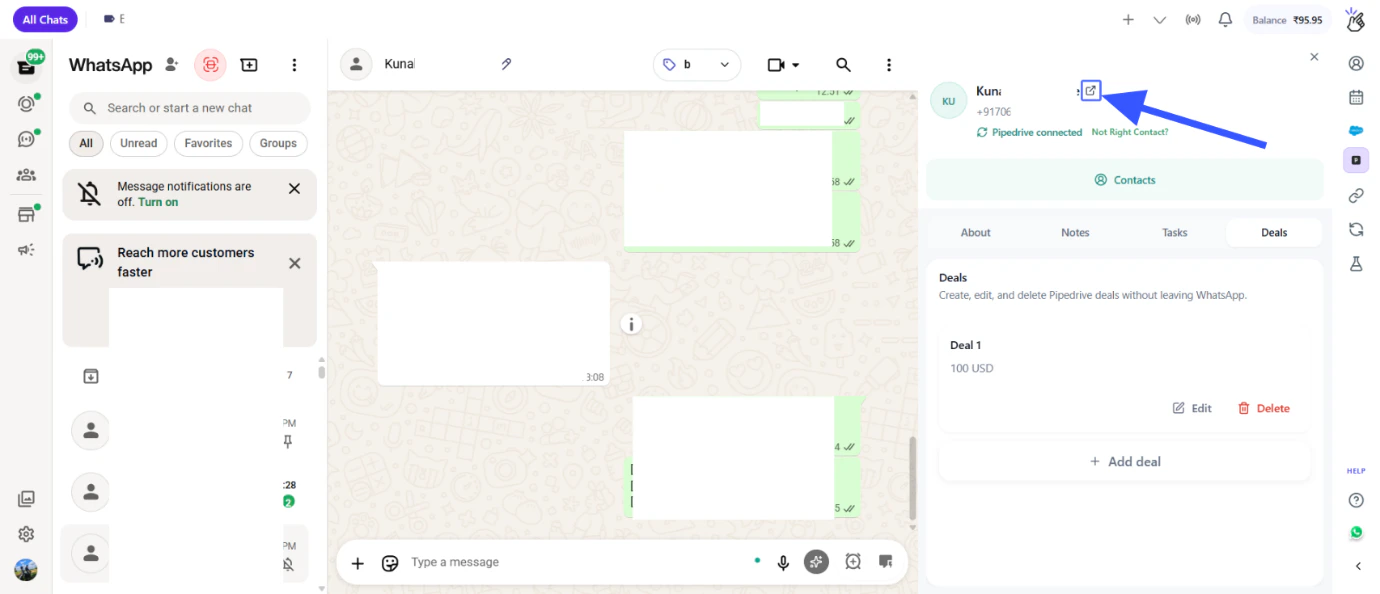
Use the **One Click Contact Redirect** button to directly open the contact's Pipedrive page. This is useful when you need to view complete contact details or history in Pipedrive.
Chat backup allows you to review conversation history directly within the contact view.
***
## One-Click Contact Redirect
Use the **One Click Contact Redirect** button to directly open the contact's Pipedrive page. This is useful when you need to view complete contact details or history in Pipedrive.
 ***
## Quick Reference
| Feature | Description |
| -------------------- | ----------------------------------------- |
| **Create Contact** | Add WhatsApp contacts to Pipedrive |
| **Notes** | Add notes to contacts from conversations |
| **Tasks** | Create and manage tasks for follow-ups |
| **Deals** | Create deals based on sales conversations |
| **Contact Redirect** | Open contact's full Pipedrive page |
| **Chat Backup** | View WhatsApp chat history in contacts |
***
## Next Steps
Learn how to connect Pipedrive with Eazybe.
Learn how to disconnect the Pipedrive integration.
***
## Need Help?
If you have any questions or need further assistance, reach out to us at
**[hey@eazybe.com](mailto:hey@eazybe.com)**. We're happy to help!
***
## Quick Reference
| Feature | Description |
| -------------------- | ----------------------------------------- |
| **Create Contact** | Add WhatsApp contacts to Pipedrive |
| **Notes** | Add notes to contacts from conversations |
| **Tasks** | Create and manage tasks for follow-ups |
| **Deals** | Create deals based on sales conversations |
| **Contact Redirect** | Open contact's full Pipedrive page |
| **Chat Backup** | View WhatsApp chat history in contacts |
***
## Next Steps
Learn how to connect Pipedrive with Eazybe.
Learn how to disconnect the Pipedrive integration.
***
## Need Help?
If you have any questions or need further assistance, reach out to us at
**[hey@eazybe.com](mailto:hey@eazybe.com)**. We're happy to help!