> ## Documentation Index
> Fetch the complete documentation index at: https://help.eazybe.com/llms.txt
> Use this file to discover all available pages before exploring further.
# Account Connection
> Learn how to install and connect Eazybe with your Pipedrive account for seamless WhatsApp integration
## Overview
Connecting Eazybe to your Pipedrive account enables powerful WhatsApp integration, allowing you to manage conversations, sync contacts, and streamline your sales workflow directly from Pipedrive.
Before proceeding, ensure you have completed all the
[prerequisites](/en/integrations/pipedrive/prerequisites) for the Pipedrive
integration.
***
## Step-by-Step Guide
Open WhatsApp Web and ensure the Eazybe extension is installed and active.
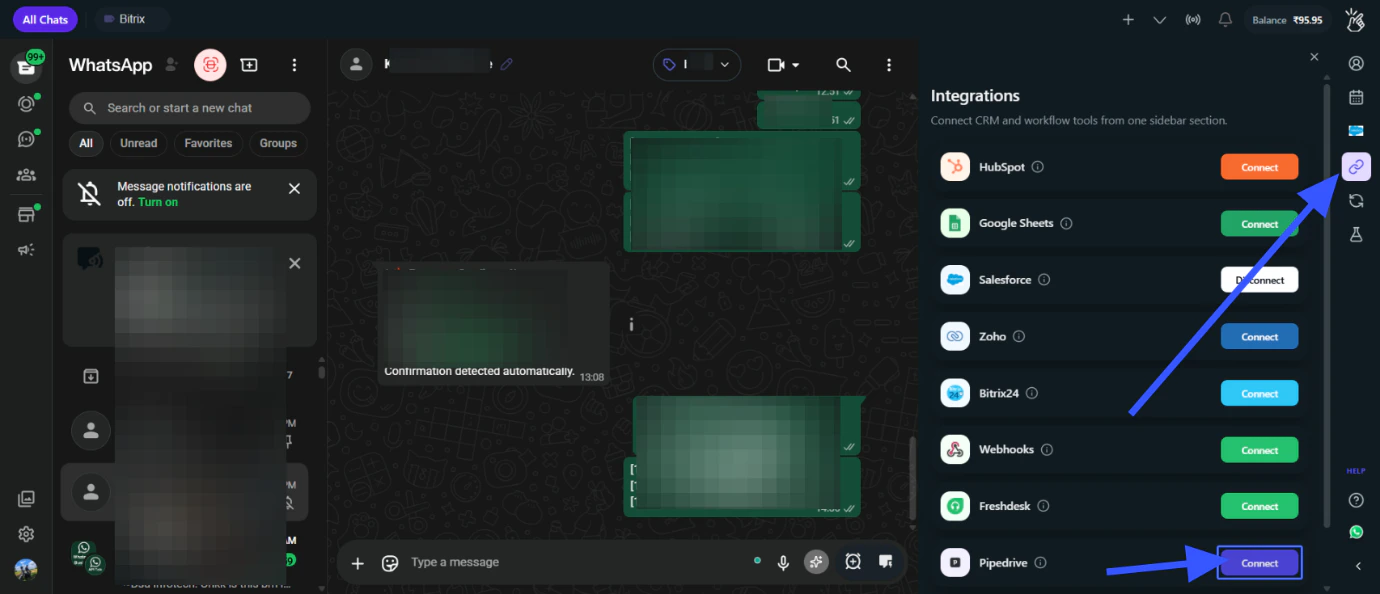
Click on the **CRM/Integrations** button in the Eazybe panel.
Navigate to **Pipedrive** from the available CRM options and click on
**Connect**.
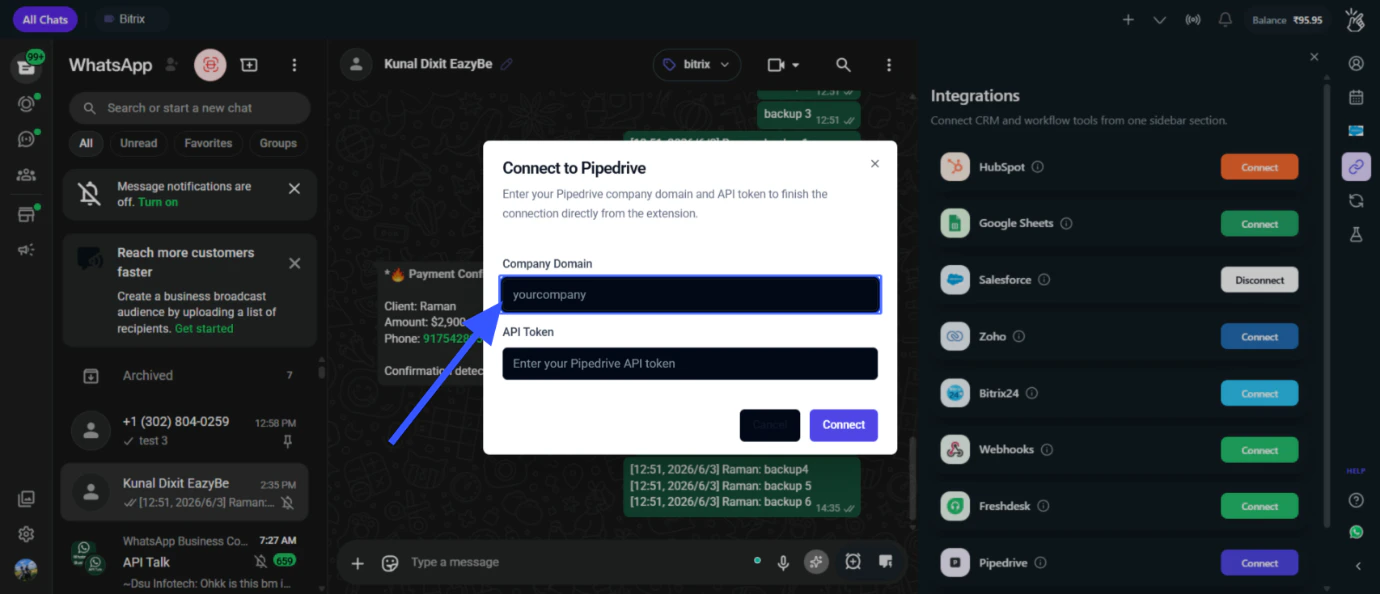
 Enter your Pipedrive Company Domain.
Your Company Domain is the subdomain in your Pipedrive URL (e.g., `yourcompany` from `https://yourcompany.pipedrive.com`)
Enter your Pipedrive Company Domain.
Your Company Domain is the subdomain in your Pipedrive URL (e.g., `yourcompany` from `https://yourcompany.pipedrive.com`)
 Paste your Pipedrive API Token and click on **Connect**.
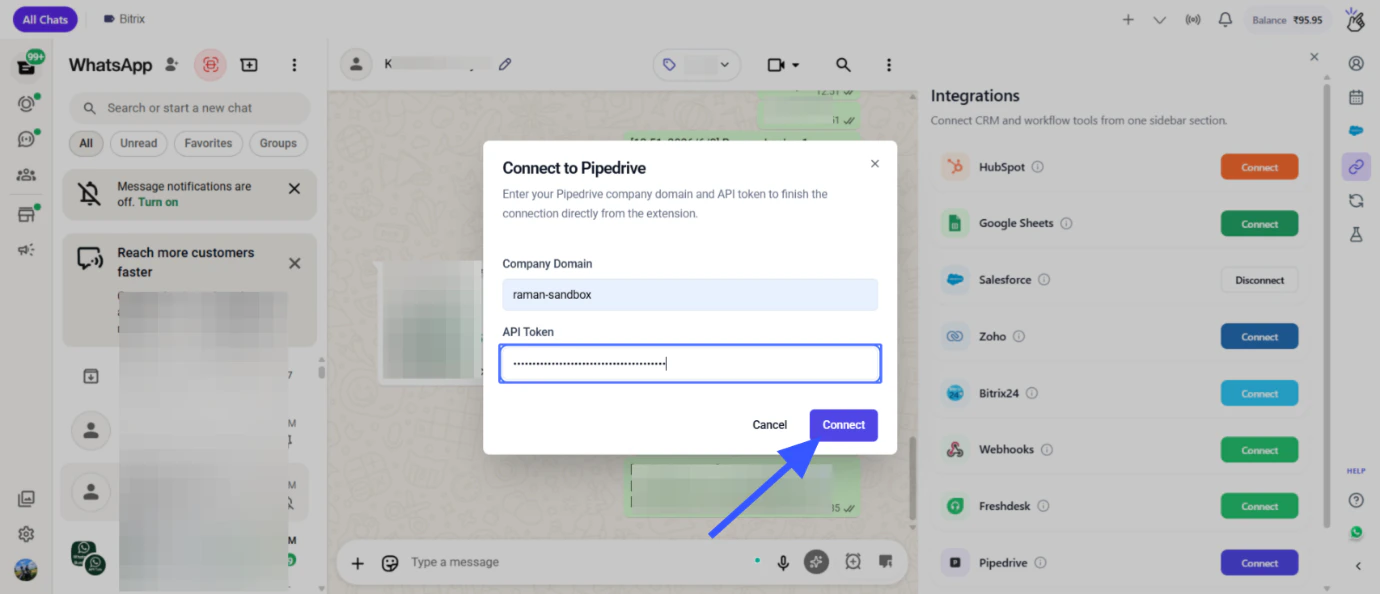 If you haven't generated your API Token yet, go to Pipedrive → Personal Preferences → API tab → Generate new token
Once connected, you'll see the Pipedrive integration active in your Eazybe panel.
Your Pipedrive account is now successfully connected to Eazybe!
***
## Quick Reference
| Step | Action |
| ---- | --------------------------------------- |
| 1 | Open WhatsApp Web with Eazybe Extension |
| 2 | Click CRM/Integrations button |
| 3 | Navigate to Pipedrive and click Connect |
| 4 | Enter your Company Domain |
| 5 | Paste your API Token |
| 6 | Click Connect to verify |
***
## Next Steps
Learn how to use the Pipedrive sidebar panel in WhatsApp.
Learn how to disconnect the Pipedrive integration.
***
## Need Help?
If you have any questions or need further assistance, reach out to us at
**[hey@eazybe.com](mailto:hey@eazybe.com)**. We're happy to help!
If you haven't generated your API Token yet, go to Pipedrive → Personal Preferences → API tab → Generate new token
Once connected, you'll see the Pipedrive integration active in your Eazybe panel.
Your Pipedrive account is now successfully connected to Eazybe!
***
## Quick Reference
| Step | Action |
| ---- | --------------------------------------- |
| 1 | Open WhatsApp Web with Eazybe Extension |
| 2 | Click CRM/Integrations button |
| 3 | Navigate to Pipedrive and click Connect |
| 4 | Enter your Company Domain |
| 5 | Paste your API Token |
| 6 | Click Connect to verify |
***
## Next Steps
Learn how to use the Pipedrive sidebar panel in WhatsApp.
Learn how to disconnect the Pipedrive integration.
***
## Need Help?
If you have any questions or need further assistance, reach out to us at
**[hey@eazybe.com](mailto:hey@eazybe.com)**. We're happy to help!