> ## Documentation Index
> Fetch the complete documentation index at: https://help.eazybe.com/llms.txt
> Use this file to discover all available pages before exploring further.
# Prerequisites for Odoo Integration
> Learn how to generate an API key from your Odoo instance
## Overview
Before connecting Eazybe to Odoo, you need to generate an API key from your Odoo instance. This key will allow Eazybe to securely access your Odoo data.
***
## Requirements
Active Odoo account with administrator or user access
Access to your Odoo instance URL
Permission to generate API keys in Odoo
Eazybe Chrome extension installed
***
## Generating Your Odoo API Key
Log in to your Odoo instance and click on **Settings** in the top menu.
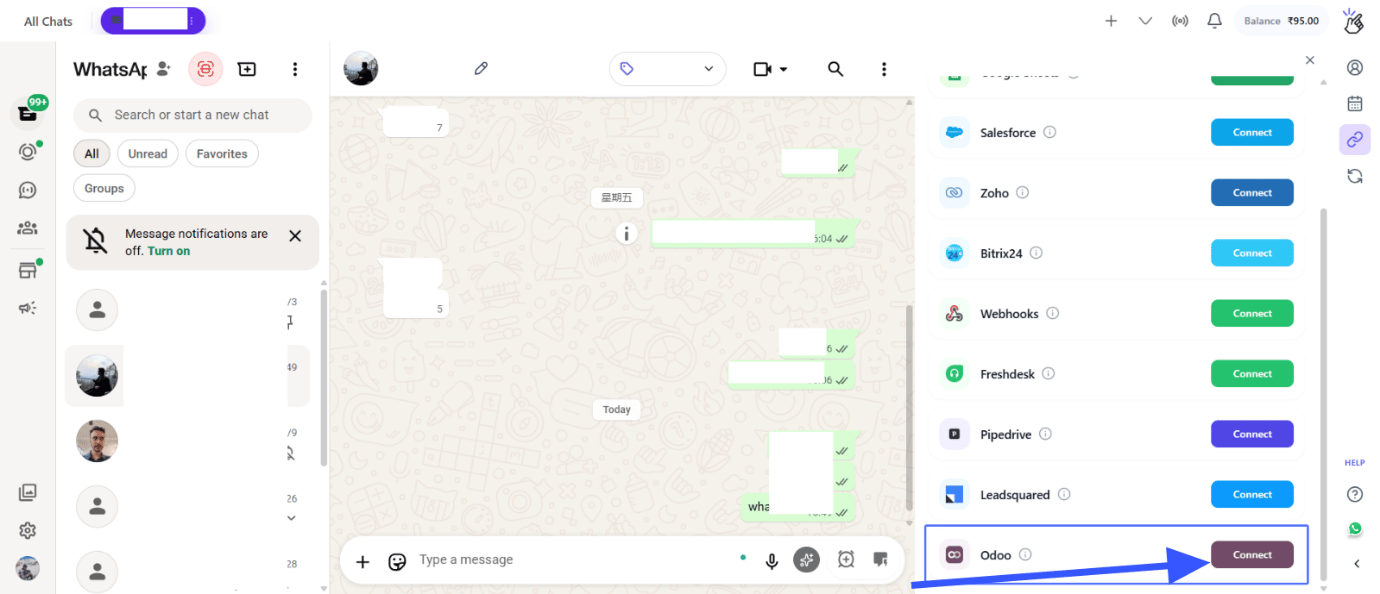 In the Settings menu, navigate to **Users & Companies** and then click on **Users**.
Find and click on your user account from the list.
In the Settings menu, navigate to **Users & Companies** and then click on **Users**.
Find and click on your user account from the list.
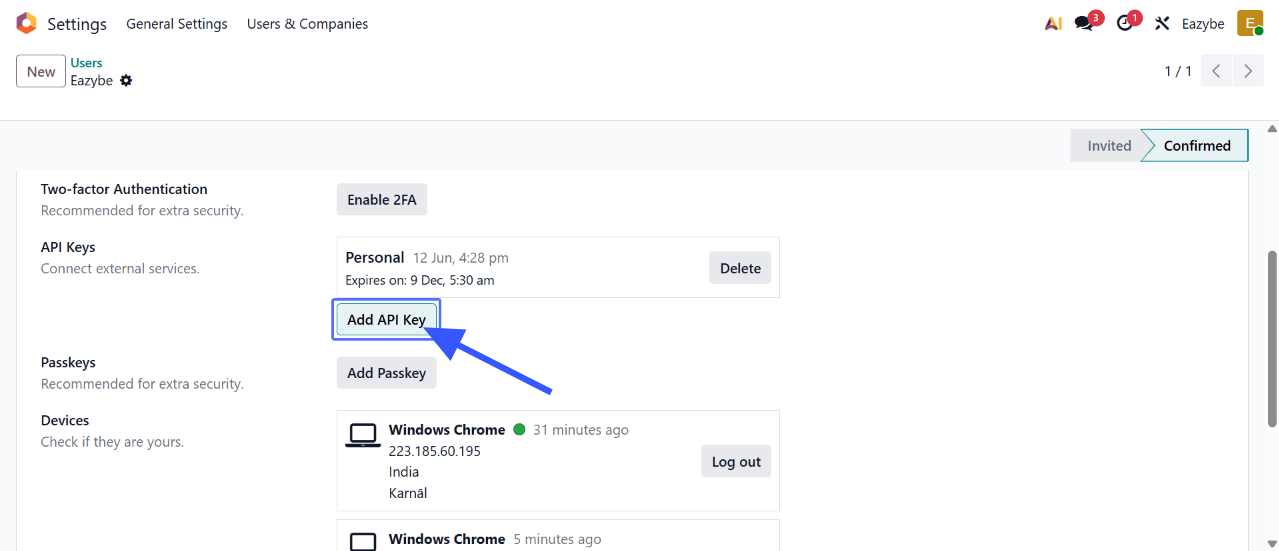 Click on the **Security** tab in the user details page.
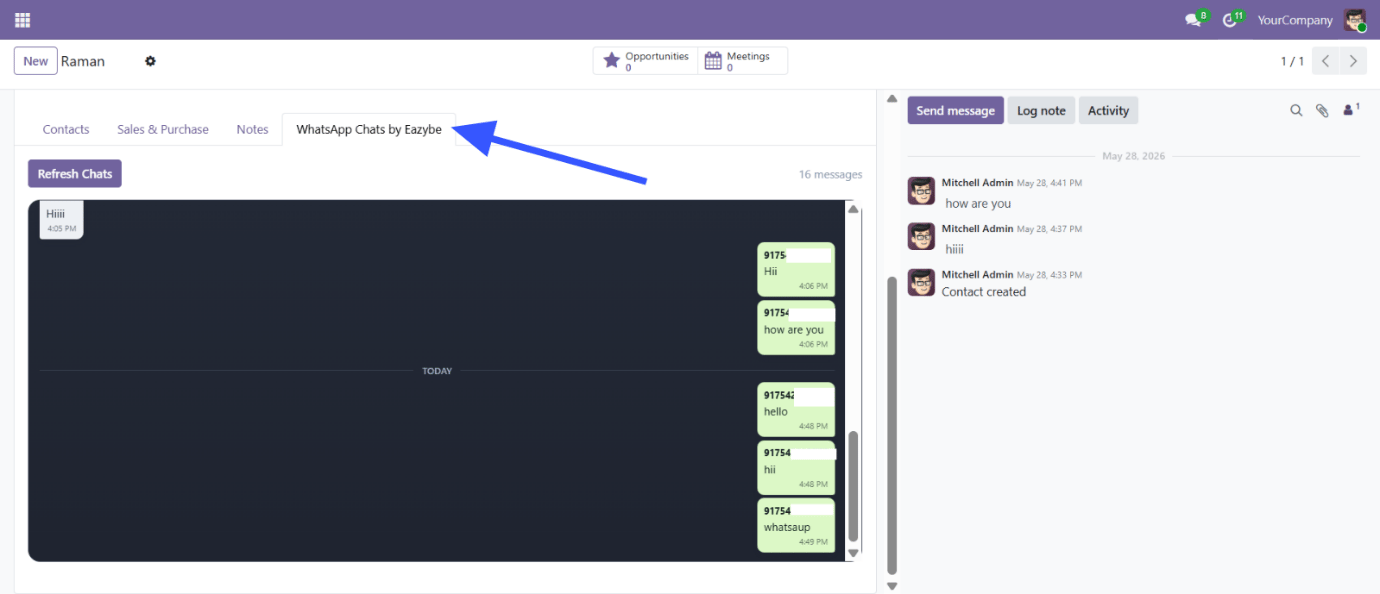 Under the **API Keys** section, click on **Add API Key**.
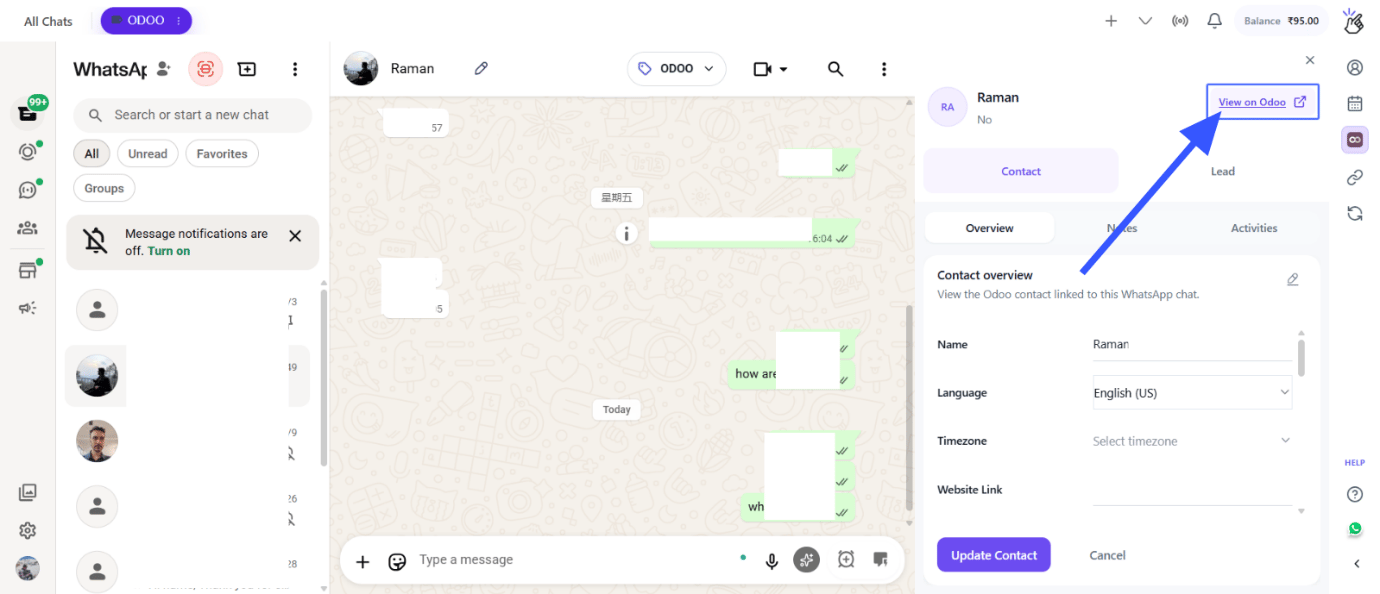 Give your API key a recognizable name like "Eazybe Integration" so you can identify it later.
Click **Generate** to create the key.
Your API key will be displayed. Copy it immediately as you won't be able to see it again.
Keep your API key secure and don't share it with unauthorized users.
***
## What You'll Need for Connection
Once you have your API key, you'll also need:
| Item | Description |
| --------------------- | -------------------------------------------------------------- |
| **Odoo Instance URL** | Your company's Odoo URL (e.g., `https://yourcompany.odoo.com`) |
| **API Key** | The key you just generated |
***
## Next Steps
Now that you have your API key, proceed to [Account Connection](/en/integrations/odoo/account-connection) to complete the setup.
***
## Need Help?
If you have any questions or need further assistance, reach out to us at
**[hey@eazybe.com](mailto:hey@eazybe.com)**. We're happy to help!
Give your API key a recognizable name like "Eazybe Integration" so you can identify it later.
Click **Generate** to create the key.
Your API key will be displayed. Copy it immediately as you won't be able to see it again.
Keep your API key secure and don't share it with unauthorized users.
***
## What You'll Need for Connection
Once you have your API key, you'll also need:
| Item | Description |
| --------------------- | -------------------------------------------------------------- |
| **Odoo Instance URL** | Your company's Odoo URL (e.g., `https://yourcompany.odoo.com`) |
| **API Key** | The key you just generated |
***
## Next Steps
Now that you have your API key, proceed to [Account Connection](/en/integrations/odoo/account-connection) to complete the setup.
***
## Need Help?
If you have any questions or need further assistance, reach out to us at
**[hey@eazybe.com](mailto:hey@eazybe.com)**. We're happy to help!