> ## Documentation Index
> Fetch the complete documentation index at: https://help.eazybe.com/llms.txt
> Use this file to discover all available pages before exploring further.
# Odoo Mini CRM
> Learn how to use the Odoo Mini CRM features in WhatsApp
## Overview
The Odoo Mini CRM allows you to manage your CRM data directly from WhatsApp without switching applications. Create contacts, add leads, attach notes, and sync conversations to your Odoo instance.
***
## Opening the Mini CRM
Open any WhatsApp chat that you want to associate with an Odoo contact.
In the Eazybe panel, click on the **Odoo** icon to open the Mini CRM view.
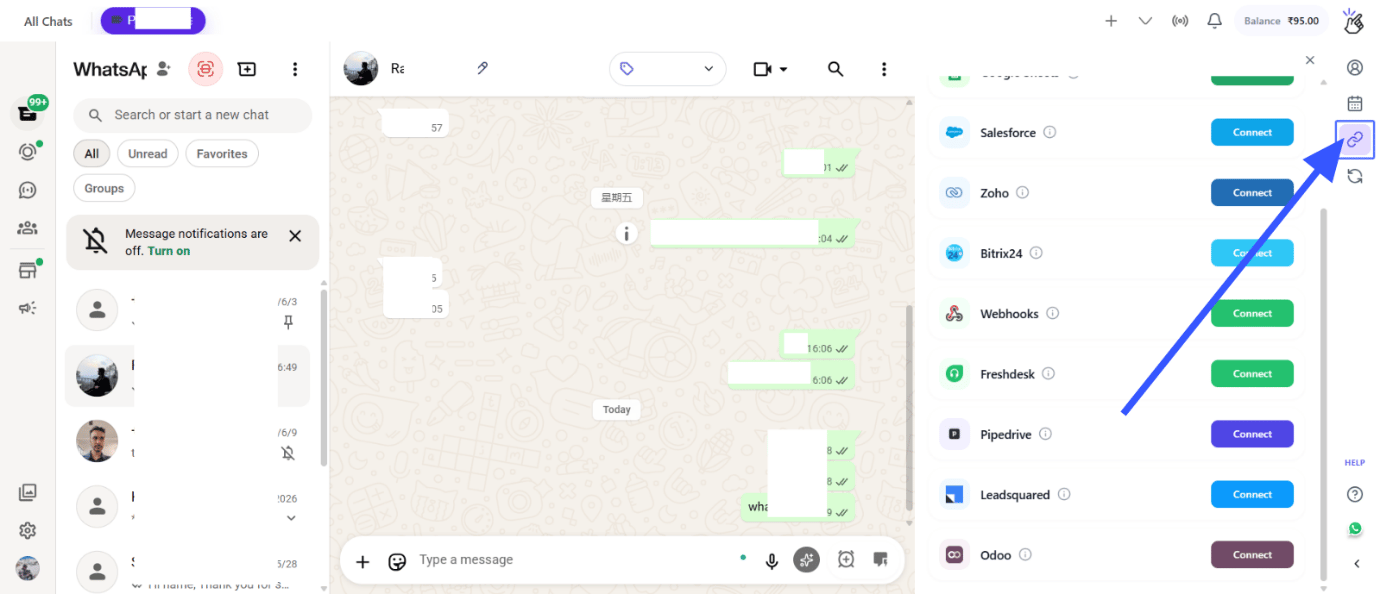 The Mini CRM panel will open showing the associated Odoo contact information (if already linked).
***
## Creating Contacts and Leads
### Creating a New Contact
In the Mini CRM panel, click on the **Create Contact** button.
Enter the contact information:
The Mini CRM panel will open showing the associated Odoo contact information (if already linked).
***
## Creating Contacts and Leads
### Creating a New Contact
In the Mini CRM panel, click on the **Create Contact** button.
Enter the contact information:
- Name
- Email
- Phone
- Company
- Any other relevant fields
Click **Save** to create the contact in Odoo.
The contact will be created in your Odoo CRM and linked to this WhatsApp conversation.
### Creating a Lead
In the Mini CRM panel, click on the **Create Lead** button.
Enter the lead information including:
- Lead title
- Contact person
- Expected revenue
- Probability
- Expected closing date
Click **Save** to create the lead in Odoo.
***
## Adding Notes
In the Mini CRM panel, navigate to the Notes section.
Click **Add Note** and enter your note content.
Click **Save** to attach the note to the contact in Odoo.
Use notes to track important conversation details, follow-up reminders, or customer preferences.
***
## Customizing Properties
Click the **Edit Properties** button to customize which fields are displayed in the Mini CRM view.
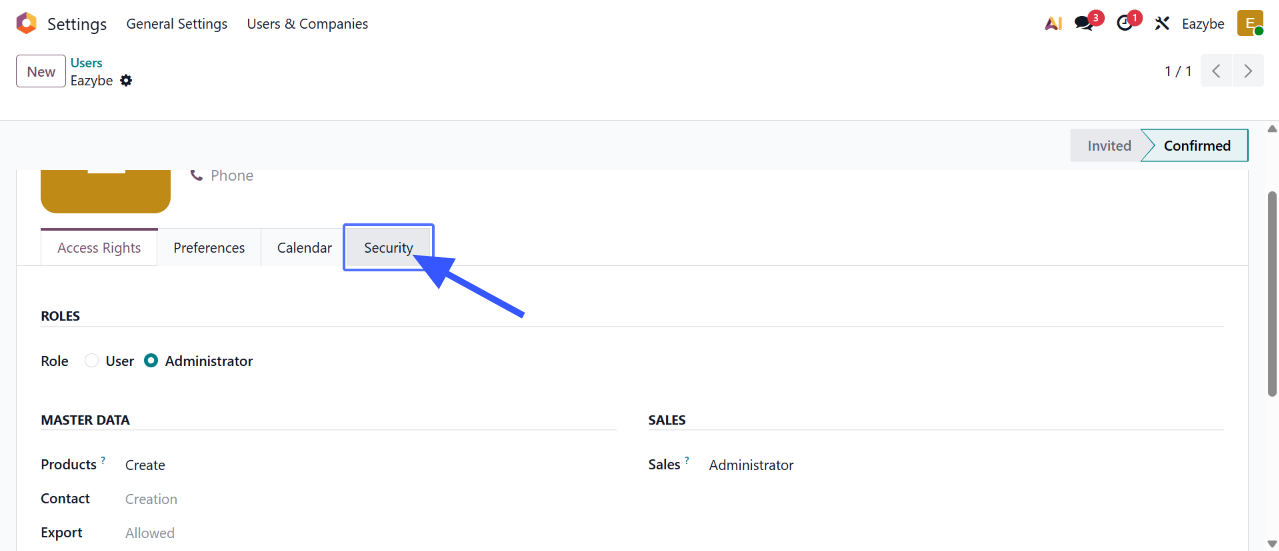 Choose which Odoo properties you want to see in the Mini CRM panel.
Click **Save** to apply your property customizations.
***
## Chat Backup with Label-Based Sync
You can control which WhatsApp conversations are backed up to Odoo using labels.
In the Eazybe panel, click on the **Sync** button to open sync settings.
Choose which Odoo properties you want to see in the Mini CRM panel.
Click **Save** to apply your property customizations.
***
## Chat Backup with Label-Based Sync
You can control which WhatsApp conversations are backed up to Odoo using labels.
In the Eazybe panel, click on the **Sync** button to open sync settings.
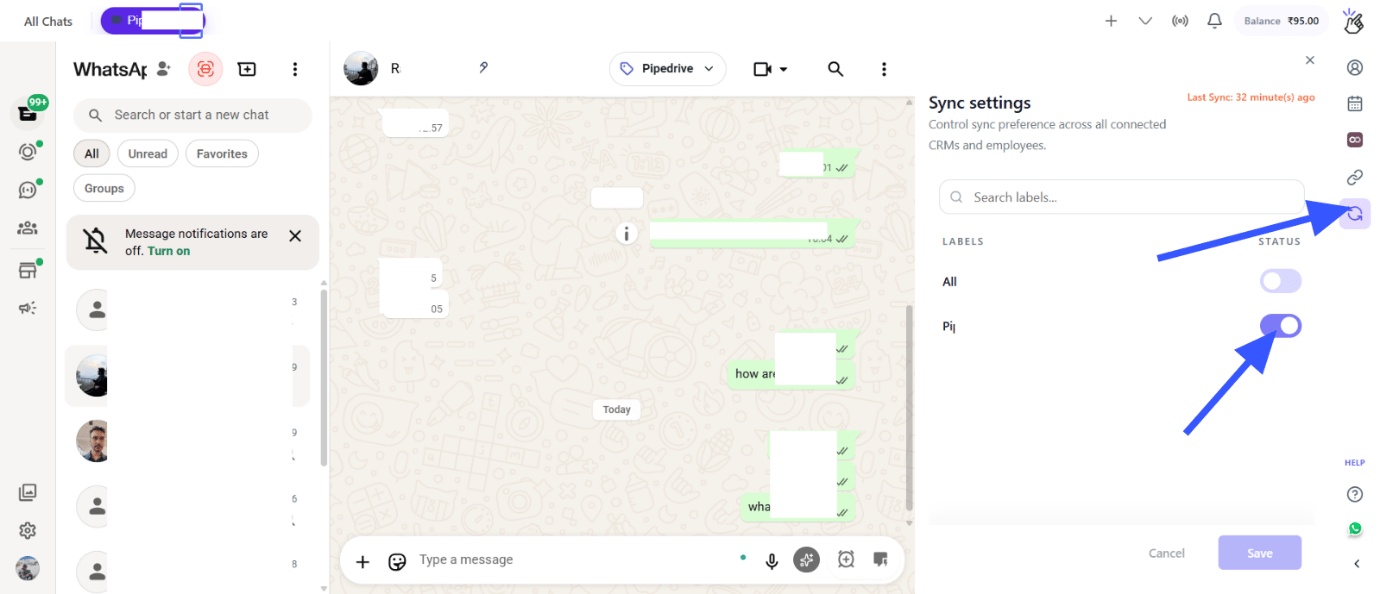 Turn on the label-based sync option to filter which contacts get backed up.
Choose the WhatsApp labels that you want to include in the sync. Only contacts with these labels will have their chats backed up to Odoo.
This helps you backup only relevant business conversations and exclude personal chats.
***
## Viewing in Odoo
In the Mini CRM panel, click the **View on Odoo** button.
Turn on the label-based sync option to filter which contacts get backed up.
Choose the WhatsApp labels that you want to include in the sync. Only contacts with these labels will have their chats backed up to Odoo.
This helps you backup only relevant business conversations and exclude personal chats.
***
## Viewing in Odoo
In the Mini CRM panel, click the **View on Odoo** button.
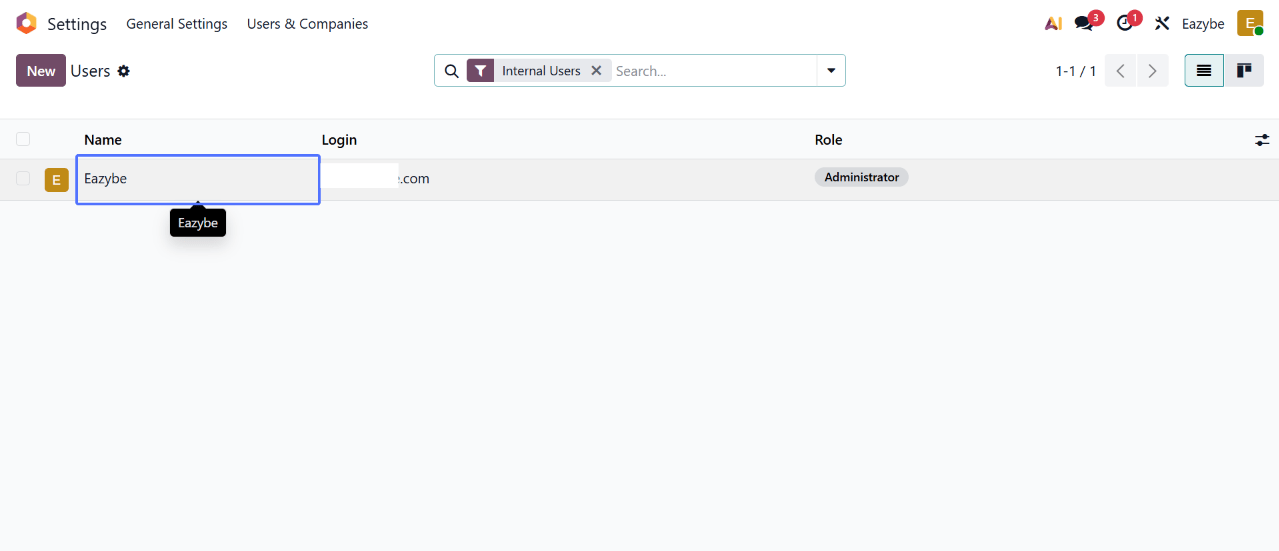 The contact's profile page will open directly in your Odoo instance in a new browser tab.
***
## Viewing All Chat Backups in Odoo
To see all your WhatsApp conversations that have been backed up to Odoo:
In your Odoo instance, look for the **WhatsApp Chats by Eazybe** menu item.
The contact's profile page will open directly in your Odoo instance in a new browser tab.
***
## Viewing All Chat Backups in Odoo
To see all your WhatsApp conversations that have been backed up to Odoo:
In your Odoo instance, look for the **WhatsApp Chats by Eazybe** menu item.
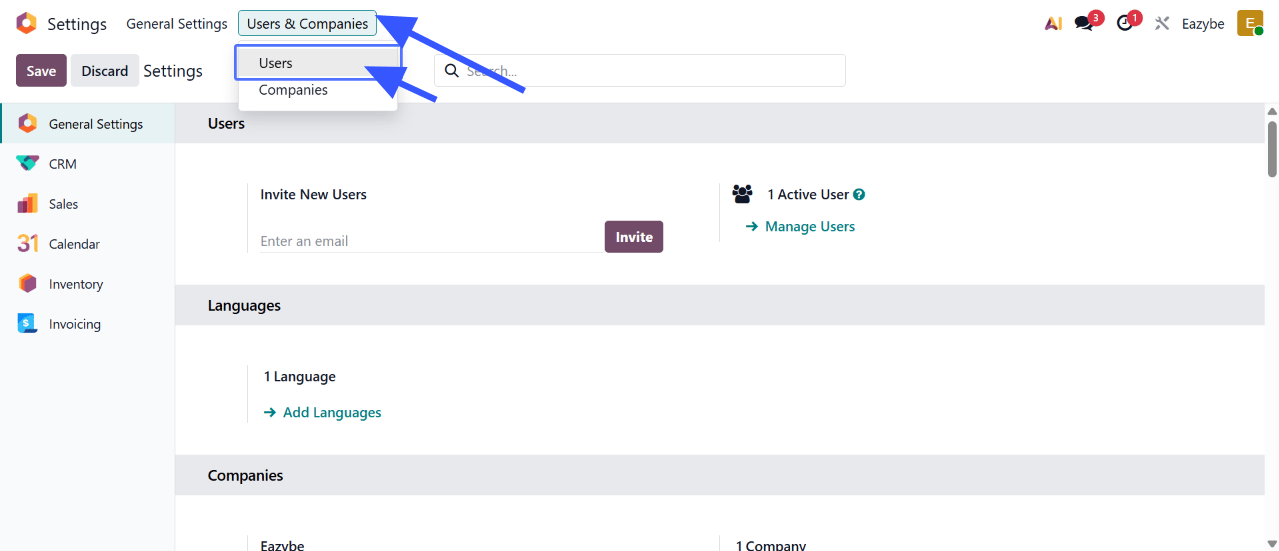 Click on it to see all synced WhatsApp conversations with their messages.
***
## Quick Reference
| Action | How To |
| --------------- | ------------------------------------------ |
| Open Mini CRM | Click Odoo icon in Eazybe panel |
| Create Contact | Click Create Contact in Mini CRM |
| Create Lead | Click Create Lead in Mini CRM |
| Add Note | Click Add Note in Notes section |
| Edit Properties | Click Edit Properties button |
| View in Odoo | Click View on Odoo button |
| Configure Sync | Click Sync button for label-based settings |
***
## Need Help?
If you have any questions or need further assistance, reach out to us at
**[hey@eazybe.com](mailto:hey@eazybe.com)**. We're happy to help!
Click on it to see all synced WhatsApp conversations with their messages.
***
## Quick Reference
| Action | How To |
| --------------- | ------------------------------------------ |
| Open Mini CRM | Click Odoo icon in Eazybe panel |
| Create Contact | Click Create Contact in Mini CRM |
| Create Lead | Click Create Lead in Mini CRM |
| Add Note | Click Add Note in Notes section |
| Edit Properties | Click Edit Properties button |
| View in Odoo | Click View on Odoo button |
| Configure Sync | Click Sync button for label-based settings |
***
## Need Help?
If you have any questions or need further assistance, reach out to us at
**[hey@eazybe.com](mailto:hey@eazybe.com)**. We're happy to help!