> ## Documentation Index
> Fetch the complete documentation index at: https://help.eazybe.com/llms.txt
> Use this file to discover all available pages before exploring further.
# Disconnect Odoo Integration
> Learn how to disconnect your Odoo integration from Eazybe
## Overview
If you no longer need the Odoo integration or want to connect a different account, you can easily disconnect the integration from the Eazybe panel.
Disconnecting the integration will stop syncing data between WhatsApp and
Odoo. Existing data in Odoo will remain unchanged.
***
## Disconnecting Odoo
Open WhatsApp Web and ensure the Eazybe extension is active.
Click on the **CRM/Integrations** button in the Eazybe panel.
Navigate to **Odoo** from the connected integrations.
Click on the **Disconnect** button to remove the integration.
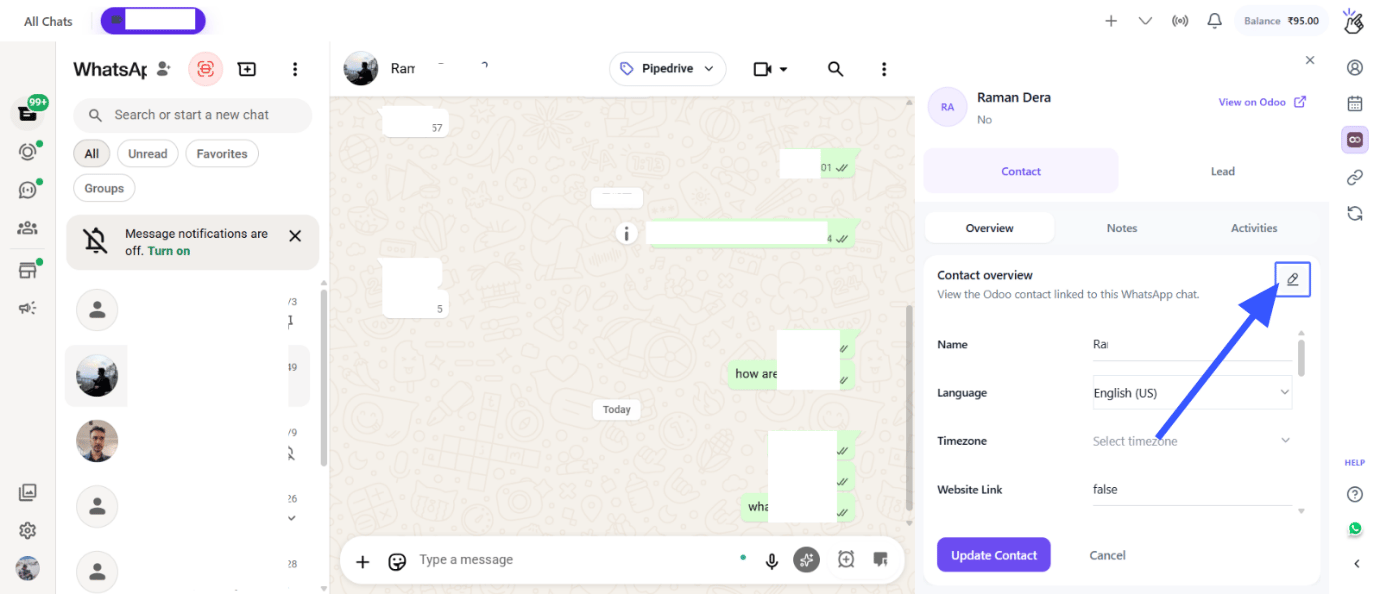 After disconnecting, you will need to reconnect to use Odoo features again.
Confirm the disconnection when prompted.
Your Odoo account has been successfully disconnected.
***
## What Happens After Disconnecting
All contacts, leads, notes, and chat backups created in Odoo during the
integration will remain in your Odoo account.
New WhatsApp conversations will no longer sync to Odoo after
disconnection.
***
## Reconnecting
If you want to reconnect Odoo after disconnecting:
Follow the [Account
Connection](/en/integrations/odoo/account-connection) guide to
reconnect your Odoo account.
***
## Quick Reference
| Step | Action |
| ---- | --------------------------------------- |
| 1 | Open WhatsApp Web with Eazybe Extension |
| 2 | Click CRM/Integrations button |
| 3 | Navigate to Odoo |
| 4 | Click Disconnect button |
| 5 | Confirm disconnection |
***
## Need Help?
If you have any questions or need further assistance, reach out to us at
**[hey@eazybe.com](mailto:hey@eazybe.com)**. We're happy to help!
After disconnecting, you will need to reconnect to use Odoo features again.
Confirm the disconnection when prompted.
Your Odoo account has been successfully disconnected.
***
## What Happens After Disconnecting
All contacts, leads, notes, and chat backups created in Odoo during the
integration will remain in your Odoo account.
New WhatsApp conversations will no longer sync to Odoo after
disconnection.
***
## Reconnecting
If you want to reconnect Odoo after disconnecting:
Follow the [Account
Connection](/en/integrations/odoo/account-connection) guide to
reconnect your Odoo account.
***
## Quick Reference
| Step | Action |
| ---- | --------------------------------------- |
| 1 | Open WhatsApp Web with Eazybe Extension |
| 2 | Click CRM/Integrations button |
| 3 | Navigate to Odoo |
| 4 | Click Disconnect button |
| 5 | Confirm disconnection |
***
## Need Help?
If you have any questions or need further assistance, reach out to us at
**[hey@eazybe.com](mailto:hey@eazybe.com)**. We're happy to help!