> ## Documentation Index
> Fetch the complete documentation index at: https://help.eazybe.com/llms.txt
> Use this file to discover all available pages before exploring further.
# Connect Your Odoo Account
> Learn how to connect your Odoo instance to Eazybe
## Overview
Once you have your Odoo API key, connecting your account to Eazybe is simple. This guide will walk you through the connection process.
***
## Connecting Odoo to Eazybe
Open [WhatsApp Web](https://web.whatsapp.com) and ensure the Eazybe extension is active.
Click on the **CRM/Integrations** button in the Eazybe panel.
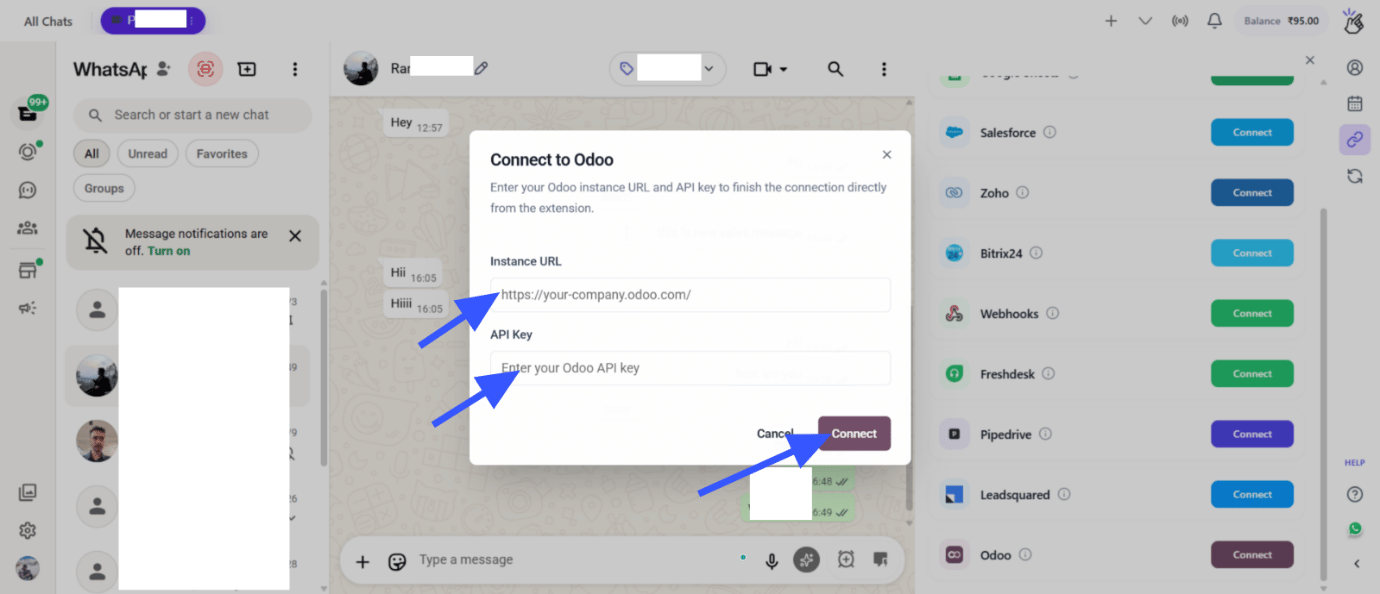 Click the **Connect to Odoo** button to start the connection process.
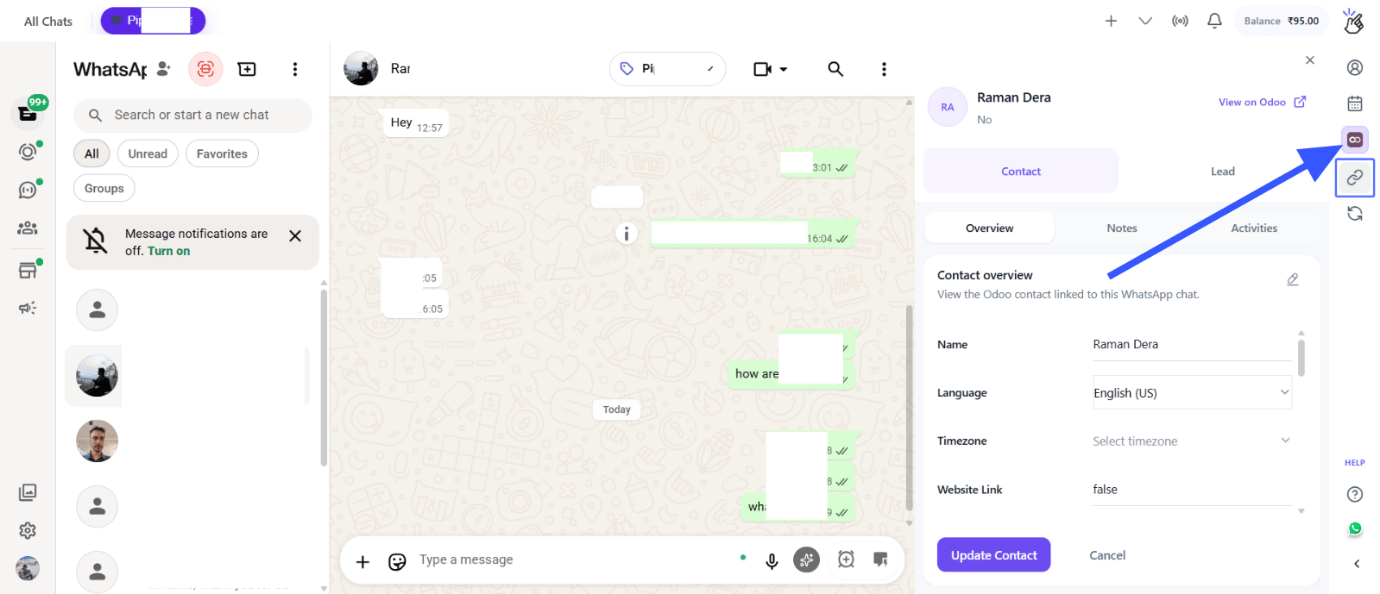 Enter the following information:
- Odoo Instance URL: Your company's Odoo URL (e.g., `https://yourcompany.odoo.com`)
- API Key: The API key you generated from Odoo
 Make sure your Odoo URL includes the protocol (https\://) and doesn't have trailing slashes.
Click the **Connect** button to establish the connection.
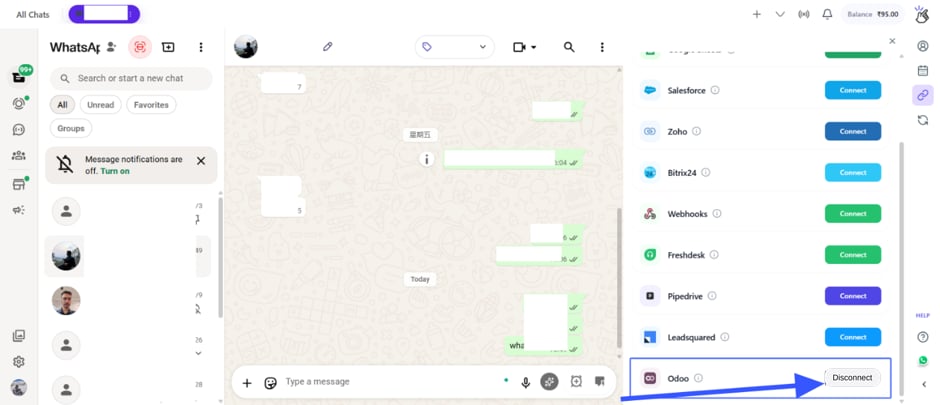
If your credentials are correct, Eazybe will successfully connect to your Odoo instance.
***
## Troubleshooting Connection Issues
If you receive an invalid credentials error:
Make sure your Odoo URL includes the protocol (https\://) and doesn't have trailing slashes.
Click the **Connect** button to establish the connection.
If your credentials are correct, Eazybe will successfully connect to your Odoo instance.
***
## Troubleshooting Connection Issues
If you receive an invalid credentials error:
- Verify your Odoo Instance URL is correct
- Check that your API key is valid and hasn't expired
- Ensure your user account in Odoo has the necessary permissions
If the connection times out:
- Check your internet connection
- Verify that your Odoo instance is accessible
- Try again in a few moments
***
## After Connection
Once connected, you can:
Access Odoo contact information from WhatsApp
Enable label-based chat backup to Odoo
***
## Next Steps
Learn how to use the [Mini CRM](/en/integrations/odoo/mini-crm) features.
***
## Need Help?
If you have any questions or need further assistance, reach out to us at
**[hey@eazybe.com](mailto:hey@eazybe.com)**. We're happy to help!