> ## Documentation Index
> Fetch the complete documentation index at: https://help.eazybe.com/llms.txt
> Use this file to discover all available pages before exploring further.
# Tasks
> Create and manage tasks for LeadSquared leads directly from the EazyBe WhatsApp extension
The EazyBe-LeadSquared integration allows you to create and manage tasks for your leads directly from the WhatsApp extension. Tasks you create in EazyBe are automatically synchronized with LeadSquared, ensuring seamless workflow management.
## Creating and Managing Tasks
Open the WhatsApp conversation for the specific LeadSquared lead you want to create a task for.
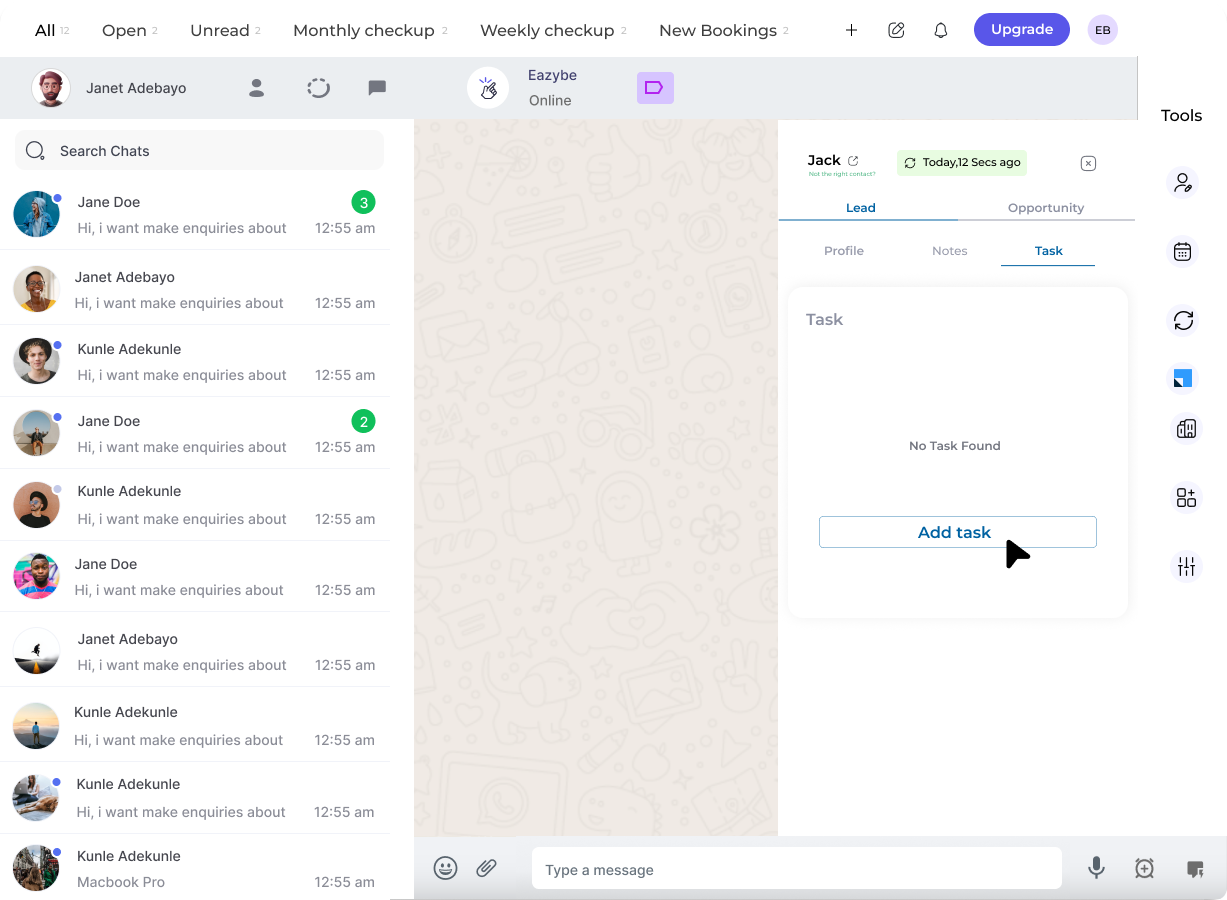
Click on the **LeadSquared icon** in the right sidebar. Navigate to the **Tasks** section, which is the third header under the Lead section.
Click the **Add Task** button to begin creating a new task.
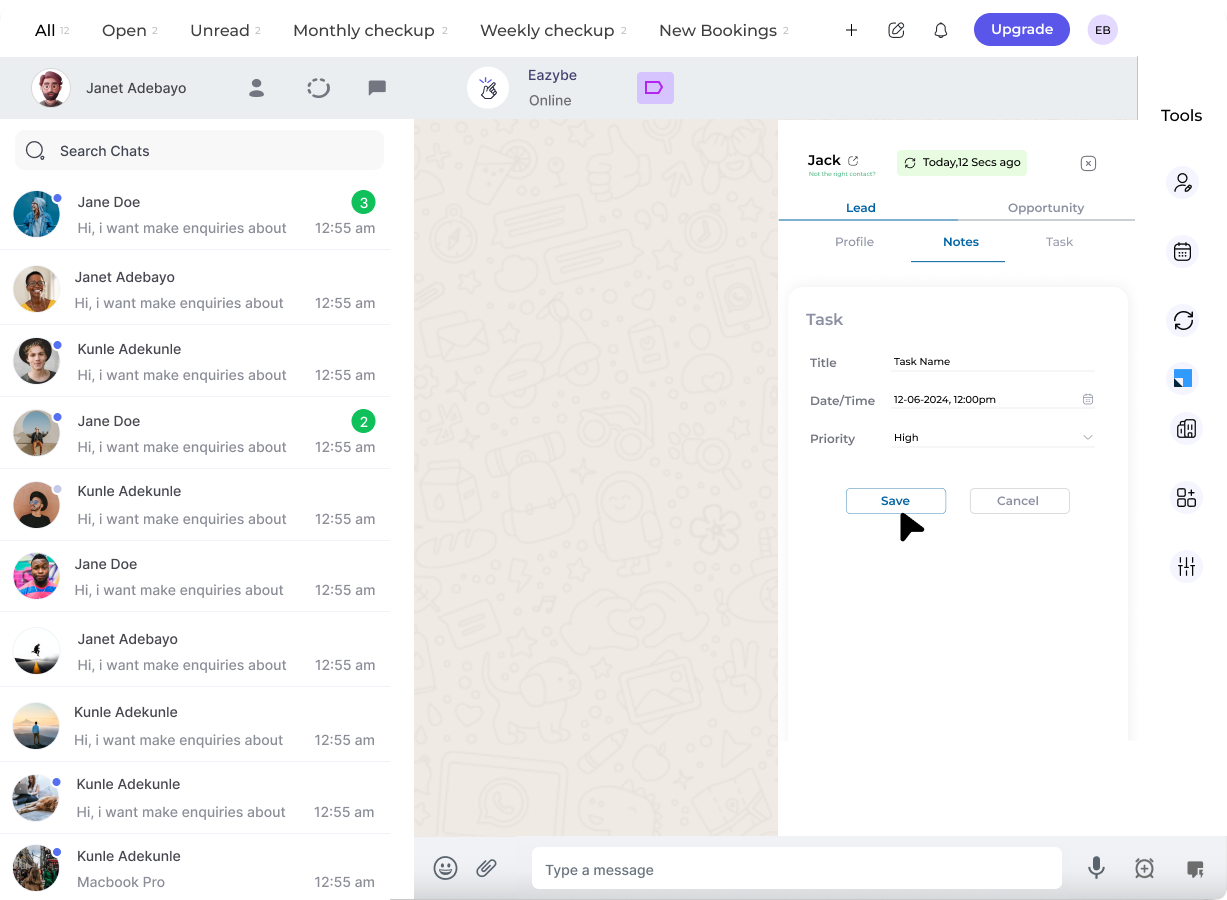
 Enter the task details in the form. Make sure the end date does not precede the deadline date. Click **Save** to create the task.
 To modify or remove an existing task, click the **three-dot menu** next to the task and select either **Edit** or **Delete**.
Repeat the process to create multiple tasks for the same lead as needed.
To modify or remove an existing task, click the **three-dot menu** next to the task and select either **Edit** or **Delete**.
Repeat the process to create multiple tasks for the same lead as needed.
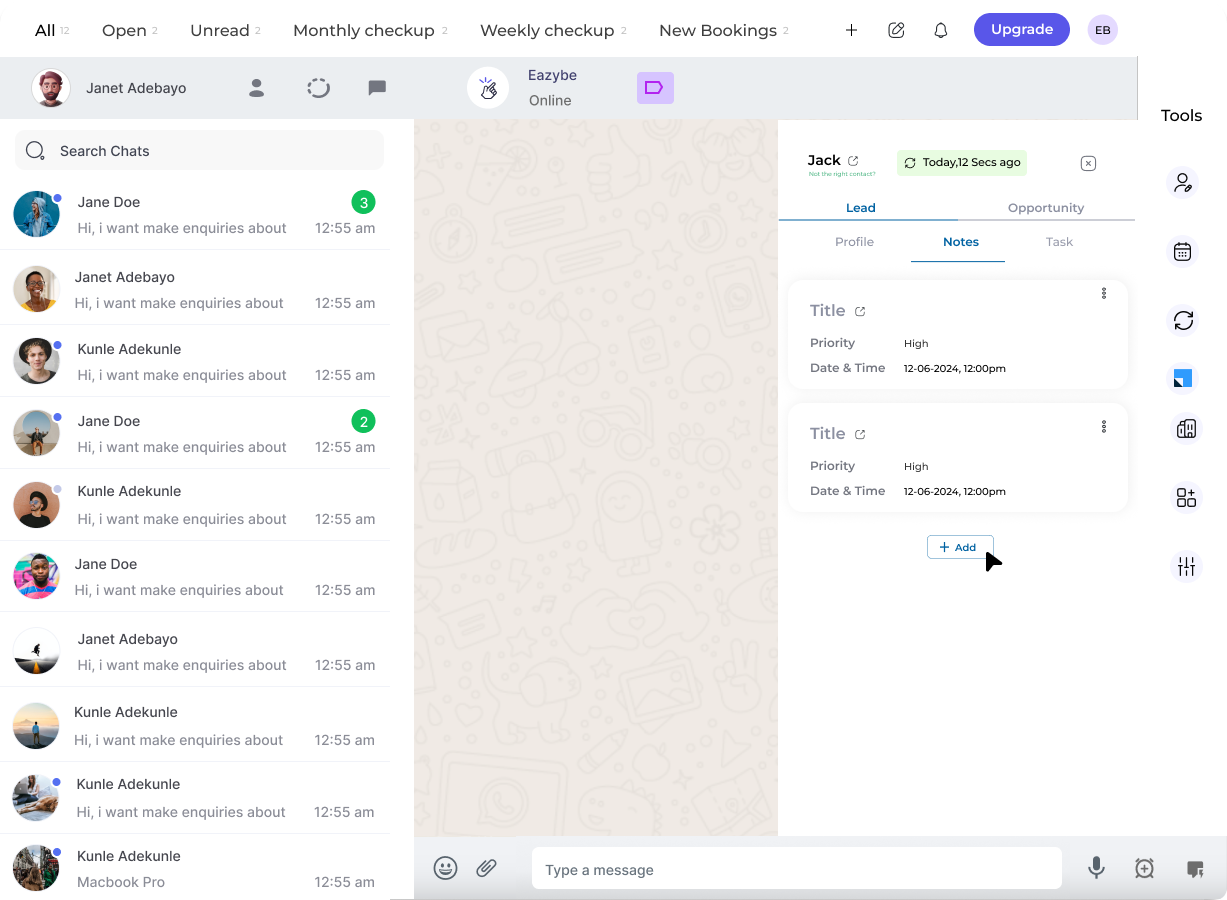 Tasks created in the EazyBe WhatsApp extension automatically appear in the Tasks section of LeadSquared, linked to the specific lead.
## Need Help?
If you have questions or encounter issues, contact support at **[hey@eazybe.com](mailto:hey@eazybe.com)**.
Tasks created in the EazyBe WhatsApp extension automatically appear in the Tasks section of LeadSquared, linked to the specific lead.
## Need Help?
If you have questions or encounter issues, contact support at **[hey@eazybe.com](mailto:hey@eazybe.com)**.