> ## Documentation Index
> Fetch the complete documentation index at: https://help.eazybe.com/llms.txt
> Use this file to discover all available pages before exploring further.
# Lead Profile
> View and manage LeadSquared lead profile details directly from WhatsApp conversations
The Profile section displays basic contact details and is the first section shown when creating a LeadSquared Lead through the EazyBe WhatsApp Extension.
## Viewing and Editing Lead Profile
Access the WhatsApp conversation of the LeadSquared lead whose profile you want to view or edit.
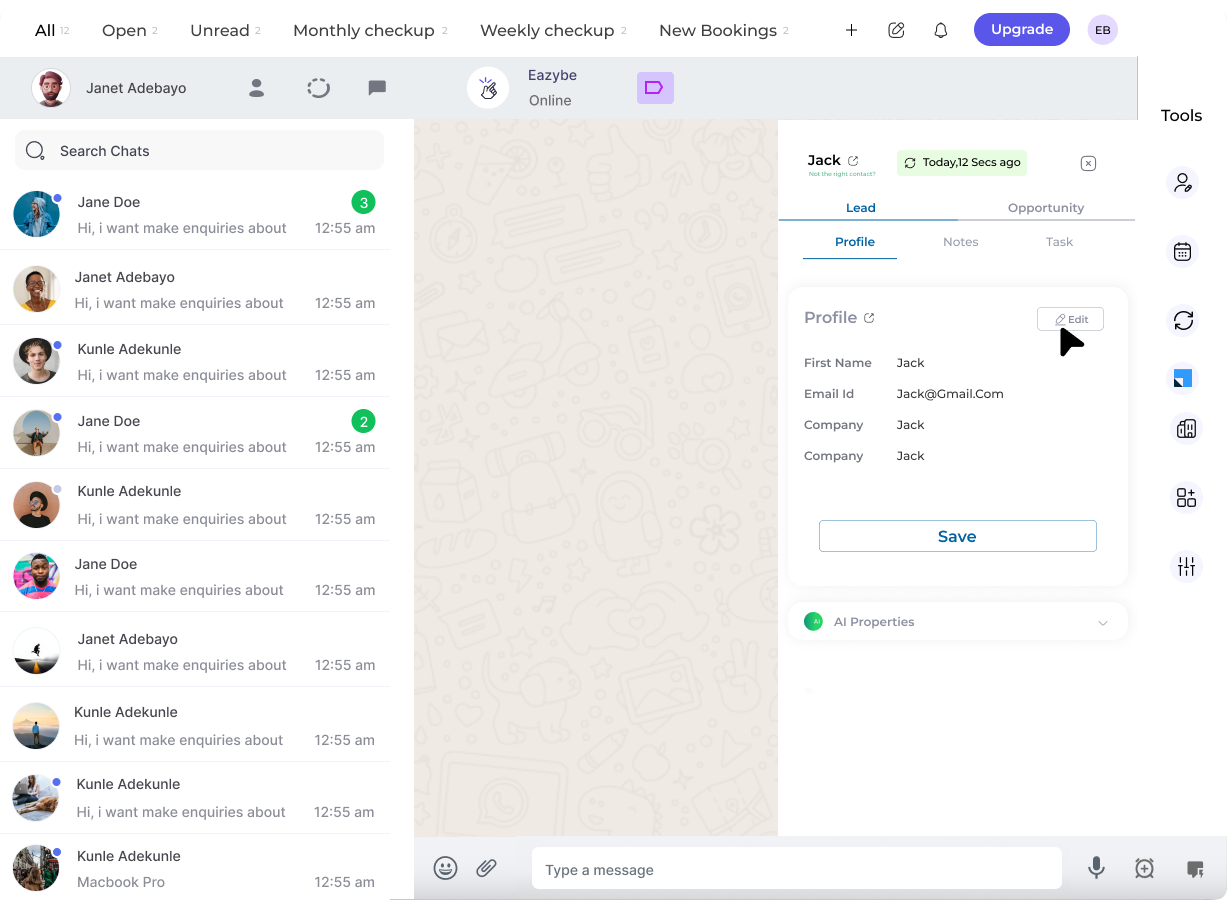 Click the **LeadSquared icon** in the right sidebar to view the profile section under the Lead section.
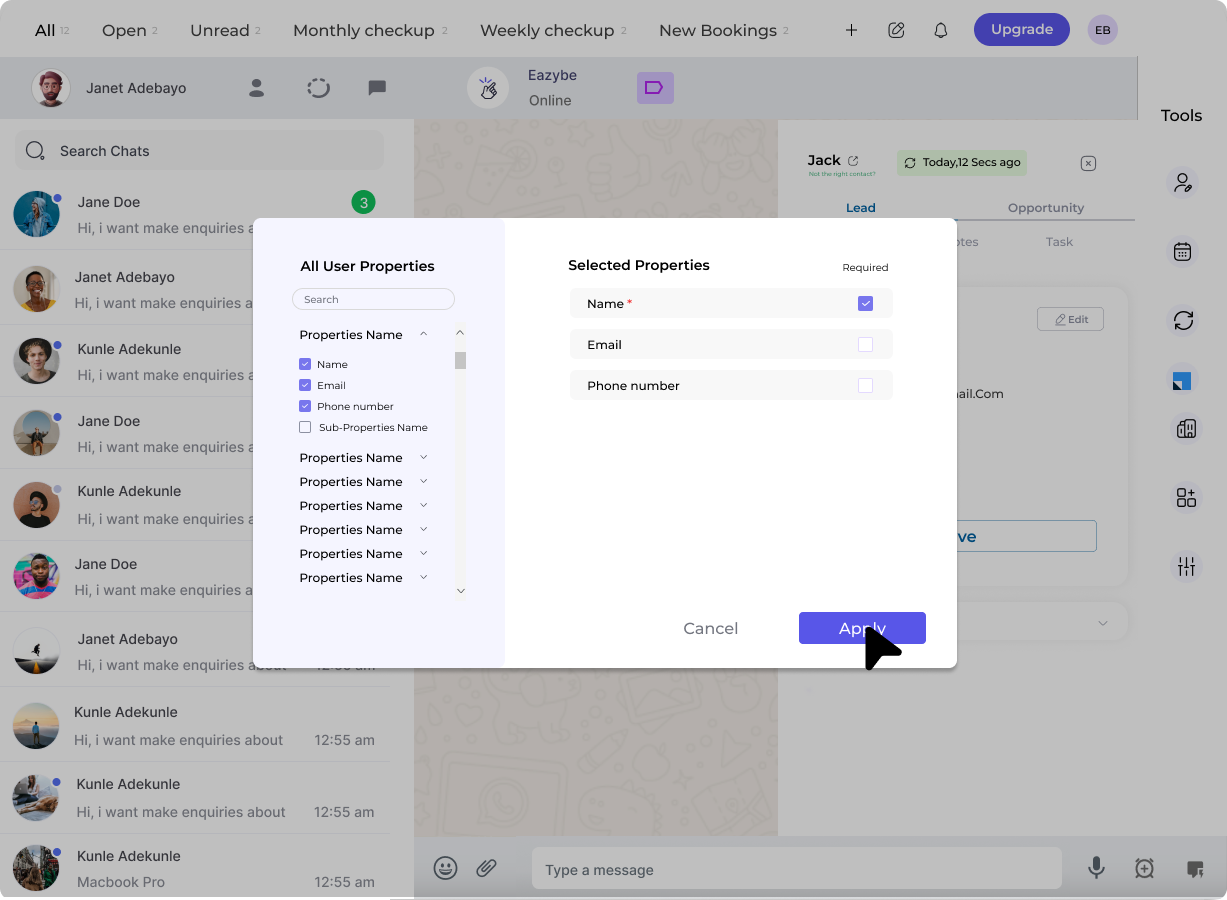 View and modify user properties as needed. Click **"Apply"** to confirm your changes.
For detailed instructions on editing lead properties, see the [Create and Customize Lead](/en/integrations/leadsquared/create-and-customize-lead) guide.
Click **"Save"** to finalize all modifications to the lead profile.
The Profile section provides quick access to essential lead information, allowing you to manage contacts efficiently without leaving WhatsApp.
View and modify user properties as needed. Click **"Apply"** to confirm your changes.
For detailed instructions on editing lead properties, see the [Create and Customize Lead](/en/integrations/leadsquared/create-and-customize-lead) guide.
Click **"Save"** to finalize all modifications to the lead profile.
The Profile section provides quick access to essential lead information, allowing you to manage contacts efficiently without leaving WhatsApp.