> ## Documentation Index
> Fetch the complete documentation index at: https://help.eazybe.com/llms.txt
> Use this file to discover all available pages before exploring further.
# Prerequisites
> Requirements needed to connect LeadSquared with WhatsApp through EazyBe
Before connecting LeadSquared with WhatsApp, ensure you have the following prerequisites in place.
## Requirements
Ensure your LeadSquared account is set up and functioning properly.
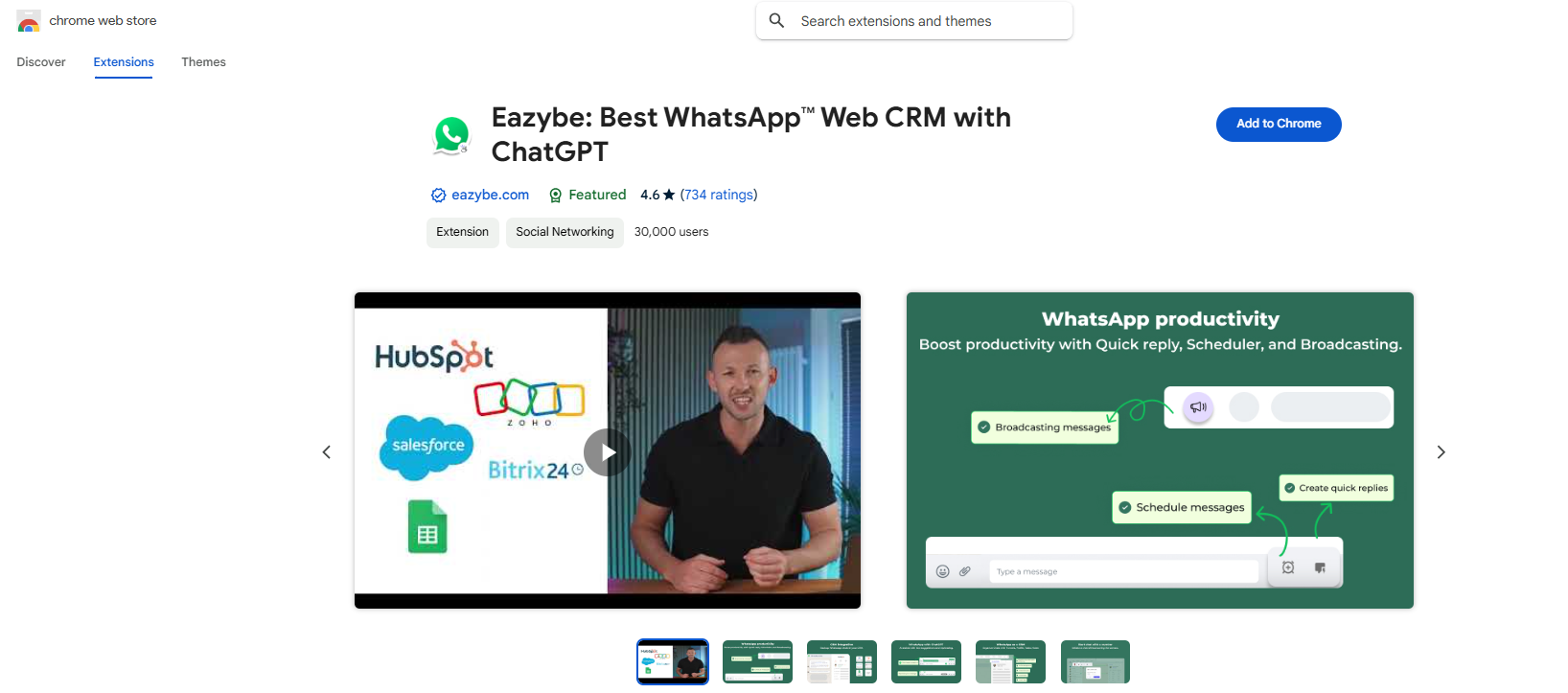
The EazyBe WhatsApp extension must be installed and connected to WhatsApp Web.
You need the necessary permissions from your administrator to connect LeadSquared to WhatsApp.
## Verification Checklist
Log into your LeadSquared account and confirm it is active and functioning correctly.
Ensure the EazyBe WhatsApp extension is properly installed in your browser and connected to WhatsApp Web.
 Verify that you have administrator permissions or have received approval from your administrator to proceed with the integration.
Once all prerequisites are met, you can proceed with the LeadSquared and WhatsApp integration setup.
Verify that you have administrator permissions or have received approval from your administrator to proceed with the integration.
Once all prerequisites are met, you can proceed with the LeadSquared and WhatsApp integration setup.