> ## Documentation Index
> Fetch the complete documentation index at: https://help.eazybe.com/llms.txt
> Use this file to discover all available pages before exploring further.
# Opportunity Tasks
> Create and manage tasks for LeadSquared opportunities directly from the EazyBe WhatsApp extension
Have you created an opportunity on LeadSquared and now want to create and track tasks for that opportunity? Here's how you can do it.
## Creating Opportunity Tasks
Begin by opening the WhatsApp chat for the LeadSquared lead requiring task management.
Within the LeadSquared Mini-CRM view, select the **Opportunity** section tied to that lead.
Choose the opportunity that needs a task, then click the **Tasks** section.
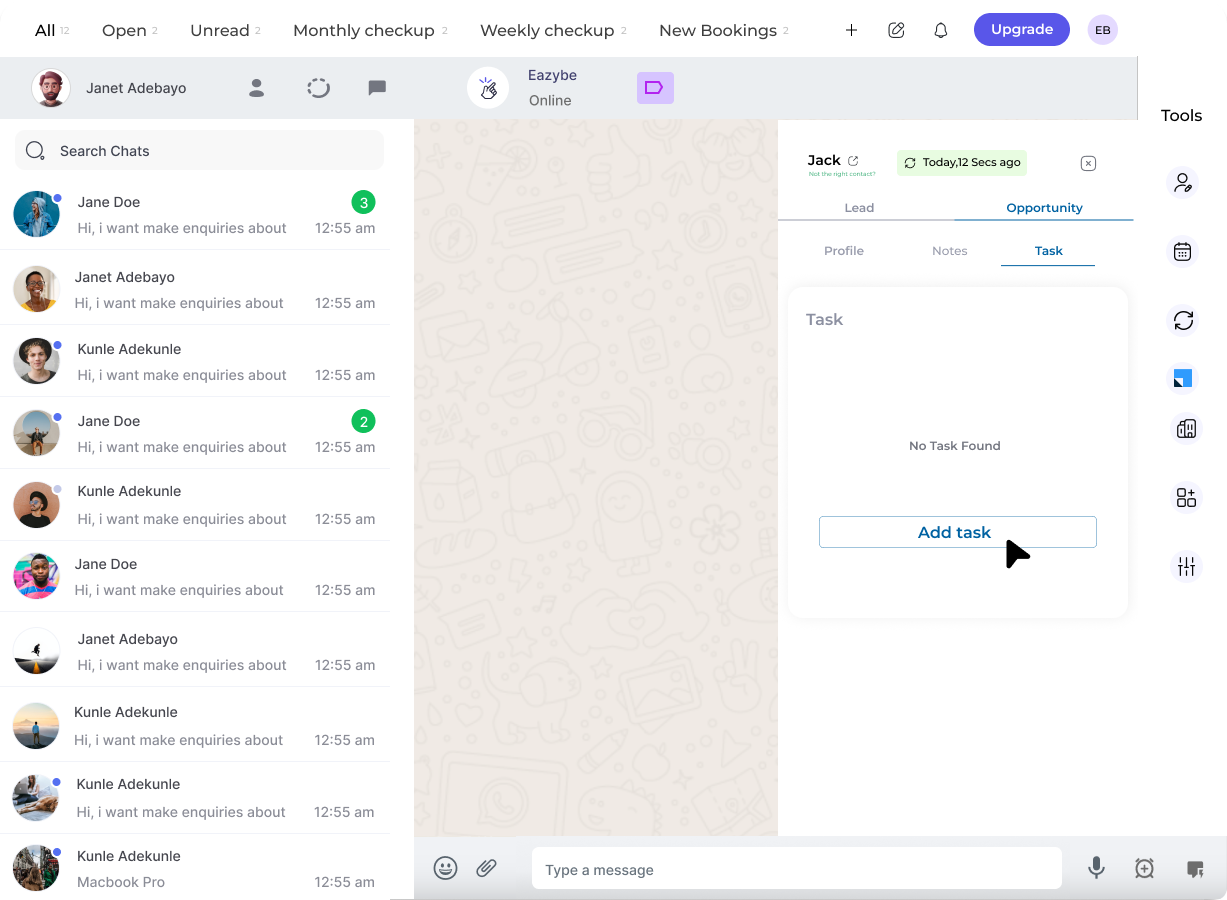 Select the **Add Task** button for the respective opportunity.
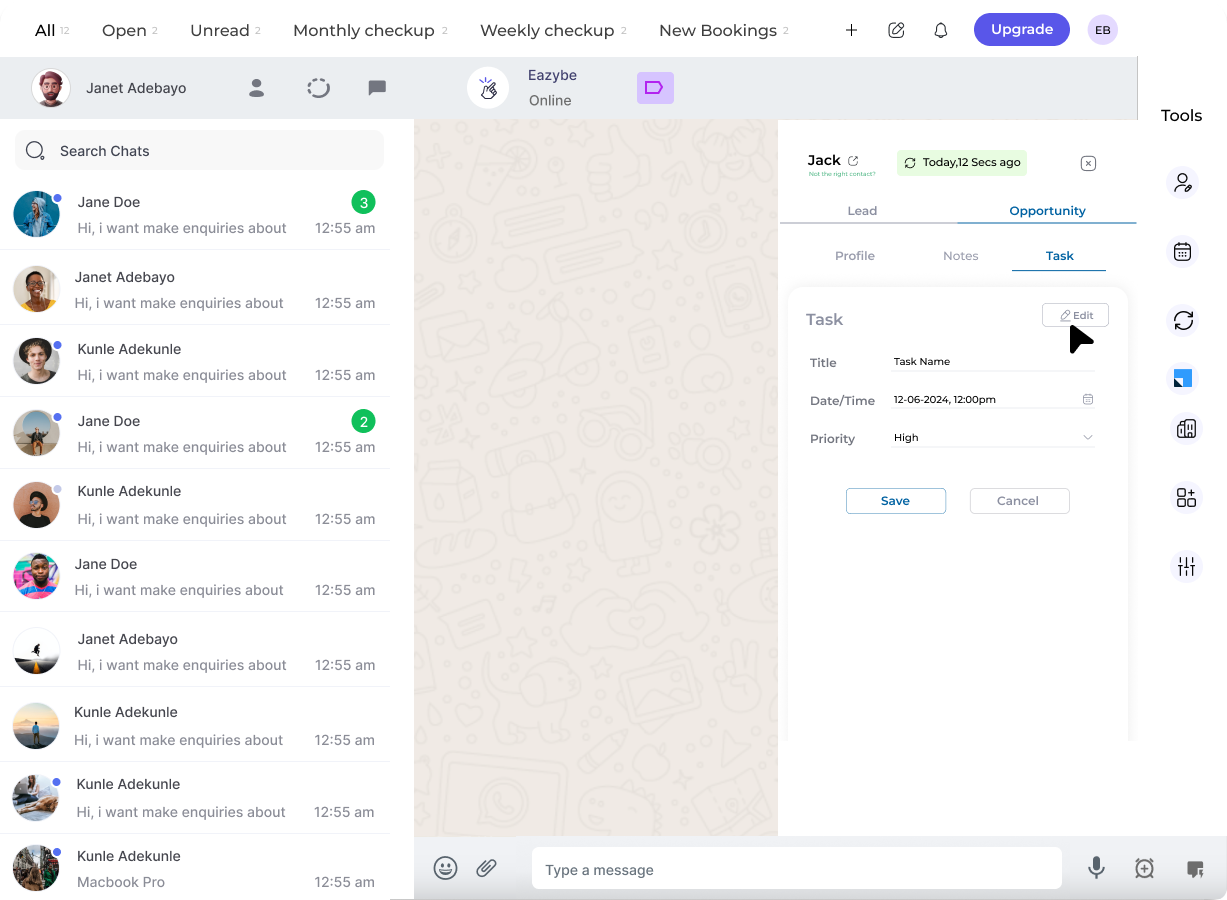 Complete the task details in the provided fields. Additional fields can be edited via the **Edit** button.
Click **Save** to store the task.
Complete the task details in the provided fields. Additional fields can be edited via the **Edit** button.
Click **Save** to store the task.
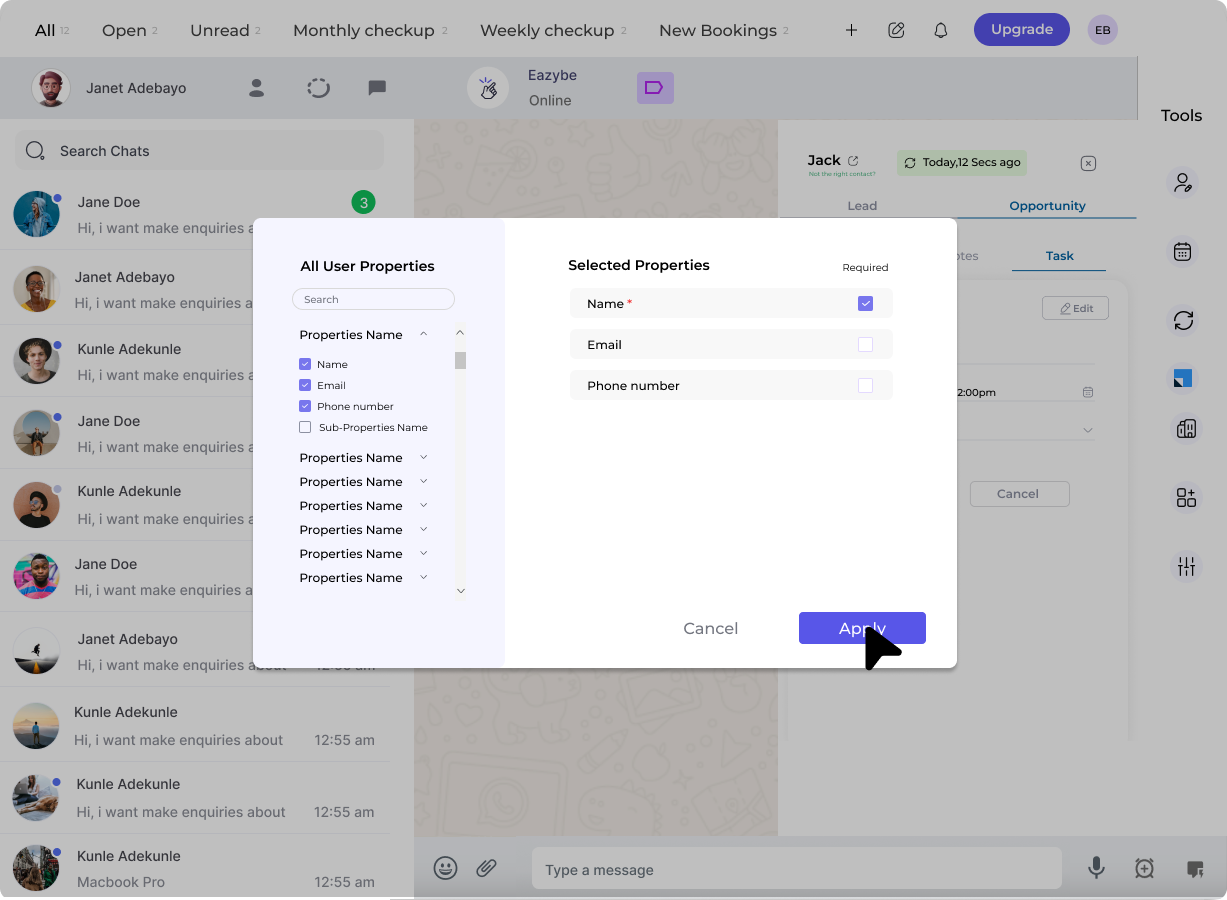 Use the **Complete** button to mark finished tasks as done.
Repeat the process by clicking **Add Task** for additional tasks as needed.
Tasks created for opportunities in EazyBe are automatically synchronized with LeadSquared.
## Need Help?
If you have questions or need assistance, contact support at **[hey@eazybe.com](mailto:hey@eazybe.com)**.
Use the **Complete** button to mark finished tasks as done.
Repeat the process by clicking **Add Task** for additional tasks as needed.
Tasks created for opportunities in EazyBe are automatically synchronized with LeadSquared.
## Need Help?
If you have questions or need assistance, contact support at **[hey@eazybe.com](mailto:hey@eazybe.com)**.