> ## Documentation Index
> Fetch the complete documentation index at: https://help.eazybe.com/llms.txt
> Use this file to discover all available pages before exploring further.
# Message Sync
> How WhatsApp message syncing works between EazyBe and LeadSquared
WhatsApp conversations automatically sync between EazyBe and LeadSquared, ensuring all your communications are backed up in your CRM.
## Automatic Sync
WhatsApp chats with LeadSquared leads synchronize automatically **every 3 minutes**. The EazyBe extension's LeadSquared Mini-CRM view displays the last synced date and time.
 ## Initial Integration Backup
When you first integrate LeadSquared with EazyBe, the system automatically provides a chat backup for the **past 3 days**.
## Initial Integration Backup
When you first integrate LeadSquared with EazyBe, the system automatically provides a chat backup for the **past 3 days**.
 ## Where Chats Are Logged
### Activity History
Conversations are backed up under the **"WhatsApp Chats by EazyBe"** activity object within LeadSquared's leads section.
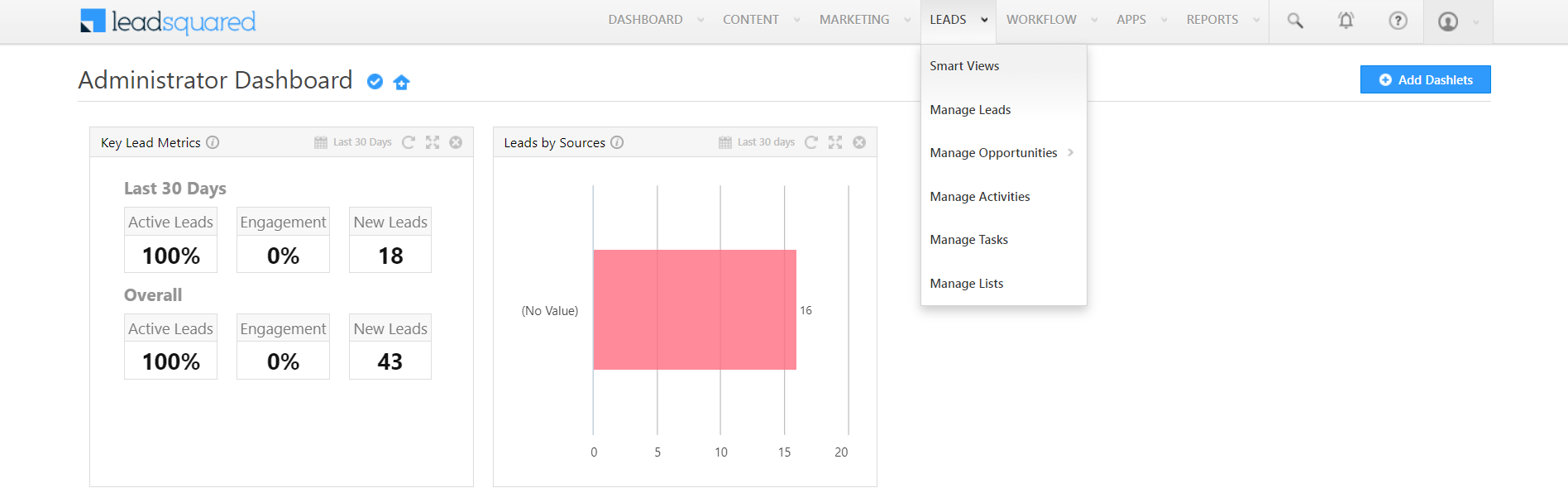
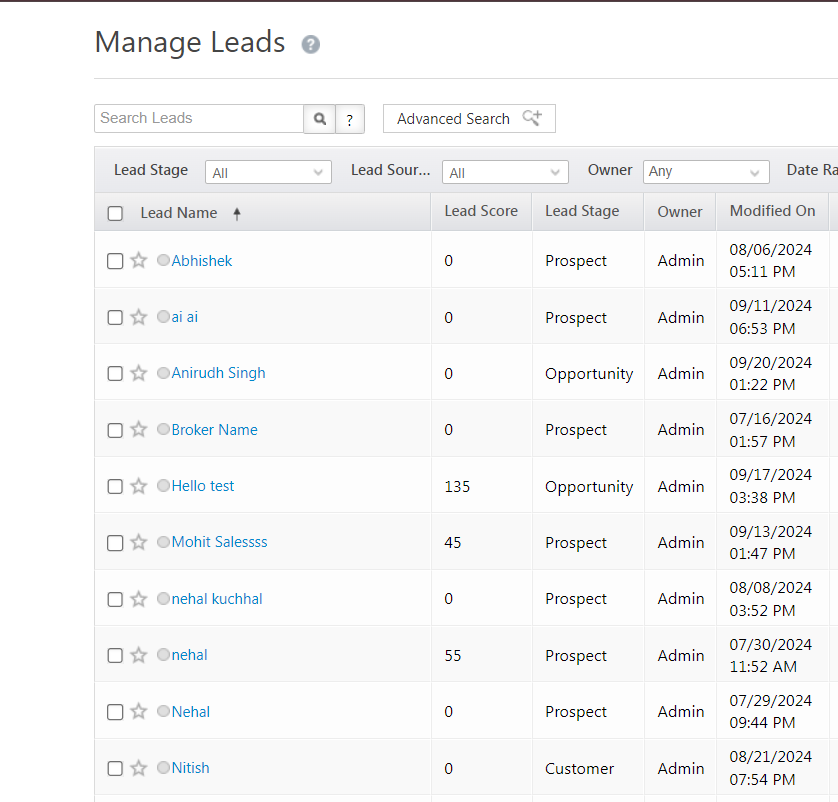
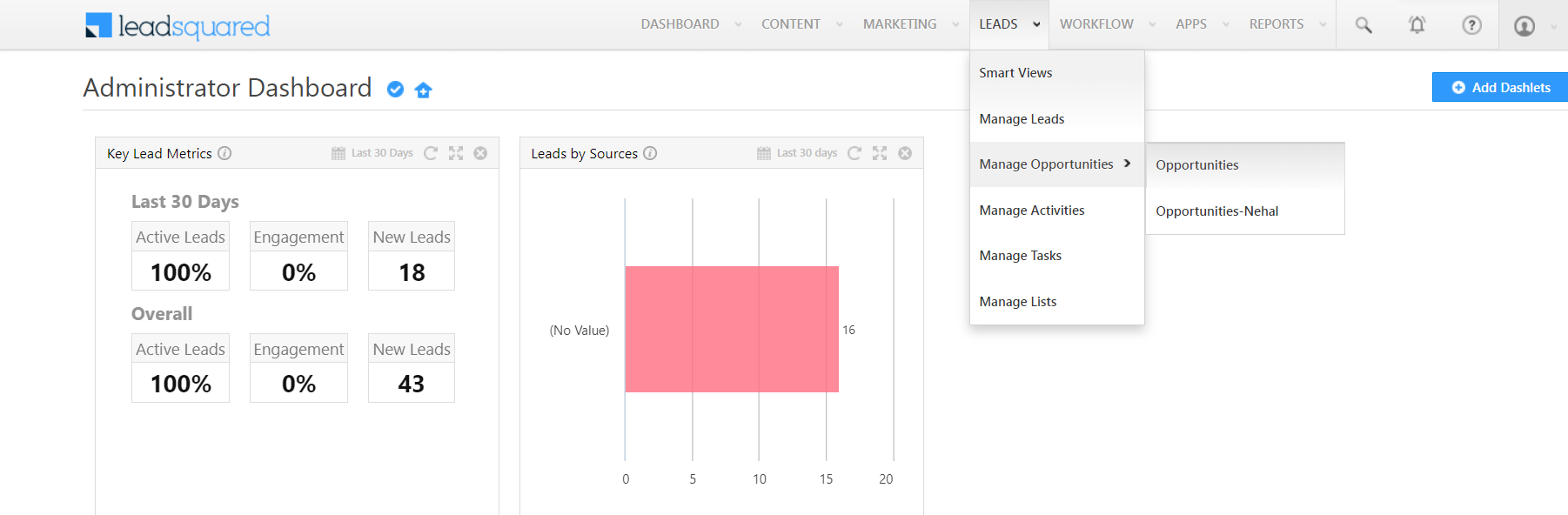
Go to the **Leads** dropdown and select **Manage Leads**.
## Where Chats Are Logged
### Activity History
Conversations are backed up under the **"WhatsApp Chats by EazyBe"** activity object within LeadSquared's leads section.
Go to the **Leads** dropdown and select **Manage Leads**.
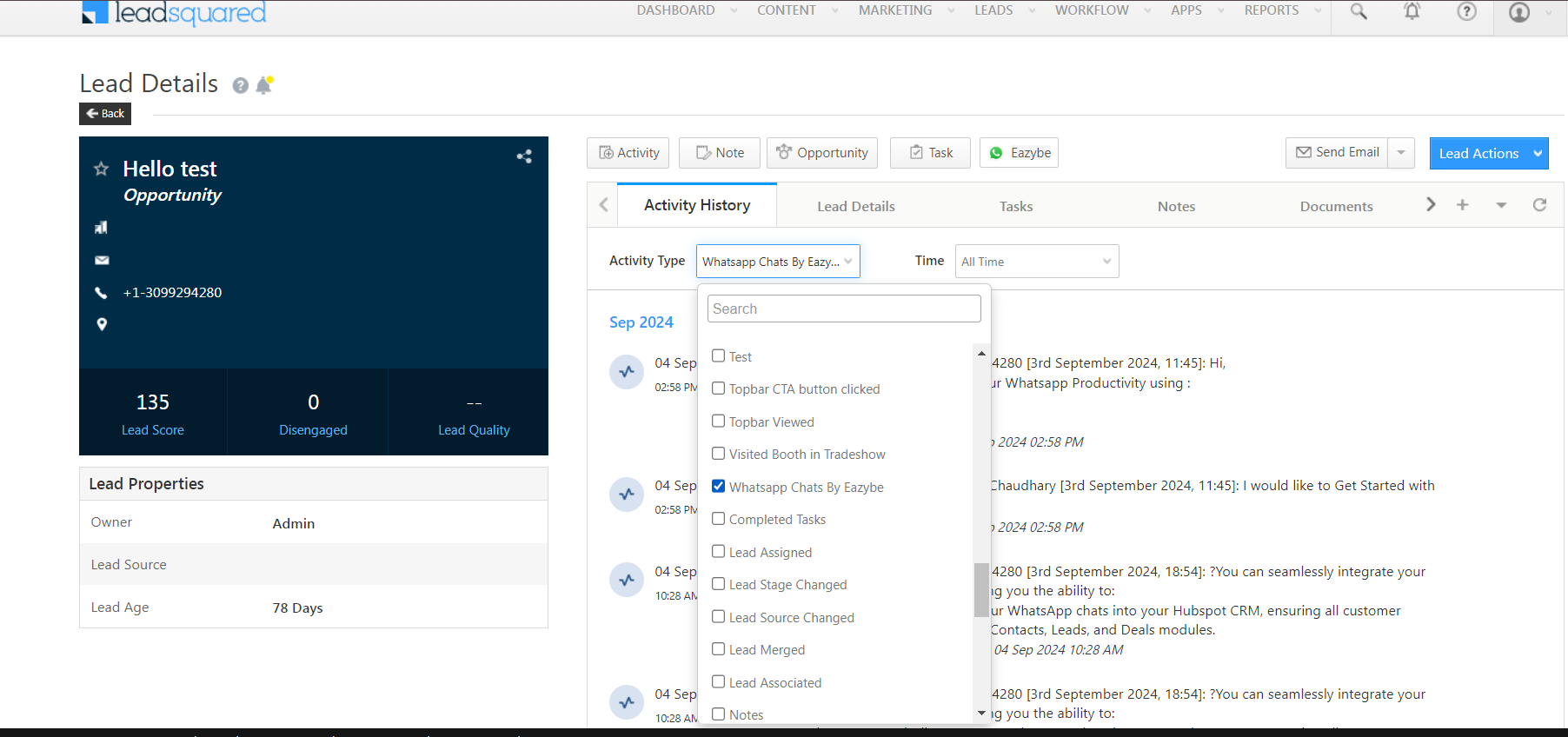 Choose the specific lead whose chat history you want to view.
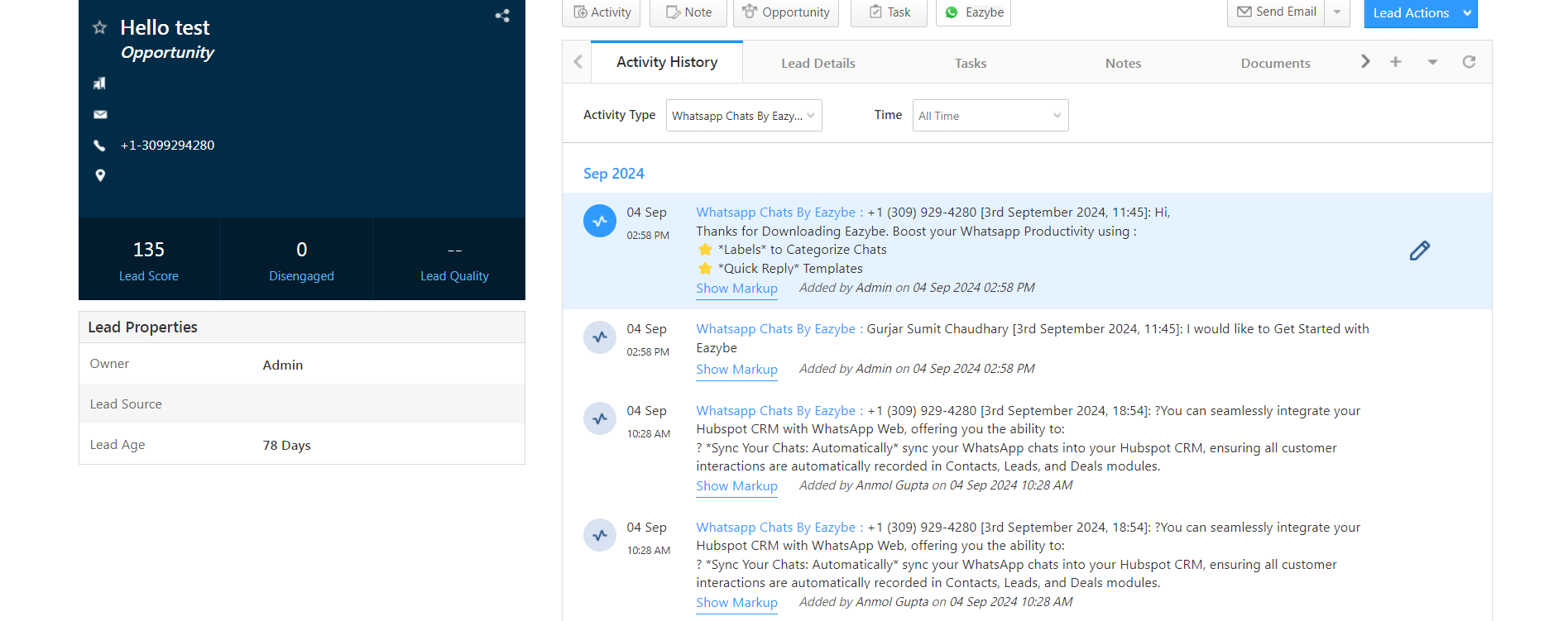 Navigate to the **Activity History** section.
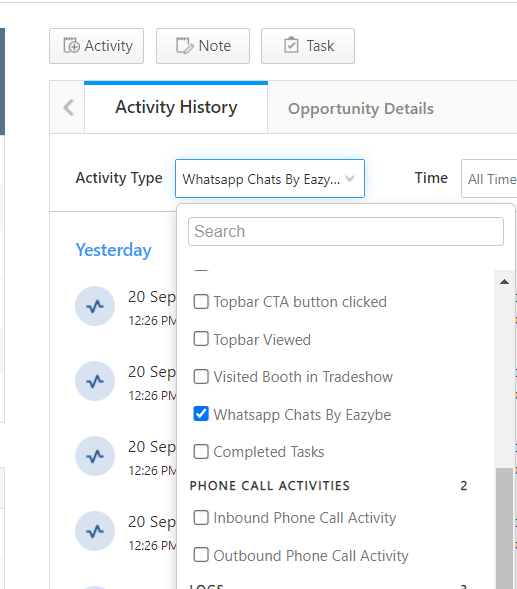
 Check the **"WhatsApp Chats by EazyBe"** activity to view all synced conversations.
 ## Backup in Opportunity Section
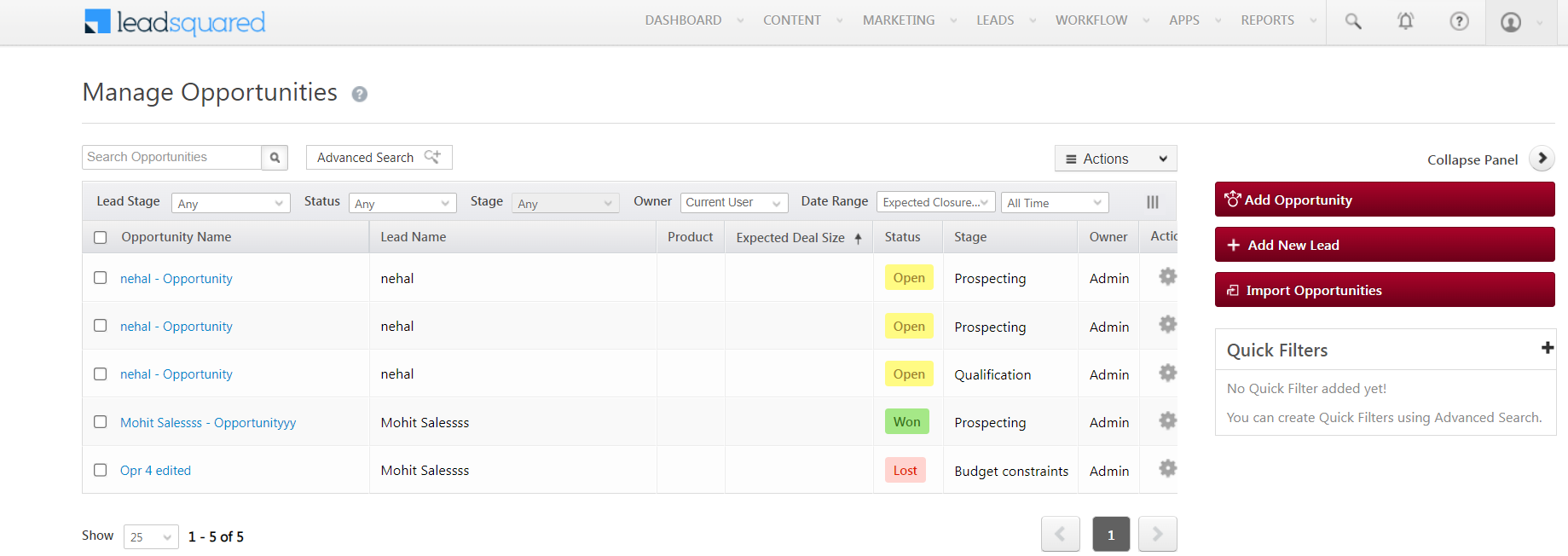
Chats also appear in the LeadSquared **Opportunity** section for linked opportunities, ensuring all communications stay accessible for reference.
## Backup in Opportunity Section
Chats also appear in the LeadSquared **Opportunity** section for linked opportunities, ensuring all communications stay accessible for reference.
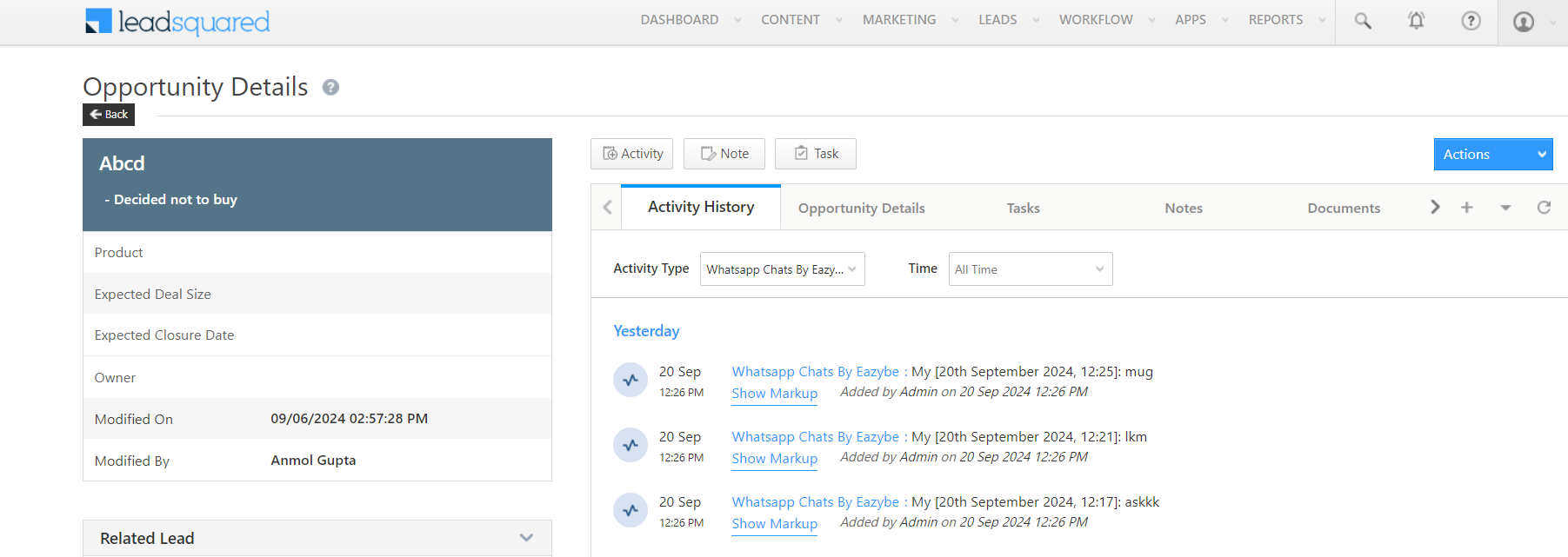 All synced conversations are preserved in LeadSquared, providing a complete communication history for each lead and opportunity.