> ## Documentation Index
> Fetch the complete documentation index at: https://help.eazybe.com/llms.txt
> Use this file to discover all available pages before exploring further.
# Manage Opportunity
> View, edit, delete, and create tasks for LeadSquared opportunities from the EazyBe WhatsApp extension
The EazyBe WhatsApp Extension allows you to efficiently manage your LeadSquared Opportunities directly from within WhatsApp.
## View Opportunity on LeadSquared
Click on the respective opportunity you want to view from the Mini-CRM panel.
Click the **View Opportunity on LeadSquared** button to access the LeadSquared Opportunities page directly.
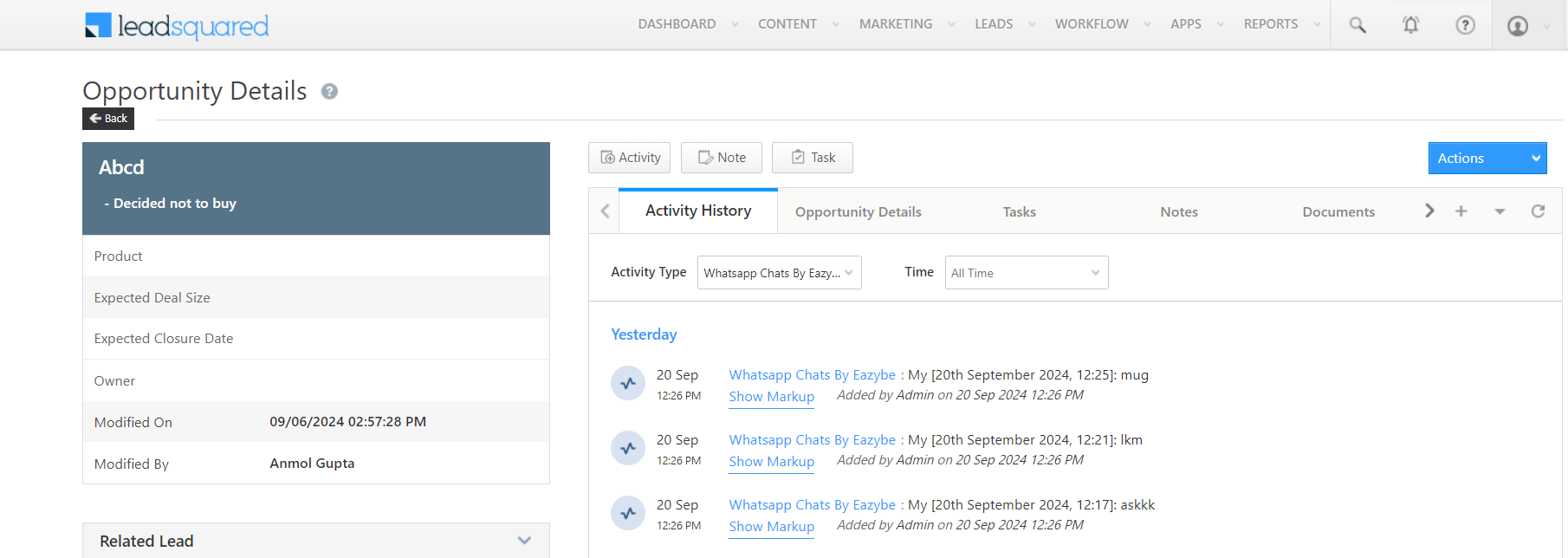 You can also view chat backup in the Opportunities section within LeadSquared.
## Edit Opportunity
Choose the opportunity you want to modify from the list.
Click the **Edit** button to open the properties window.
You can also view chat backup in the Opportunities section within LeadSquared.
## Edit Opportunity
Choose the opportunity you want to modify from the list.
Click the **Edit** button to open the properties window.
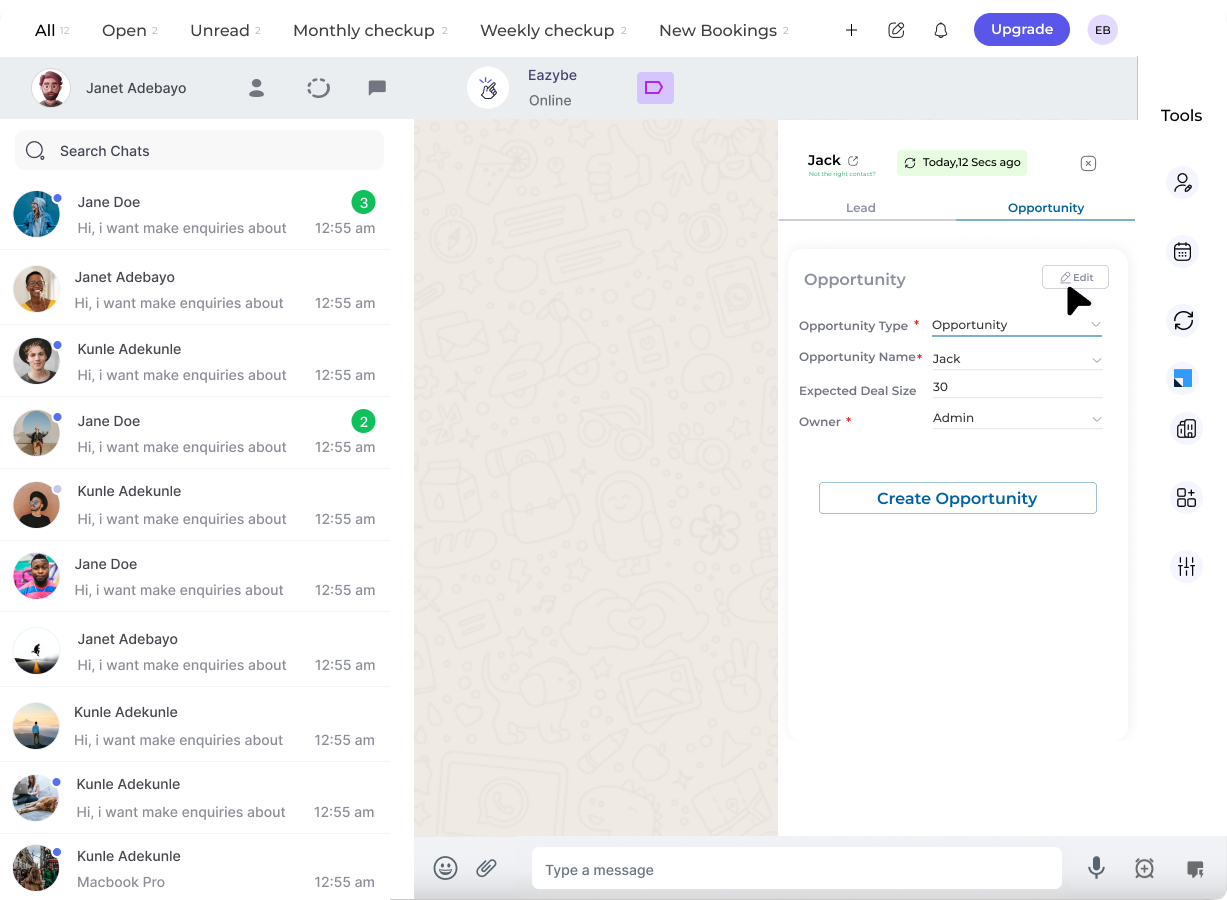 Adjust the user properties as needed in the edit form.
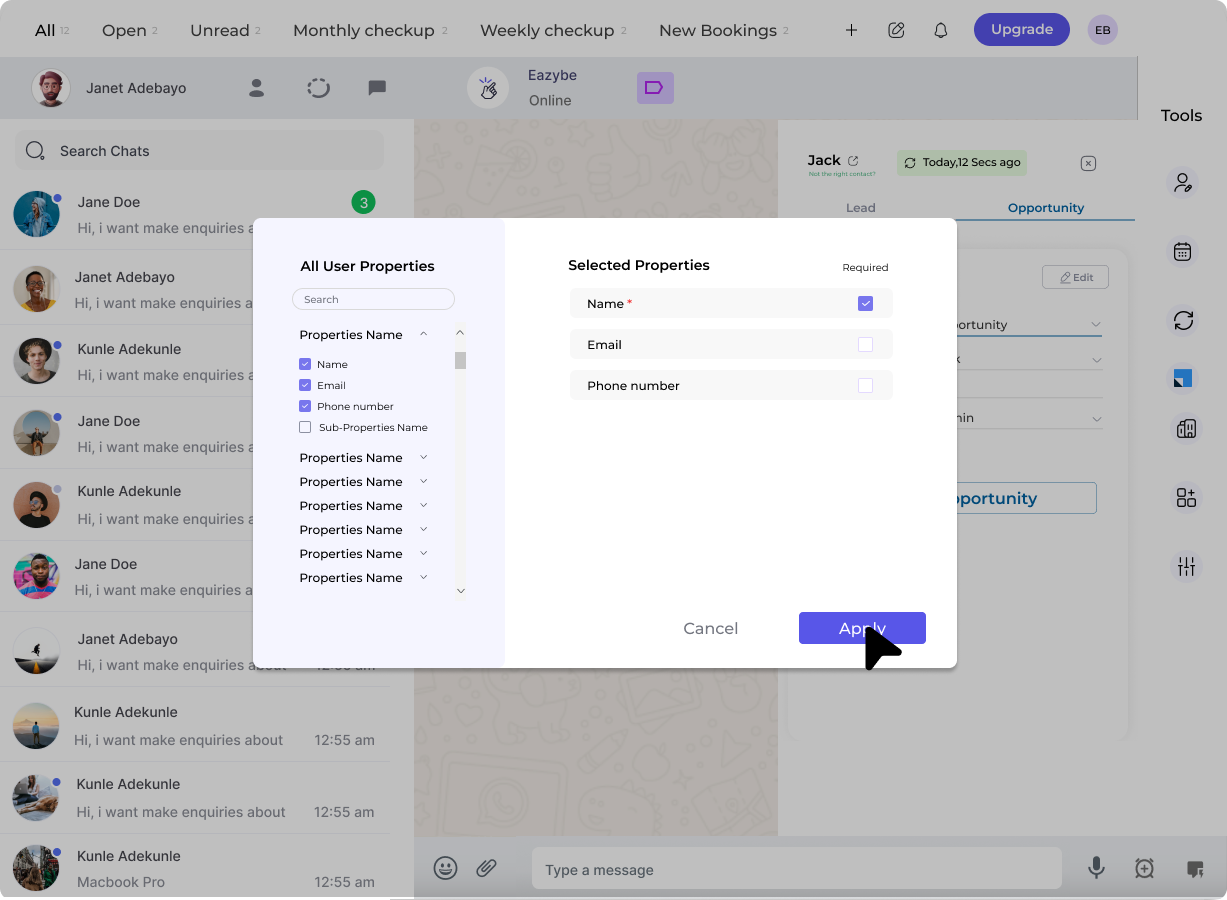 Click **Apply** to confirm your changes, then click **Save** to finalize the updates.
## Delete Opportunity
Click the **three dots** beside the target opportunity.
Select the **Delete** button to remove the opportunity.
Deleting an opportunity is permanent. Make sure you want to remove it before confirming.
## Create Opportunity Tasks
Click on the target opportunity to open its details.
Go to the **Tasks** section within the opportunity.
Click **Apply** to confirm your changes, then click **Save** to finalize the updates.
## Delete Opportunity
Click the **three dots** beside the target opportunity.
Select the **Delete** button to remove the opportunity.
Deleting an opportunity is permanent. Make sure you want to remove it before confirming.
## Create Opportunity Tasks
Click on the target opportunity to open its details.
Go to the **Tasks** section within the opportunity.
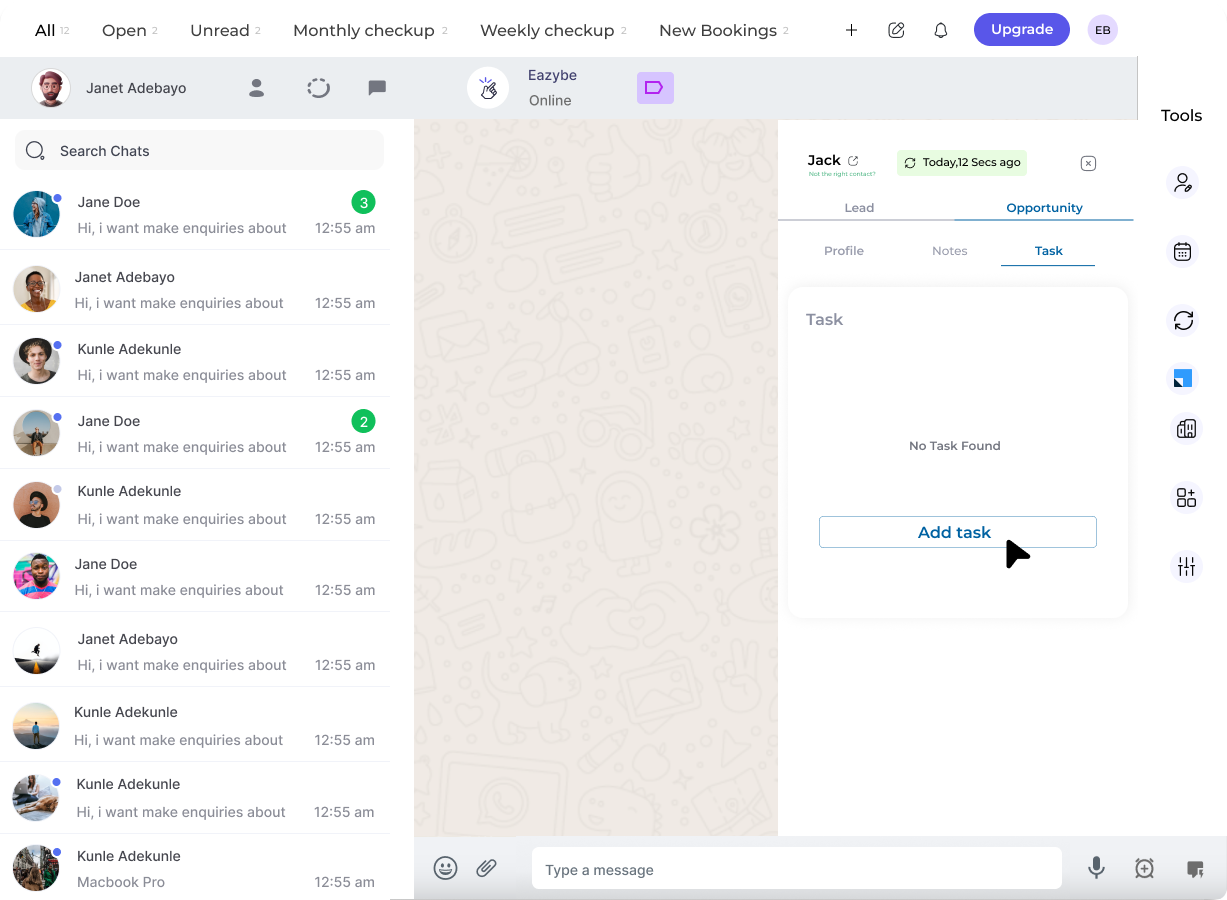 Click **Add Task** and fill in the required details.
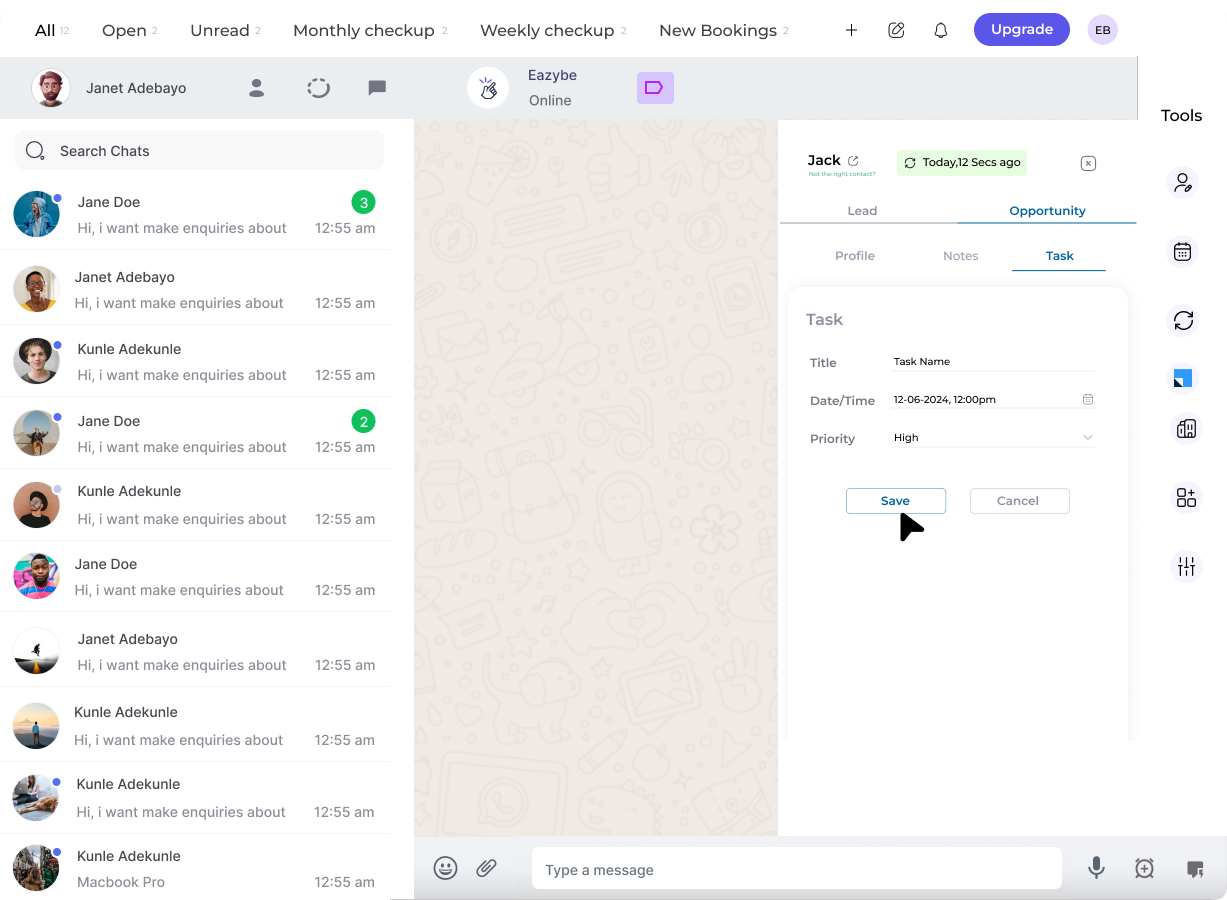 Click **Save** to create the task.
## Need Help?
If you have questions or need further assistance, contact support at **[hey@eazybe.com](mailto:hey@eazybe.com)**.
Click **Save** to create the task.
## Need Help?
If you have questions or need further assistance, contact support at **[hey@eazybe.com](mailto:hey@eazybe.com)**.