> ## Documentation Index
> Fetch the complete documentation index at: https://help.eazybe.com/llms.txt
> Use this file to discover all available pages before exploring further.
# Invite Team
> How to invite team members to your EazyBe organization for LeadSquared integration
Inviting employees to your EazyBe organization enables task assignment, access to shared Quick Replies and Labels, and automatic chat backup to your Google Drive.
## How to Invite Team Members
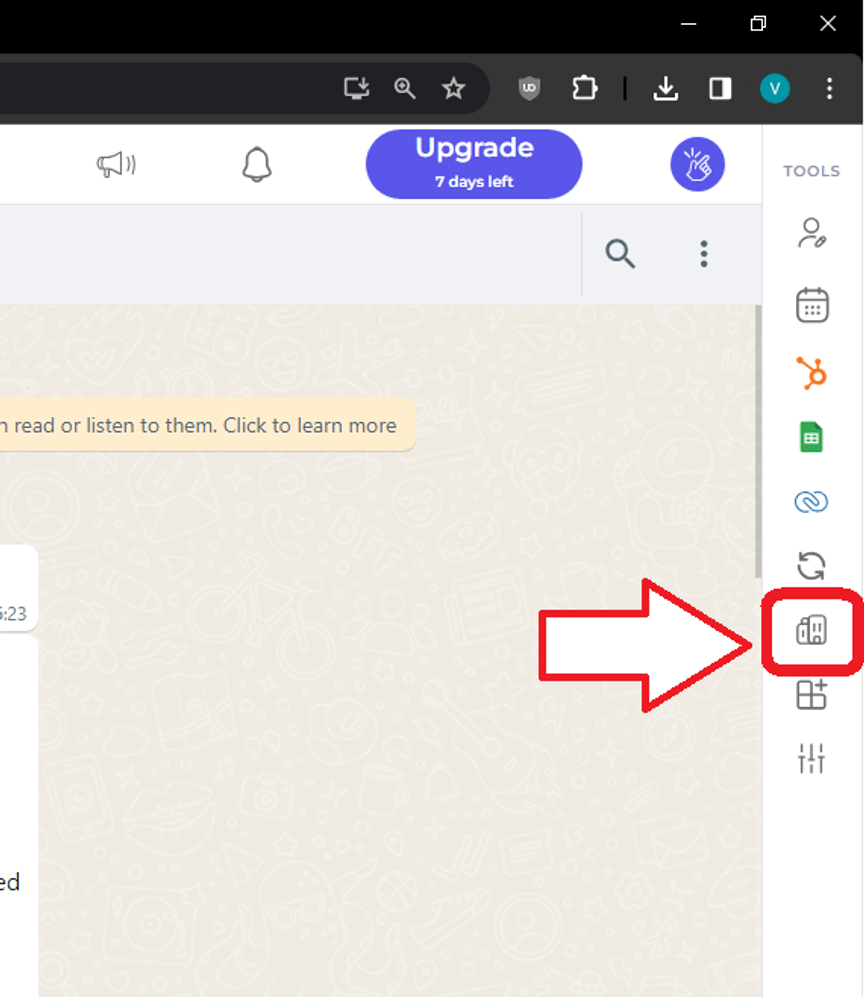
Navigate to the organization panel at [workspace.eazybe.com/organization](https://workspace.eazybe.com/organization).
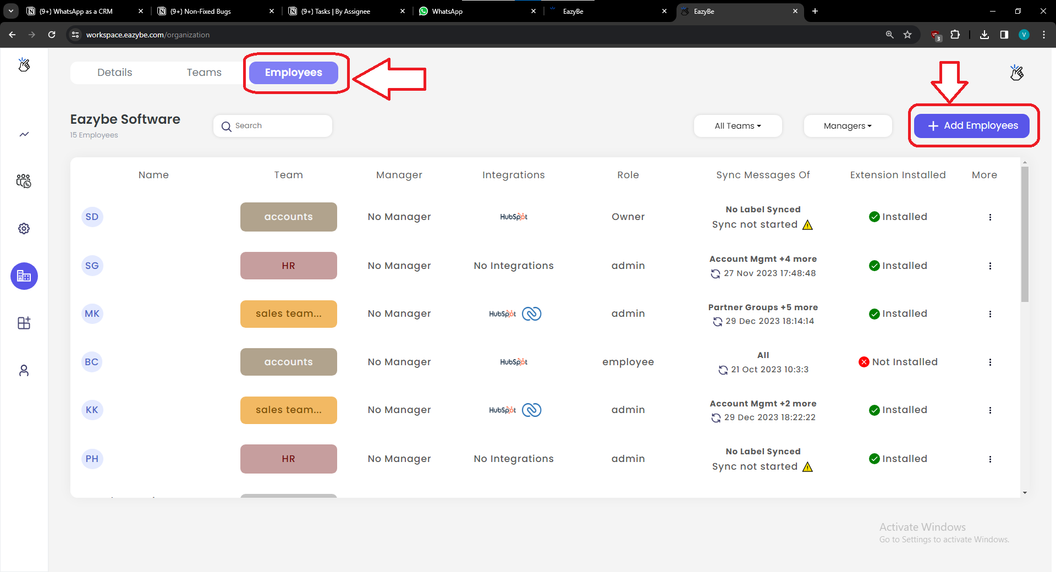
Locate and click on **Employees → Add Employees** in the interface.
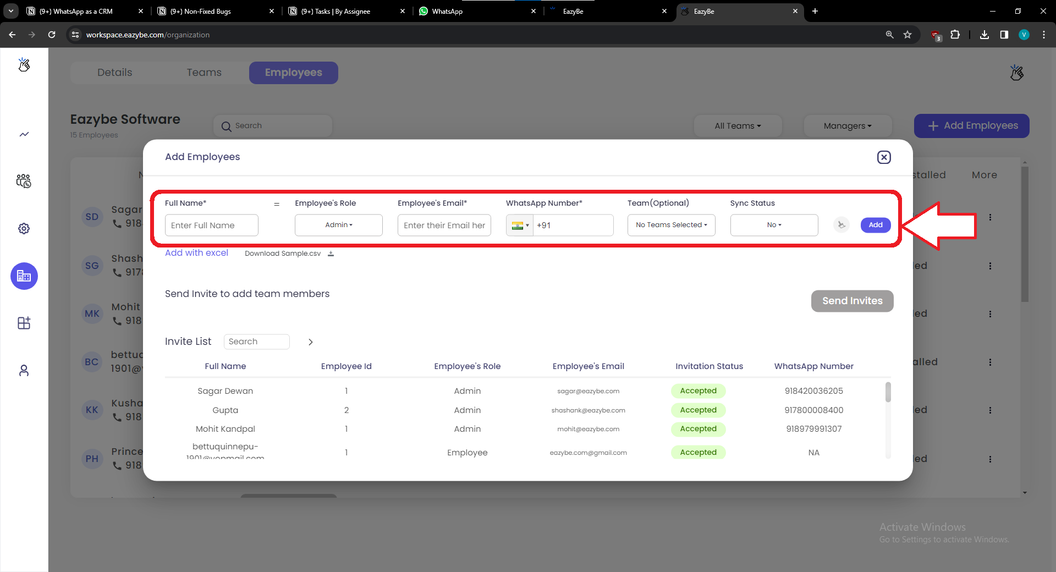
Fill in the required information for each team member:
* **Name** (required)
* **Email** (required)
* **WhatsApp Number** (required)
Click **Add** to add the employee, then send the invitation.
## What Happens After Inviting
Once team members accept the invitation and connect their WhatsApp:
* They can access shared Quick Replies and Labels
* Their chats are backed up from their WhatsApp number to the Admin's Google Drive
* You can assign tasks to them through LeadSquared
EazyBe does not store any data on its servers. All chat backups are stored directly in your Google Drive for maximum privacy and security.