> ## Documentation Index
> Fetch the complete documentation index at: https://help.eazybe.com/llms.txt
> Use this file to discover all available pages before exploring further.
# Integration
> Step-by-step guide to integrate LeadSquared with WhatsApp using EazyBe
Connect your LeadSquared account with WhatsApp through the EazyBe extension to sync contacts and backup chats automatically.
## Prerequisites
Before starting, ensure you have:
* The latest EazyBe WhatsApp extension installed
* An active LeadSquared account with admin access
## Integration Steps
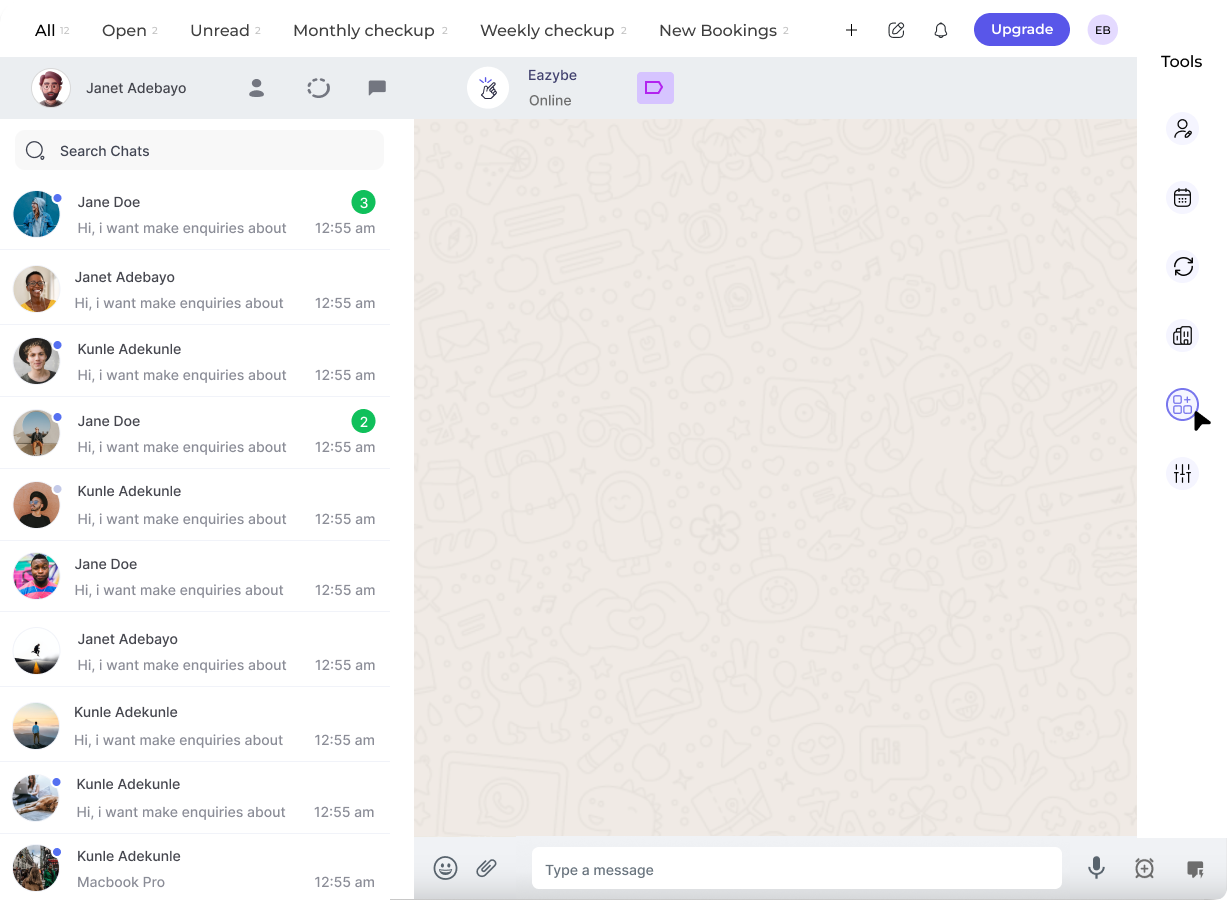
Click on the **Integrations** button in your WhatsApp Web interface through the EazyBe extension.
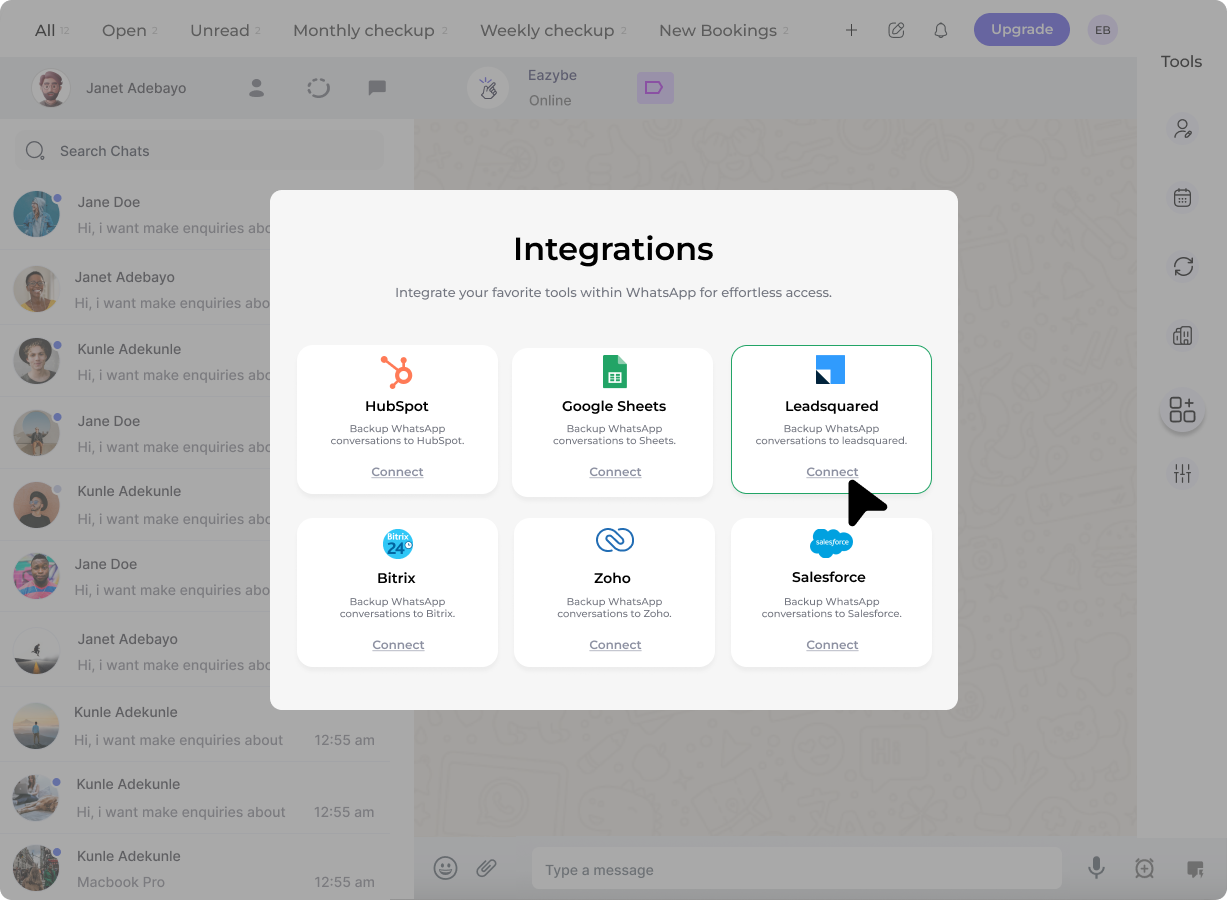
 Locate and click on the **LeadSquared** connection option from the available integrations list.
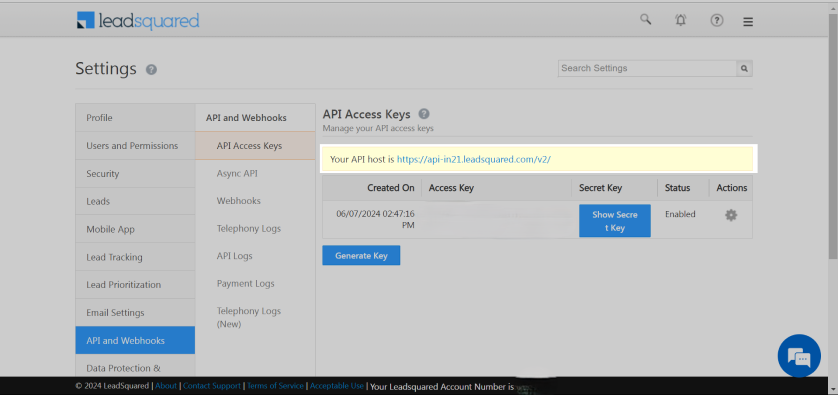
 In your LeadSquared account, navigate to **Settings → API and Webhooks** section to retrieve your credentials.
From the API Host field, copy your **Host Name** value.
Navigate to the **Secret Key** section to find your **Access ID** and **Secret Key**.
In your LeadSquared account, navigate to **Settings → API and Webhooks** section to retrieve your credentials.
From the API Host field, copy your **Host Name** value.
Navigate to the **Secret Key** section to find your **Access ID** and **Secret Key**.
 Return to the EazyBe integration form and enter your credentials:
* **Host Name**
* **Access Key**
* **Secret Key**
Click **Connect** to complete the integration.
Once connected, your WhatsApp contacts will automatically sync with LeadSquared, and chat backups will be stored in your CRM.
Return to the EazyBe integration form and enter your credentials:
* **Host Name**
* **Access Key**
* **Secret Key**
Click **Connect** to complete the integration.
Once connected, your WhatsApp contacts will automatically sync with LeadSquared, and chat backups will be stored in your CRM.