> ## Documentation Index
> Fetch the complete documentation index at: https://help.eazybe.com/llms.txt
> Use this file to discover all available pages before exploring further.
# Sync Issue
> Troubleshooting guide to fix WhatsApp syncing issues with LeadSquared
If your WhatsApp conversations are not syncing with LeadSquared despite ongoing message exchanges, follow this troubleshooting guide to resolve the issue.
## Verify WhatsApp Chats Activity is Enabled
The most common cause of sync issues is the **WhatsApp Chats by EazyBe** activity type not being enabled in LeadSquared.
Navigate to any LeadSquared Lead page. You can do this by:
* Clicking the **View Lead on LeadSquared** button in EazyBe
* Or navigating directly in LeadSquared
On the Lead page, find the **Activity History** section.
Click on the **Activity Type** dropdown menu.
Verify that the checkbox for **WhatsApp Chats by EazyBe** is selected. If it's not checked, enable it.
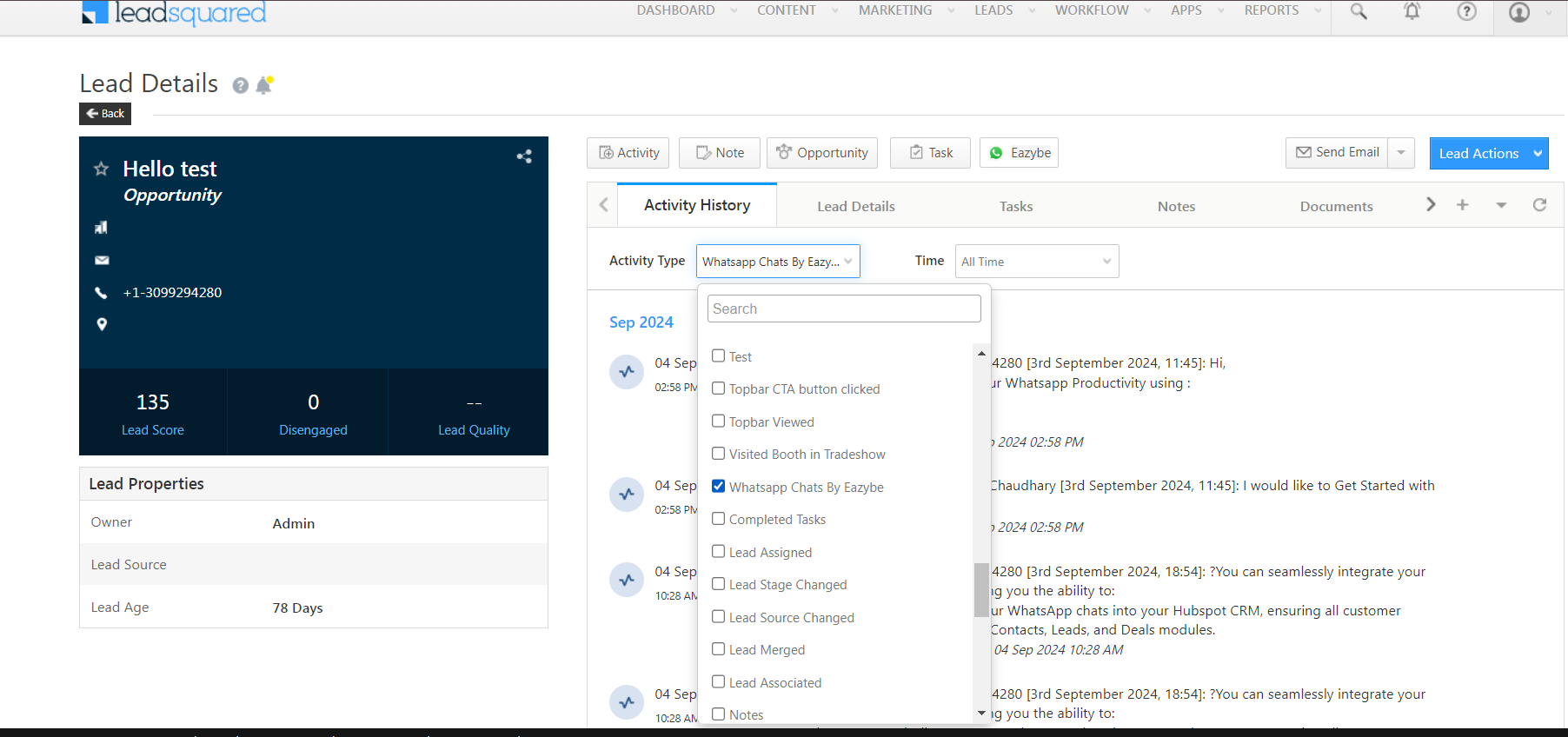 If the WhatsApp Chats by EazyBe option is not visible in the Activity Type dropdown, contact your LeadSquared administrator to ensure the activity type has been properly configured.
After enabling the activity type, your WhatsApp conversations should start syncing. Previously exchanged messages may take some time to appear in the activity history.
## Need Help?
If you have questions or need assistance, contact support at **[hey@eazybe.com](mailto:hey@eazybe.com)**.
If the WhatsApp Chats by EazyBe option is not visible in the Activity Type dropdown, contact your LeadSquared administrator to ensure the activity type has been properly configured.
After enabling the activity type, your WhatsApp conversations should start syncing. Previously exchanged messages may take some time to appear in the activity history.
## Need Help?
If you have questions or need assistance, contact support at **[hey@eazybe.com](mailto:hey@eazybe.com)**.