> ## Documentation Index
> Fetch the complete documentation index at: https://help.eazybe.com/llms.txt
> Use this file to discover all available pages before exploring further.
# Last Sync Time
> Where to check the last sync time for your team using LeadSquared integration
Administrators can monitor the most recent synchronization timestamp for their team through the EazyBe Workspace platform.
## Checking Last Sync Time
Access the EazyBe Workspace using your admin credentials at [workspace.eazybe.com](https://workspace.eazybe.com/).
Locate and select the **Dashboard** button from the main menu.
Look for the **Last Chat Synced** column in the team overview table. This displays synchronization timestamps for all team members' chats.
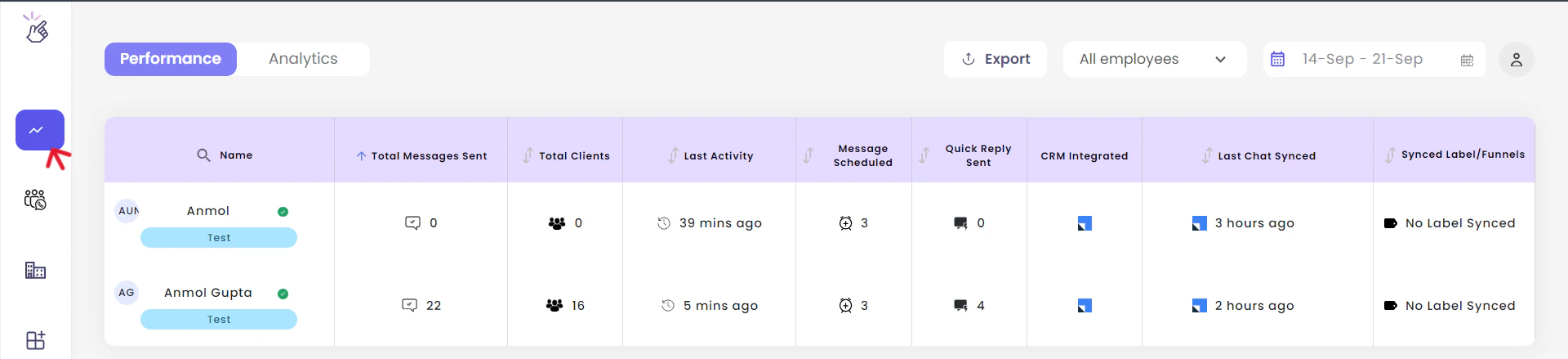
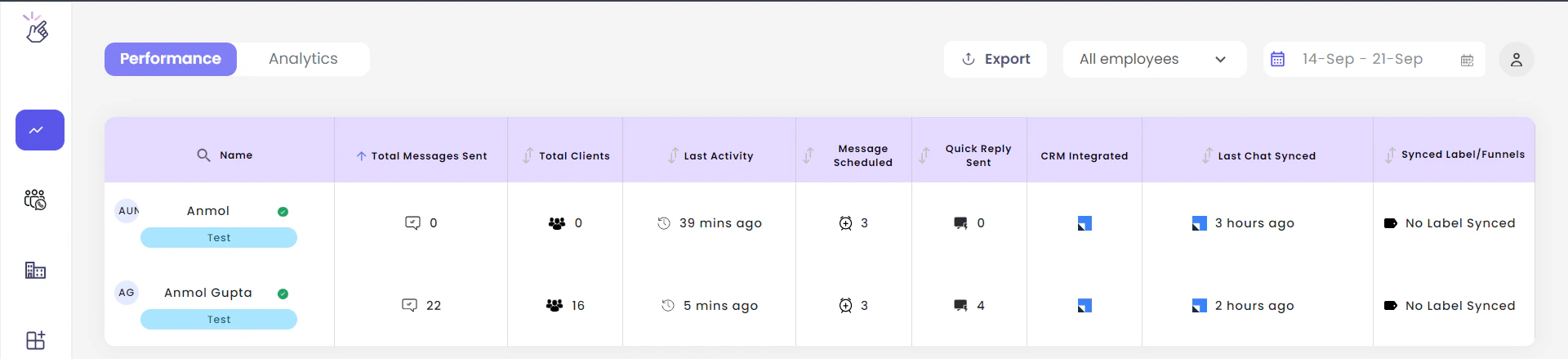 The **Last Chat Synced** column shows when each team member's WhatsApp chats were last synchronized with LeadSquared. This helps you monitor sync activity across your entire team.
If you notice that a team member's sync time is outdated, check if they have the EazyBe extension active and their WhatsApp Web is connected.
## Need Help?
If you have any questions or need further assistance, feel free to reach out to us at **[hey@eazybe.com](mailto:hey@eazybe.com)**.
The **Last Chat Synced** column shows when each team member's WhatsApp chats were last synchronized with LeadSquared. This helps you monitor sync activity across your entire team.
If you notice that a team member's sync time is outdated, check if they have the EazyBe extension active and their WhatsApp Web is connected.
## Need Help?
If you have any questions or need further assistance, feel free to reach out to us at **[hey@eazybe.com](mailto:hey@eazybe.com)**.