> ## Documentation Index
> Fetch the complete documentation index at: https://help.eazybe.com/llms.txt
> Use this file to discover all available pages before exploring further.
# Disconnect Integration
> How to disconnect the LeadSquared integration after completion
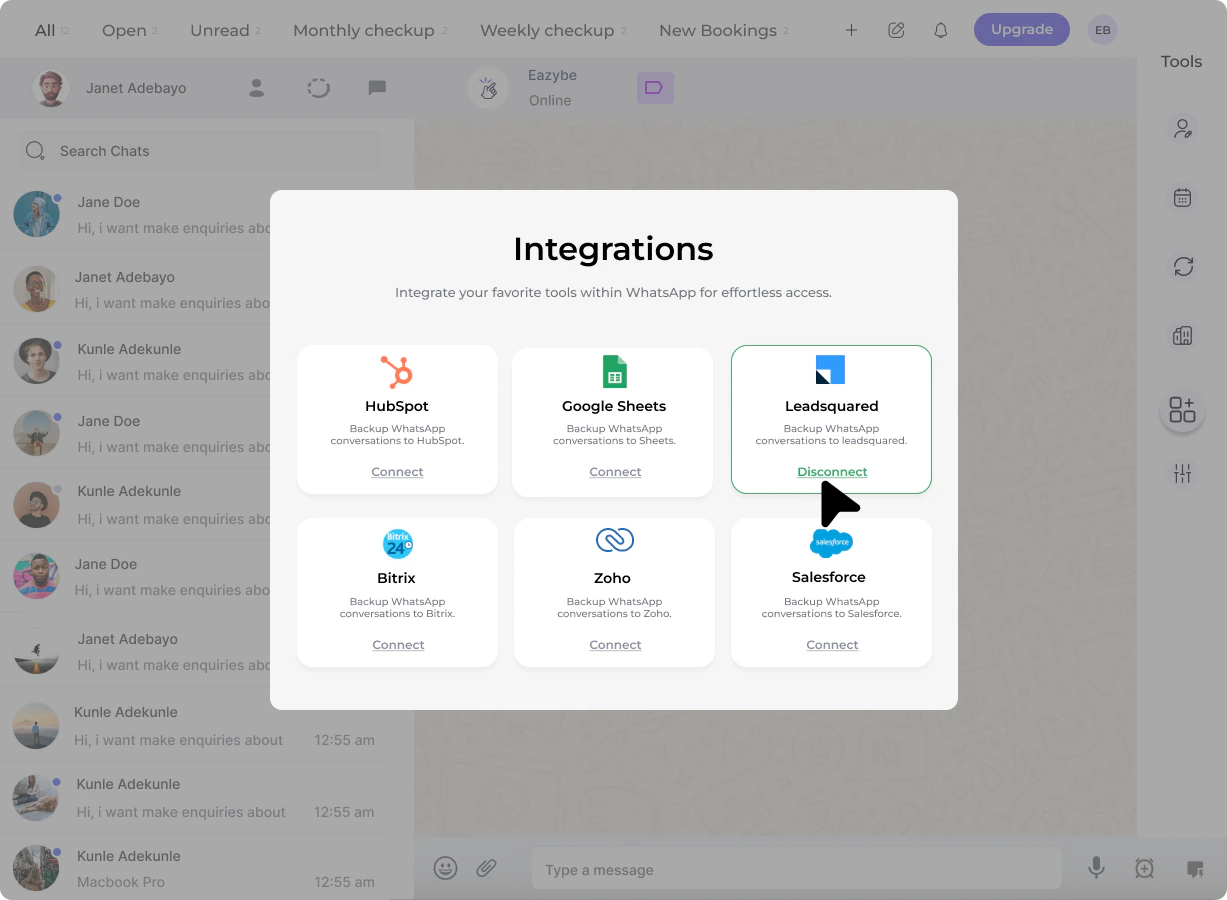
If you need to disconnect the LeadSquared integration from EazyBe, follow these simple steps.
## Steps to Disconnect
Click on the **Integration** button in the EazyBe panel.
Click the **Disconnect** button to begin the disconnection process.
You will be prompted to confirm the action. Click **Confirm** to complete the disconnection.
 Disconnecting the integration will stop all syncing between WhatsApp and LeadSquared. Make sure you have backed up any important data before proceeding.
For more detailed information about the disconnection process, see the [Disconnect LeadSquared Integration](/en/integrations/leadsquared/disconnect) guide.
## Need Help?
If you have questions or need assistance, contact support at **[hey@eazybe.com](mailto:hey@eazybe.com)**.
Disconnecting the integration will stop all syncing between WhatsApp and LeadSquared. Make sure you have backed up any important data before proceeding.
For more detailed information about the disconnection process, see the [Disconnect LeadSquared Integration](/en/integrations/leadsquared/disconnect) guide.
## Need Help?
If you have questions or need assistance, contact support at **[hey@eazybe.com](mailto:hey@eazybe.com)**.