> ## Documentation Index
> Fetch the complete documentation index at: https://help.eazybe.com/llms.txt
> Use this file to discover all available pages before exploring further.
# Chat Backup View
> Where to find your WhatsApp chat backups in LeadSquared
Your WhatsApp conversations are automatically backed up to LeadSquared through EazyBe. Here's where you can find these chat backups within LeadSquared.
## Backup Locations
WhatsApp chat backups with LeadSquared leads are accessible in two primary locations:
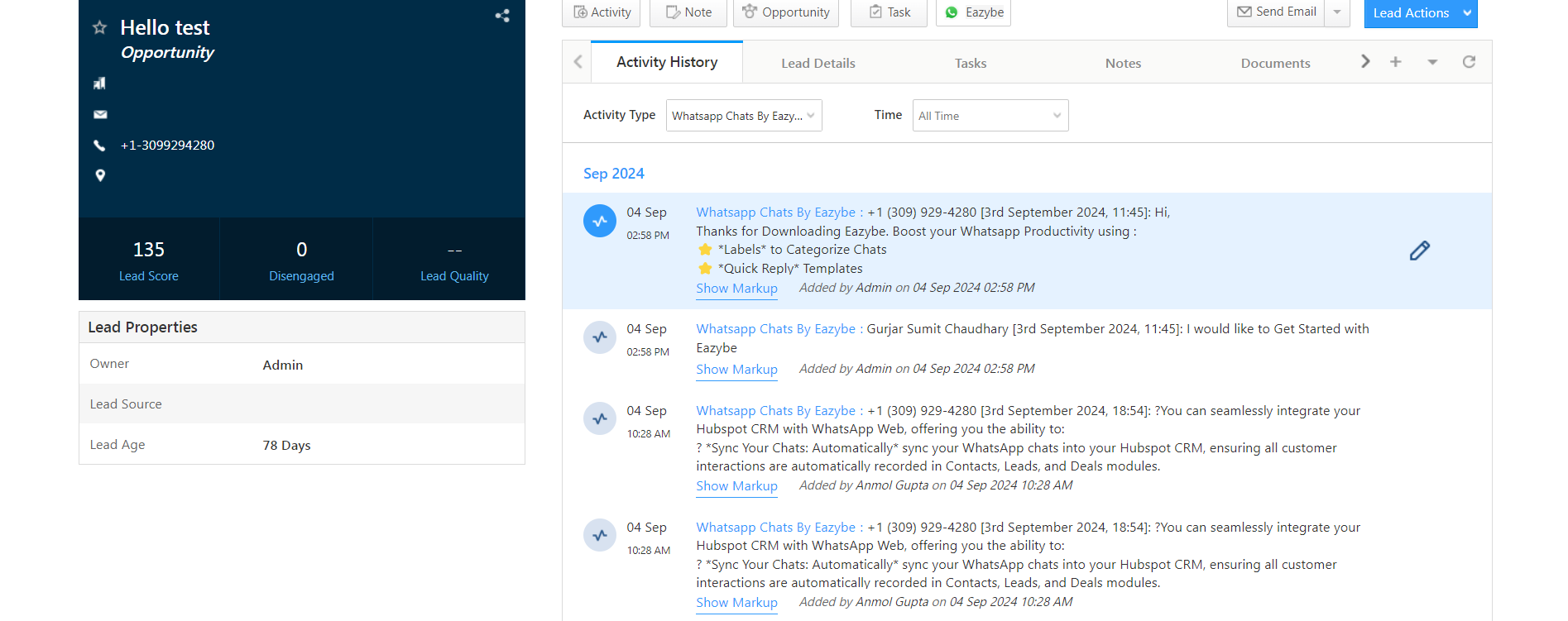
### 1. Leads Page
Chat backups appear on the individual lead's dedicated page within LeadSquared. Navigate to any lead's profile to view their complete WhatsApp conversation history.
 ### 2. Lead Opportunities Page
Conversations are also backed up within the Opportunities section of each lead's profile. This allows you to view chat history in the context of specific opportunities.
### 2. Lead Opportunities Page
Conversations are also backed up within the Opportunities section of each lead's profile. This allows you to view chat history in the context of specific opportunities.
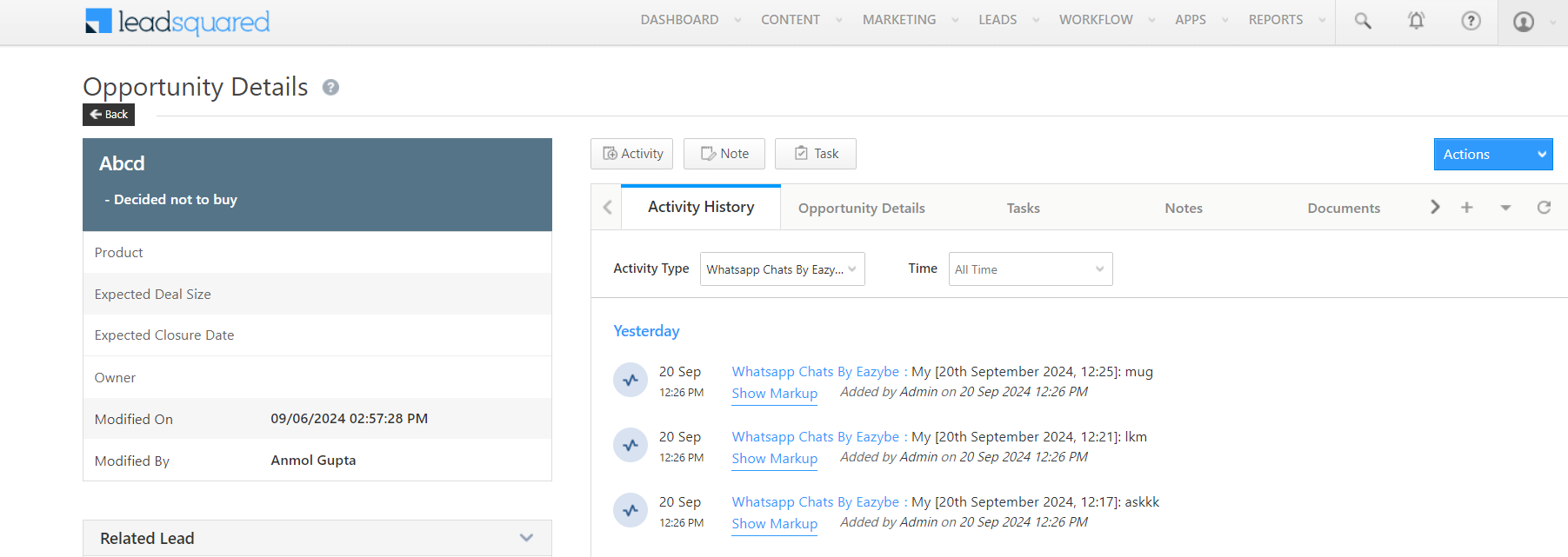 Both locations display the same WhatsApp conversation data, allowing you to access chat history from whichever view is most relevant to your workflow.
Use the Leads Page for general conversation review and the Opportunities Page when you need to reference chats in the context of a specific deal or opportunity.
## Need Help?
If you have any questions or need further assistance, feel free to reach out to us at **[hey@eazybe.com](mailto:hey@eazybe.com)**.
Both locations display the same WhatsApp conversation data, allowing you to access chat history from whichever view is most relevant to your workflow.
Use the Leads Page for general conversation review and the Opportunities Page when you need to reference chats in the context of a specific deal or opportunity.
## Need Help?
If you have any questions or need further assistance, feel free to reach out to us at **[hey@eazybe.com](mailto:hey@eazybe.com)**.