> ## Documentation Index
> Fetch the complete documentation index at: https://help.eazybe.com/llms.txt
> Use this file to discover all available pages before exploring further.
# Disconnect
> How to disconnect your LeadSquared integration from EazyBe
If you need to remove the LeadSquared integration from your EazyBe account, you can do so using one of two methods.
## Method A: Via WhatsApp Extension
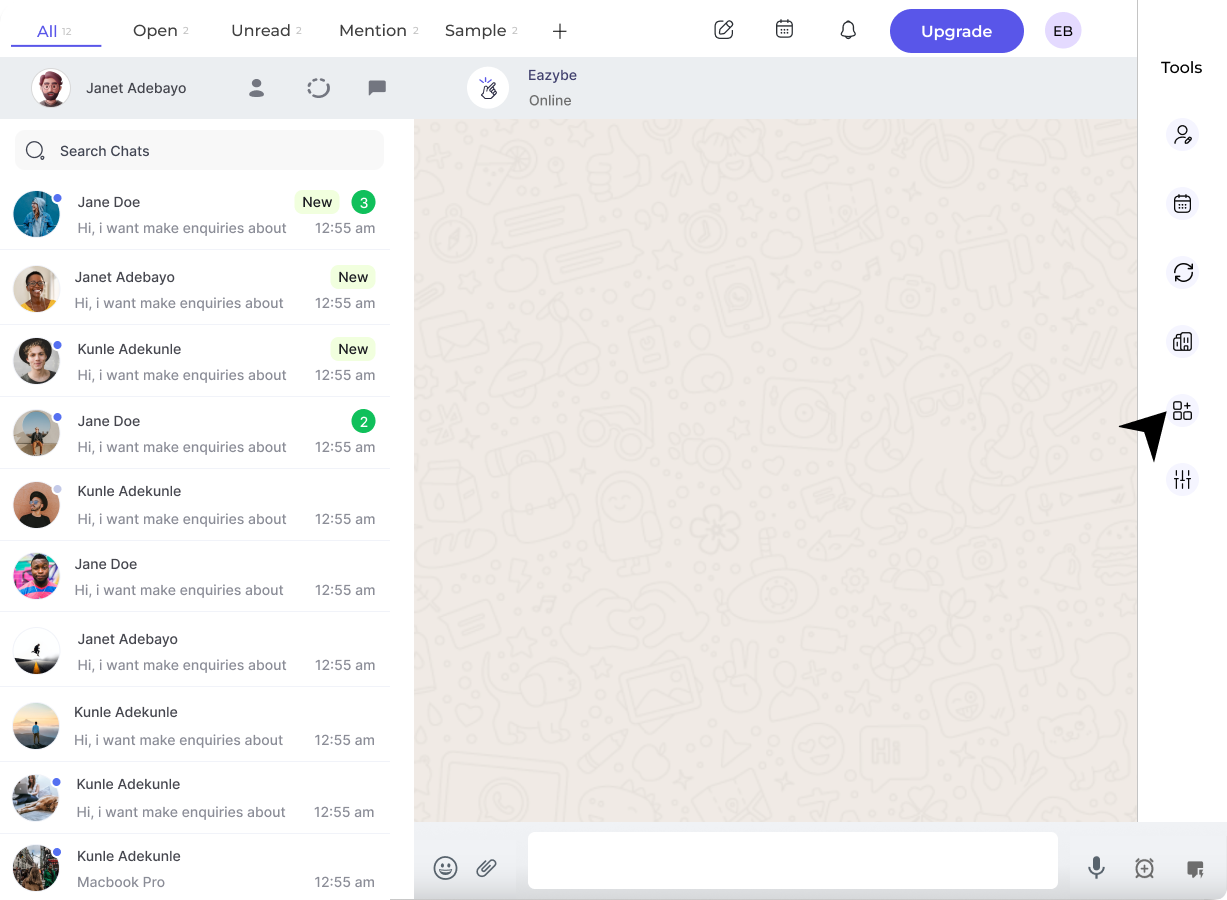
Click on the **Integrations** icon in your WhatsApp Web interface.
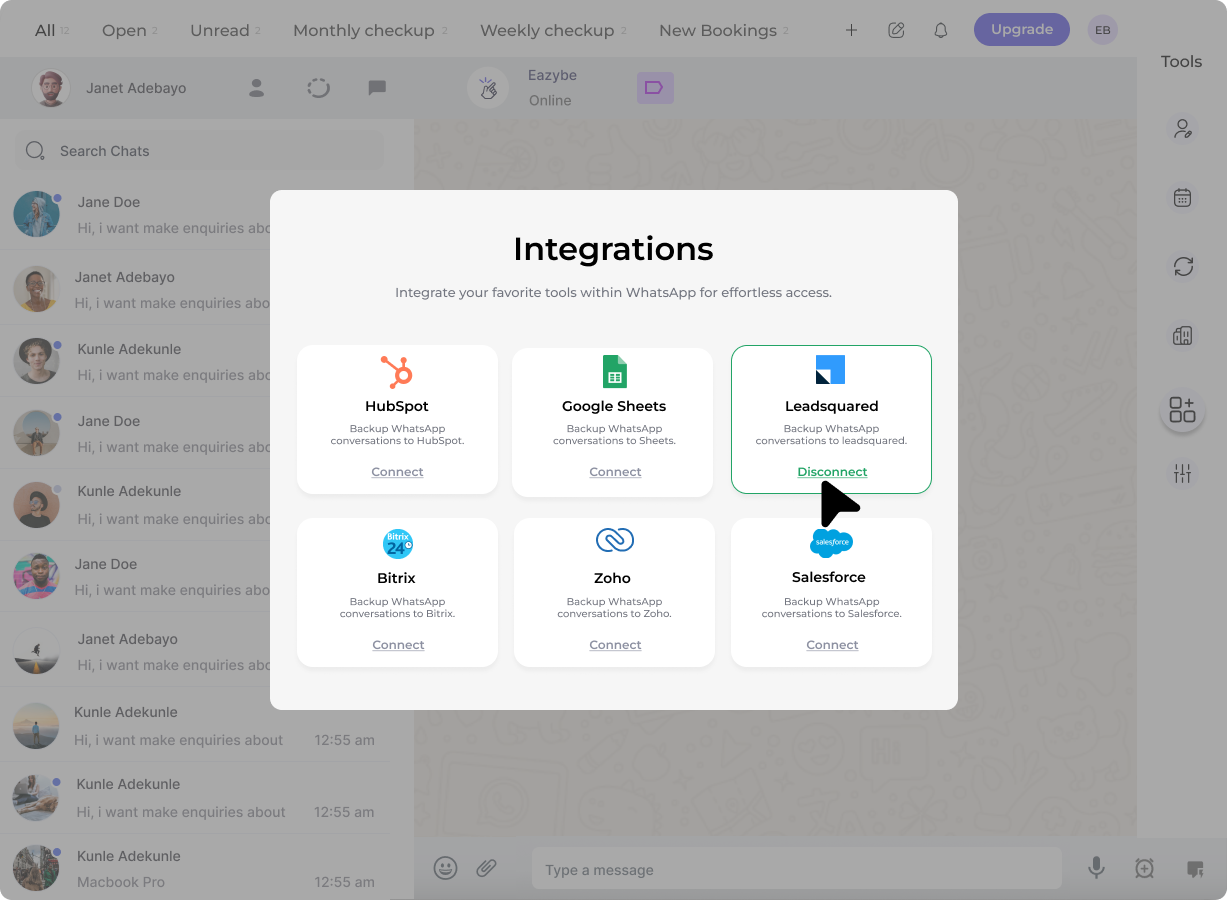
 Find the LeadSquared section and click the **Disconnect** button.
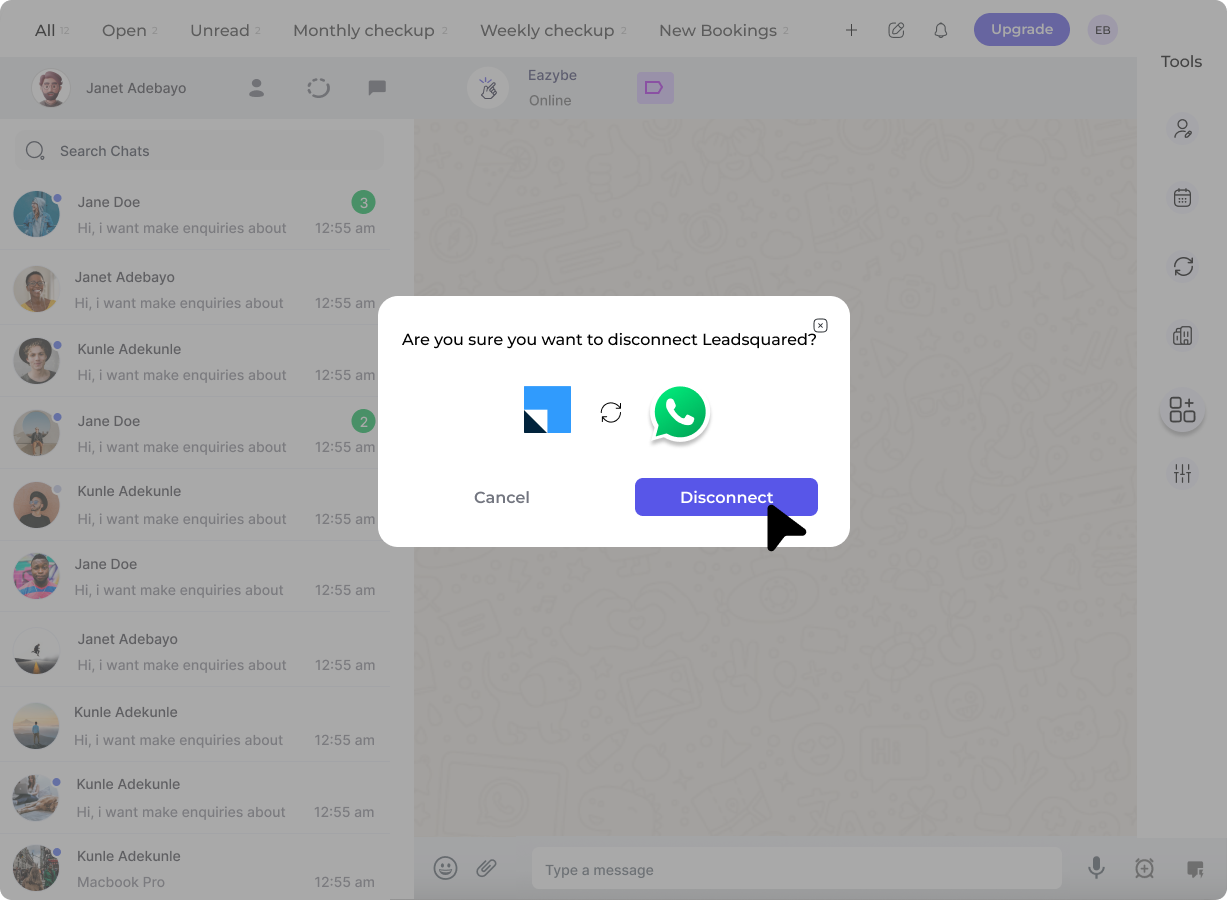
 A confirmation pop-up will appear. Click **Confirm** to complete the disconnection.
 ## Method B: Via EazyBe Workspace
Navigate to **Organisation settings** via the right sidebar in your EazyBe Workspace.
Select **Integrations** from the left sidebar menu.
## Method B: Via EazyBe Workspace
Navigate to **Organisation settings** via the right sidebar in your EazyBe Workspace.
Select **Integrations** from the left sidebar menu.
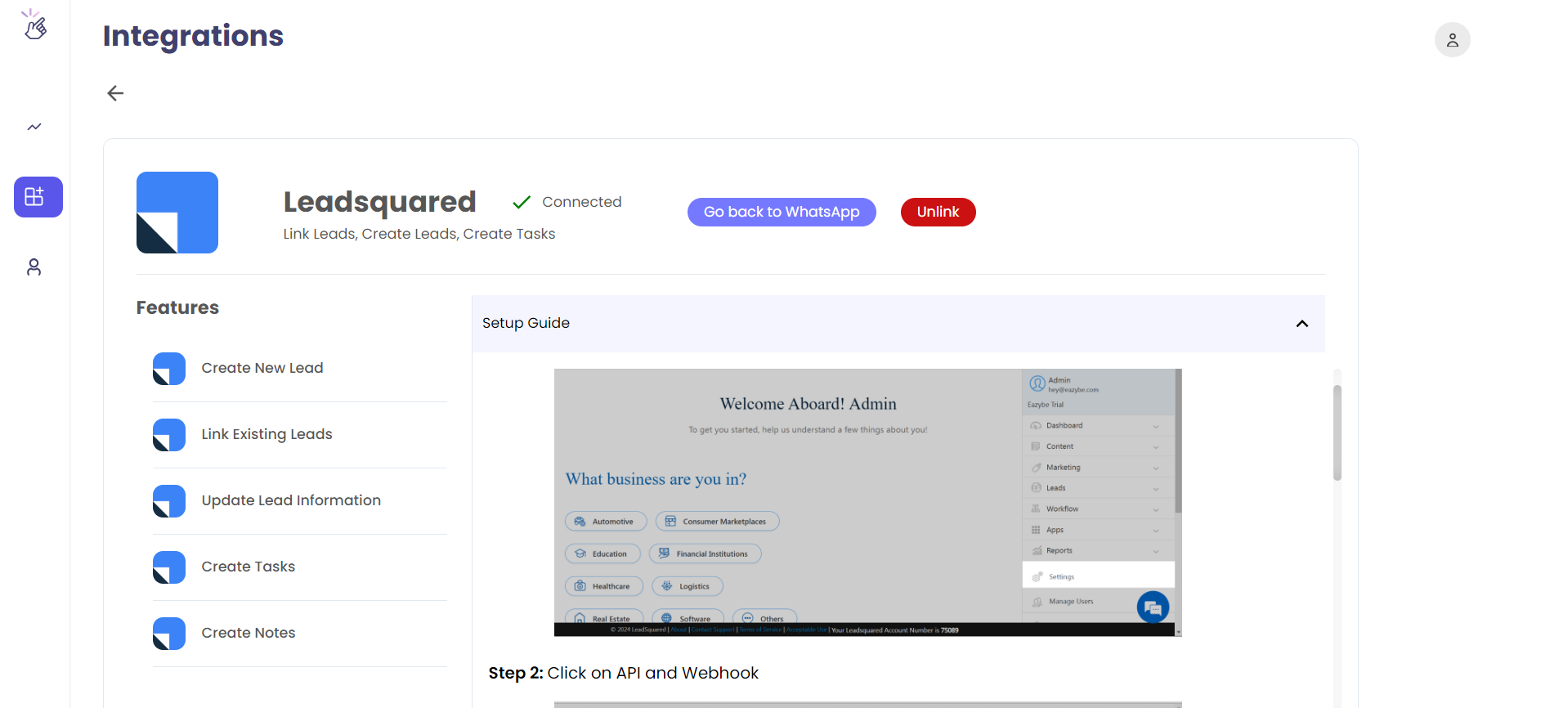 Click **Configure** under the LeadSquared CRM integration section.
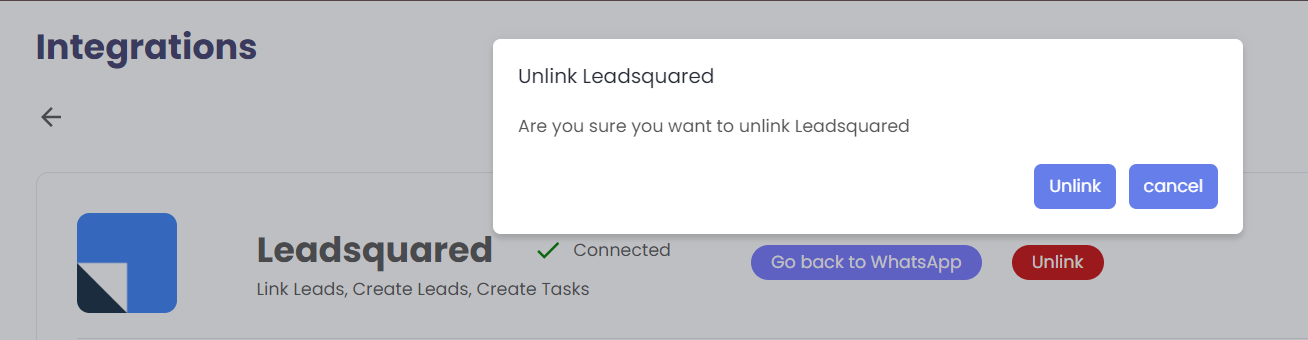
Click the red **Unlink LeadSquared** button and confirm the disconnection.
Click **Configure** under the LeadSquared CRM integration section.
Click the red **Unlink LeadSquared** button and confirm the disconnection.
 Disconnecting the integration will stop syncing contacts and chat backups between WhatsApp and LeadSquared. Any previously synced data will remain in LeadSquared.