> ## Documentation Index
> Fetch the complete documentation index at: https://help.eazybe.com/llms.txt
> Use this file to discover all available pages before exploring further.
# Create Opportunity
> Create and manage LeadSquared opportunities directly from the EazyBe WhatsApp extension
Opportunities represent potential deals or clients showing interest in your product. They help you categorize clients based on the status of conversations, allowing you to prioritize the most important ones.
## Creating and Managing Opportunities
Access the WhatsApp conversation for the LeadSquared contact you want to create an opportunity for.
Navigate to the **Mini-CRM view** in the right sidebar. The Opportunity section appears only if the lead already exists in LeadSquared.
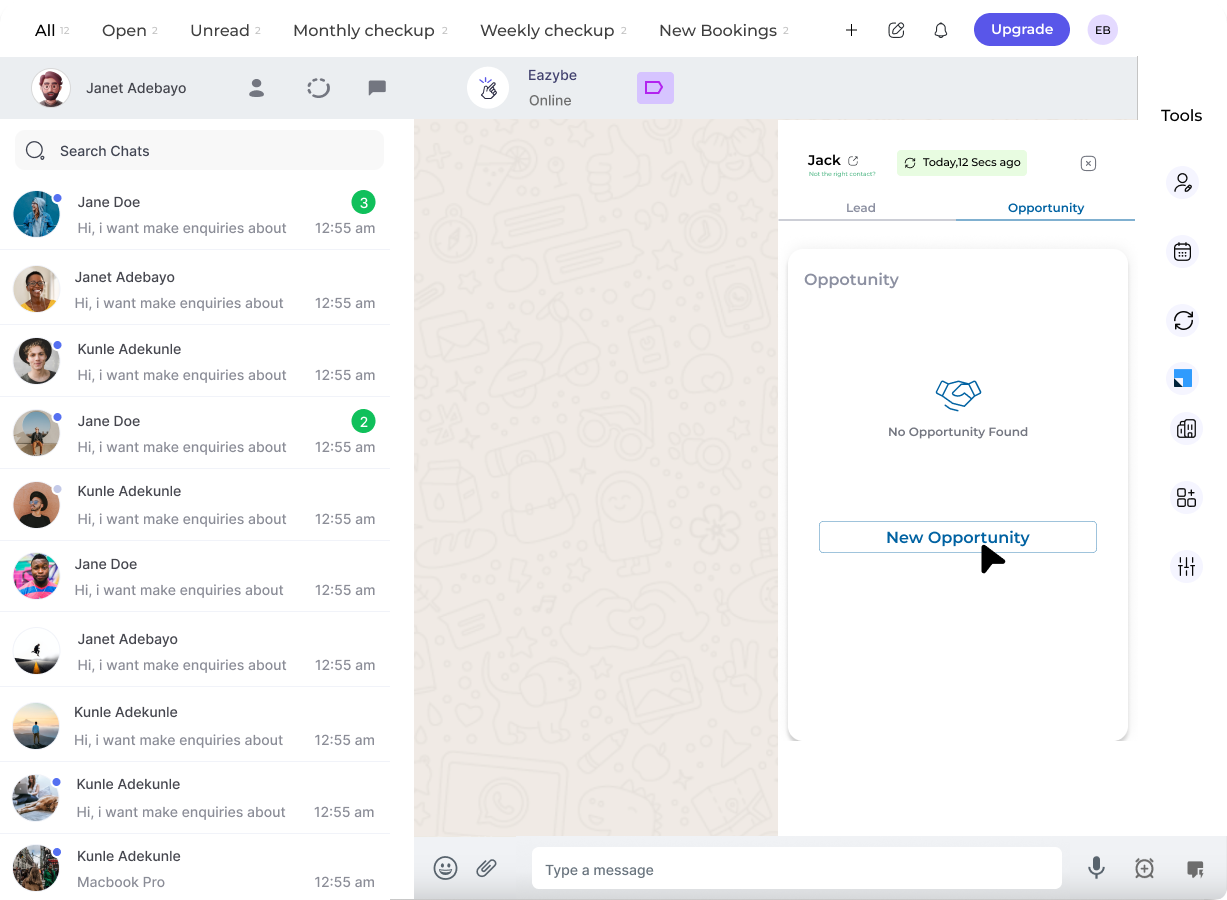 Click the **Create Opportunity** button to begin adding a new opportunity for this lead.
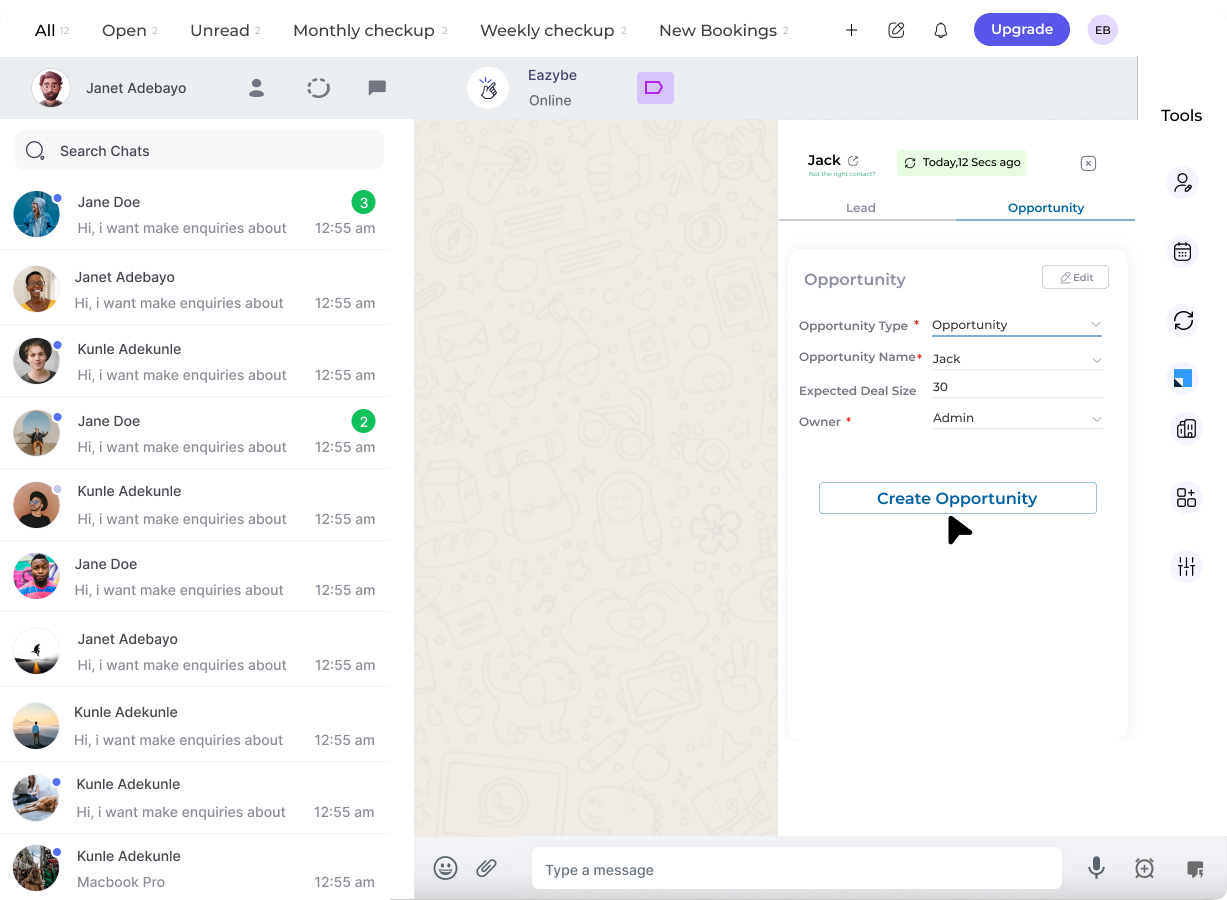 Fill in the required opportunity information including deal value, stage, and other relevant details.
Click the **Save** button to finalize and create the opportunity.
Fill in the required opportunity information including deal value, stage, and other relevant details.
Click the **Save** button to finalize and create the opportunity.
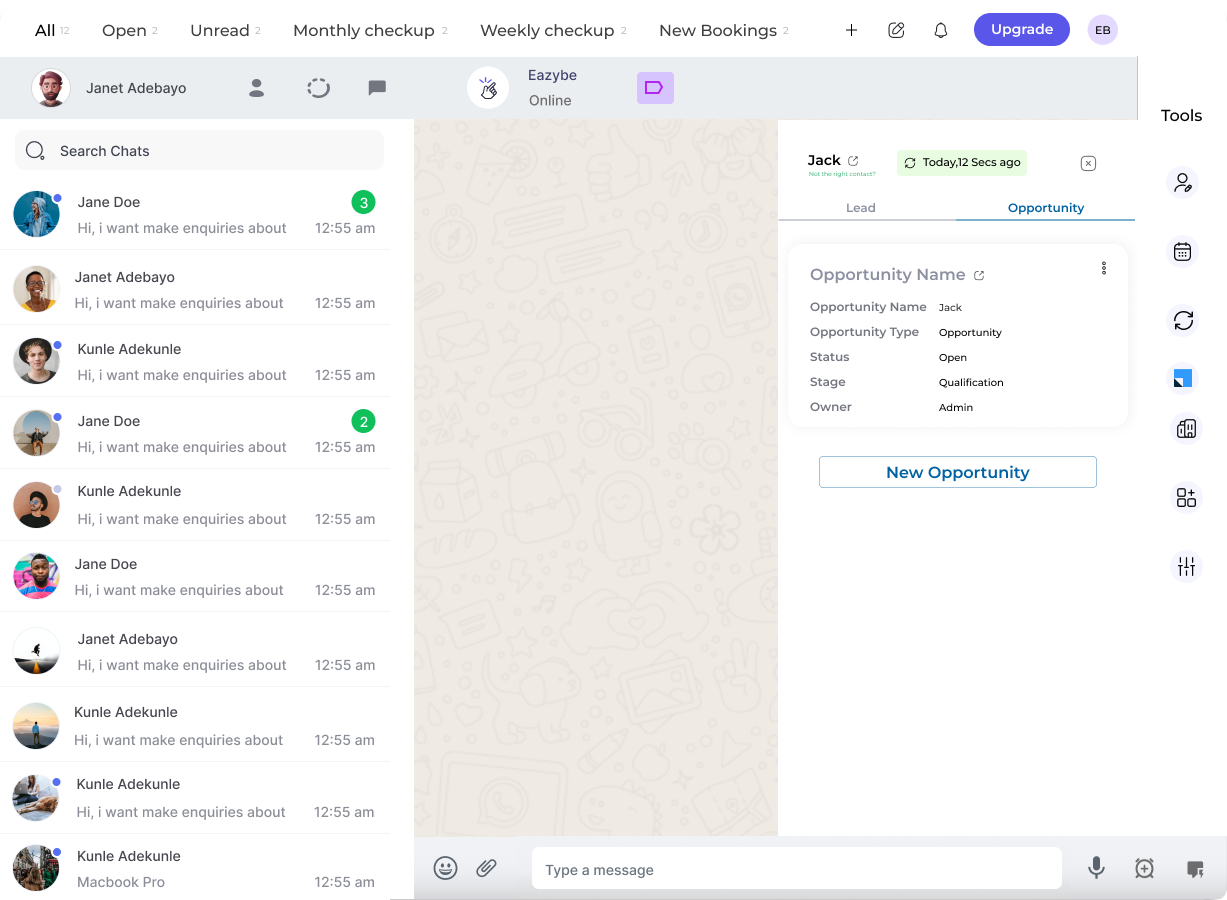 Repeat the process to create additional opportunities for the same lead as needed.
Opportunities created in EazyBe are automatically synchronized with LeadSquared and linked to the specific lead.
## Need Help?
If you have questions or encounter issues, contact support at **[hey@eazybe.com](mailto:hey@eazybe.com)**.
Repeat the process to create additional opportunities for the same lead as needed.
Opportunities created in EazyBe are automatically synchronized with LeadSquared and linked to the specific lead.
## Need Help?
If you have questions or encounter issues, contact support at **[hey@eazybe.com](mailto:hey@eazybe.com)**.