> ## Documentation Index
> Fetch the complete documentation index at: https://help.eazybe.com/llms.txt
> Use this file to discover all available pages before exploring further.
# Create and Customize Lead
> How to create new leads in LeadSquared and customize lead properties through EazyBe
Create new leads directly from WhatsApp conversations and customize their properties within the LeadSquared Mini-CRM interface.
## Create a New Lead in LeadSquared
Open the WhatsApp conversation with the contact you wish to create a lead for.
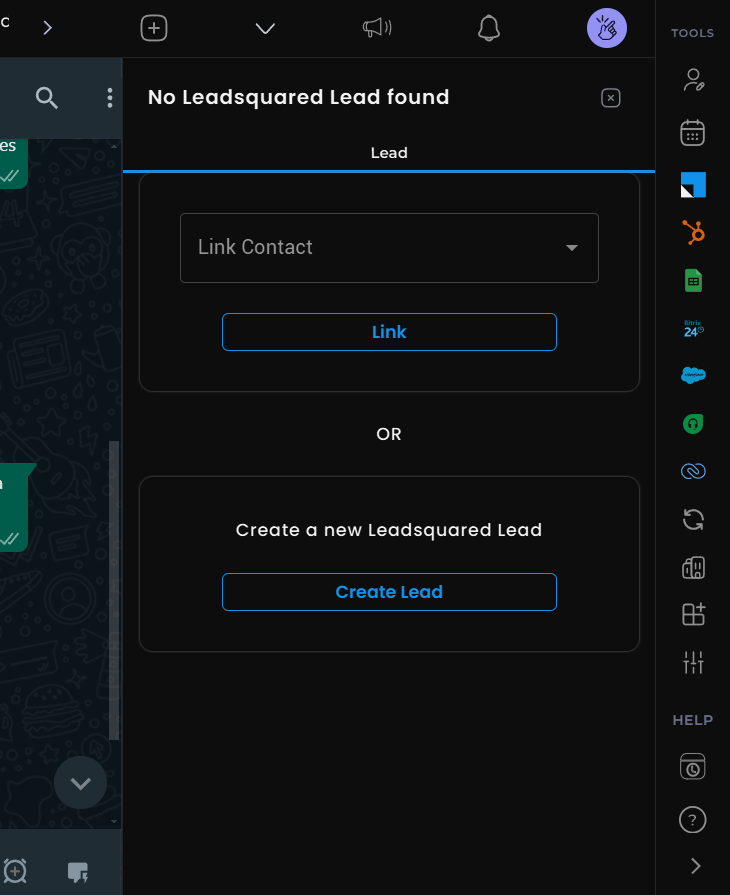 Click the **LeadSquared icon** in the right sidebar to access the Mini-CRM interface.
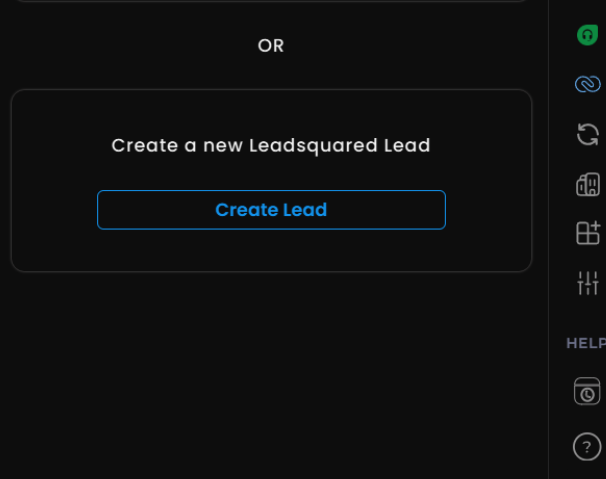 * To link an existing lead: Select **"Link Contact"**, choose the lead from available options, and confirm
* For new contacts: Click **"Create Contact"**, then populate the required fields
Once created, use the **"View Lead on LeadSquared"** button to view the lead directly in LeadSquared.
## Customize Lead Properties
Open the WhatsApp chat of the LeadSquared lead you want to customize.
Click the **"Edit"** button in the Contact Card to modify properties.
* To link an existing lead: Select **"Link Contact"**, choose the lead from available options, and confirm
* For new contacts: Click **"Create Contact"**, then populate the required fields
Once created, use the **"View Lead on LeadSquared"** button to view the lead directly in LeadSquared.
## Customize Lead Properties
Open the WhatsApp chat of the LeadSquared lead you want to customize.
Click the **"Edit"** button in the Contact Card to modify properties.
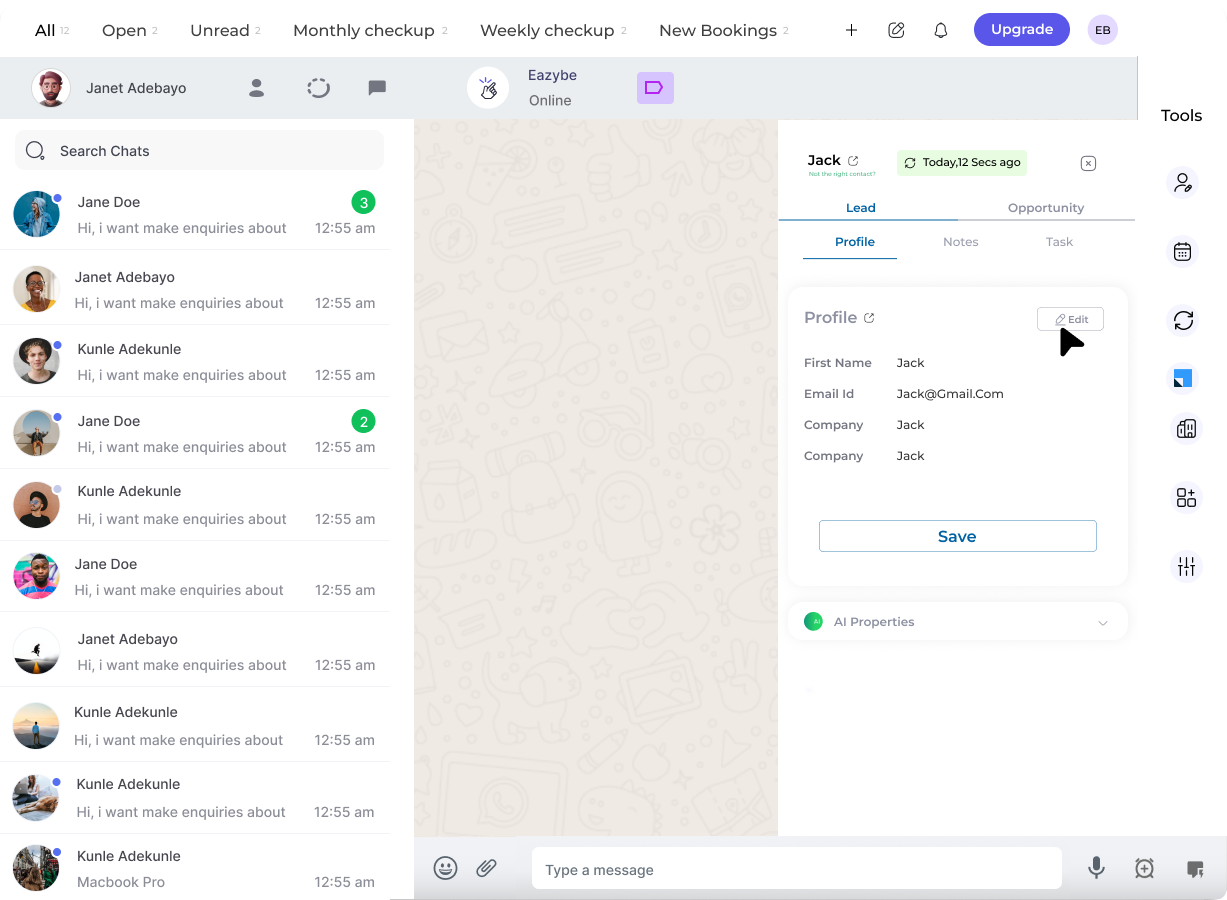 A dialog appears where you can:
* Edit property values
* Reorder properties
* Designate fields as required or optional
A dialog appears where you can:
* Edit property values
* Reorder properties
* Designate fields as required or optional
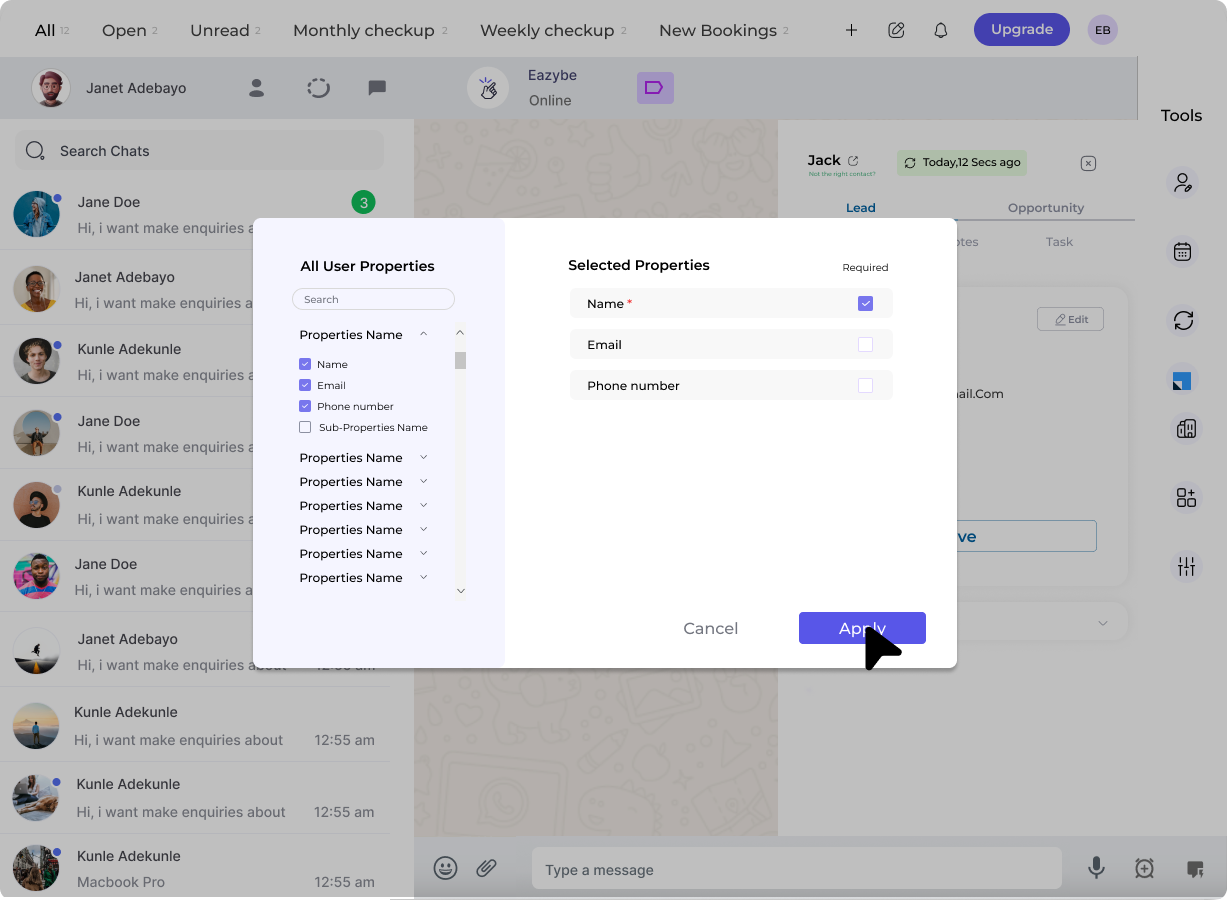 Click **"Apply"** to confirm your changes, then **"Save"** to finalize.
Customizing lead properties allows you to capture the information most relevant to your sales process directly from WhatsApp conversations.
Click **"Apply"** to confirm your changes, then **"Save"** to finalize.
Customizing lead properties allows you to capture the information most relevant to your sales process directly from WhatsApp conversations.