> ## Documentation Index
> Fetch the complete documentation index at: https://help.eazybe.com/llms.txt
> Use this file to discover all available pages before exploring further.
# Workflow Troubleshoot
> Common solutions and troubleshooting steps for HubSpot workflow issues with Eazybe WhatsApp integration
## Overview
If your HubSpot workflows aren't sending WhatsApp messages as expected, this guide covers the most common issues and their solutions.
***
## 1. Email ID Registration Match
The email address registered on your HubSpot account and your Eazybe account **must be the same** for workflows to function correctly.
Ensure the Eazybe Chrome extension is properly installed and active.
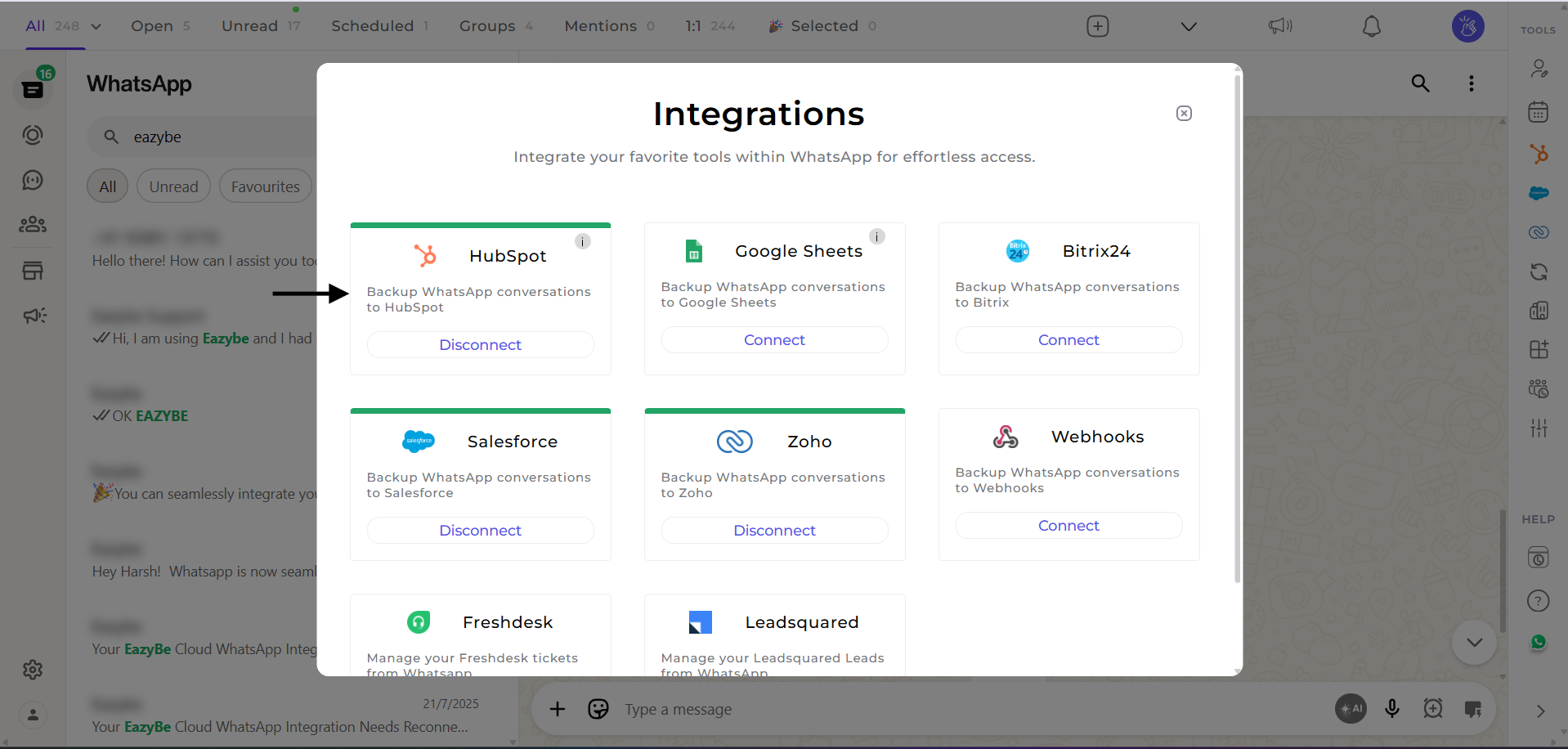 Connect your HubSpot account through the Eazybe extension settings.
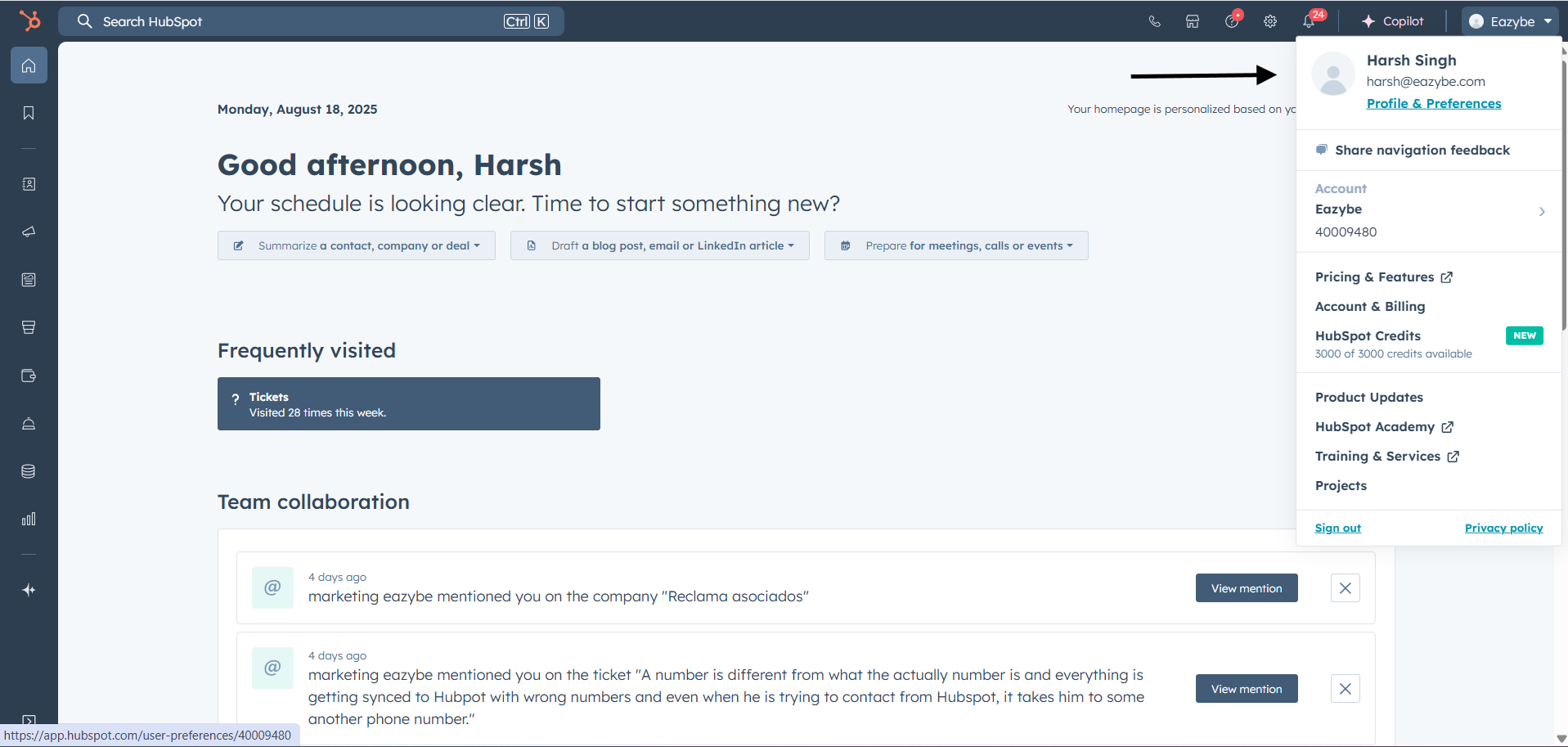
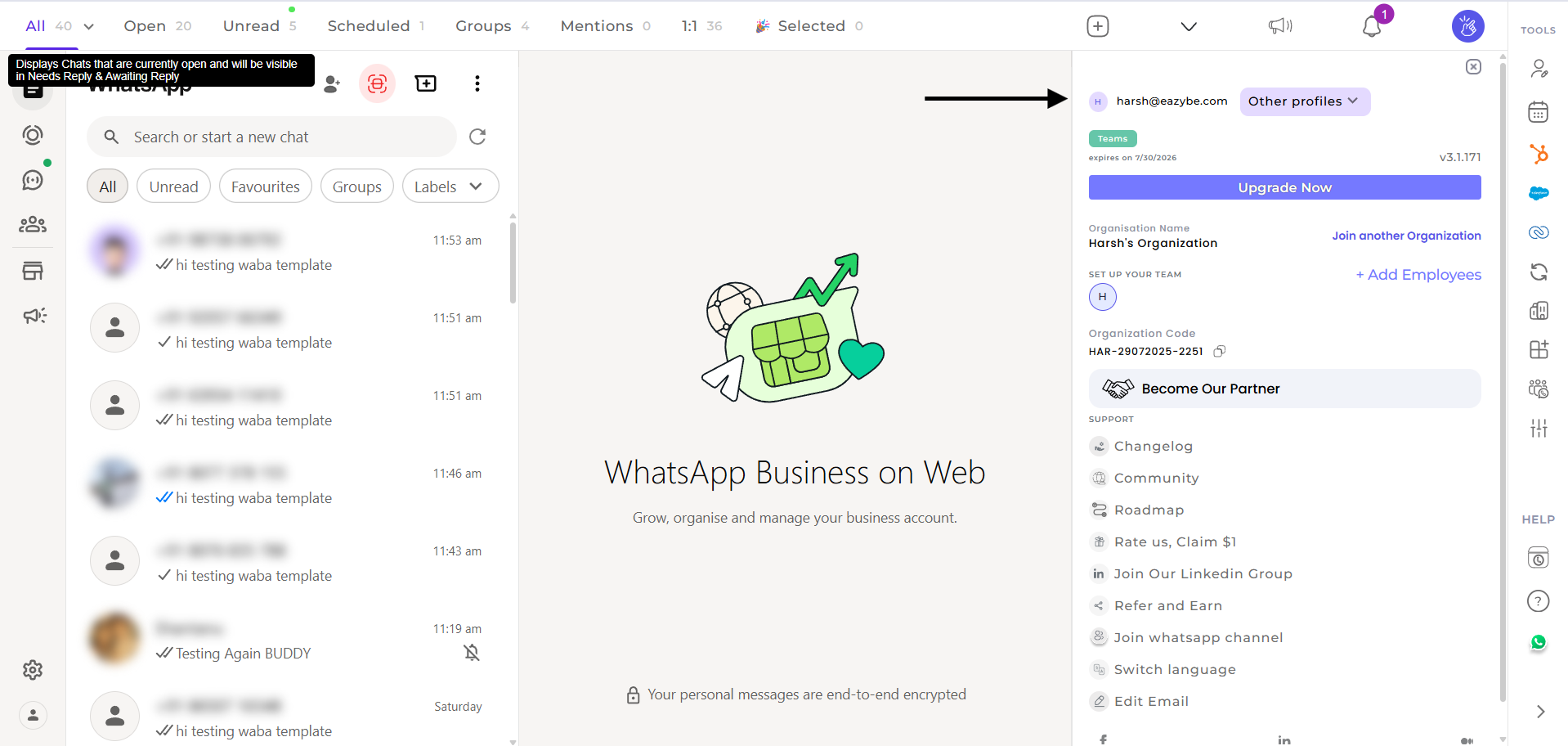 Confirm that the email address used in HubSpot matches the one in your Eazybe account.
 ***
## 2. Cloud Connection Requirement
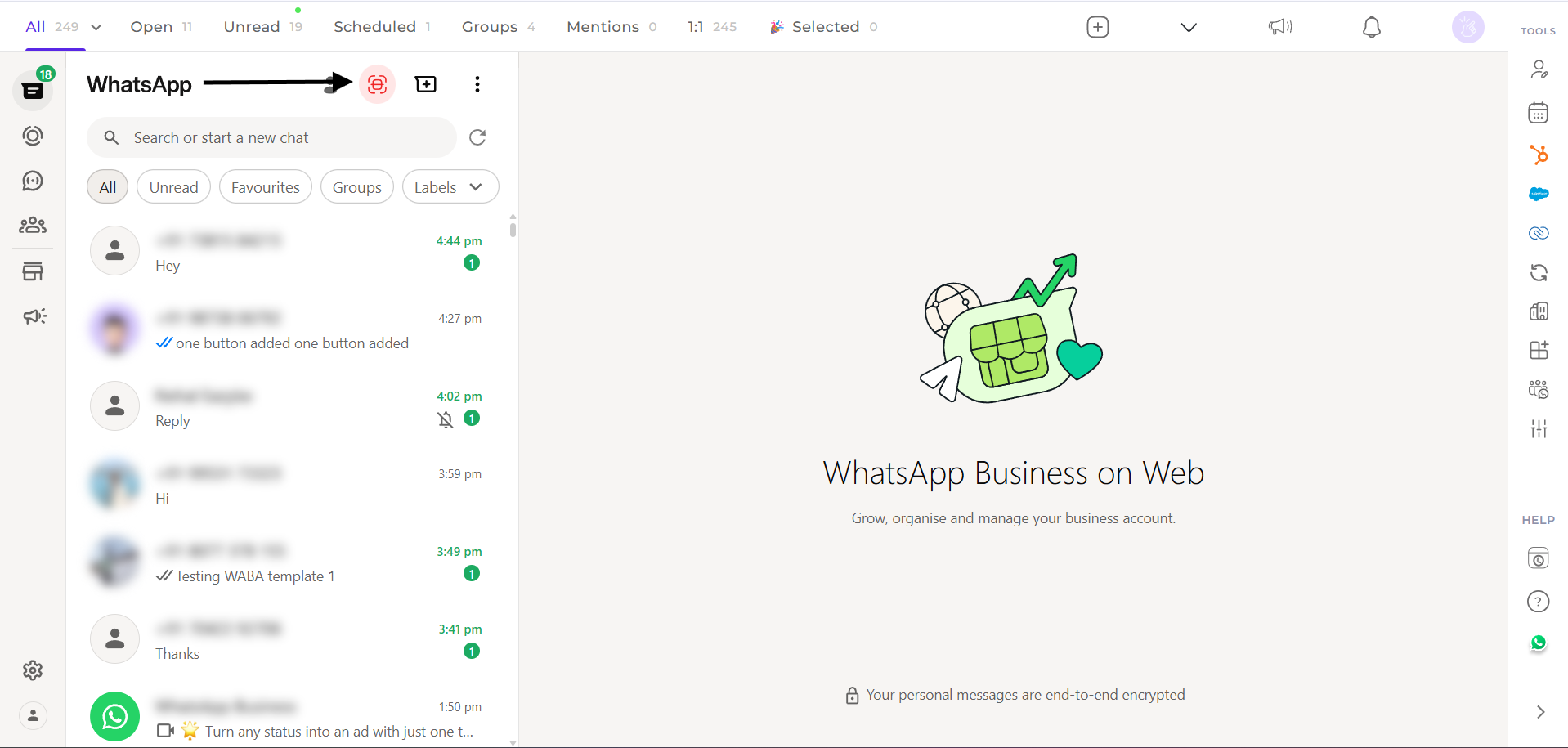
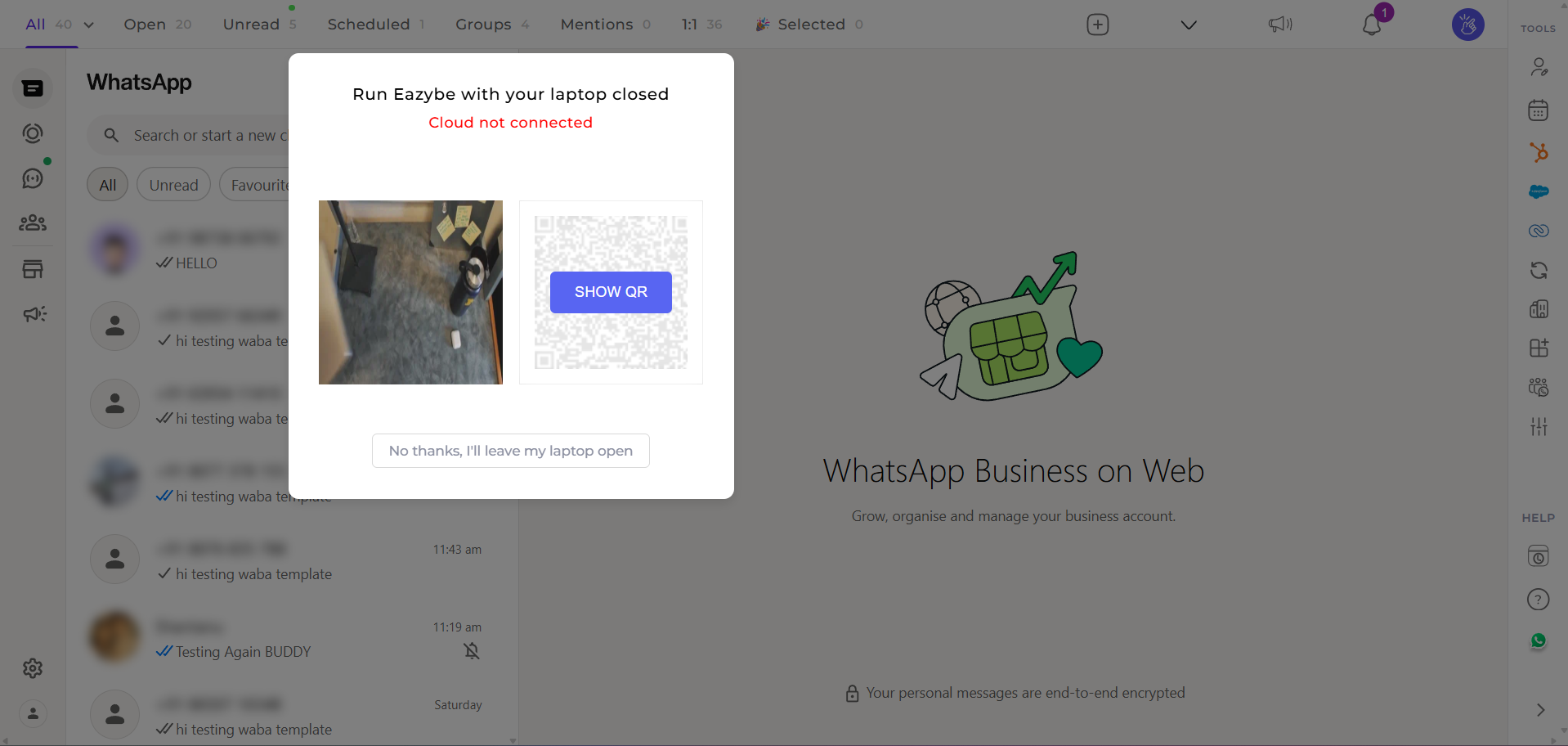
The **cloud connection must be active** for successful message delivery when WhatsApp Web is offline.
Ensure your cloud connection is enabled to allow workflows to send messages even when you're not actively using WhatsApp Web.
***
## 2. Cloud Connection Requirement
The **cloud connection must be active** for successful message delivery when WhatsApp Web is offline.
Ensure your cloud connection is enabled to allow workflows to send messages even when you're not actively using WhatsApp Web.
 ***
## 3. Workflow Sender Identity
Messages are sent **from the contact owner's or deal owner's WhatsApp number**, regardless of which user created the workflow.
This means:
* If John is the contact owner, messages go from John's WhatsApp
* The workflow creator's number is not used unless they own the contact/deal
***
## 3. Workflow Sender Identity
Messages are sent **from the contact owner's or deal owner's WhatsApp number**, regardless of which user created the workflow.
This means:
* If John is the contact owner, messages go from John's WhatsApp
* The workflow creator's number is not used unless they own the contact/deal
 ***
## 4. Failed Message Tracking
Check the **scheduled labels in WhatsApp** to keep track of failed messages and identify delivery issues.
***
## 4. Failed Message Tracking
Check the **scheduled labels in WhatsApp** to keep track of failed messages and identify delivery issues.
 Use the scheduled labels feature to:
* Monitor pending messages
* Identify failed deliveries
* Retry failed messages manually if needed
***
## 5. Delivery Timing
It takes approximately **2 minutes** for scheduled messages to be delivered after a workflow trigger fires.
Use the scheduled labels feature to:
* Monitor pending messages
* Identify failed deliveries
* Retry failed messages manually if needed
***
## 5. Delivery Timing
It takes approximately **2 minutes** for scheduled messages to be delivered after a workflow trigger fires.
 If messages aren't appearing immediately:
* Wait at least 2-3 minutes after the trigger
* Check that the workflow was properly triggered in HubSpot
* Verify the contact meets all enrollment criteria
***
## 6. Multi-Device Duplication
Duplicate messages occur when the **same account is active on more than one device** simultaneously.
If messages aren't appearing immediately:
* Wait at least 2-3 minutes after the trigger
* Check that the workflow was properly triggered in HubSpot
* Verify the contact meets all enrollment criteria
***
## 6. Multi-Device Duplication
Duplicate messages occur when the **same account is active on more than one device** simultaneously.
 To prevent duplicate sends:
Keep your WhatsApp account active on only one device at a time when running workflows.
Check WhatsApp Web's linked devices and remove any extra sessions.
To prevent duplicate sends:
Keep your WhatsApp account active on only one device at a time when running workflows.
Check WhatsApp Web's linked devices and remove any extra sessions.
 ***
## Need More Help?
If you're still experiencing issues, reach out to our support team at **[hey@eazybe.com](mailto:hey@eazybe.com)**
***
## Need More Help?
If you're still experiencing issues, reach out to our support team at **[hey@eazybe.com](mailto:hey@eazybe.com)**