> ## Documentation Index
> Fetch the complete documentation index at: https://help.eazybe.com/llms.txt
> Use this file to discover all available pages before exploring further.
# Map WABA API Number Users
> Learn how to link your WABA API numbers to specific HubSpot users for accurate data synchronization
## Overview
This guide provides step-by-step instructions on how to link your WABA API numbers to specific HubSpot users. Successfully mapping users ensures accurate data synchronization and efficient workflow management between your platforms.
Before proceeding, ensure you have **Admin permissions** in both Eazybe and HubSpot to manage user mappings.
***
## Step-by-Step Guide
Go to the Eazybe dashboard and navigate to the **Integrations** section.
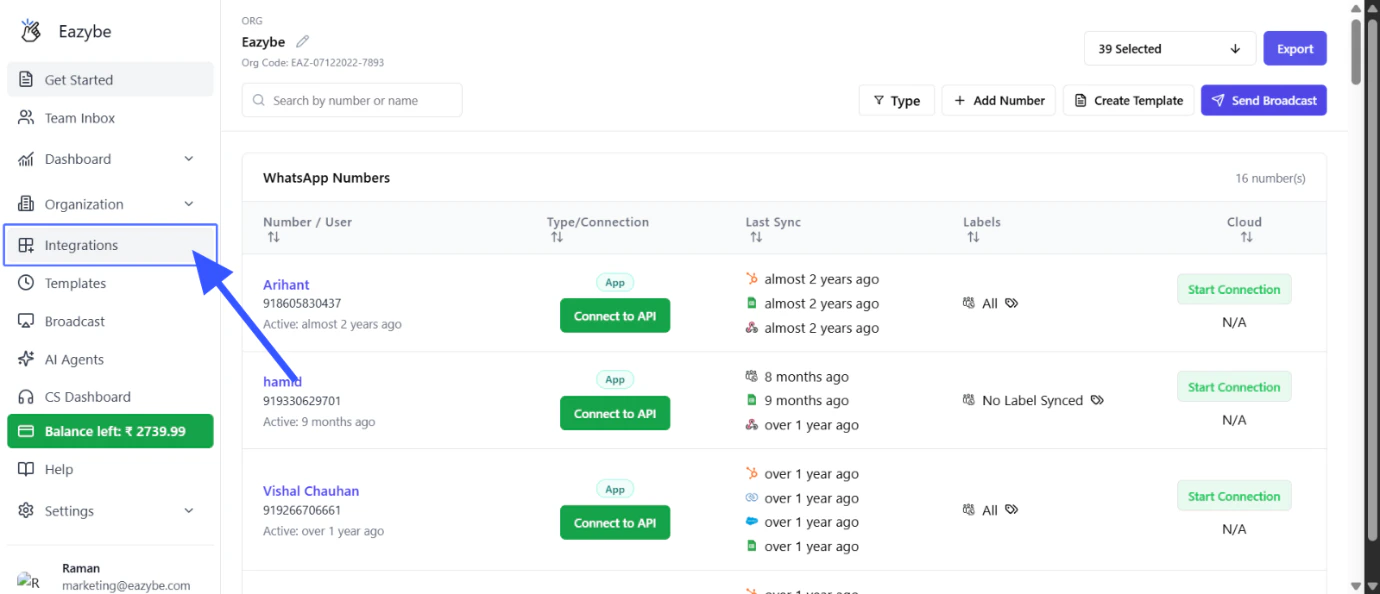 You can access the Integrations page from the main menu on the left sidebar.
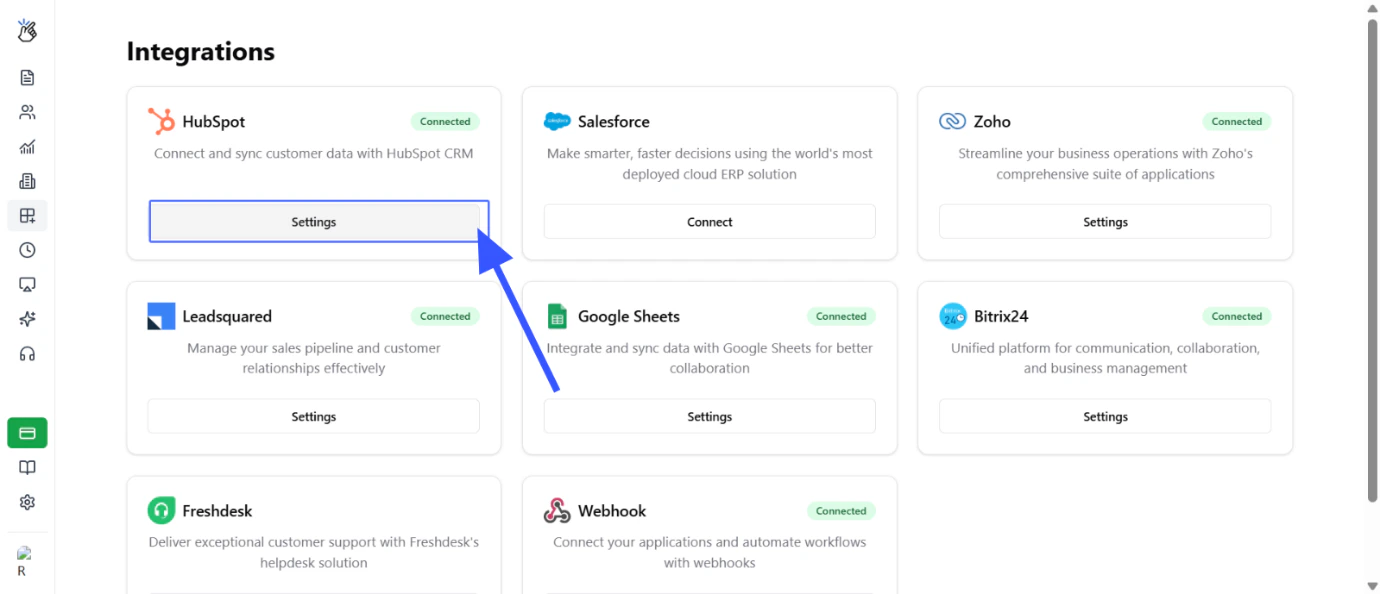
Find the **HubSpot** integration card and click on it to access the integration settings.
You can access the Integrations page from the main menu on the left sidebar.
Find the **HubSpot** integration card and click on it to access the integration settings.
 In the HubSpot integration settings, locate and click on the **User Mapping** tab.
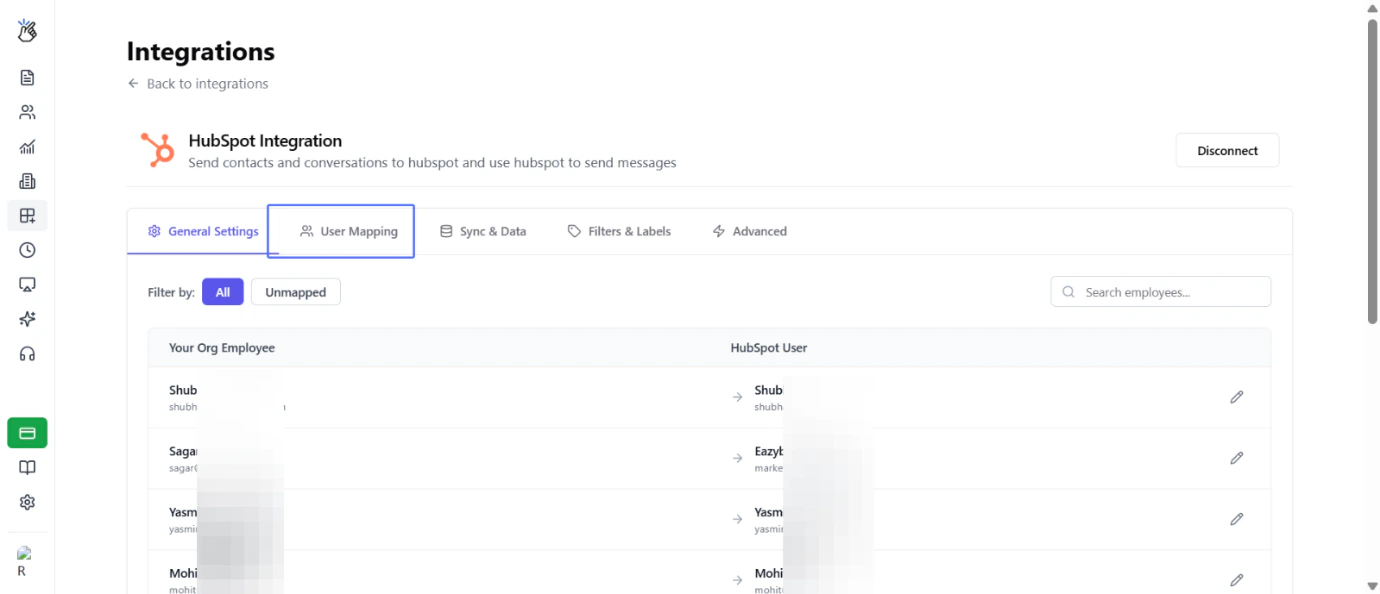 This tab allows you to assign specific HubSpot users to manage your WABA API numbers.
Select the **HubSpot user** you want to map to a specific WABA API number from the available user list.
This tab allows you to assign specific HubSpot users to manage your WABA API numbers.
Select the **HubSpot user** you want to map to a specific WABA API number from the available user list.
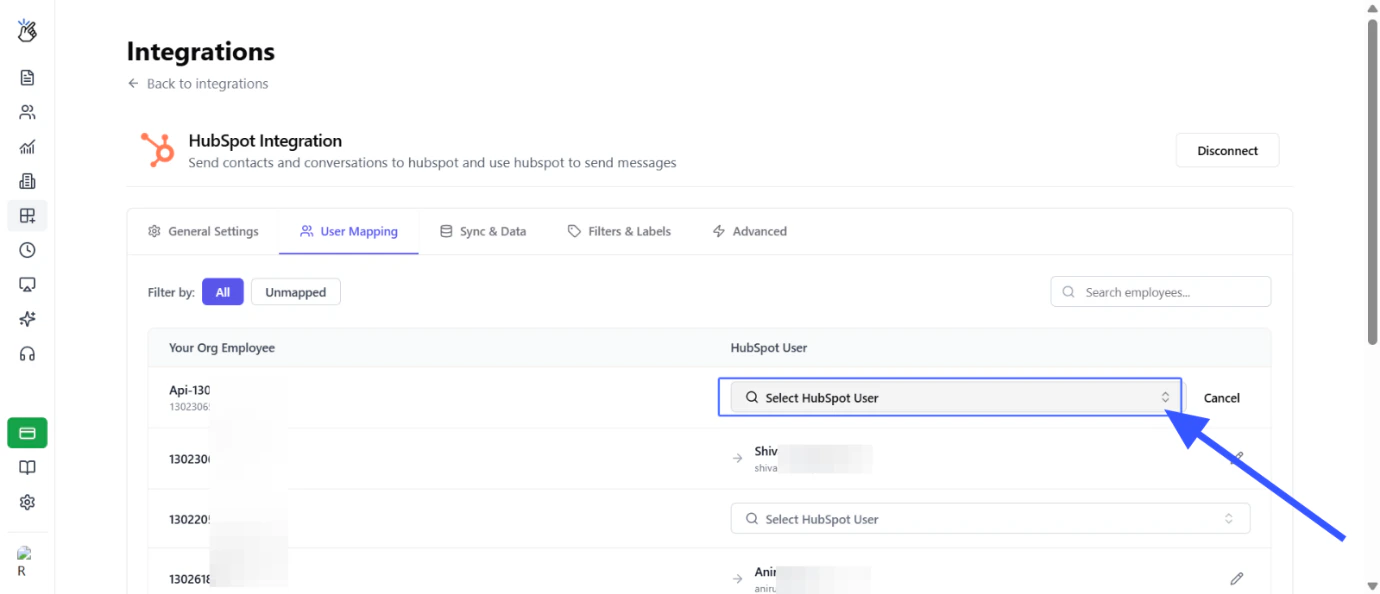 Choose the specific HubSpot user from the dropdown menu that you wish to associate with your WABA API number.
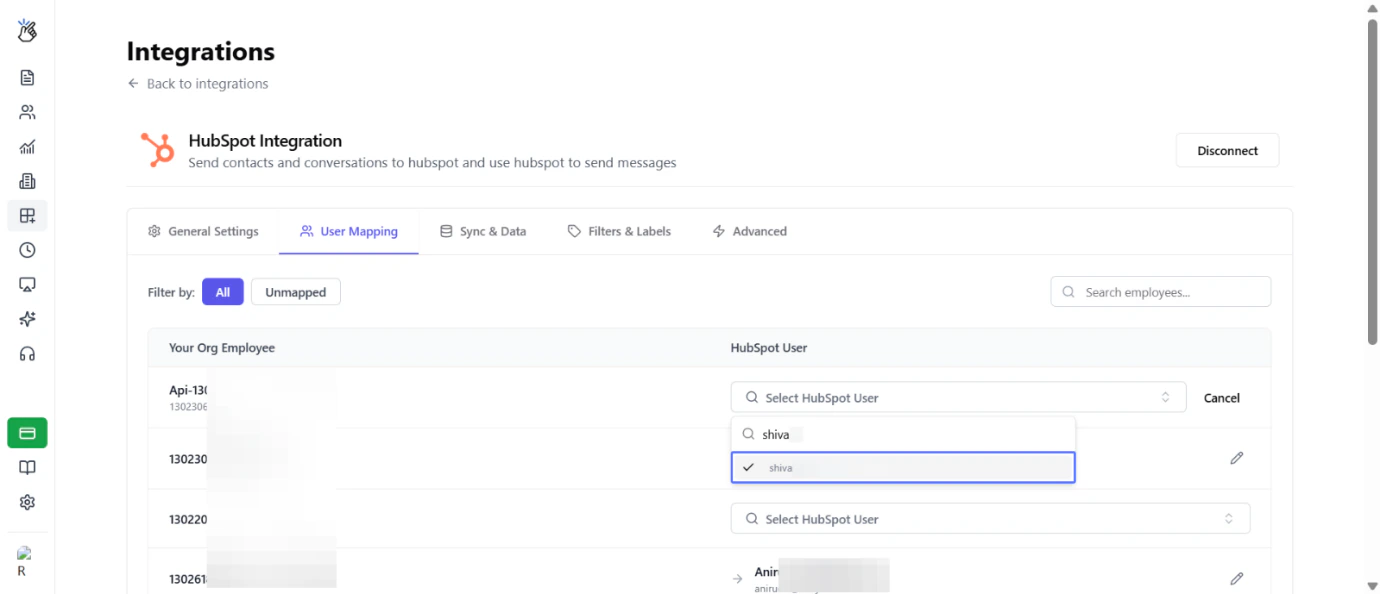 Ensure the selected user has the necessary permissions in HubSpot to manage API communications.
Confirm the mapping and verify that the user has been successfully linked to the WABA API number.
Ensure the selected user has the necessary permissions in HubSpot to manage API communications.
Confirm the mapping and verify that the user has been successfully linked to the WABA API number.
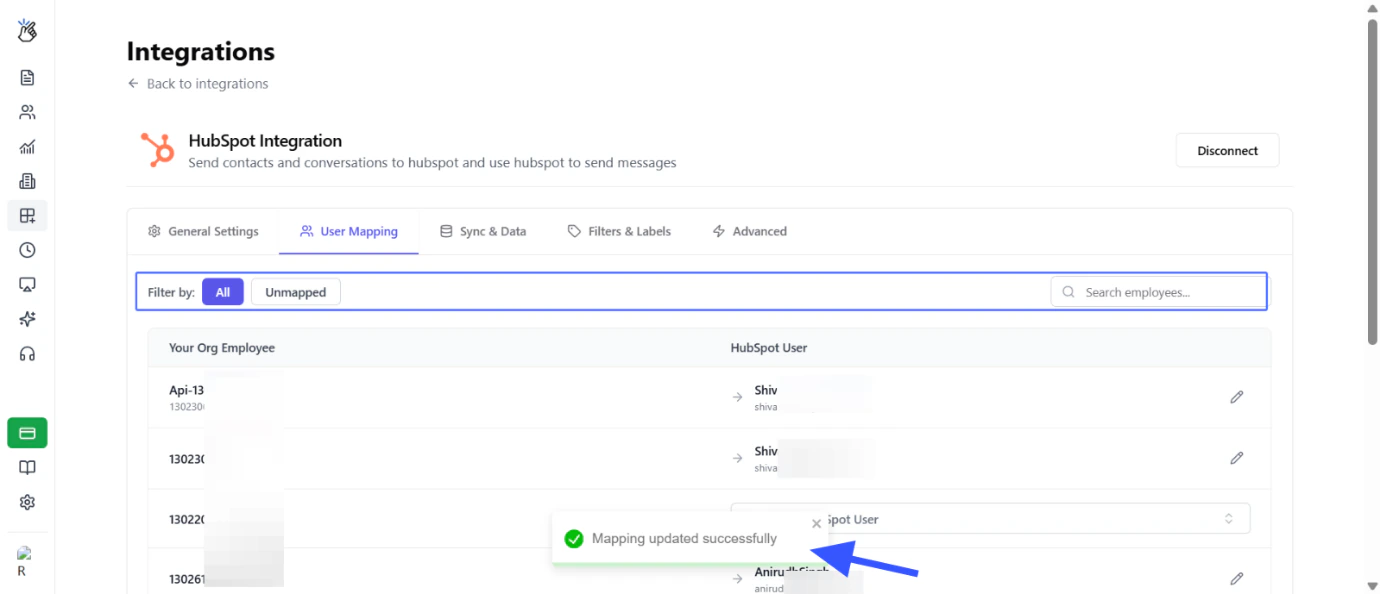 You can modify or remove user mappings at any time from the User Mapping tab.
***
## Important Notes
Proper user mapping ensures that WhatsApp messages from WABA API numbers are correctly attributed to the right HubSpot user.
Assigned users can manage conversations, create tasks, and update records within their HubSpot access scope.
***
## Troubleshooting
Ensure the user has been invited to your HubSpot portal and has accepted the invitation. Only active HubSpot users with proper permissions will appear in the mapping list.
Check that you have the required admin permissions. If the issue persists, try refreshing the page and attempting the mapping again.
Yes, a single HubSpot user can be mapped to multiple WABA API numbers. This is useful for team members managing multiple business numbers.
***
## Related Guides
Learn how to connect your HubSpot account with Eazybe.
Invite team members to collaborate on your HubSpot integration.
***
## Need Help?
If you have any questions or need further assistance, reach out to us at **[hey@eazybe.com](mailto:hey@eazybe.com)**. We're happy to help!
You can modify or remove user mappings at any time from the User Mapping tab.
***
## Important Notes
Proper user mapping ensures that WhatsApp messages from WABA API numbers are correctly attributed to the right HubSpot user.
Assigned users can manage conversations, create tasks, and update records within their HubSpot access scope.
***
## Troubleshooting
Ensure the user has been invited to your HubSpot portal and has accepted the invitation. Only active HubSpot users with proper permissions will appear in the mapping list.
Check that you have the required admin permissions. If the issue persists, try refreshing the page and attempting the mapping again.
Yes, a single HubSpot user can be mapped to multiple WABA API numbers. This is useful for team members managing multiple business numbers.
***
## Related Guides
Learn how to connect your HubSpot account with Eazybe.
Invite team members to collaborate on your HubSpot integration.
***
## Need Help?
If you have any questions or need further assistance, reach out to us at **[hey@eazybe.com](mailto:hey@eazybe.com)**. We're happy to help!