> ## Documentation Index
> Fetch the complete documentation index at: https://help.eazybe.com/llms.txt
> Use this file to discover all available pages before exploring further.
# User Access
> Learn how to grant user access and permissions through HubSpot for the Eazybe integration
## Overview
As a super-admin in HubSpot, you can grant access and permissions to users for the Eazybe integration. This guide walks you through the process of enabling the necessary permissions to ensure smooth integration between Eazybe and HubSpot.
Only HubSpot super-admins can modify user permissions. Contact your HubSpot administrator if you need permission changes.
***
## Granting User Access
Follow these steps to grant users access to Eazybe through HubSpot:
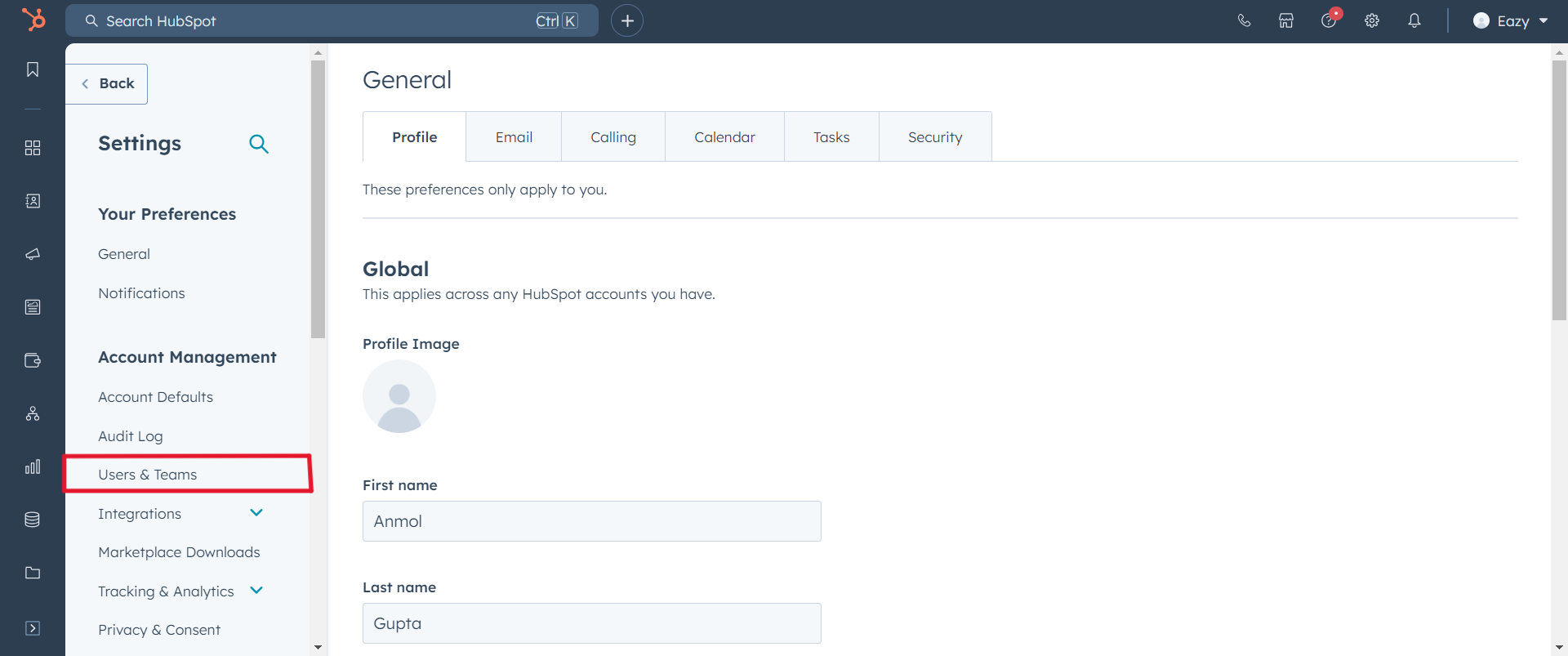
Log into your HubSpot account and navigate to the **Settings** page by clicking the gear icon in the top navigation bar.
 In the left sidebar, select **Users & Teams** to view all users in your HubSpot account.
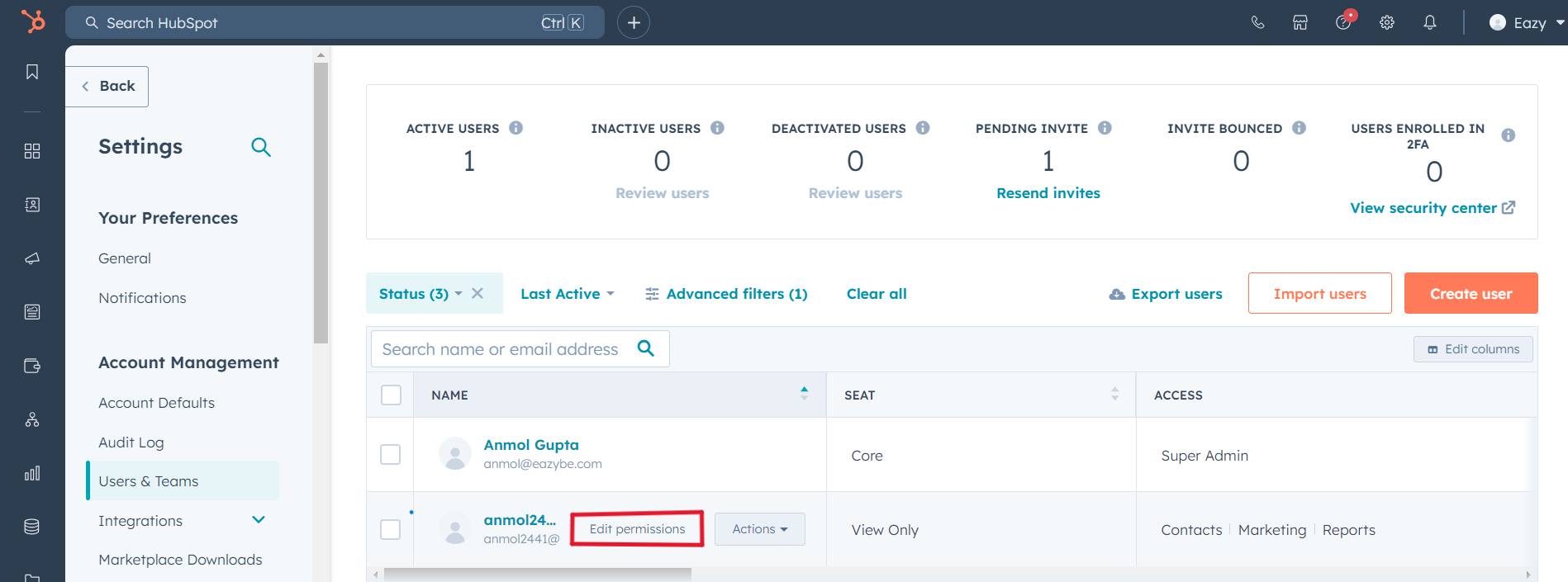
 Find the user you want to grant access to and click on the **Edit permissions** button next to their name.
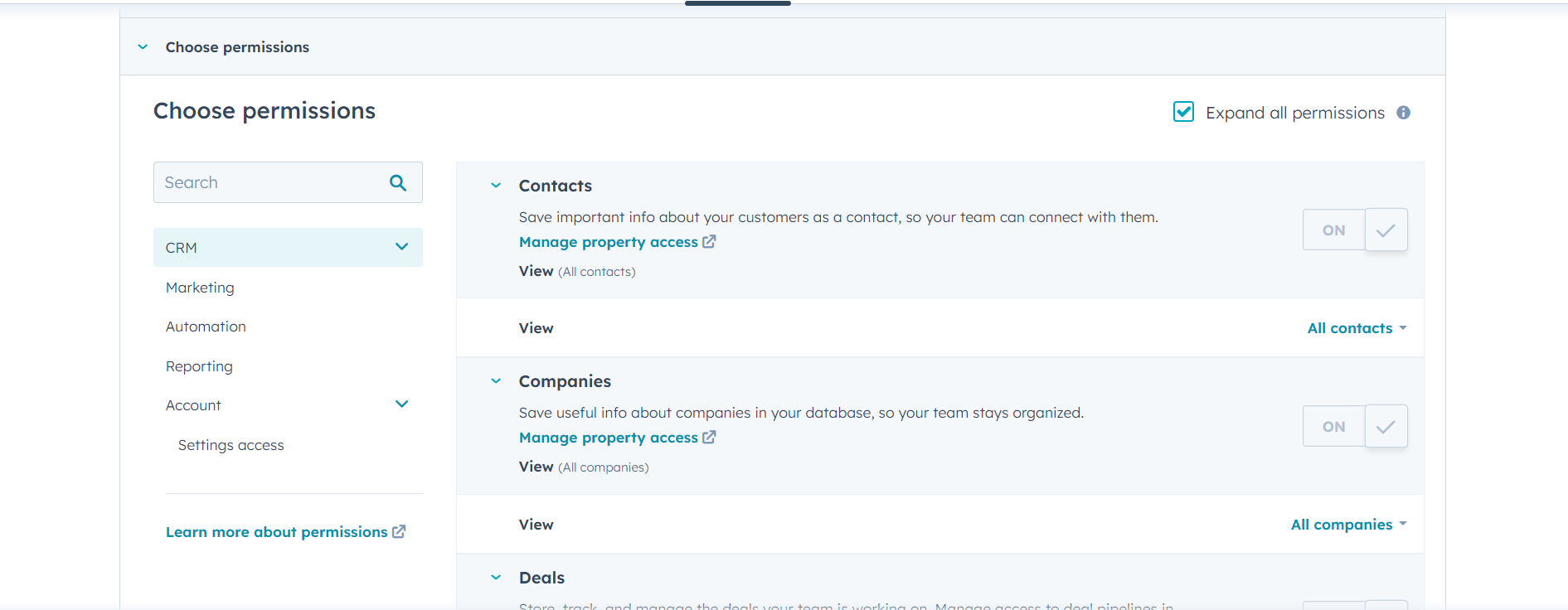
 Ensure that the following permissions are enabled for the user:
* **File permissions** — Allows access to file management features
* **App Marketplace permissions** — Enables integration with Eazybe
Ensure that the following permissions are enabled for the user:
* **File permissions** — Allows access to file management features
* **App Marketplace permissions** — Enables integration with Eazybe
 The user now has the necessary permissions to use Eazybe with HubSpot.
***
## Required Permissions Explained
Enables users to manage files within HubSpot, which is essential for chat backup functionality and media synchronization.
Allows users to access and use third-party integrations like Eazybe from the HubSpot App Marketplace.
***
## Why These Permissions Matter
These permissions are essential for ensuring smooth integration of Eazybe with HubSpot:
* **Chat Backup** — Syncing WhatsApp conversations to HubSpot contacts
* **CRM Synchronization** — Keeping contact data in sync between platforms
* **File Sharing** — Sharing media files between WhatsApp and HubSpot
* **Team Collaboration** — Enabling team members to access shared features
***
## Best Practices
Only enable the permissions that users need for their specific role to maintain security best practices.
Periodically audit user permissions to ensure they align with current team roles and responsibilities.
Keep track of permission changes for compliance and troubleshooting purposes.
***
## Need Help?
If you have any questions or need further assistance, reach out to us at **[hey@eazybe.com](mailto:hey@eazybe.com)**. We're happy to help!
The user now has the necessary permissions to use Eazybe with HubSpot.
***
## Required Permissions Explained
Enables users to manage files within HubSpot, which is essential for chat backup functionality and media synchronization.
Allows users to access and use third-party integrations like Eazybe from the HubSpot App Marketplace.
***
## Why These Permissions Matter
These permissions are essential for ensuring smooth integration of Eazybe with HubSpot:
* **Chat Backup** — Syncing WhatsApp conversations to HubSpot contacts
* **CRM Synchronization** — Keeping contact data in sync between platforms
* **File Sharing** — Sharing media files between WhatsApp and HubSpot
* **Team Collaboration** — Enabling team members to access shared features
***
## Best Practices
Only enable the permissions that users need for their specific role to maintain security best practices.
Periodically audit user permissions to ensure they align with current team roles and responsibilities.
Keep track of permission changes for compliance and troubleshooting purposes.
***
## Need Help?
If you have any questions or need further assistance, reach out to us at **[hey@eazybe.com](mailto:hey@eazybe.com)**. We're happy to help!