> ## Documentation Index
> Fetch the complete documentation index at: https://help.eazybe.com/llms.txt
> Use this file to discover all available pages before exploring further.
# Set Up Team Inbox in HubSpot
> Add Eazybe Team Inbox to the right sidebar of your HubSpot contacts, deals, and tickets.
Add a Team Inbox card to your HubSpot records so you can open WhatsApp conversations without leaving HubSpot. Enable each card separately for contacts, deals, and tickets.
For a feature overview, see [Team inbox](/en/integrations/hubspot/team-inbox).
## Before You Start
* Connect Eazybe to HubSpot. If you have not connected it yet, follow [Connect Your HubSpot Account](/en/integrations/hubspot/account-connection).
* Save each contact's WhatsApp number with its international country calling code. Team Inbox is inaccessible for contacts whose numbers do not include the code.
* Use a HubSpot account with permission to manage app cards and record layouts.
* Make sure you can access Team Inbox at [app.eazybe.com](https://app.eazybe.com). Your inbox access inside HubSpot is the same as your access there.
Adding a card controls where Team Inbox appears. It does not give you access to additional team conversations.
## Add the Cards to Your Records
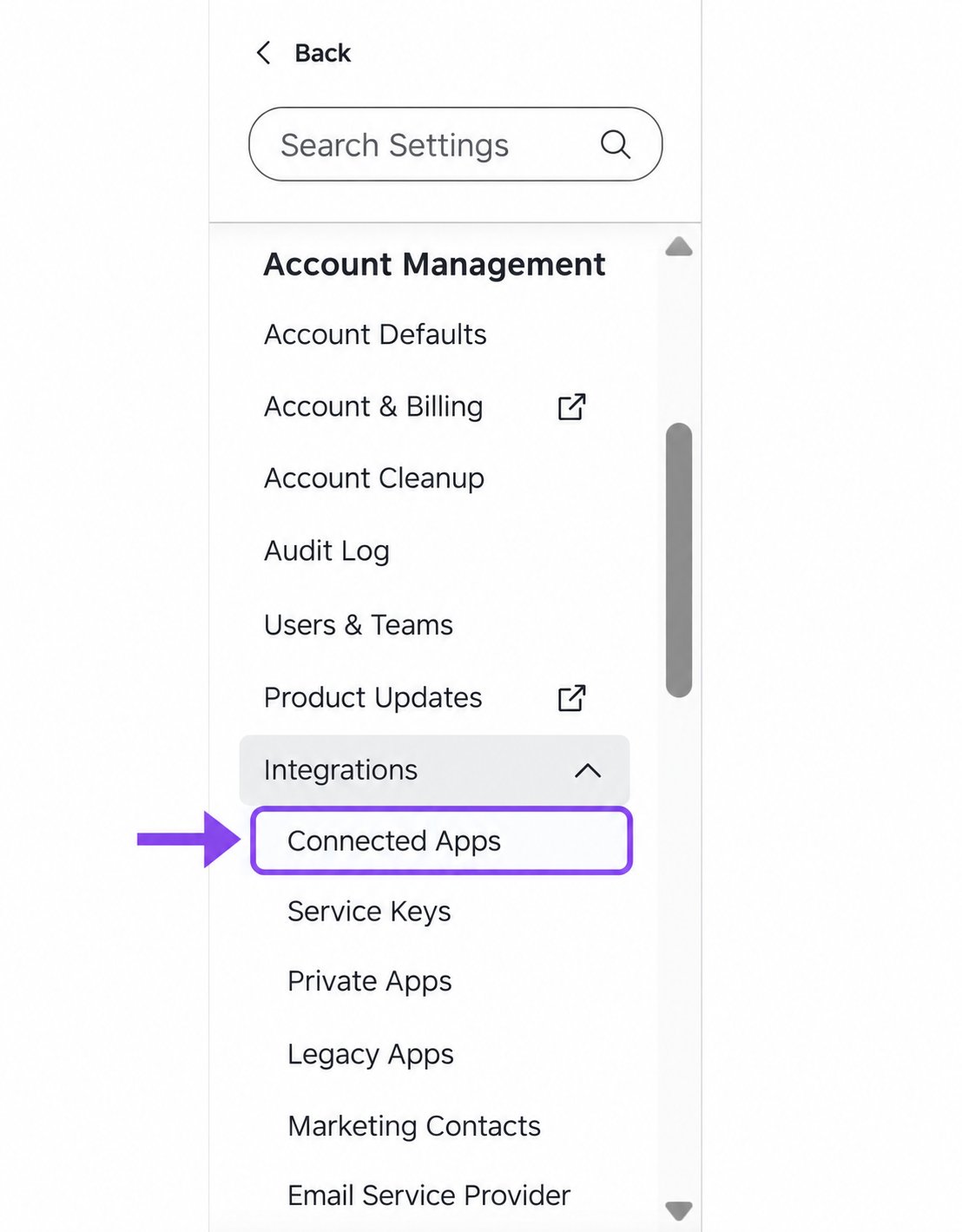
In HubSpot, click the **Settings** gear in the top navigation. Under **Account Management**, expand **Integrations** and select **Connected Apps**.
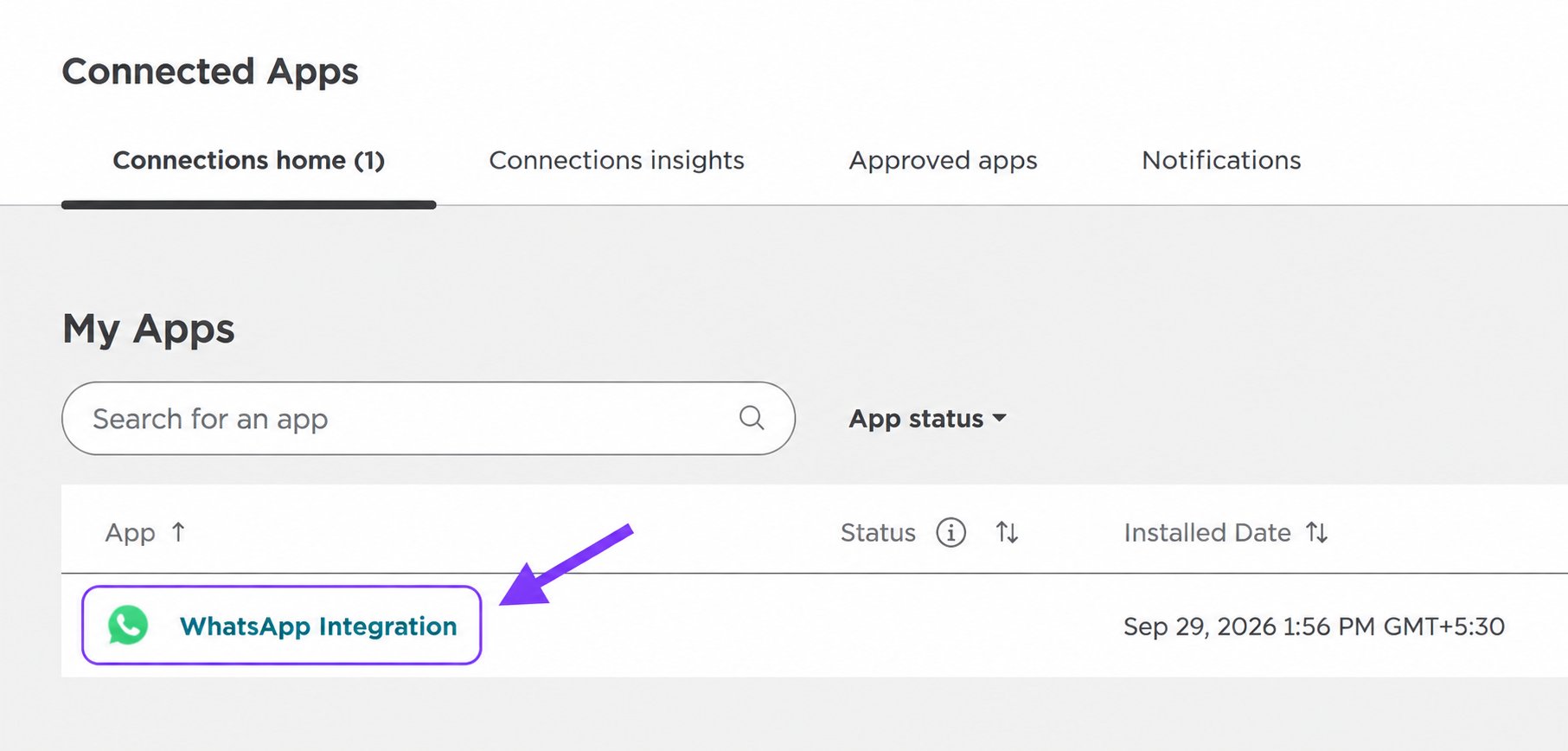
 On **Connected Apps**, find **WhatsApp Integration** under **My Apps** and click its name. You can use **Search for an app** if you have several apps installed.
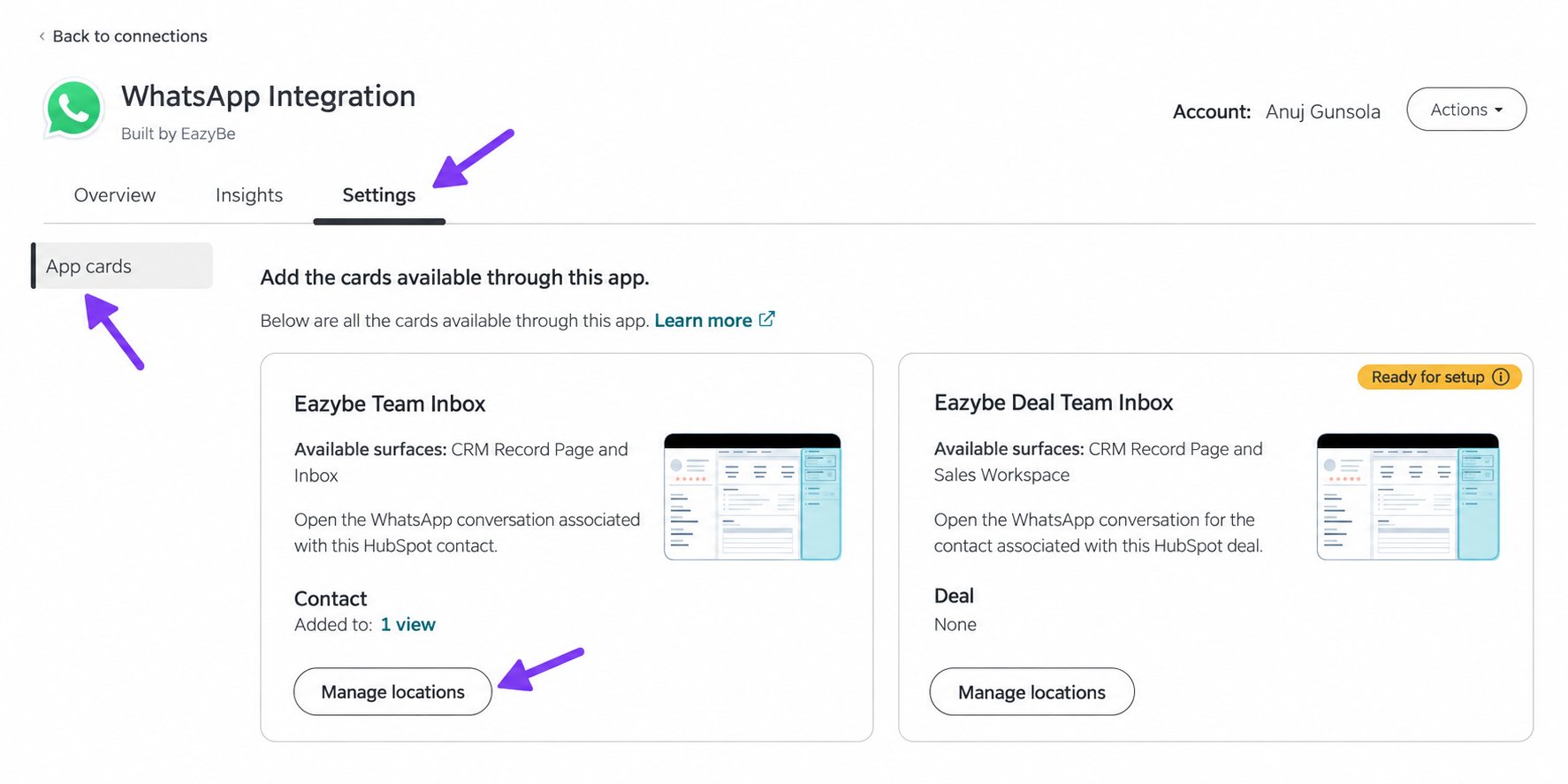
 Select the **Settings** tab, then **App cards**. The page lists the cards available through **WhatsApp Integration**.
| HubSpot record | Card to configure |
| - | - |
| Contact | **Eazybe Team Inbox** |
| Deal | **Eazybe Deal Team Inbox** |
| Ticket | **Eazybe Ticket Team Inbox** |
Click **Manage locations** on the card you want to add. Scroll down if the ticket card is below the visible area.
Select the **Settings** tab, then **App cards**. The page lists the cards available through **WhatsApp Integration**.
| HubSpot record | Card to configure |
| - | - |
| Contact | **Eazybe Team Inbox** |
| Deal | **Eazybe Deal Team Inbox** |
| Ticket | **Eazybe Ticket Team Inbox** |
Click **Manage locations** on the card you want to add. Scroll down if the ticket card is below the visible area.
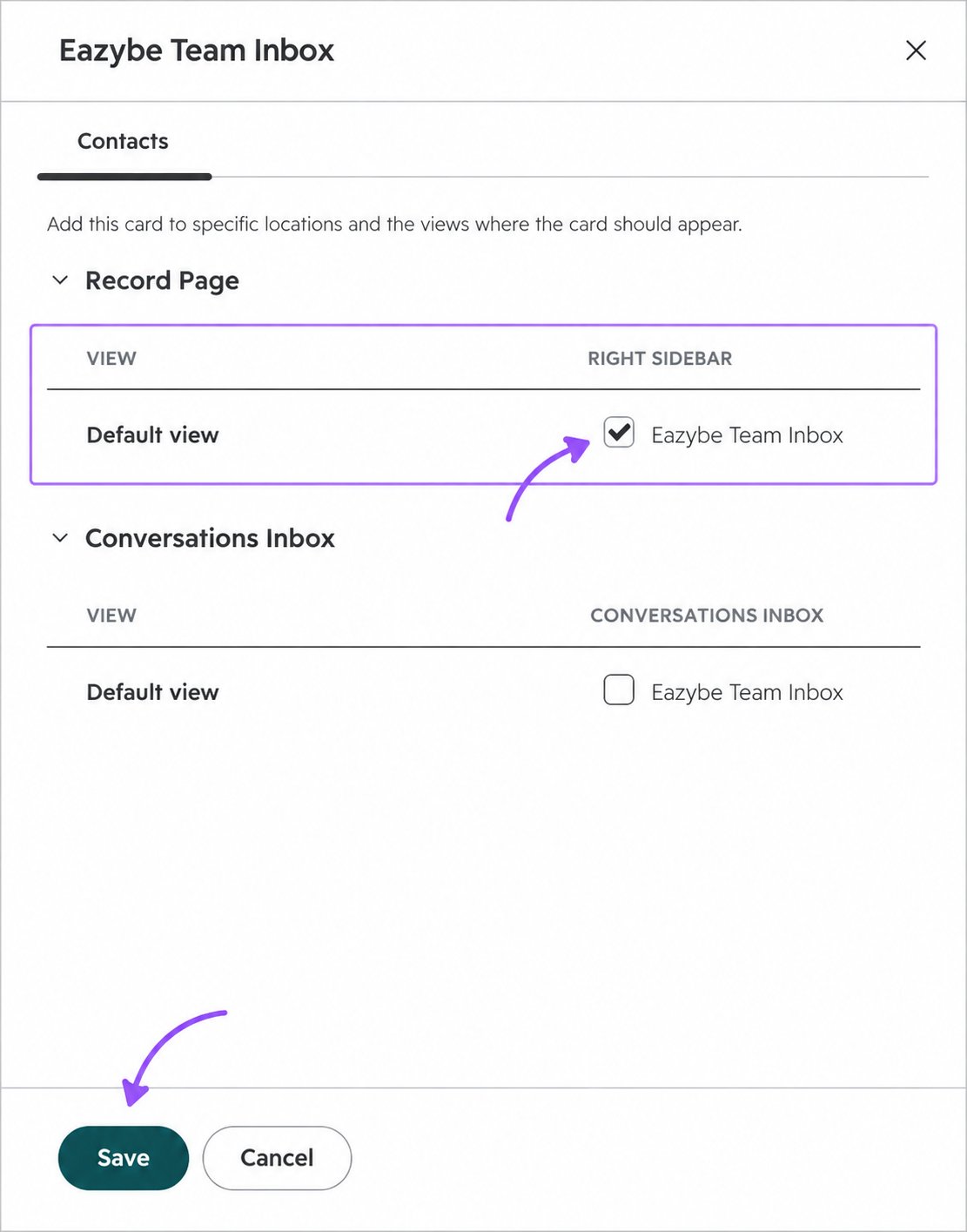
 In **Eazybe Team Inbox**, use the **Contacts** panel. Under **Record Page**, find **Default view** and select the **Eazybe Team Inbox** checkbox in the **RIGHT SIDEBAR** column. Click **Save**.
The card is now available in the right sidebar of contact records using that view.
Use the checkbox under **Record Page** for this setup. **Conversations Inbox** is a separate location. If the Record Page checkbox is already selected, the card is already enabled for that view.
In **Eazybe Team Inbox**, use the **Contacts** panel. Under **Record Page**, find **Default view** and select the **Eazybe Team Inbox** checkbox in the **RIGHT SIDEBAR** column. Click **Save**.
The card is now available in the right sidebar of contact records using that view.
Use the checkbox under **Record Page** for this setup. **Conversations Inbox** is a separate location. If the Record Page checkbox is already selected, the card is already enabled for that view.
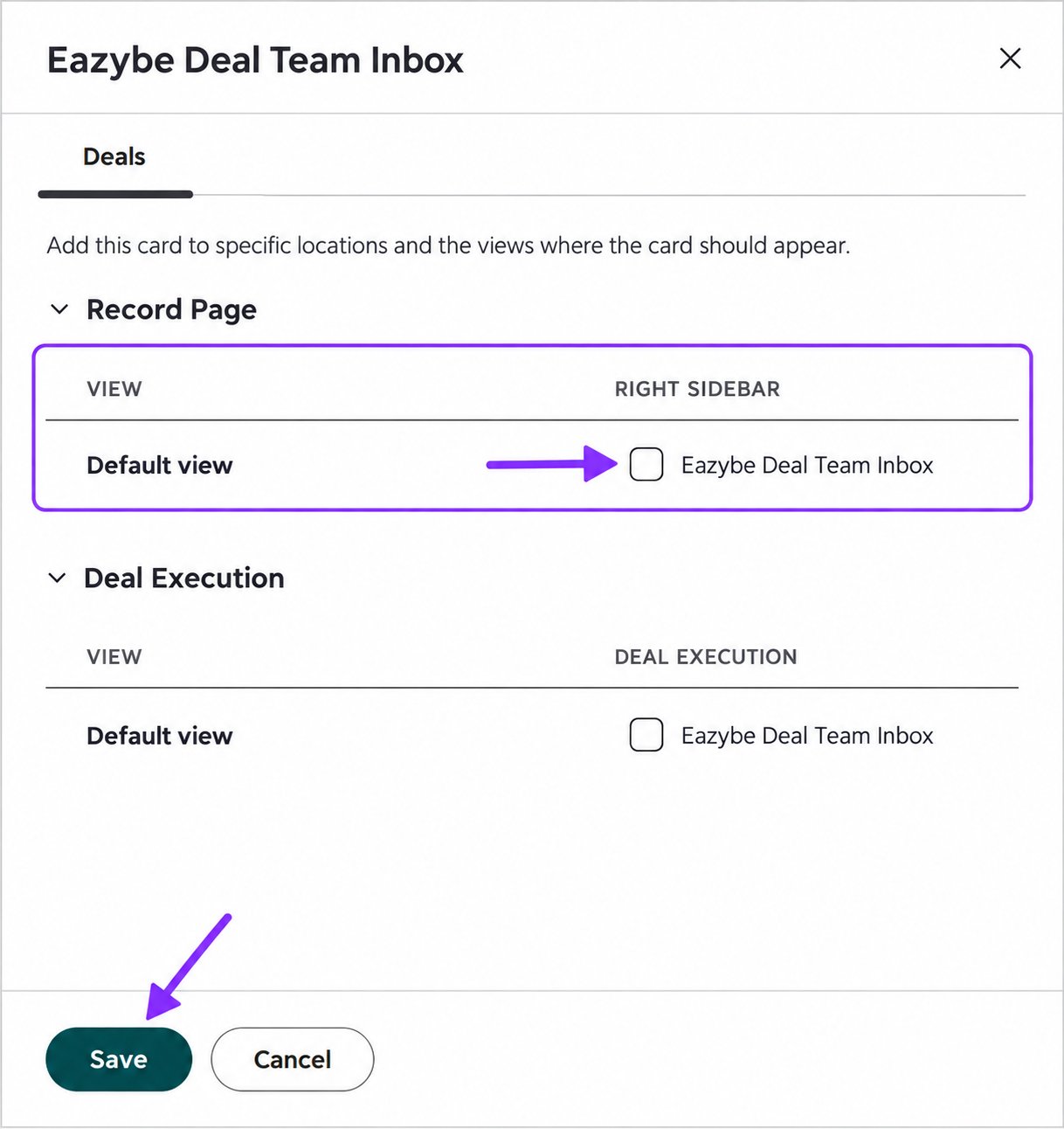
 Return to **App cards** and click **Manage locations** on **Eazybe Deal Team Inbox**. In the **Deals** panel, select **Eazybe Deal Team Inbox** under **Record Page** → **Default view** → **RIGHT SIDEBAR**, then click **Save**.
The deal inbox shows the WhatsApp conversation for a contact associated with the deal. Make sure the relevant contact is associated with the deal. **Deal Execution** is a separate location from **Record Page**.
Return to **App cards** and click **Manage locations** on **Eazybe Deal Team Inbox**. In the **Deals** panel, select **Eazybe Deal Team Inbox** under **Record Page** → **Default view** → **RIGHT SIDEBAR**, then click **Save**.
The deal inbox shows the WhatsApp conversation for a contact associated with the deal. Make sure the relevant contact is associated with the deal. **Deal Execution** is a separate location from **Record Page**.
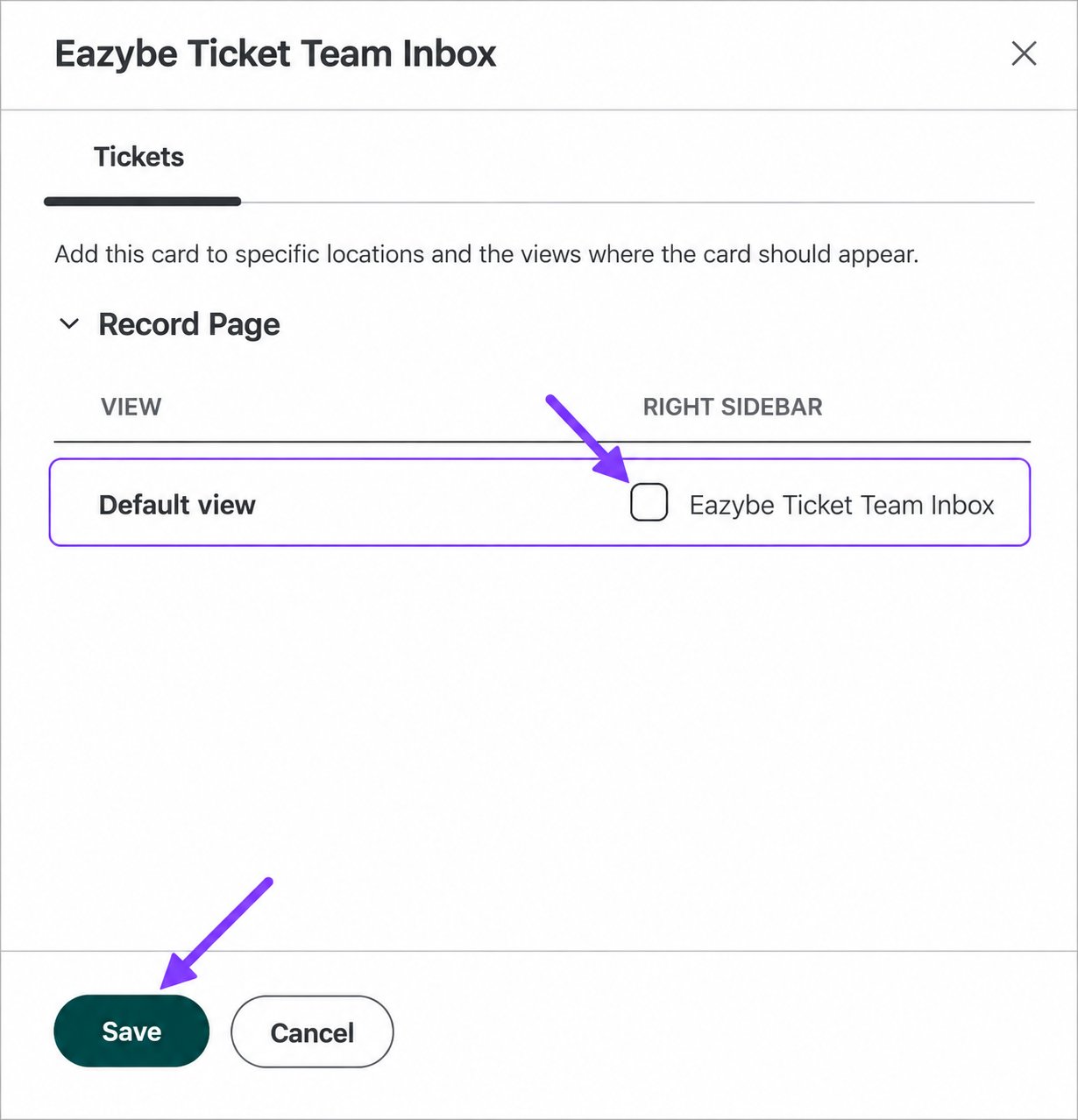
 Return to **App cards** and click **Manage locations** on **Eazybe Ticket Team Inbox**. In the **Tickets** panel, select **Eazybe Ticket Team Inbox** under **Record Page** → **Default view** → **RIGHT SIDEBAR**, then click **Save**.
The ticket inbox uses the contact associated with the ticket. Make sure the relevant contact is associated before opening its conversation.
Return to **App cards** and click **Manage locations** on **Eazybe Ticket Team Inbox**. In the **Tickets** panel, select **Eazybe Ticket Team Inbox** under **Record Page** → **Default view** → **RIGHT SIDEBAR**, then click **Save**.
The ticket inbox uses the contact associated with the ticket. Make sure the relevant contact is associated before opening its conversation.
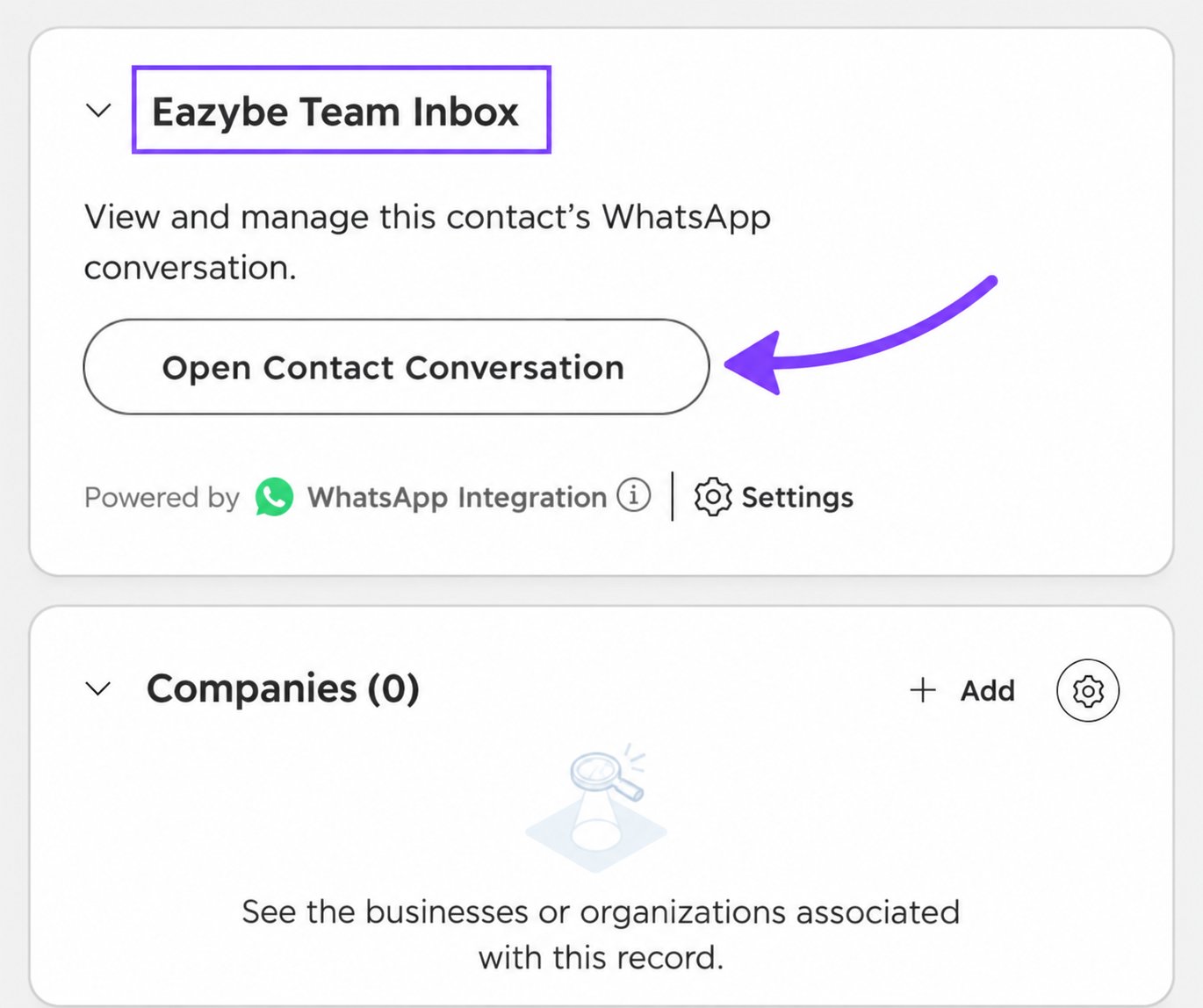
 Open a contact, deal, or ticket record and find its Team Inbox card in the right sidebar. Drag the card by its header to the position you prefer, such as above the other association cards.
The contact example below shows **Eazybe Team Inbox** at the top of the right sidebar. You can reposition the deal and ticket cards in their record sidebars too.
Open a contact, deal, or ticket record and find its Team Inbox card in the right sidebar. Drag the card by its header to the position you prefer, such as above the other association cards.
The contact example below shows **Eazybe Team Inbox** at the top of the right sidebar. You can reposition the deal and ticket cards in their record sidebars too.
 ## If the Card Does Not Appear
* Check the card for the correct object. Enabling the contact card does not also enable the deal or ticket card.
* Reopen **Manage locations** and confirm that the checkbox under **Record Page** → **Default view** is selected and saved.
* Confirm that the record uses the view you configured. A different record view may need its own card configuration.
* Reload the record after saving and check farther down the right sidebar.
Next, follow [Team inbox](/en/integrations/hubspot/team-inbox) to open record conversations and the overall inbox.
## If the Card Does Not Appear
* Check the card for the correct object. Enabling the contact card does not also enable the deal or ticket card.
* Reopen **Manage locations** and confirm that the checkbox under **Record Page** → **Default view** is selected and saved.
* Confirm that the record uses the view you configured. A different record view may need its own card configuration.
* Reload the record after saving and check farther down the right sidebar.
Next, follow [Team inbox](/en/integrations/hubspot/team-inbox) to open record conversations and the overall inbox.