> ## Documentation Index
> Fetch the complete documentation index at: https://help.eazybe.com/llms.txt
> Use this file to discover all available pages before exploring further.
# One-Click Switch Between HubSpot & WhatsApp
> Learn how to seamlessly switch between HubSpot and WhatsApp with a single click using Eazybe
## Overview
Move back and forth between WhatsApp and HubSpot seamlessly. Eazybe provides convenient navigation buttons that allow you to switch contexts instantly, saving time and improving your workflow efficiency.
***
## Go to HubSpot Button
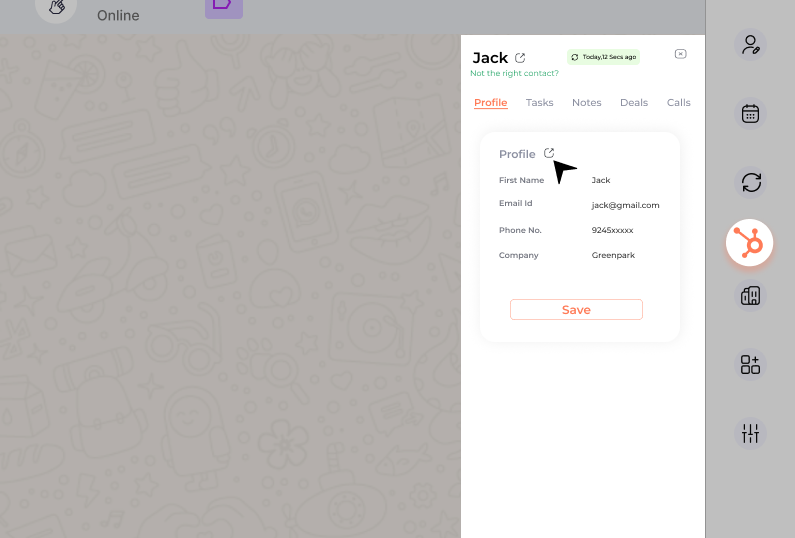
The **Go to HubSpot** button provides quick access to your HubSpot account directly from WhatsApp Web.
 ### Where to Find It
Located beside the contact name at the top of the chat, directing you to the respective contact's HubSpot page.
Available within the Profile section of the mini-CRM view for quick navigation.
### Where to Find It
Located beside the contact name at the top of the chat, directing you to the respective contact's HubSpot page.
Available within the Profile section of the mini-CRM view for quick navigation.
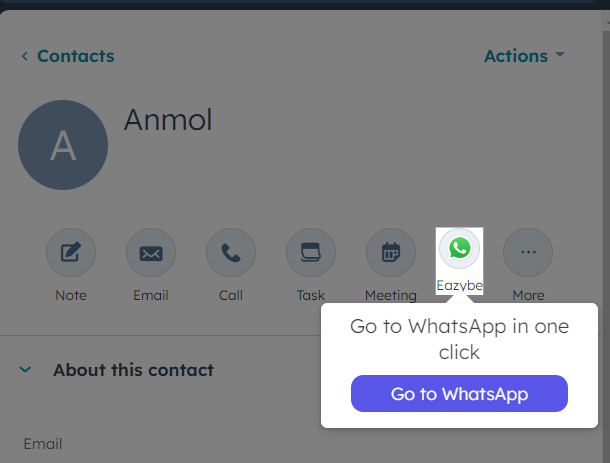 Redirect buttons in the Deals and Call Logs sections work similarly, taking you directly to the corresponding HubSpot pages.
***
## Go Back to WhatsApp Button
Eazybe offers a convenient button to return instantly to your WhatsApp conversations from HubSpot.
Redirect buttons in the Deals and Call Logs sections work similarly, taking you directly to the corresponding HubSpot pages.
***
## Go Back to WhatsApp Button
Eazybe offers a convenient button to return instantly to your WhatsApp conversations from HubSpot.
 ### Available Locations
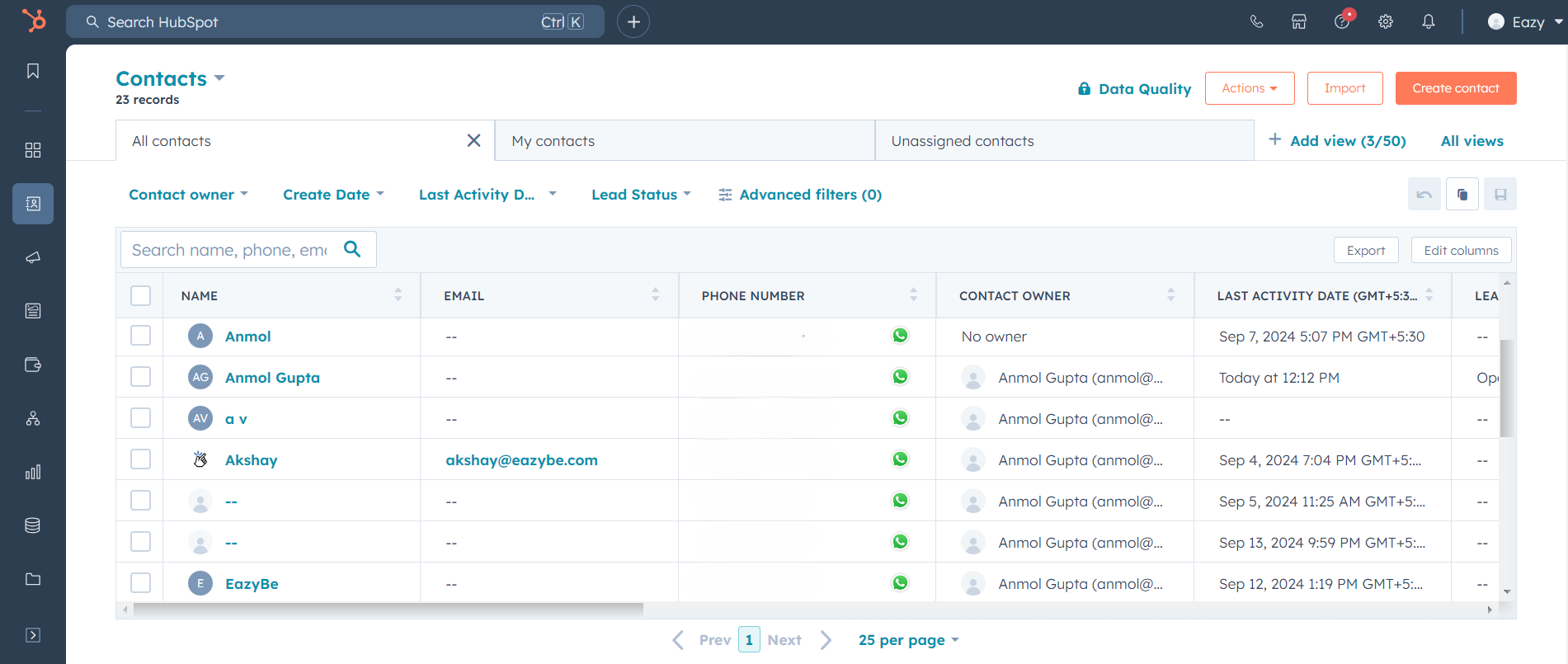
The **Go Back to WhatsApp** button appears in multiple locations throughout HubSpot:
Find the button in the **Phone Number** column on the Contacts page to jump directly to the WhatsApp conversation with that contact.
### Available Locations
The **Go Back to WhatsApp** button appears in multiple locations throughout HubSpot:
Find the button in the **Phone Number** column on the Contacts page to jump directly to the WhatsApp conversation with that contact.
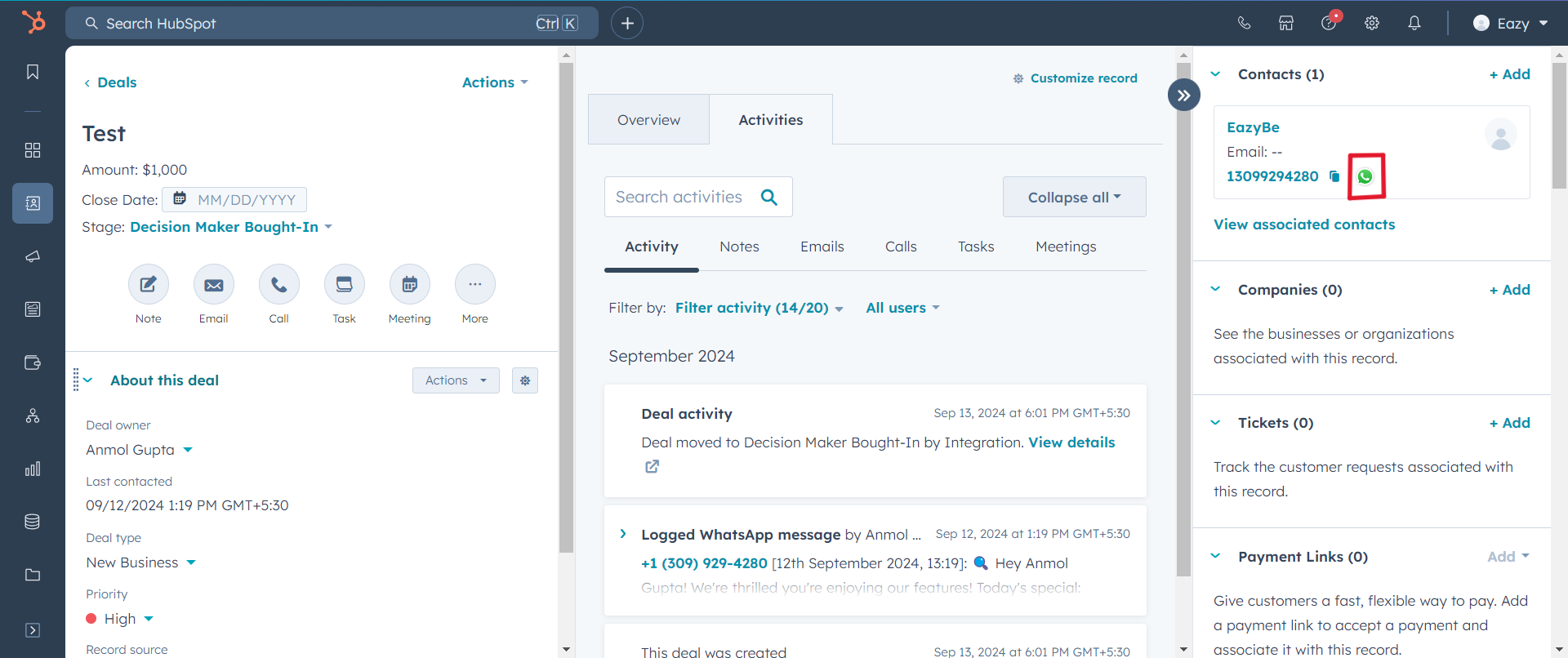 Located in the **Contact details** section of any deal, allowing quick access to related WhatsApp conversations.
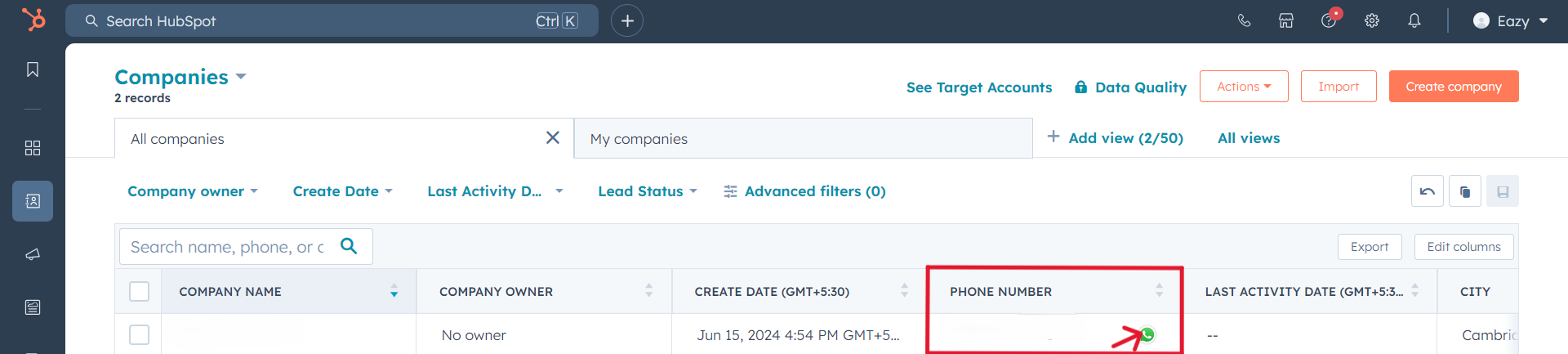
Available in the **Phone Number** column on the Companies page for instant WhatsApp access.
Located in the **Contact details** section of any deal, allowing quick access to related WhatsApp conversations.
Available in the **Phone Number** column on the Companies page for instant WhatsApp access.
 ***
## Benefits
Eliminate manual navigation between platforms with one-click switching.
Maintain conversation context as you move between HubSpot and WhatsApp.
Streamline your sales and support processes with seamless transitions.
Focus on conversations rather than navigating between tools.
***
## Need Help?
If you have questions or need assistance, reach out to us at **[hey@eazybe.com](mailto:hey@eazybe.com)**.
***
## Benefits
Eliminate manual navigation between platforms with one-click switching.
Maintain conversation context as you move between HubSpot and WhatsApp.
Streamline your sales and support processes with seamless transitions.
Focus on conversations rather than navigating between tools.
***
## Need Help?
If you have questions or need assistance, reach out to us at **[hey@eazybe.com](mailto:hey@eazybe.com)**.