> ## Documentation Index
> Fetch the complete documentation index at: https://help.eazybe.com/llms.txt
> Use this file to discover all available pages before exploring further.
# Create Tickets
> Learn how to create HubSpot support tickets directly from WhatsApp conversations using the Eazybe extension
## Overview
The Eazybe WhatsApp Extension allows you to create support tickets for your HubSpot contacts without leaving your WhatsApp conversations. This feature helps you track customer issues, manage support requests, and ensure timely resolution of problems.
Ensure the WhatsApp contact is already created in HubSpot before creating tickets for them.
***
## Video Tutorial
Watch how to create HubSpot tickets from WhatsApp:
***
## Creating HubSpot Tickets
Follow these steps to create support tickets for your HubSpot contacts directly from WhatsApp:
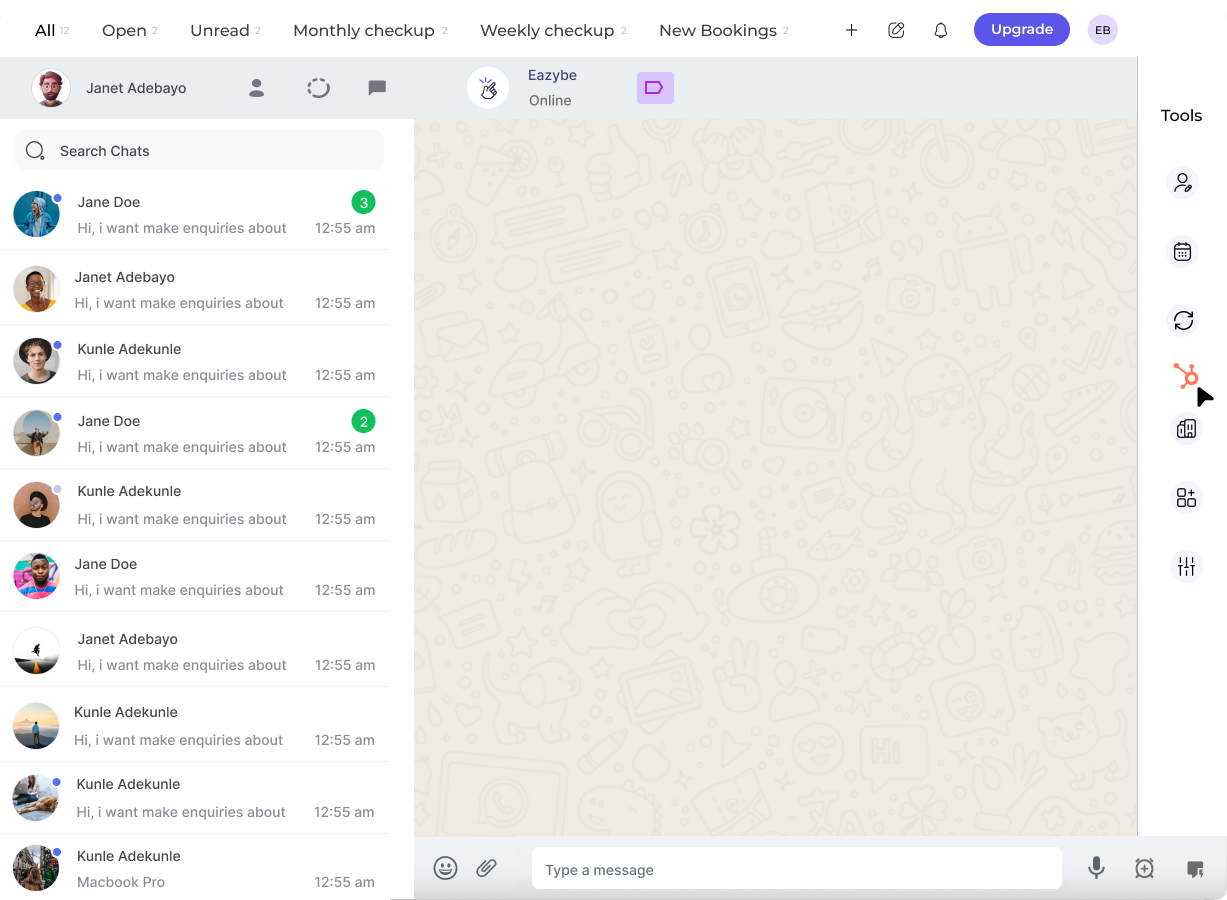
Open the WhatsApp chat of the contact for whom you want to create a ticket. Ensure the contact is already created in HubSpot.
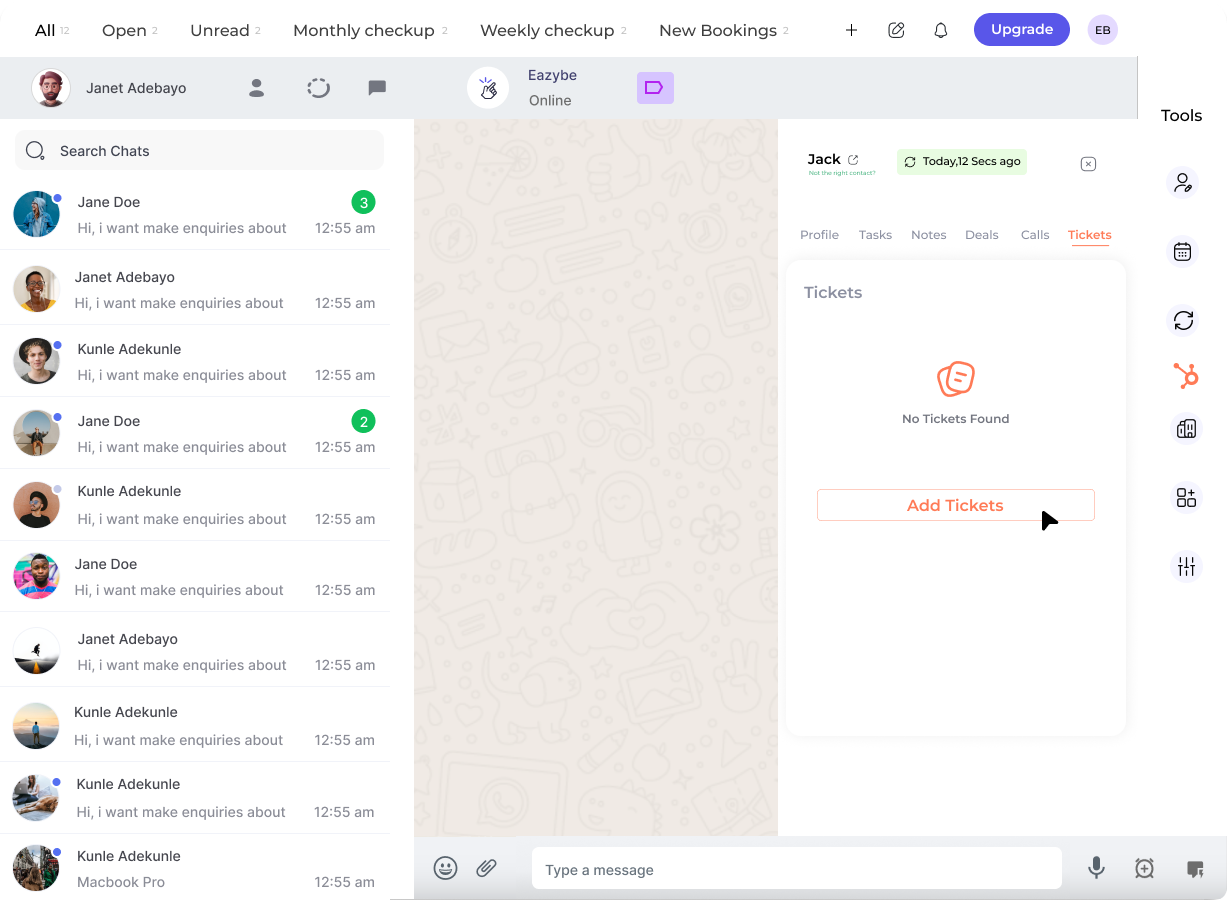
Click on the **HubSpot icon** in the right sidebar. The last button in the top bar will take you to the **Tickets** section.
Click on the **New Ticket** button to start creating a new support ticket.
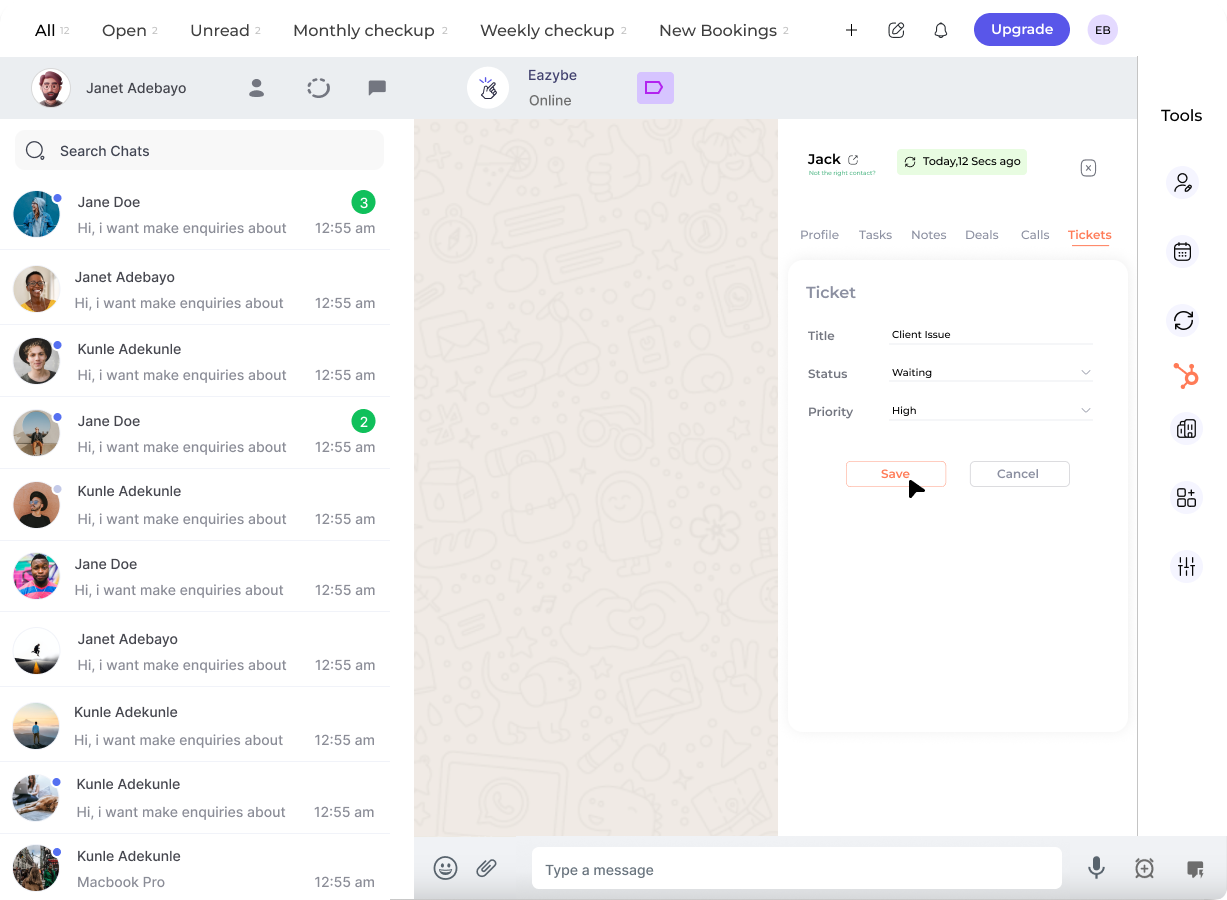
Complete all the necessary fields with relevant information:
| Field | Description |
| ----------------- | -------------------------------------------- |
| **Ticket Name** | Enter a descriptive title for the issue |
| **Pipeline** | Select the appropriate support pipeline |
| **Ticket Status** | Choose the current status of the ticket |
| **Priority** | Set the urgency level (Low, Medium, High) |
| **Description** | Provide detailed information about the issue |
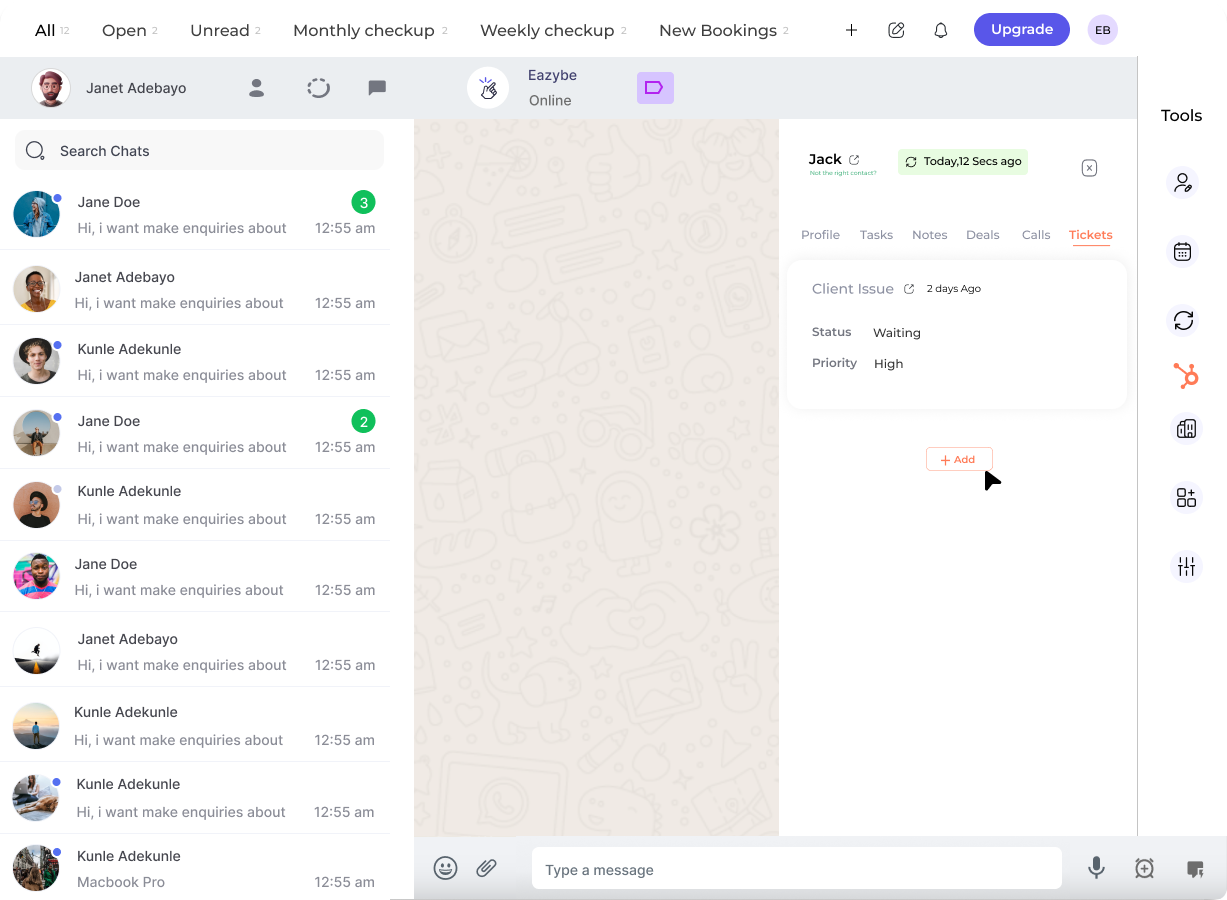
Click on the **Save Ticket** button to create the ticket in HubSpot. You can also add more tickets by clicking on the **Add** button.
The ticket is now created and will appear in the contact's activity timeline in HubSpot.
***
## Ticket Fields Explained
A clear, descriptive title that summarizes the customer's issue or request.
Select which support pipeline this ticket belongs to for proper routing.
Track the progress of the ticket:
* New
* In Progress
* Waiting on Contact
* Closed
Set the urgency level to help prioritize support efforts:
* **Low** — General inquiries
* **Medium** — Standard issues
* **High** — Urgent problems
***
## Best Practices
Log tickets immediately when a customer reports an issue to ensure nothing falls through the cracks.
Write clear, specific ticket names that make it easy to understand the issue at a glance.
Assign appropriate priority levels to help your team focus on the most urgent issues first.
Add comprehensive descriptions including steps to reproduce, error messages, and any relevant context.
***
## Why Create Tickets from WhatsApp?
Creating HubSpot tickets directly from WhatsApp provides valuable benefits for your support team:
* **Faster Response** — Create tickets instantly without switching between applications
* **Complete Context** — Link tickets to customer conversations for full context
* **Better Tracking** — Monitor all support requests in one centralized system
* **Team Collaboration** — Assign and escalate tickets to the right team members
***
## Need Help?
If you have any questions or need further assistance, reach out to us at **[hey@eazybe.com](mailto:hey@eazybe.com)**. We're happy to help!
 | Field | Description |
| ----------------- | -------------------------------------------- |
| **Ticket Name** | Enter a descriptive title for the issue |
| **Pipeline** | Select the appropriate support pipeline |
| **Ticket Status** | Choose the current status of the ticket |
| **Priority** | Set the urgency level (Low, Medium, High) |
| **Description** | Provide detailed information about the issue |
| Field | Description |
| ----------------- | -------------------------------------------- |
| **Ticket Name** | Enter a descriptive title for the issue |
| **Pipeline** | Select the appropriate support pipeline |
| **Ticket Status** | Choose the current status of the ticket |
| **Priority** | Set the urgency level (Low, Medium, High) |
| **Description** | Provide detailed information about the issue |