> ## Documentation Index
> Fetch the complete documentation index at: https://help.eazybe.com/llms.txt
> Use this file to discover all available pages before exploring further.
# Create Call Logs
> Learn how to create HubSpot call logs directly from WhatsApp conversations using the Eazybe extension
## Overview
The Eazybe WhatsApp Extension allows you to log calls for your HubSpot contacts without leaving your WhatsApp conversations. This feature helps you maintain a complete communication history and track all customer interactions in your CRM.
Ensure the WhatsApp contact is already created in HubSpot before creating call logs for them.
***
## Creating HubSpot Call Logs
Follow these steps to create call logs for your HubSpot contacts directly from WhatsApp:
Open the WhatsApp chat of the contact for whom you want to log a call. Make sure the contact already exists in HubSpot.
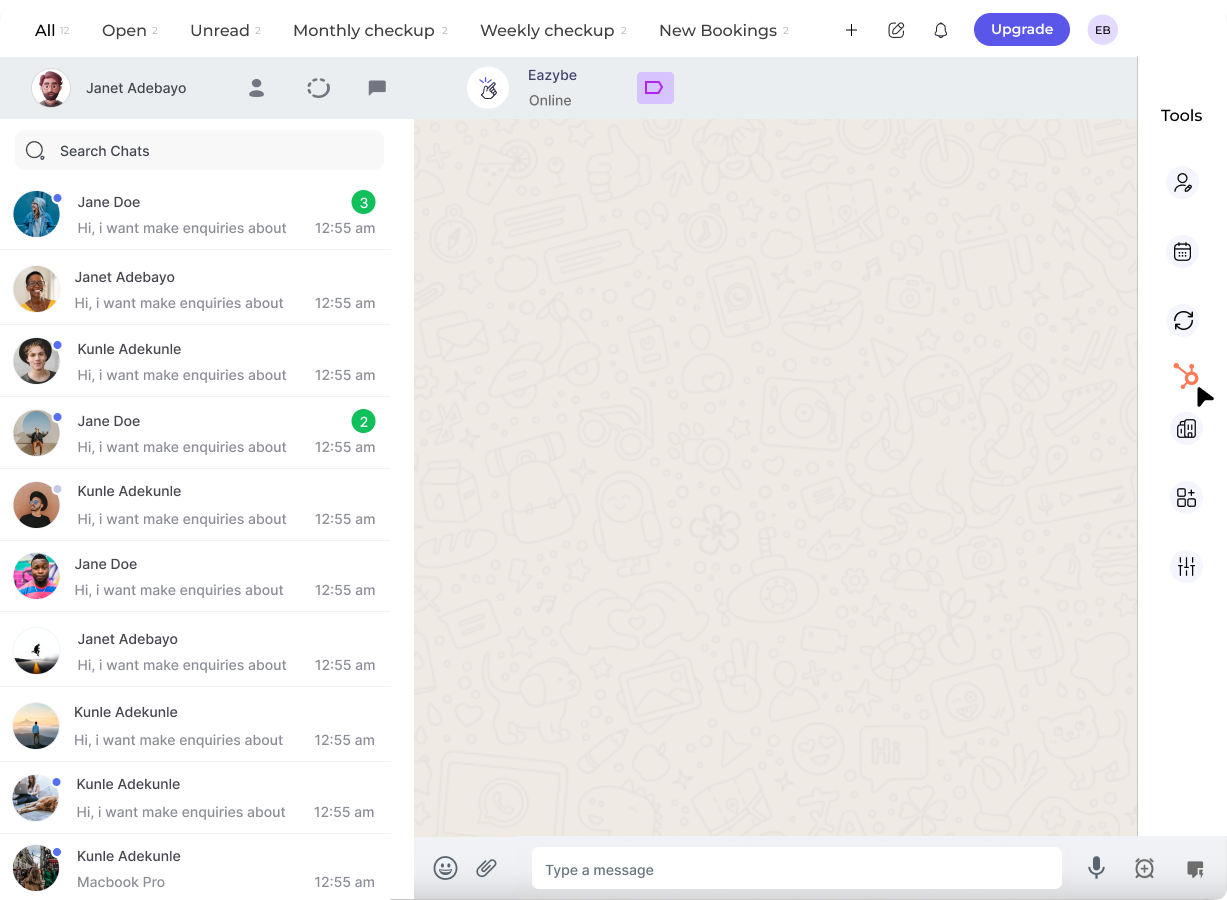 Click on the **HubSpot icon** in the right sidebar. The fifth button in the top bar will take you to the **Call Logs** section.
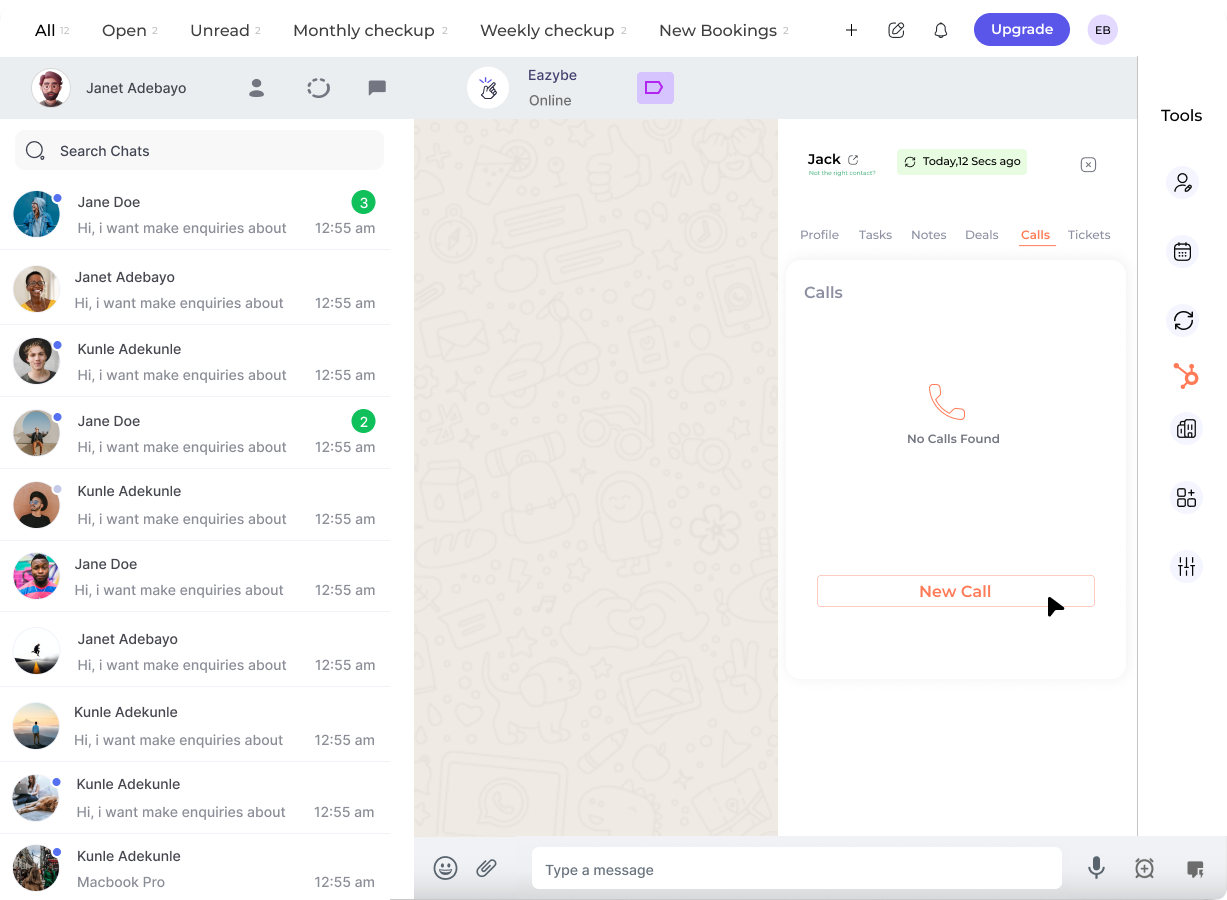 Click on the **New Call Log** button to start creating a new call entry.
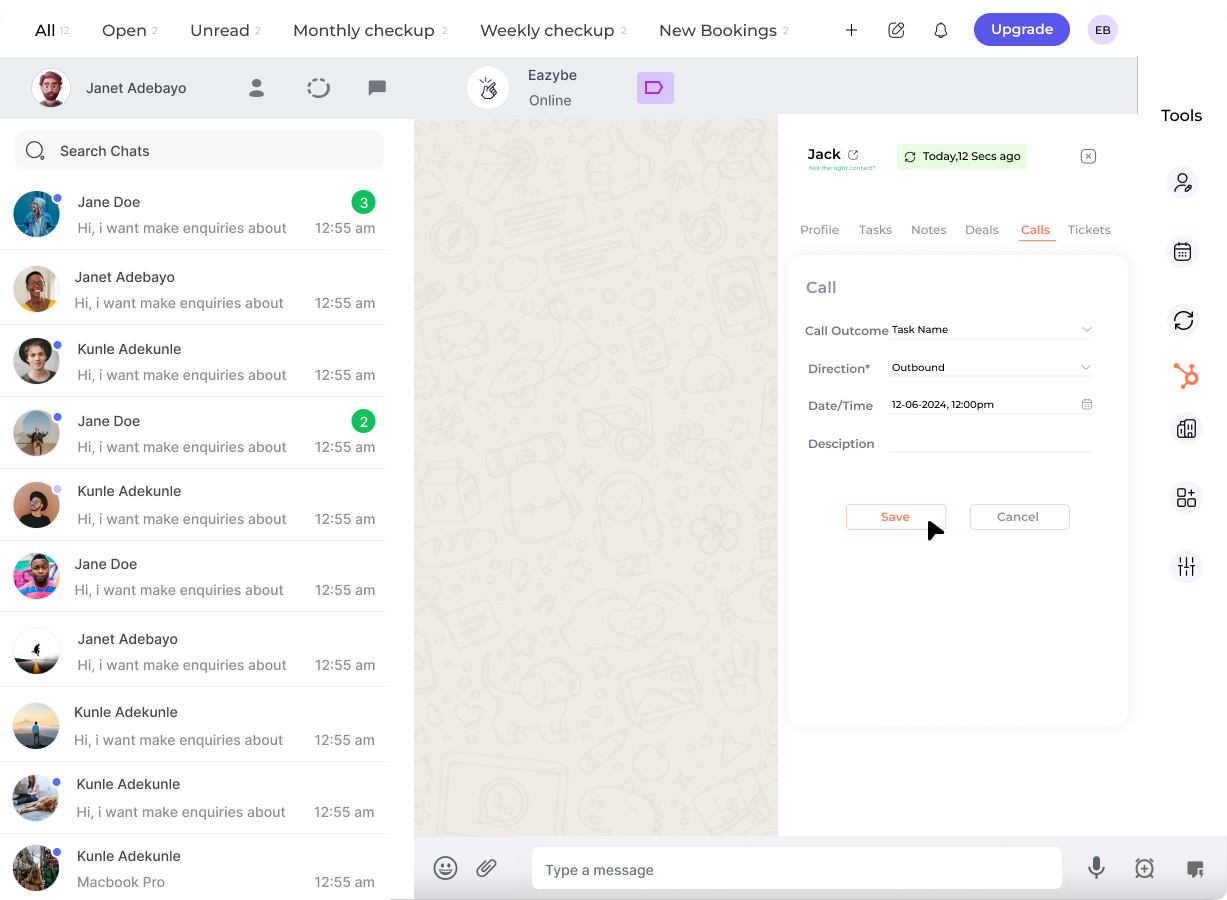 Fill in the required fields for your call log:
 | Field | Description |
| -------------------- | -------------------------------------------------------------------------------- |
| **Call Outcome** | Select the result from the dropdown (e.g., Connected, No Answer, Left Voicemail) |
| **Direction** | Choose whether the call was Inbound or Outbound |
| **Date & Time** | Specify when the call occurred |
| **Call Description** | Enter relevant details about the conversation |
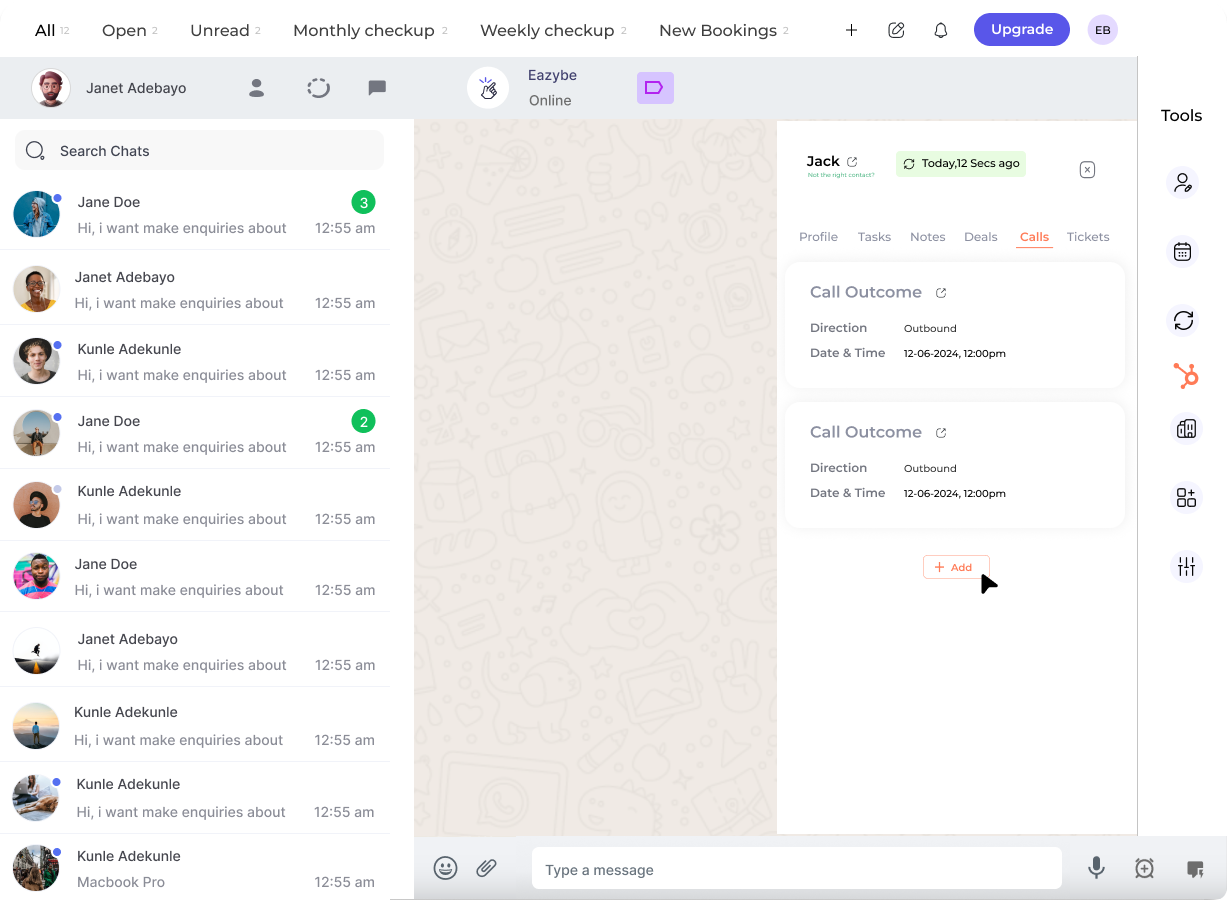
Click on the **Save Call Log** button to save the entry to HubSpot.
The call log is now saved and will appear in the contact's activity timeline in HubSpot.
***
## Call Log Fields Explained
Track the result of your call:
* Connected
* No Answer
* Busy
* Left Voicemail
* Wrong Number
Specify if you made or received the call:
* **Inbound** — Customer called you
* **Outbound** — You called the customer
Record the exact timestamp of the call for accurate activity tracking.
Add notes about the conversation, next steps, or important details discussed.
***
## Best Practices
Create call logs immediately after each call while details are fresh in your mind.
Include key points discussed, action items, and any follow-up needed in the description field.
Apply consistent call outcomes across your team for accurate reporting and analytics.
Log both inbound and outbound calls to maintain a complete communication history.
***
## Why Log Calls?
Logging calls in HubSpot provides valuable benefits for your sales and support teams:
* **Complete History** — View all interactions with a contact in one place
* **Team Visibility** — Share call information across your organization
* **Better Follow-ups** — Know exactly where conversations left off
* **Accurate Reporting** — Track call volumes and outcomes for analysis
***
## Need Help?
If you have any questions or need further assistance, reach out to us at **[hey@eazybe.com](mailto:hey@eazybe.com)**. We're happy to help!
| Field | Description |
| -------------------- | -------------------------------------------------------------------------------- |
| **Call Outcome** | Select the result from the dropdown (e.g., Connected, No Answer, Left Voicemail) |
| **Direction** | Choose whether the call was Inbound or Outbound |
| **Date & Time** | Specify when the call occurred |
| **Call Description** | Enter relevant details about the conversation |
Click on the **Save Call Log** button to save the entry to HubSpot.
The call log is now saved and will appear in the contact's activity timeline in HubSpot.
***
## Call Log Fields Explained
Track the result of your call:
* Connected
* No Answer
* Busy
* Left Voicemail
* Wrong Number
Specify if you made or received the call:
* **Inbound** — Customer called you
* **Outbound** — You called the customer
Record the exact timestamp of the call for accurate activity tracking.
Add notes about the conversation, next steps, or important details discussed.
***
## Best Practices
Create call logs immediately after each call while details are fresh in your mind.
Include key points discussed, action items, and any follow-up needed in the description field.
Apply consistent call outcomes across your team for accurate reporting and analytics.
Log both inbound and outbound calls to maintain a complete communication history.
***
## Why Log Calls?
Logging calls in HubSpot provides valuable benefits for your sales and support teams:
* **Complete History** — View all interactions with a contact in one place
* **Team Visibility** — Share call information across your organization
* **Better Follow-ups** — Know exactly where conversations left off
* **Accurate Reporting** — Track call volumes and outcomes for analysis
***
## Need Help?
If you have any questions or need further assistance, reach out to us at **[hey@eazybe.com](mailto:hey@eazybe.com)**. We're happy to help!