> ## Documentation Index
> Fetch the complete documentation index at: https://help.eazybe.com/llms.txt
> Use this file to discover all available pages before exploring further.
# Create and Customize Contacts
> Learn how to create new HubSpot contacts and customize contact properties directly from WhatsApp using the Eazybe extension
## Overview
The Eazybe WhatsApp Extension allows you to create and manage HubSpot contacts without leaving your WhatsApp conversations. This seamless integration helps you capture leads and maintain accurate contact information in real-time.
Contact phone numbers are automatically populated from WhatsApp data and cannot be edited to ensure data consistency.
***
## Video Tutorial
Watch how to create and customize HubSpot contacts from WhatsApp:
***
## Creating New Contacts
Follow these steps to create a new HubSpot contact directly from WhatsApp:
Navigate to the WhatsApp conversation for the contact you want to add to HubSpot.
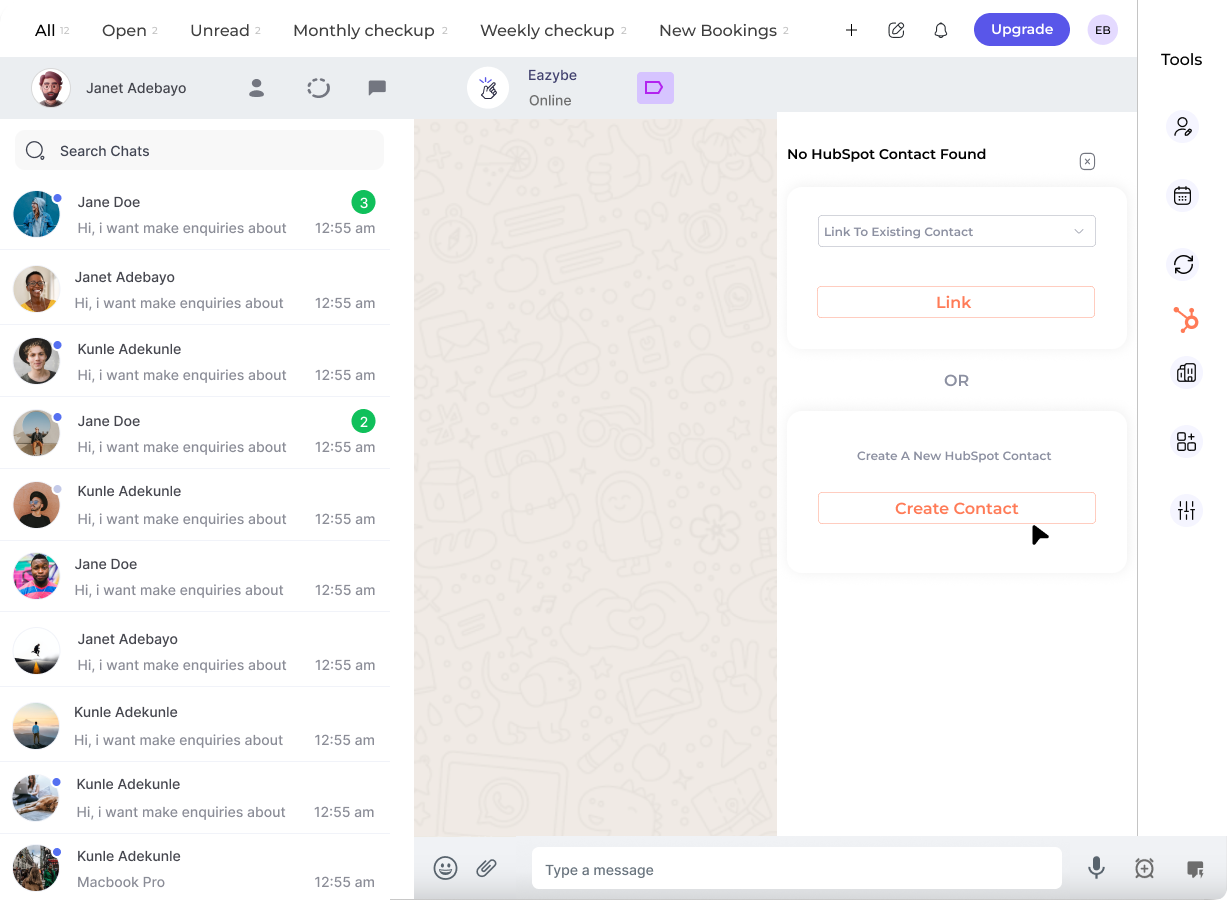
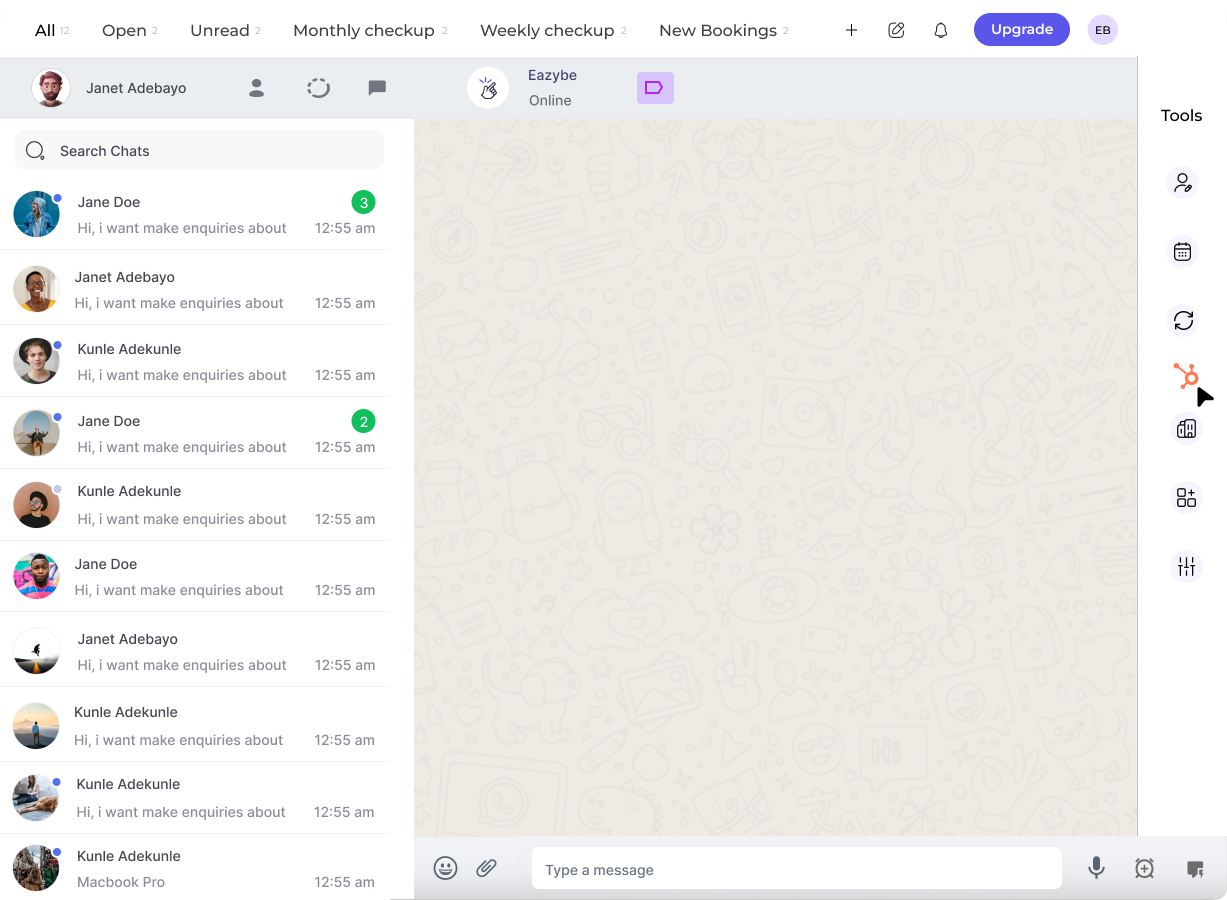
Click the **HubSpot icon** in the right sidebar to open the Mini-CRM panel.
Click the **Create Contact** button. The phone number will automatically populate from the WhatsApp conversation.
The phone number field is auto-filled and non-editable to maintain data integrity between WhatsApp and HubSpot.
Enter any additional contact information such as:
* First name and last name
* Email address
* Company name
* Any custom properties configured in your HubSpot account
Click **Save** to create the contact in HubSpot. The contact will be instantly available in your CRM.
Once saved, the contact is immediately synced to your HubSpot account and linked to the WhatsApp conversation.
***
## Customizing Existing Contacts
You can easily update and customize contact properties for existing HubSpot contacts:
Navigate to the WhatsApp conversation of the contact you want to customize.
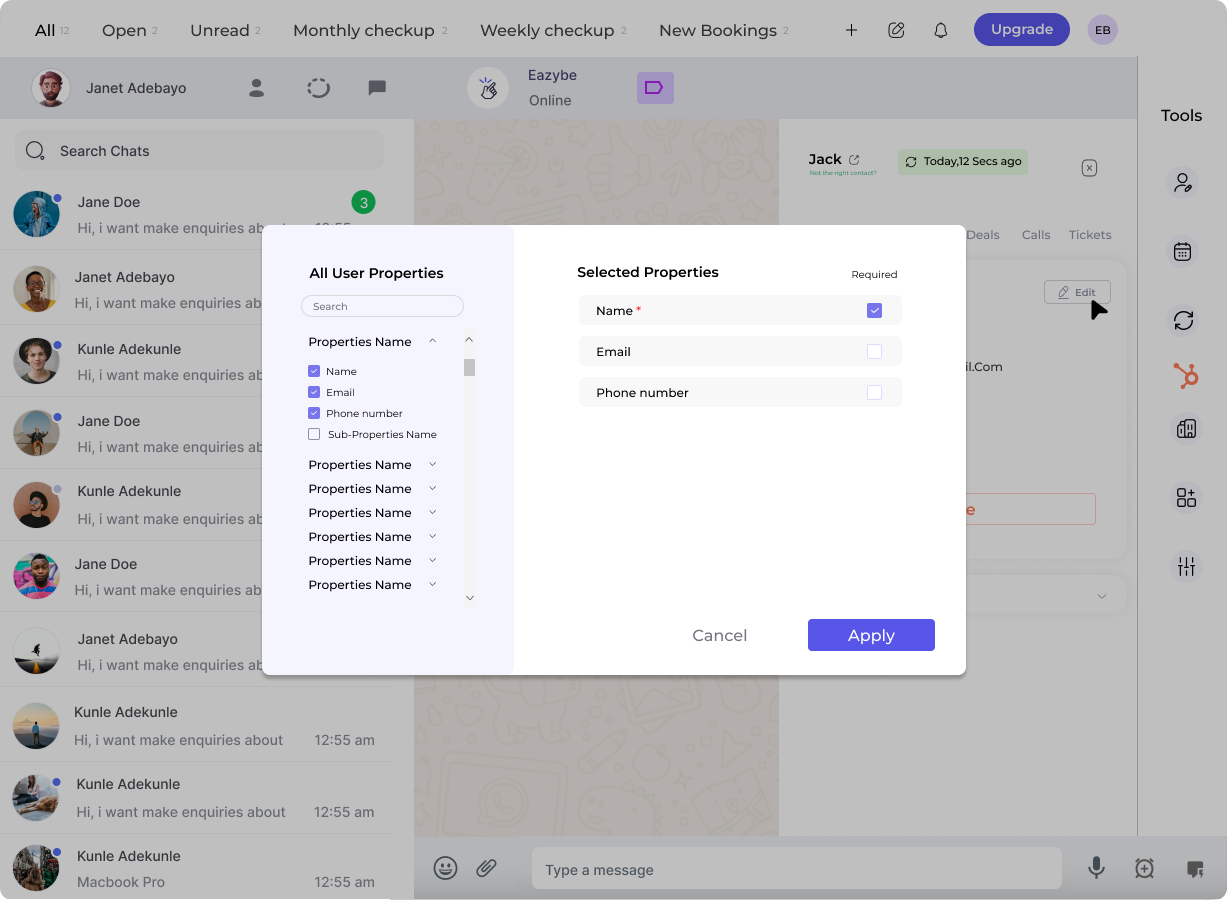
In the Mini-CRM panel, click the **Edit** button within the contact card to modify the contact properties.
Update the contact information as needed:
* Edit existing property values
* Rearrange the display order of properties
* Designate fields as required or optional
Click **Apply** to confirm your changes, then click **Save** to update the contact in HubSpot.
***
## Customizing Contact Properties Display
Watch this tutorial on customizing how contact properties are displayed:
***
## Property Configuration Options
Drag and drop properties to change their display order in the contact card.
Mark important fields as required to ensure complete contact data.
Set non-essential fields as optional for flexibility.
Access and edit any custom HubSpot properties you've configured.
***
## Best Practices
Regularly review and update contact properties to maintain accurate CRM data.
Follow a standard format for names and company information across all contacts.
Create custom HubSpot properties for industry-specific information relevant to your business.
Double-check contact details before saving to avoid duplicate or incorrect records.
***
## Need Help?
If you have any questions or need further assistance, reach out to us at **[hey@eazybe.com](mailto:hey@eazybe.com)**. We're happy to help!