> ## Documentation Index
> Fetch the complete documentation index at: https://help.eazybe.com/llms.txt
> Use this file to discover all available pages before exploring further.
# What is Mini-CRM View
> Discover the HubSpot Mini-CRM View inside WhatsApp - manage contacts, tasks, deals, calls, and tickets without leaving your chat
## Overview
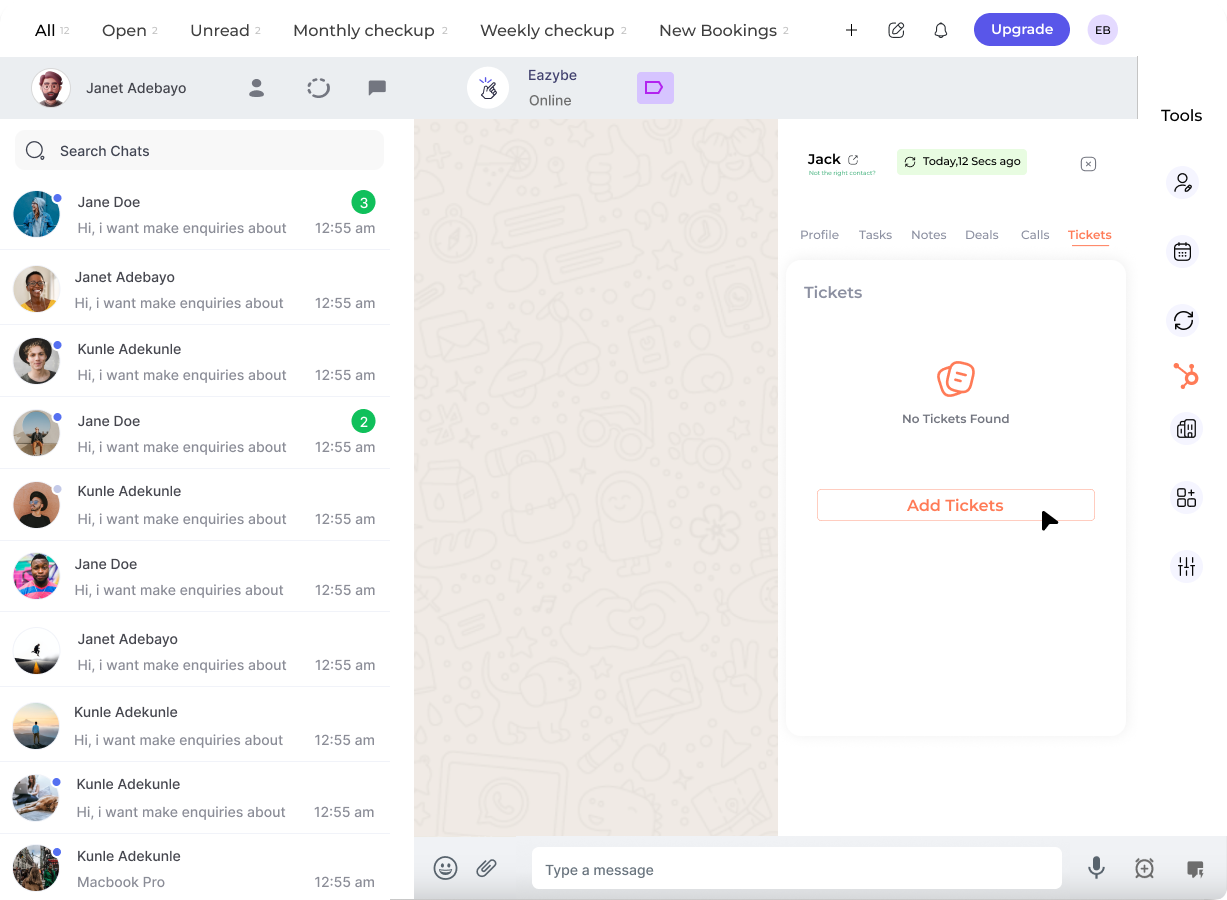
The **HubSpot Mini-CRM View** brings essential CRM functionality directly into your WhatsApp interface. With Eazybe's Chrome extension, you can access and manage your HubSpot data without switching between applications.
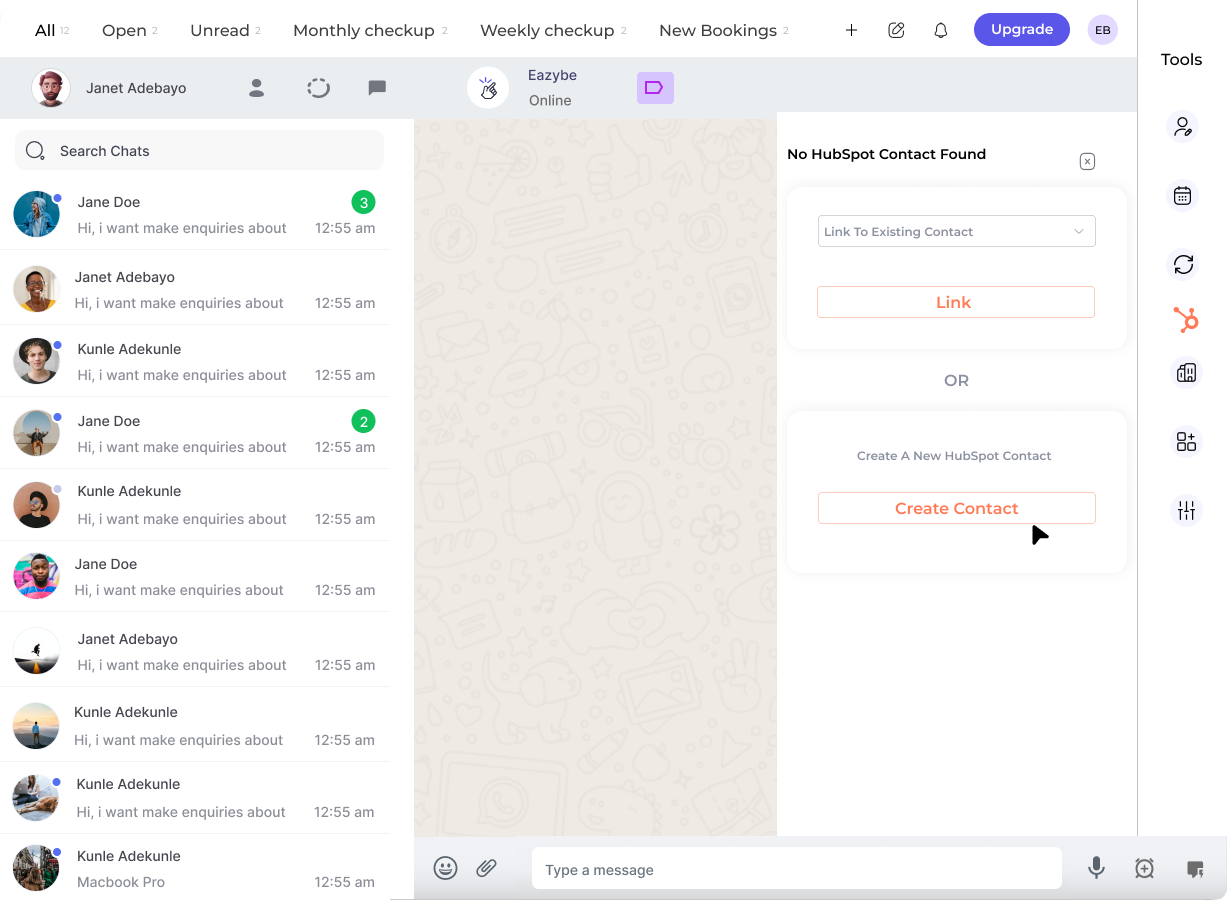 The Mini-CRM View appears in the right sidebar of WhatsApp Web when you have the Eazybe extension installed and connected to HubSpot.
***
## Key Features
The Mini-CRM View provides quick access to five core HubSpot functions:
Create and manage HubSpot contacts directly from WhatsApp conversations.
Log tasks and notes to keep track of follow-ups and important information.
Create and track deals associated with your WhatsApp contacts.
Record call activities and maintain a complete communication history.
Create and manage HubSpot support tickets for customer service tracking.
***
## How It Works
Navigate to WhatsApp Web in your Chrome browser with the Eazybe extension installed.
Click on any chat conversation to view the associated contact details in the Mini-CRM panel.
The Mini-CRM View appears in the right sidebar of WhatsApp Web when you have the Eazybe extension installed and connected to HubSpot.
***
## Key Features
The Mini-CRM View provides quick access to five core HubSpot functions:
Create and manage HubSpot contacts directly from WhatsApp conversations.
Log tasks and notes to keep track of follow-ups and important information.
Create and track deals associated with your WhatsApp contacts.
Record call activities and maintain a complete communication history.
Create and manage HubSpot support tickets for customer service tracking.
***
## How It Works
Navigate to WhatsApp Web in your Chrome browser with the Eazybe extension installed.
Click on any chat conversation to view the associated contact details in the Mini-CRM panel.
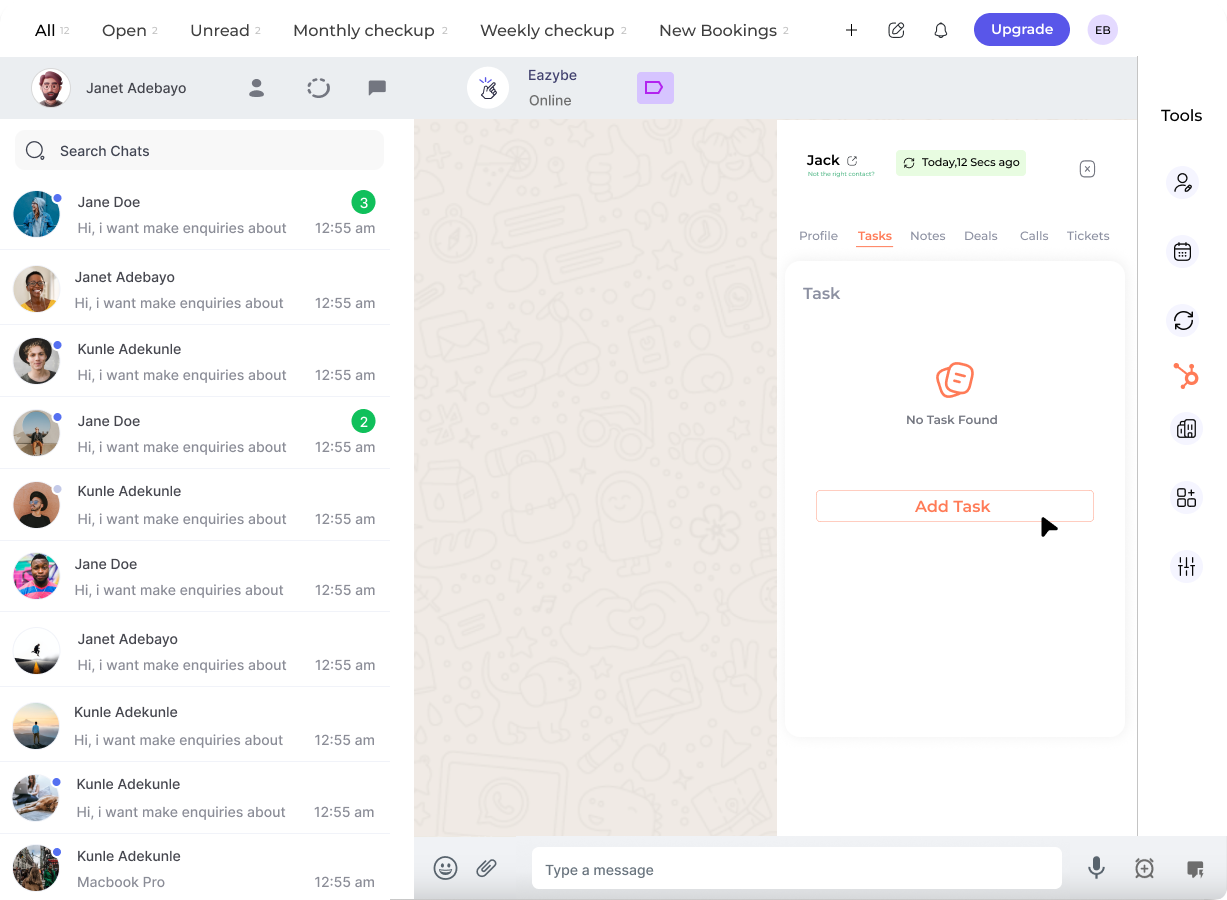 Use the sidebar icons to access different CRM functions:
* **Contacts** — View and edit contact properties
* **Tasks** — Create follow-up tasks
* **Notes** — Add notes to the contact record
* **Deals** — Manage sales opportunities
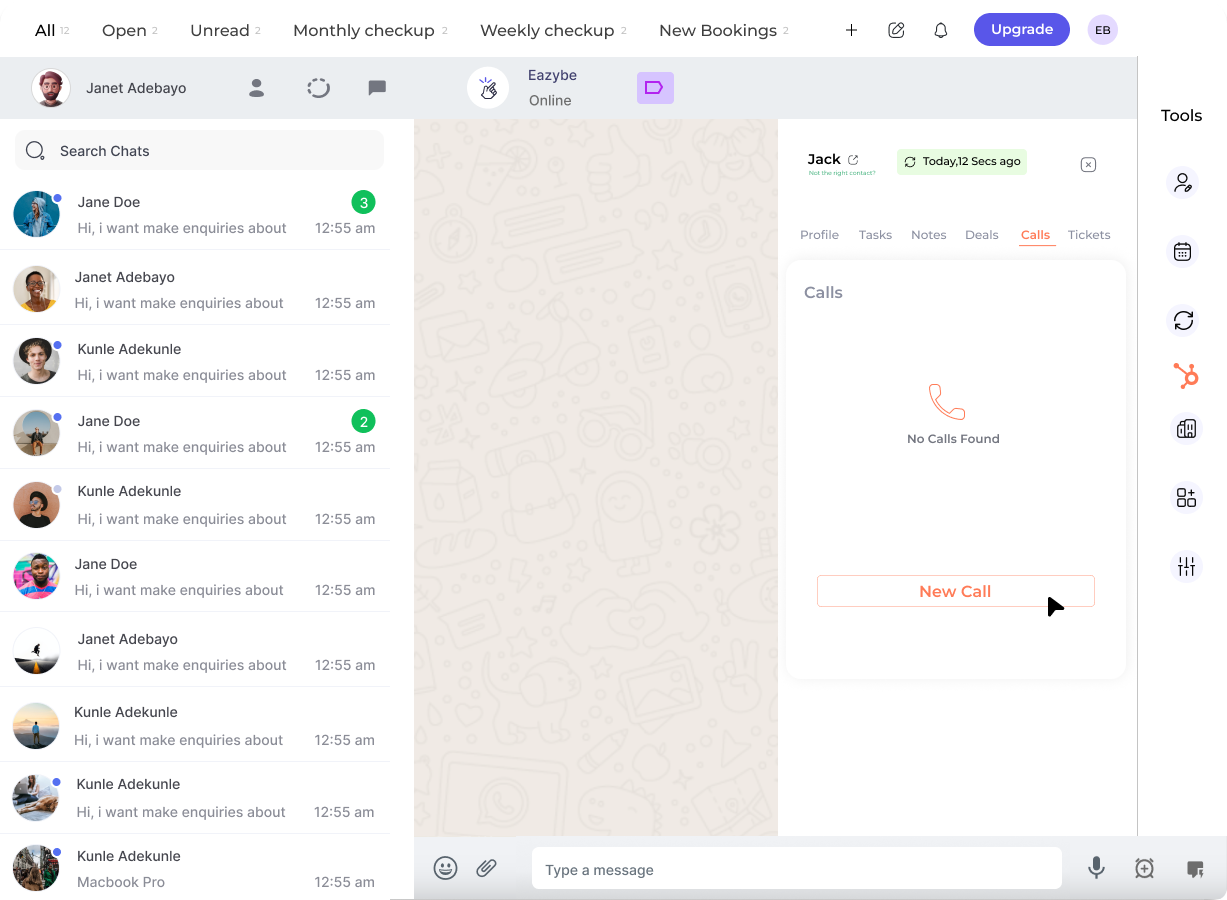
* **Calls** — Log call activities
* **Tickets** — Create support tickets
Use the sidebar icons to access different CRM functions:
* **Contacts** — View and edit contact properties
* **Tasks** — Create follow-up tasks
* **Notes** — Add notes to the contact record
* **Deals** — Manage sales opportunities
* **Calls** — Log call activities
* **Tickets** — Create support tickets
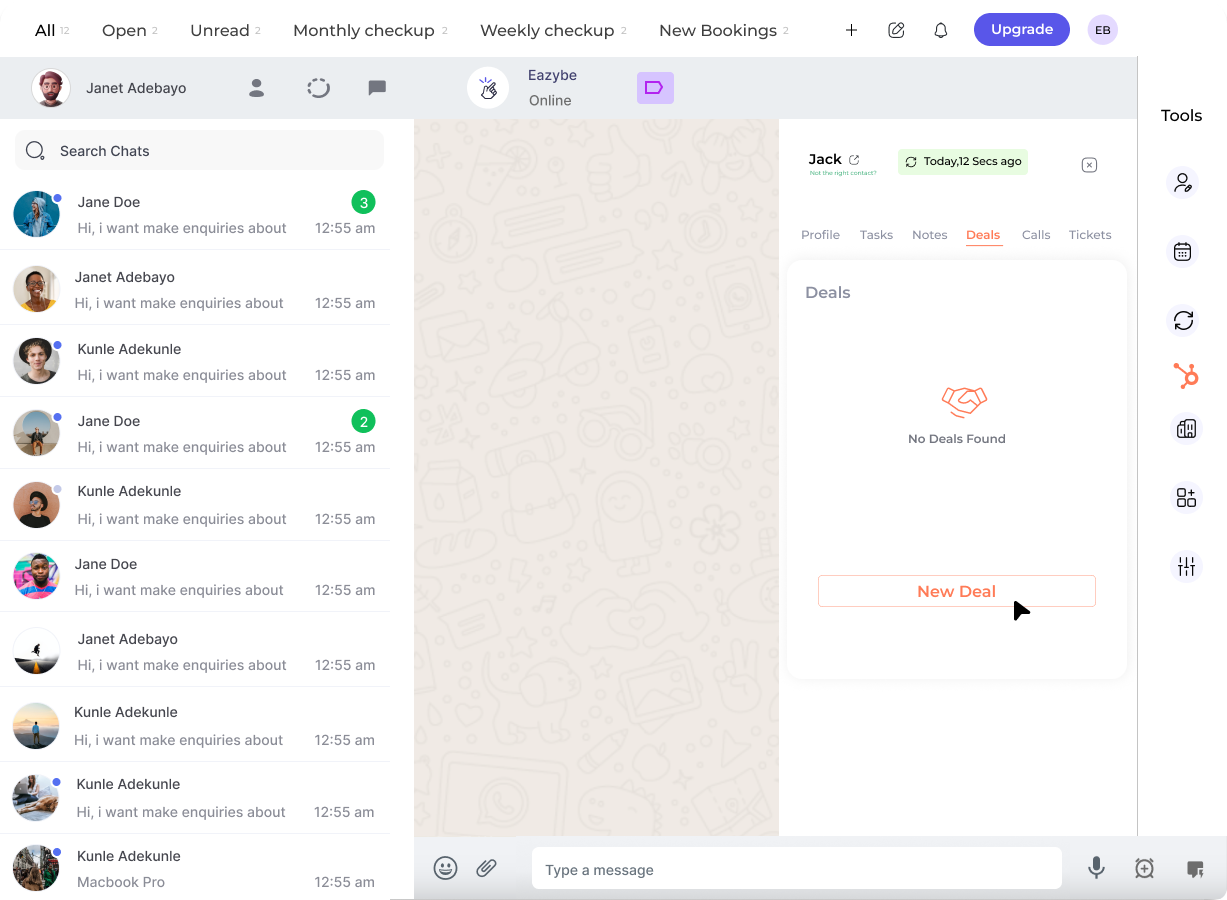 All changes made in the Mini-CRM View are automatically synced to your HubSpot account in real-time.
 ***
## Benefits
No need to switch between WhatsApp and HubSpot — manage everything from one interface.
View contact history, deals, and activities while chatting with customers.
All updates are instantly reflected in your HubSpot CRM.
Share contact information and activities with your team through HubSpot.
***
## Mini-CRM Components
***
## Benefits
No need to switch between WhatsApp and HubSpot — manage everything from one interface.
View contact history, deals, and activities while chatting with customers.
All updates are instantly reflected in your HubSpot CRM.
Share contact information and activities with your team through HubSpot.
***
## Mini-CRM Components
 | Component | Description |
| ------------- | ------------------------------------------------- |
| **Contacts** | Create, view, and edit HubSpot contact records |
| **Tasks** | Schedule follow-ups and assign tasks |
| **Notes** | Add context and important information to contacts |
| **Deals** | Track sales pipeline and opportunities |
| **Call Logs** | Record and log call activities |
| **Tickets** | Manage customer support requests |
***
## Getting Started
To use the Mini-CRM View, you need to have the Eazybe Chrome extension installed and connected to your HubSpot account.
Once connected, the Mini-CRM panel automatically appears when you open WhatsApp Web.
***
## Need Help?
If you have any questions or need further assistance, reach out to us at **[hey@eazybe.com](mailto:hey@eazybe.com)**. We're happy to help!
| Component | Description |
| ------------- | ------------------------------------------------- |
| **Contacts** | Create, view, and edit HubSpot contact records |
| **Tasks** | Schedule follow-ups and assign tasks |
| **Notes** | Add context and important information to contacts |
| **Deals** | Track sales pipeline and opportunities |
| **Call Logs** | Record and log call activities |
| **Tickets** | Manage customer support requests |
***
## Getting Started
To use the Mini-CRM View, you need to have the Eazybe Chrome extension installed and connected to your HubSpot account.
Once connected, the Mini-CRM panel automatically appears when you open WhatsApp Web.
***
## Need Help?
If you have any questions or need further assistance, reach out to us at **[hey@eazybe.com](mailto:hey@eazybe.com)**. We're happy to help!