> ## Documentation Index
> Fetch the complete documentation index at: https://help.eazybe.com/llms.txt
> Use this file to discover all available pages before exploring further.
# Link WhatsApp Contacts
> Learn how to link your HubSpot contacts with WhatsApp for seamless communication management
## Overview
WhatsApp and HubSpot contacts are linked automatically through the unique phone number in the HubSpot phone field. After integrating HubSpot with the Eazybe WhatsApp extension, you can view and manage your HubSpot contacts directly through the WhatsApp interface.
Contacts are matched using the phone number as the unique identifier. Ensure your HubSpot contacts have accurate phone numbers to enable automatic linking.
***
## Video Tutorial
Watch our step-by-step video guide to understand how contacts are linked:
Explore the full [Eazybe Tutorials playlist](https://www.youtube.com/playlist?list=PLi3dUwNVY25MX7Brhu4GXa2dGQ5V7L4NK) on YouTube for more video guides, or visit the [Eazybe YouTube channel](https://www.youtube.com/@eazybe).
***
## How Contact Linking Works
### Automatic Linking
When you integrate HubSpot with Eazybe, the system automatically links contacts based on their phone numbers:
The Eazybe extension scans the WhatsApp contact's phone number and matches it with the phone field in your HubSpot contacts.
Once matched, the HubSpot contact information becomes visible within the WhatsApp extension interface.
You can now view contact details, deals, tasks, and notes directly from WhatsApp without switching to HubSpot.
***
## Additional Options
Beyond automatic linking, Eazybe provides additional ways to manage your contacts:
Create new HubSpot contacts directly from WhatsApp conversations when chatting with someone not yet in your CRM.
Manually link existing HubSpot contacts to WhatsApp phone numbers if they weren't matched automatically.
***
## Best Practices
Ensure phone numbers in HubSpot include the country code (e.g., +1 for US, +91 for India) to match WhatsApp's format.
Regularly update phone numbers in HubSpot to maintain accurate linking with WhatsApp contacts.
When creating contacts from WhatsApp, verify the information before saving to maintain data quality in HubSpot.
***
## Related Guides
Review the requirements for HubSpot integration.
Learn how to create and customize HubSpot contacts.
***
## Need Help?
If you have any questions or need further assistance, reach out to us at **[hey@eazybe.com](mailto:hey@eazybe.com)**. We're happy to help!
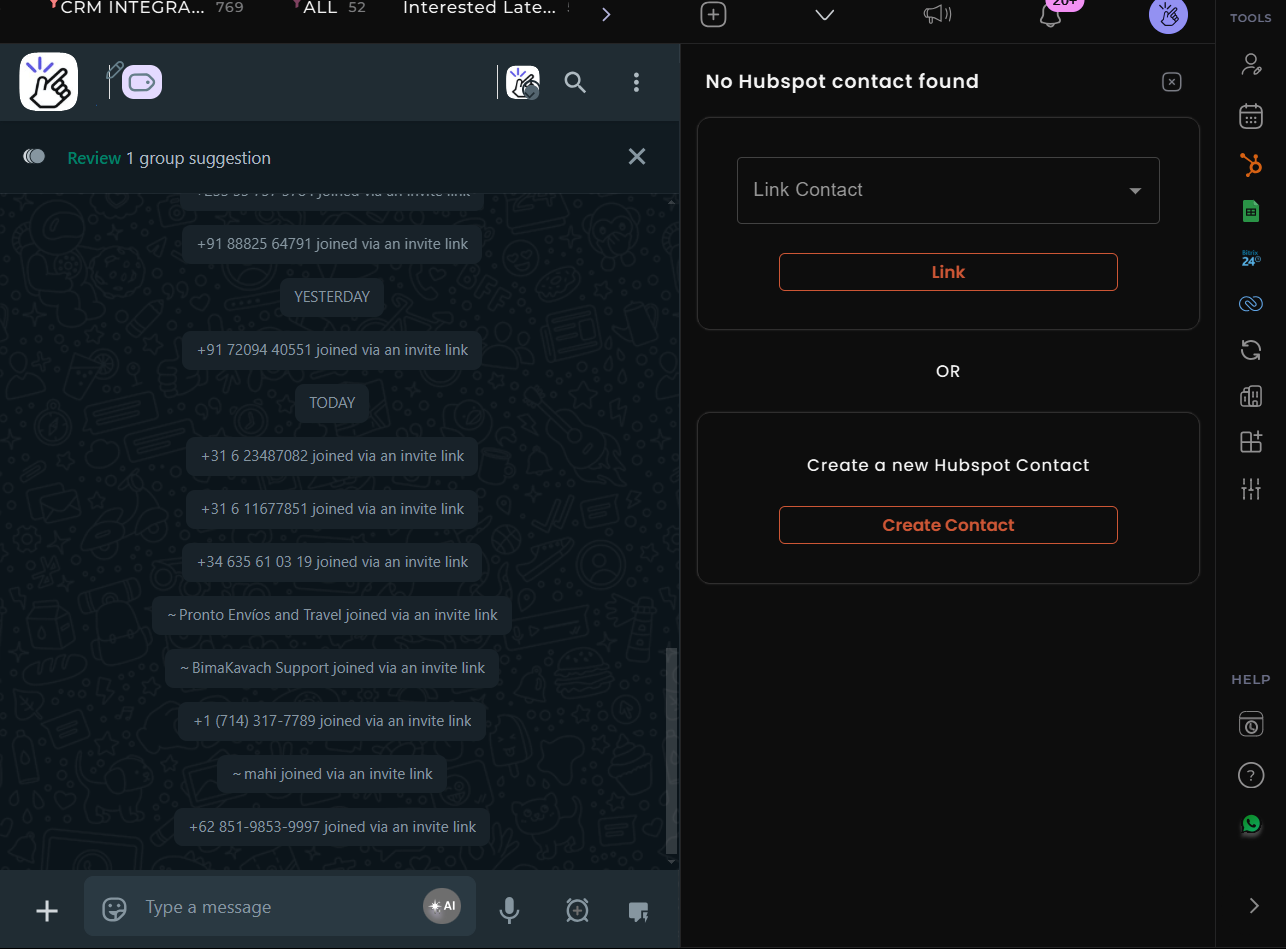 ### Automatic Linking
When you integrate HubSpot with Eazybe, the system automatically links contacts based on their phone numbers:
### Automatic Linking
When you integrate HubSpot with Eazybe, the system automatically links contacts based on their phone numbers: