> ## Documentation Index
> Fetch the complete documentation index at: https://help.eazybe.com/llms.txt
> Use this file to discover all available pages before exploring further.
# Invite Team
> Learn how to invite your team members to collaborate on Eazybe with HubSpot integration
## Overview
Invite your team members to join your Eazybe workspace and collaborate on WhatsApp conversations with HubSpot integration. This guide walks you through the process of adding employees to your organization.
Inviting team members allows them to access shared WhatsApp conversations, backup chats to HubSpot, and collaborate using the Team Inbox feature.
***
## Video Tutorial
Watch our step-by-step video guide to invite your team:
Explore the full [Eazybe Tutorials playlist](https://www.youtube.com/playlist?list=PLi3dUwNVY25MX7Brhu4GXa2dGQ5V7L4NK) on YouTube for more video guides, or visit the [Eazybe YouTube channel](https://www.youtube.com/@eazybe).
***
## Step-by-Step Guide
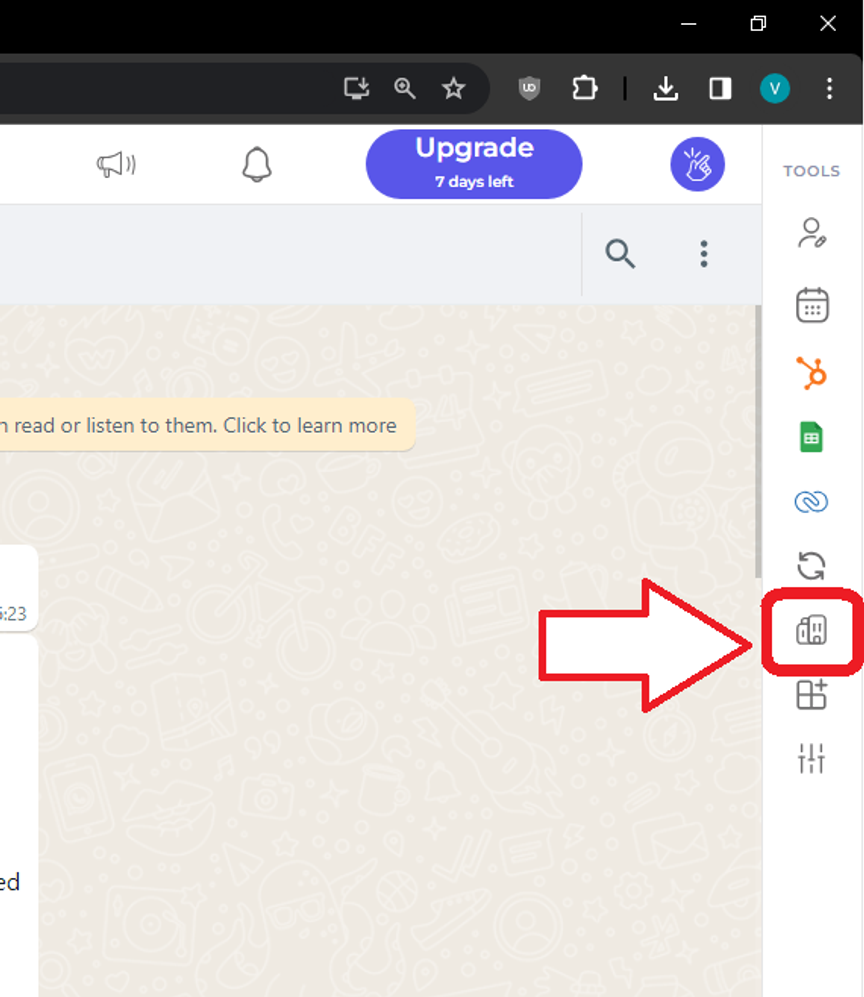
Go to your Eazybe Workspace at [workspace.eazybe.com/organization](https://workspace.eazybe.com/organization) and access the Organization section.
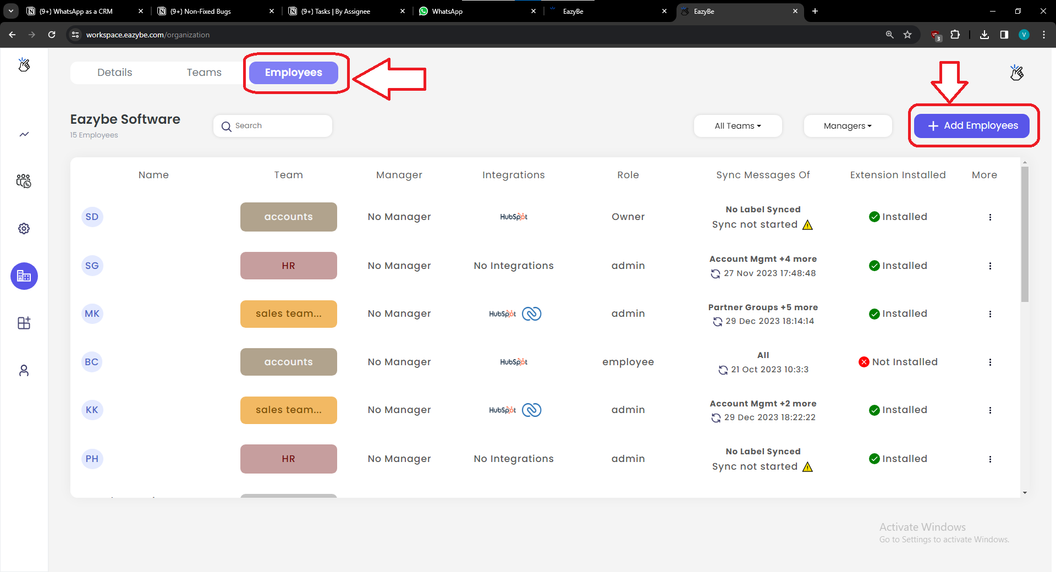
Click on **Employees** in the sidebar, then click the **Add Employees** button to start adding team members.
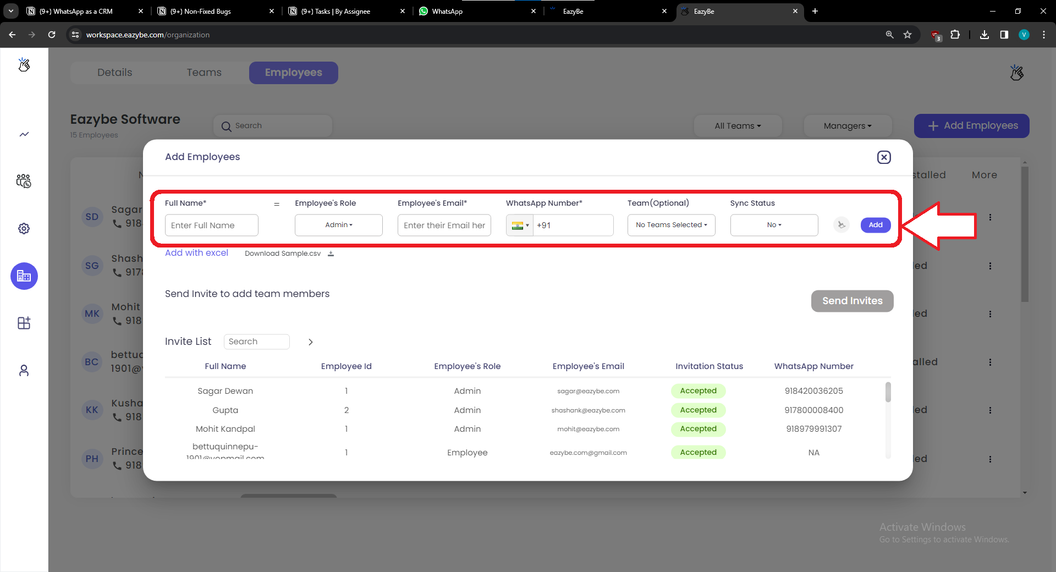
Fill in the required details for each team member:
* **Name** — Full name of the employee
* **Email** — Work email address for receiving the invitation
* **WhatsApp Number** — The WhatsApp number they'll use with Eazybe
After entering the details, click **Add** to add them to the list, then click **Send Invites** to send the invitation emails.
Invitations have been sent to your team members!
***
## Quick Reference
| Field | Required | Description |
| ------------------- | -------- | ------------------------------------- |
| **Name** | Yes | Full name of the team member |
| **Email** | Yes | Email address for the invitation |
| **WhatsApp Number** | Yes | WhatsApp number for Eazybe connection |
***
## Frequently Asked Questions
Inviting team members enables collaboration on WhatsApp conversations, shared access to HubSpot-synced data, and usage of the Team Inbox feature for managing customer communications together.
Each team member's WhatsApp chats are backed up to your organization's connected HubSpot account, maintaining a centralized record of all customer communications.
Yes. Eazybe does not store any data on its servers. All data is backed up with the user's WhatsApp number and stored securely in the Admin's Google Drive.
Yes, you can expand your team at any time by purchasing additional seats through your Eazybe subscription settings.
Name, Email, and WhatsApp Number are required fields for each team member invitation.
Team members can access shared WhatsApp conversations, HubSpot contact sync, chat backup features, and the collaborative Team Inbox.
Check the Employees section in your Organization settings to see the status of sent invitations. Team members will receive an email with instructions to join.
***
## Next Steps
Learn how to use the Team Inbox for collaborative customer support.
Set up contact synchronization between WhatsApp and HubSpot.
***
## Need Help?
If you have any questions or need further assistance, reach out to us at **[hey@eazybe.com](mailto:hey@eazybe.com)**. We're happy to help!