> ## Documentation Index
> Fetch the complete documentation index at: https://help.eazybe.com/llms.txt
> Use this file to discover all available pages before exploring further.
# Confirm Integration
> How to verify that your HubSpot integration with Eazybe was successful
## How Can I Confirm That the Integration Was Successful?
After completing the HubSpot integration process with the Eazybe WhatsApp extension, you will be automatically redirected to WhatsApp Web.
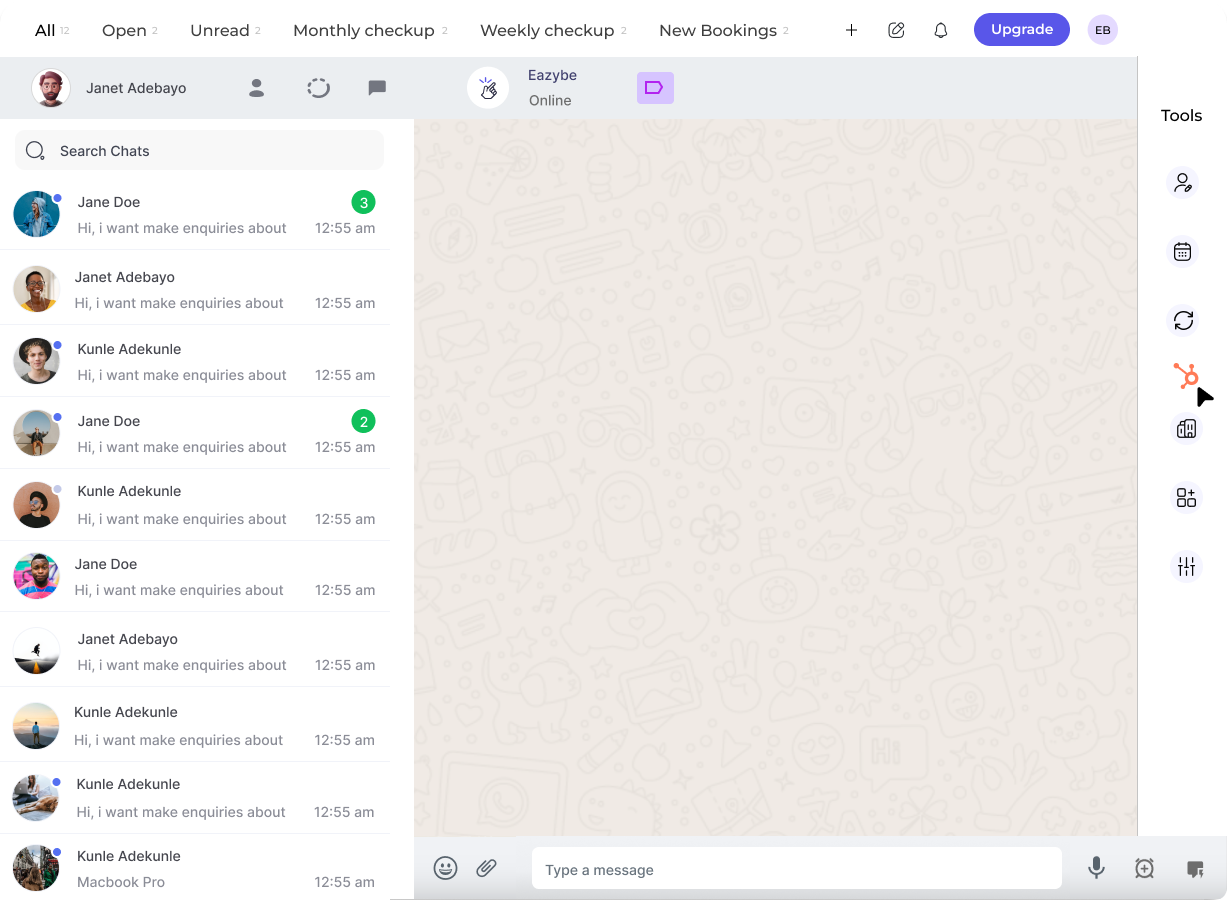
The **HubSpot icon will appear in the right sidebar** of your WhatsApp Web interface. This icon confirms that your integration was completed successfully.
***
## What to Look For
Follow the HubSpot connection steps in the Eazybe extension.
After authorization, you'll be redirected back to WhatsApp Web.
Look for the HubSpot icon in the right sidebar of your WhatsApp Web interface. If you see it, your integration is complete!
***
## Troubleshooting
If you don't see the HubSpot icon after completing the integration, try refreshing WhatsApp Web or re-logging into the extension.
If you're still having issues, contact our support team at **[hey@eazybe.com](mailto:hey@eazybe.com)**
 ***
## What to Look For
***
## What to Look For