> ## Documentation Index
> Fetch the complete documentation index at: https://help.eazybe.com/llms.txt
> Use this file to discover all available pages before exploring further.
# Exclude Contacts from Sync
> Learn how to stop chat synchronization for specific contacts in your HubSpot integration
## Overview
When you have many HubSpot-connected contacts, you may not want all conversations to sync automatically. Eazybe provides a label-based system that allows you to selectively exclude specific contacts from chat backup synchronization.
This feature is useful for excluding personal contacts, internal team chats, or any conversations you don't want recorded in HubSpot.
***
## How It Works
Eazybe uses a **label-based exclusion system**. You create a shared label, add contacts you want to exclude, and then disable sync for that entire label. This approach makes it easy to manage multiple contacts at once.
***
## Step-by-Step Guide
First, create a shared label within the Eazybe WhatsApp extension. Add all the contacts you **do not want** chat backups to sync with HubSpot under this label.
 Name your label something descriptive like "No Sync" or "Exclude from Backup" for easy identification.
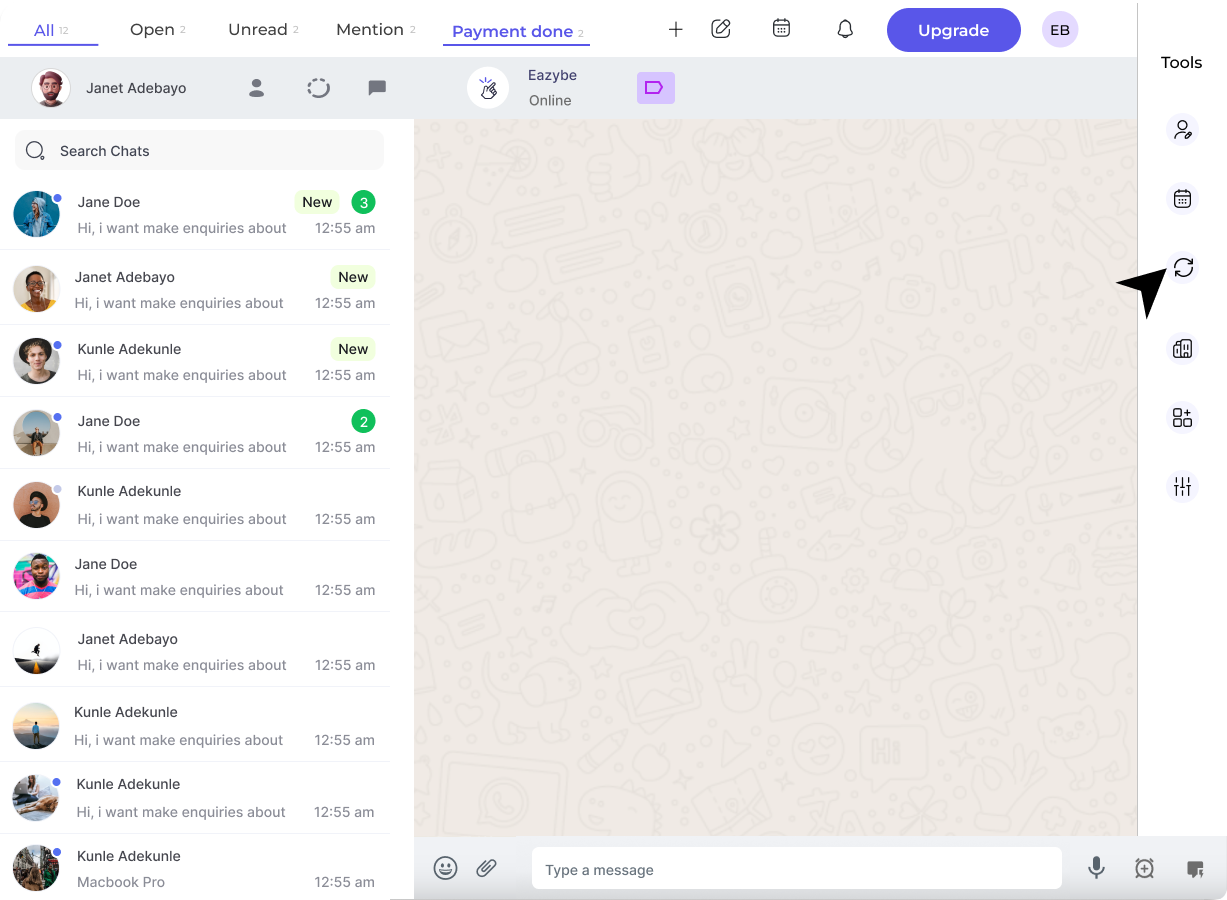
Click the **Backup and Sync** icon in the WhatsApp extension's right sidebar. In the resulting window, select the **HubSpot** button to access HubSpot-specific sync settings.
Locate the label containing the contacts you want to exclude. Click the **Don't Sync** button beside the label to disable synchronization for all contacts in that label.
Name your label something descriptive like "No Sync" or "Exclude from Backup" for easy identification.
Click the **Backup and Sync** icon in the WhatsApp extension's right sidebar. In the resulting window, select the **HubSpot** button to access HubSpot-specific sync settings.
Locate the label containing the contacts you want to exclude. Click the **Don't Sync** button beside the label to disable synchronization for all contacts in that label.
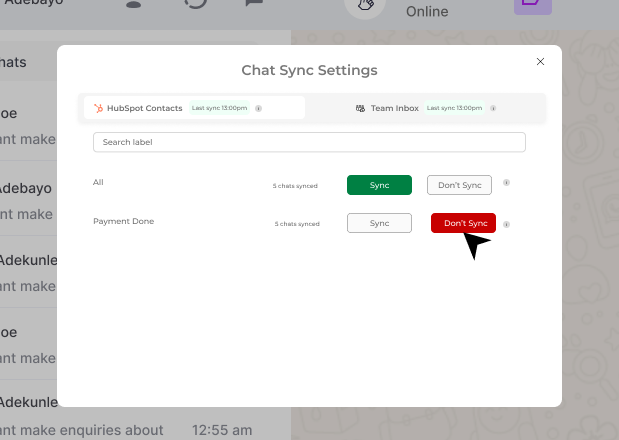 Chat synchronization is now disabled for all contacts in this label!
***
## Re-enabling Sync
If you need to restore synchronization for previously excluded contacts:
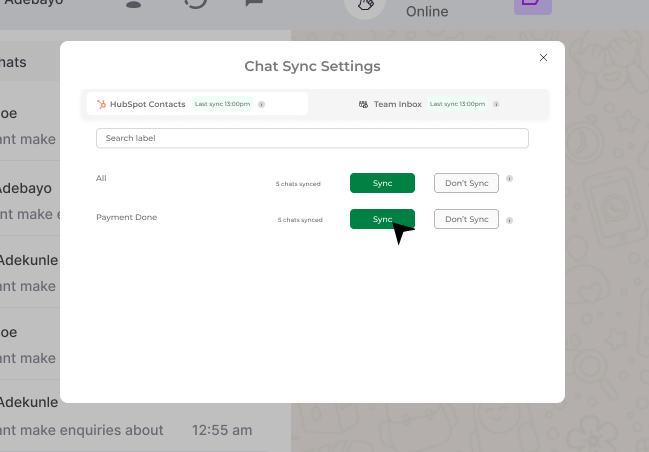
Navigate back to the Backup and Sync settings, find your excluded label, and click the **Sync** button to restore synchronization.
Chat synchronization is now disabled for all contacts in this label!
***
## Re-enabling Sync
If you need to restore synchronization for previously excluded contacts:
Navigate back to the Backup and Sync settings, find your excluded label, and click the **Sync** button to restore synchronization.
 To selectively enable sync for specific contacts only:
1. Remove those contacts from the excluded label
2. Keep other contacts in the label to maintain their exclusion
3. The removed contacts will automatically resume syncing
***
## Best Practices
Name your exclusion labels clearly (e.g., "No HubSpot Sync", "Personal Contacts") so team members understand their purpose.
Regularly review your excluded contacts to ensure you're not missing important business conversations.
If you're part of a team, document which types of contacts should be excluded to maintain consistency.
***
## Quick Reference
| Action | How To |
| -------------------- | ---------------------------------- |
| **Exclude Contacts** | Add to label → Click "Don't Sync" |
| **Include Contacts** | Remove from label OR Click "Sync" |
| **Bulk Exclude** | Add multiple contacts to one label |
***
## Need Help?
If you have any questions or need further assistance, reach out to us at **[hey@eazybe.com](mailto:hey@eazybe.com)**. We're happy to help!
To selectively enable sync for specific contacts only:
1. Remove those contacts from the excluded label
2. Keep other contacts in the label to maintain their exclusion
3. The removed contacts will automatically resume syncing
***
## Best Practices
Name your exclusion labels clearly (e.g., "No HubSpot Sync", "Personal Contacts") so team members understand their purpose.
Regularly review your excluded contacts to ensure you're not missing important business conversations.
If you're part of a team, document which types of contacts should be excluded to maintain consistency.
***
## Quick Reference
| Action | How To |
| -------------------- | ---------------------------------- |
| **Exclude Contacts** | Add to label → Click "Don't Sync" |
| **Include Contacts** | Remove from label OR Click "Sync" |
| **Bulk Exclude** | Add multiple contacts to one label |
***
## Need Help?
If you have any questions or need further assistance, reach out to us at **[hey@eazybe.com](mailto:hey@eazybe.com)**. We're happy to help!