> ## Documentation Index
> Fetch the complete documentation index at: https://help.eazybe.com/llms.txt
> Use this file to discover all available pages before exploring further.
# Edit Properties
> Control which HubSpot properties specific teams can edit across Contacts, Deals, and Tickets modules
## What This Feature Does
This feature enables administrators to control which HubSpot properties specific teams can edit across **Contacts**, **Deals**, and **Tickets** modules. By configuring edit permissions, you can ensure team members only modify the fields relevant to their roles.
***
## Who Can Use This Feature
Only **Admins** can configure property edit permissions for teams. Regular users cannot access these settings.
***
## How to Set Edit Properties for Teams
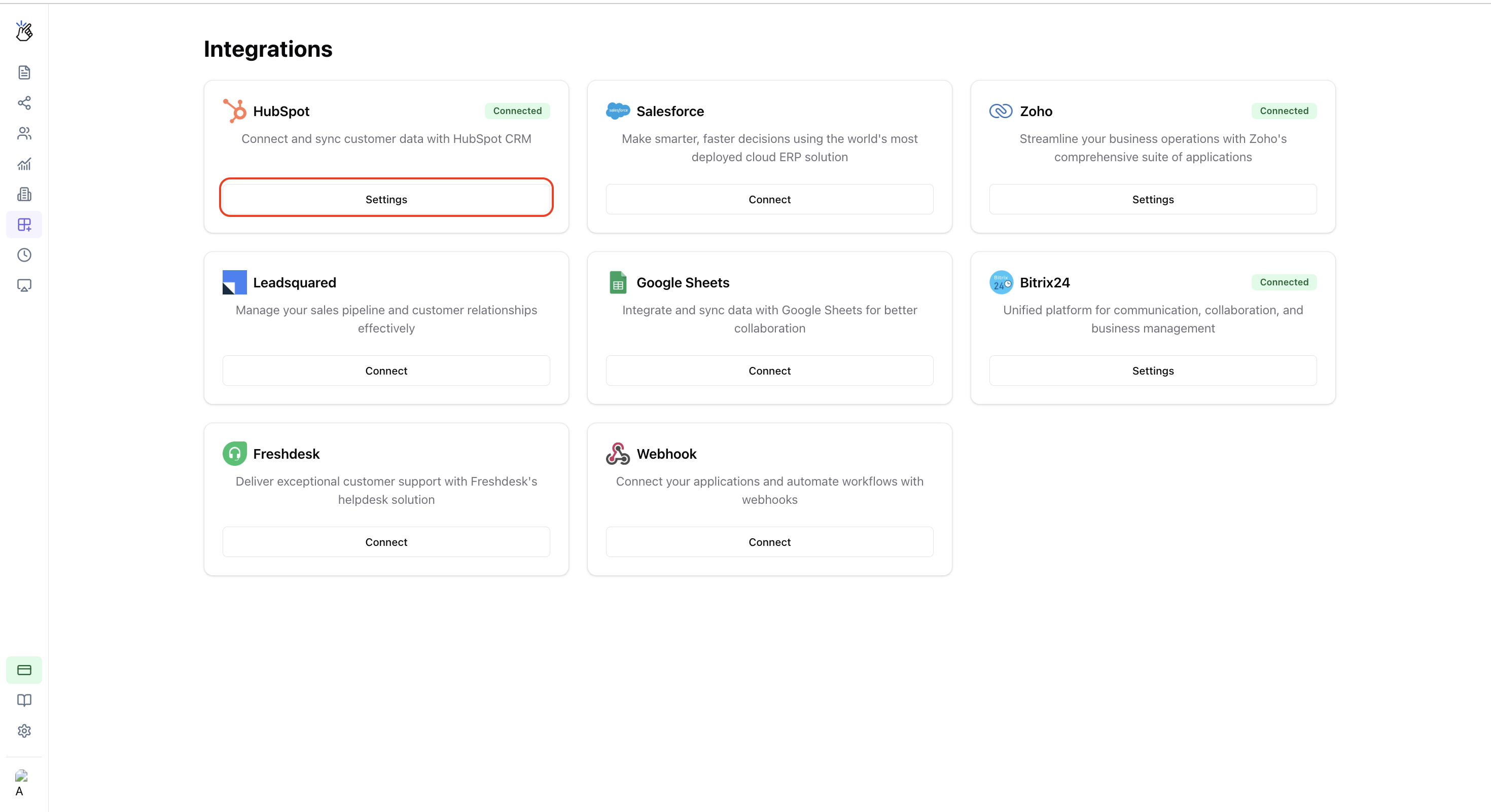
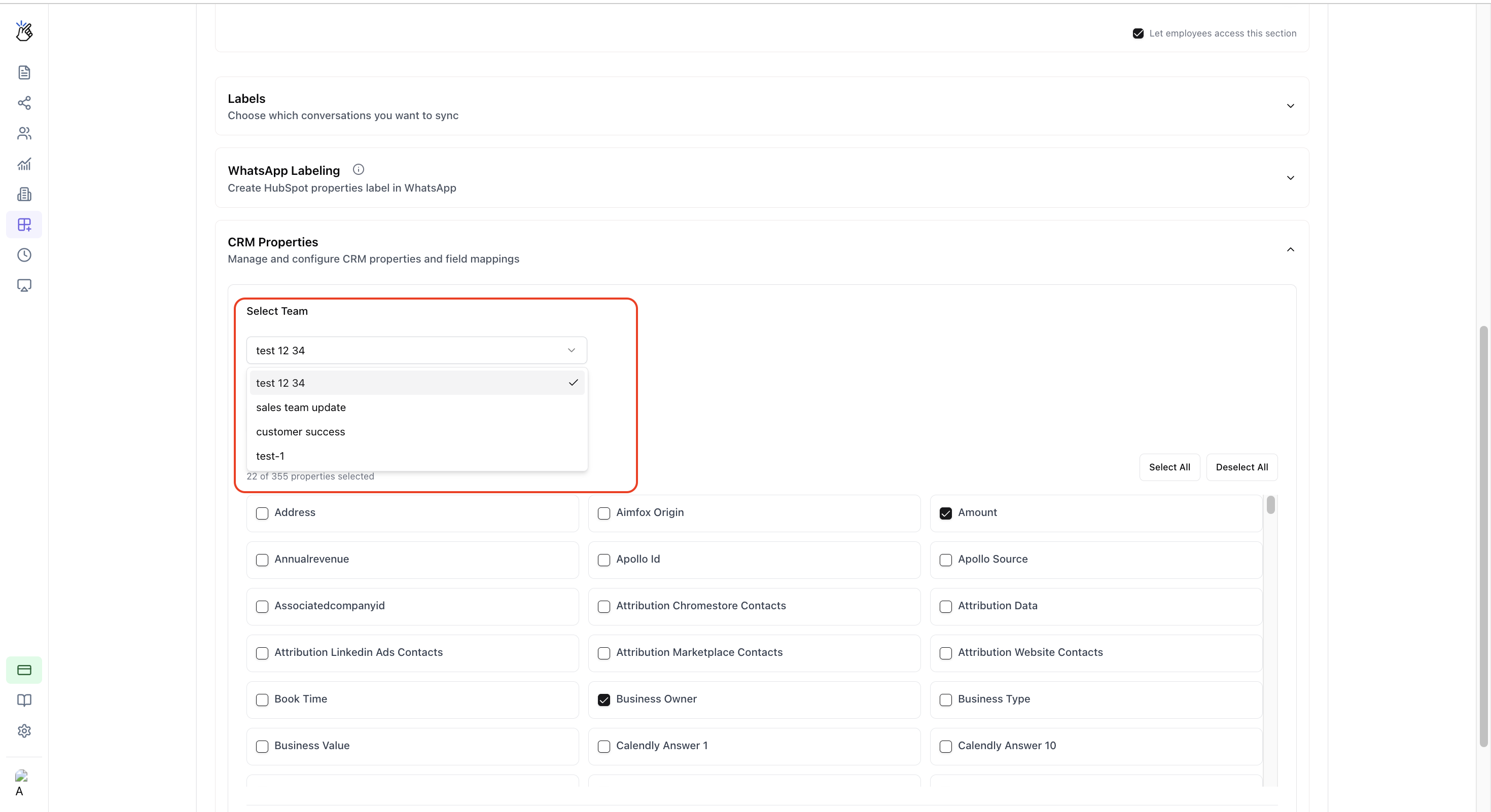
Navigate to the **Settings** panel and choose the team you want to configure from the dropdown menu.
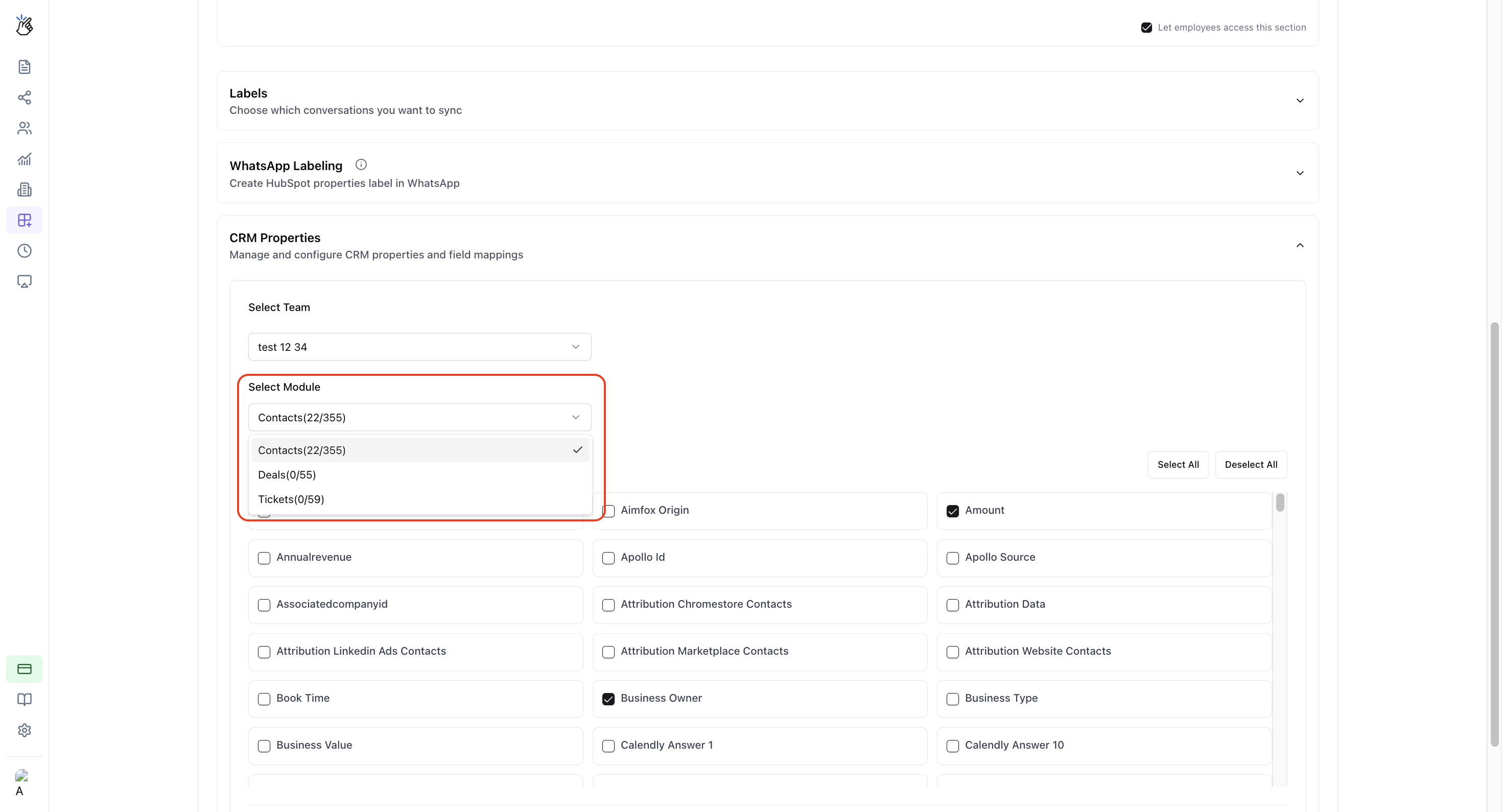
 Choose which module's properties you want to configure:
* **Contacts**
* **Deals**
* **Tickets**
Choose which module's properties you want to configure:
* **Contacts**
* **Deals**
* **Tickets**
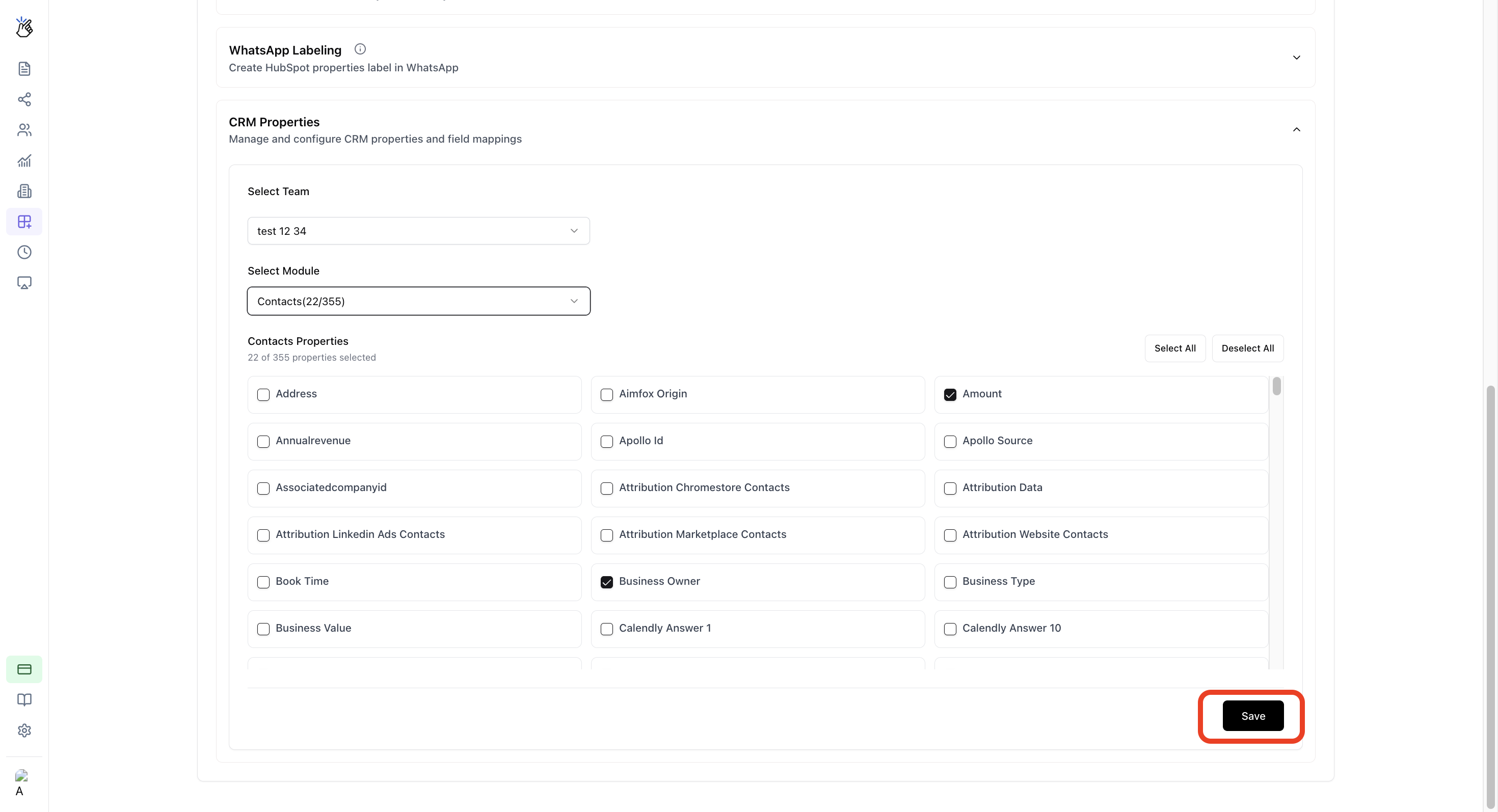
 Check the boxes next to the properties you want the selected team to be able to edit. Unchecked properties will be read-only for that team.
 Click the **Save** button to store your configuration.
 Navigate to **Extensions** and click **Apply** to activate the new permissions.
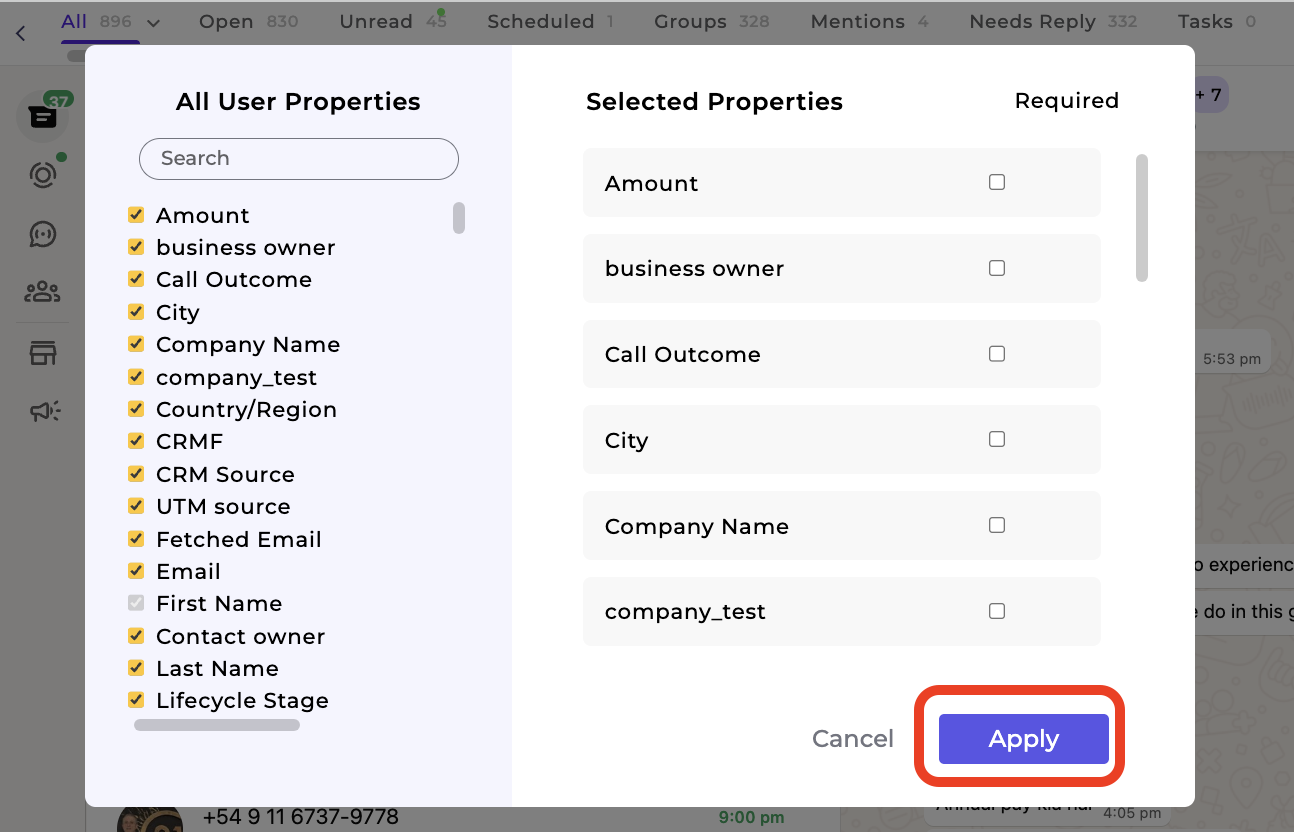 Settings won't take effect until you click **Apply** in the Extensions section.
***
## Important Notes
Users may need to refresh CRM pages to see updated access rules after changes are applied.
Only administrators can configure these permissions. Regular team members cannot modify these settings.
***
## FAQ
Yes, you can configure unique edit property permissions for each team individually. Simply select a different team and repeat the configuration process.
Users do not always need to re-login after changes. However, refreshing the CRM page is recommended to ensure the updated permissions are applied correctly.
Only users with **Admin** privileges can configure edit property permissions. If you need access, contact your workspace administrator.
Settings won't take effect until you click **Apply** in the Extensions section.
***
## Important Notes
Users may need to refresh CRM pages to see updated access rules after changes are applied.
Only administrators can configure these permissions. Regular team members cannot modify these settings.
***
## FAQ
Yes, you can configure unique edit property permissions for each team individually. Simply select a different team and repeat the configuration process.
Users do not always need to re-login after changes. However, refreshing the CRM page is recommended to ensure the updated permissions are applied correctly.
Only users with **Admin** privileges can configure edit property permissions. If you need access, contact your workspace administrator.