> ## Documentation Index
> Fetch the complete documentation index at: https://help.eazybe.com/llms.txt
> Use this file to discover all available pages before exploring further.
# Disconnect
> Learn how to disconnect your HubSpot integration from the Eazybe WhatsApp extension
## Overview
If you've integrated the wrong HubSpot account or simply want to disconnect, this guide explains how to unlink HubSpot from your Eazybe WhatsApp extension.
There are two methods to disconnect your HubSpot integration. Choose the one that's most convenient for you.
***
## Video Tutorial
Watch our step-by-step video guide to disconnect your HubSpot integration:
Explore the full [Eazybe Tutorials playlist](https://www.youtube.com/playlist?list=PLi3dUwNVY25MX7Brhu4GXa2dGQ5V7L4NK) on YouTube for more video guides, or visit the [Eazybe YouTube channel](https://www.youtube.com/@eazybe).
***
## Method A: Via Eazybe WhatsApp Extension
This is the quickest way to disconnect HubSpot directly from the extension.
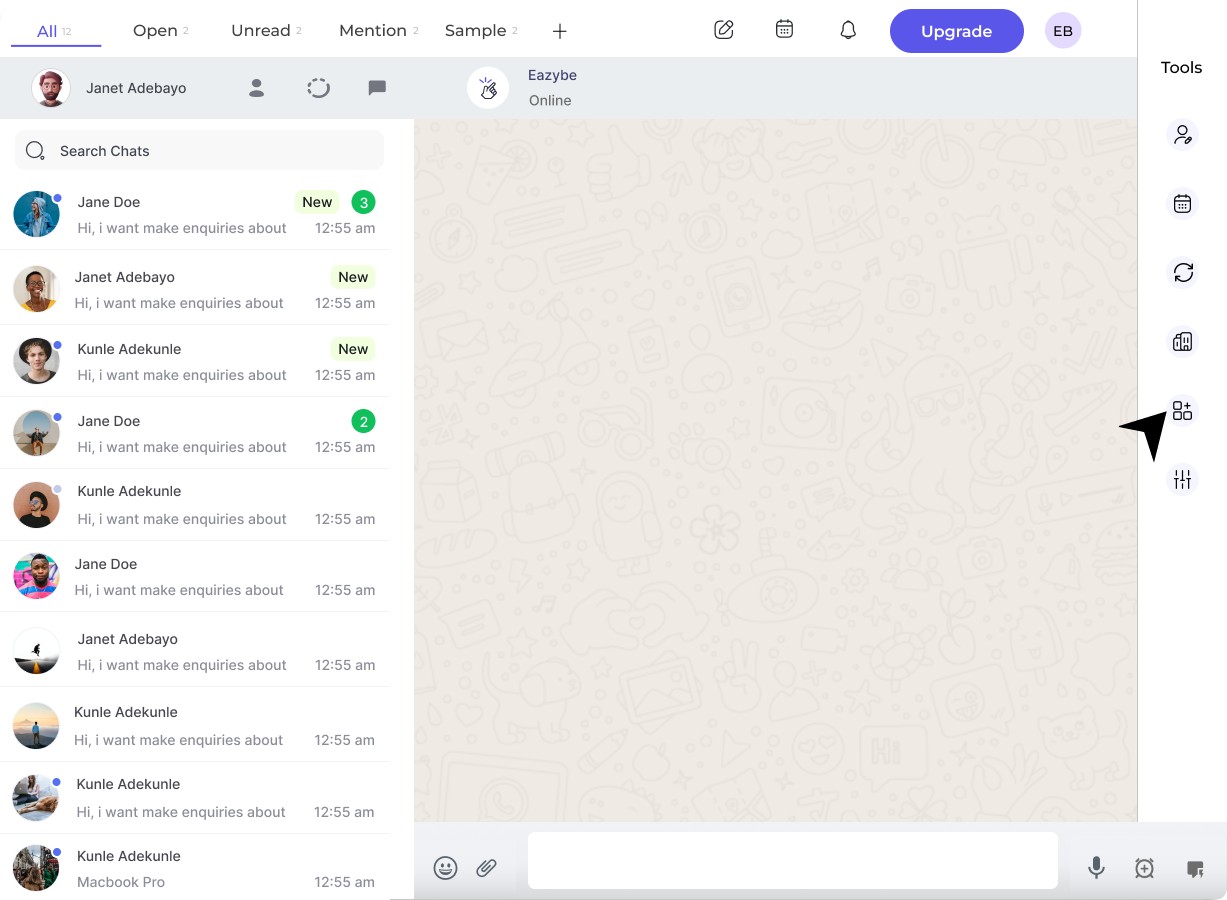
Click on the **Integrations** icon in the Eazybe extension sidebar.
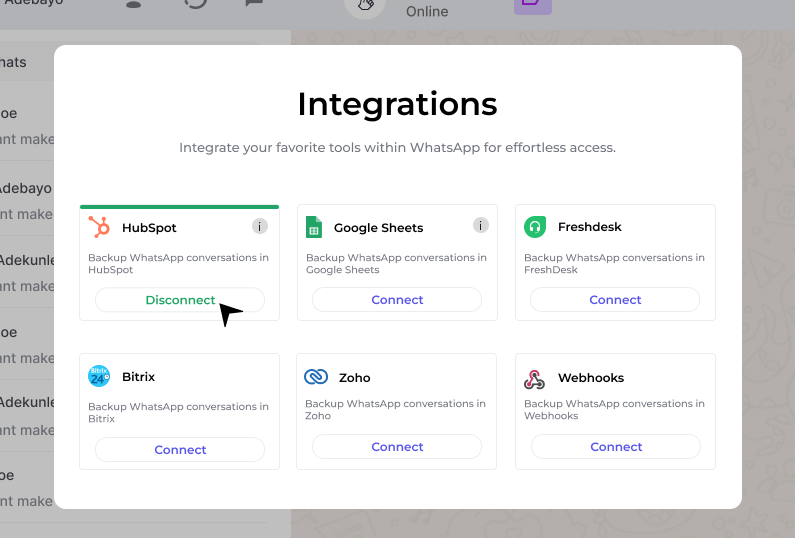
Under the **HubSpot** section, click the **Disconnect** button.
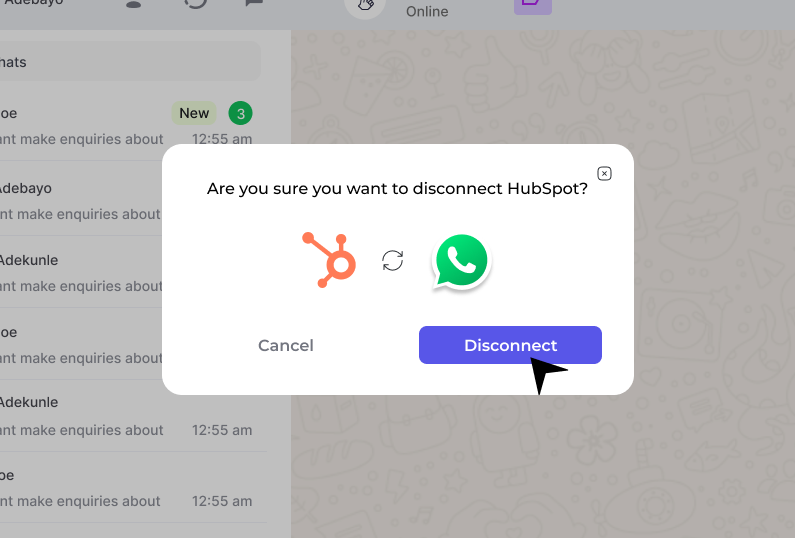
A confirmation popup will appear. Click **Confirm** to complete the disconnection.
Your HubSpot integration has been disconnected from the extension!
***
## Method B: Via Eazybe Workspace
Use this method to disconnect HubSpot through your Eazybe Workspace settings.
Click the **Organisation** button in the right sidebar of the Eazybe extension to access the Organisation page in Eazybe Workspace.
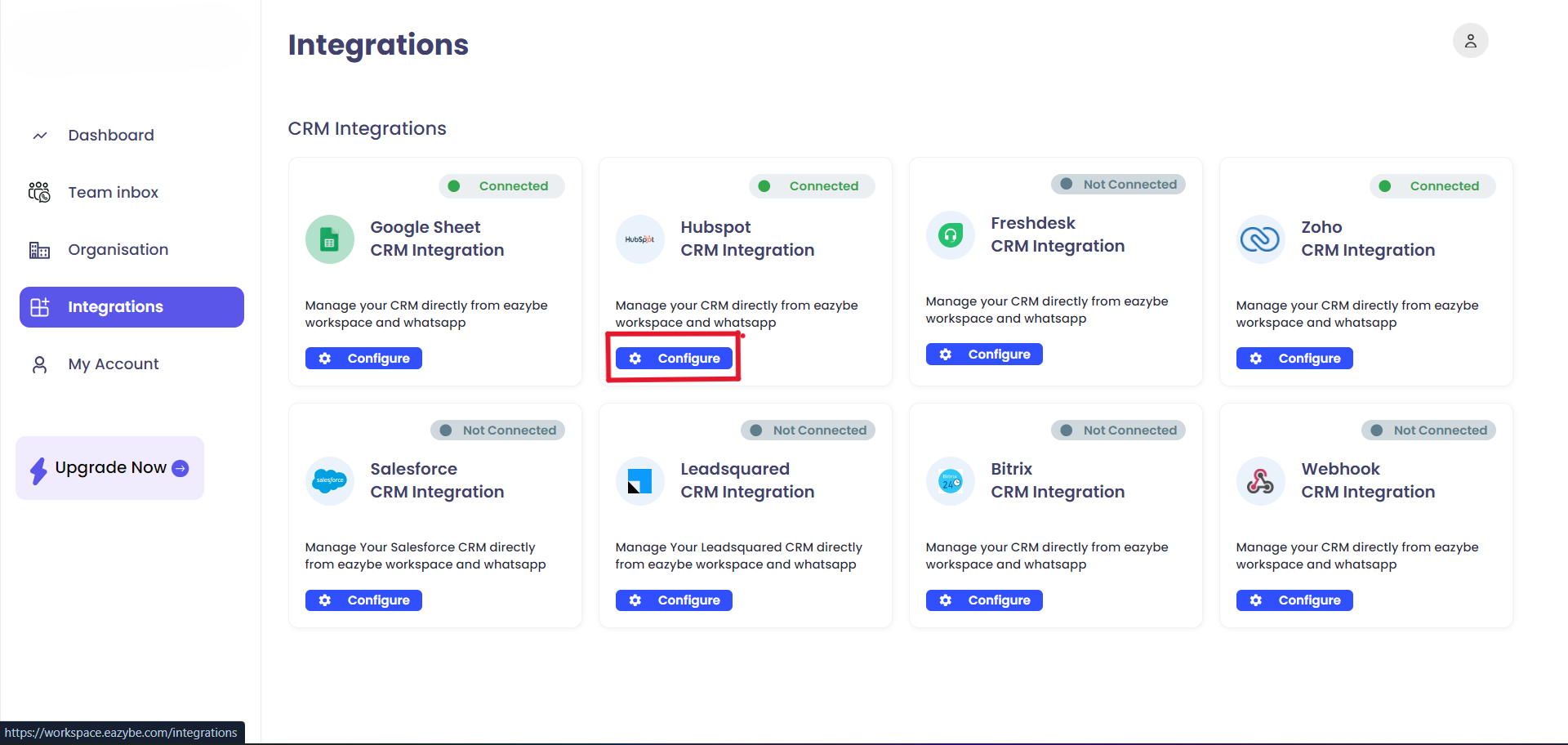
In the Eazybe Workspace, click on **Integrations** in the left sidebar.
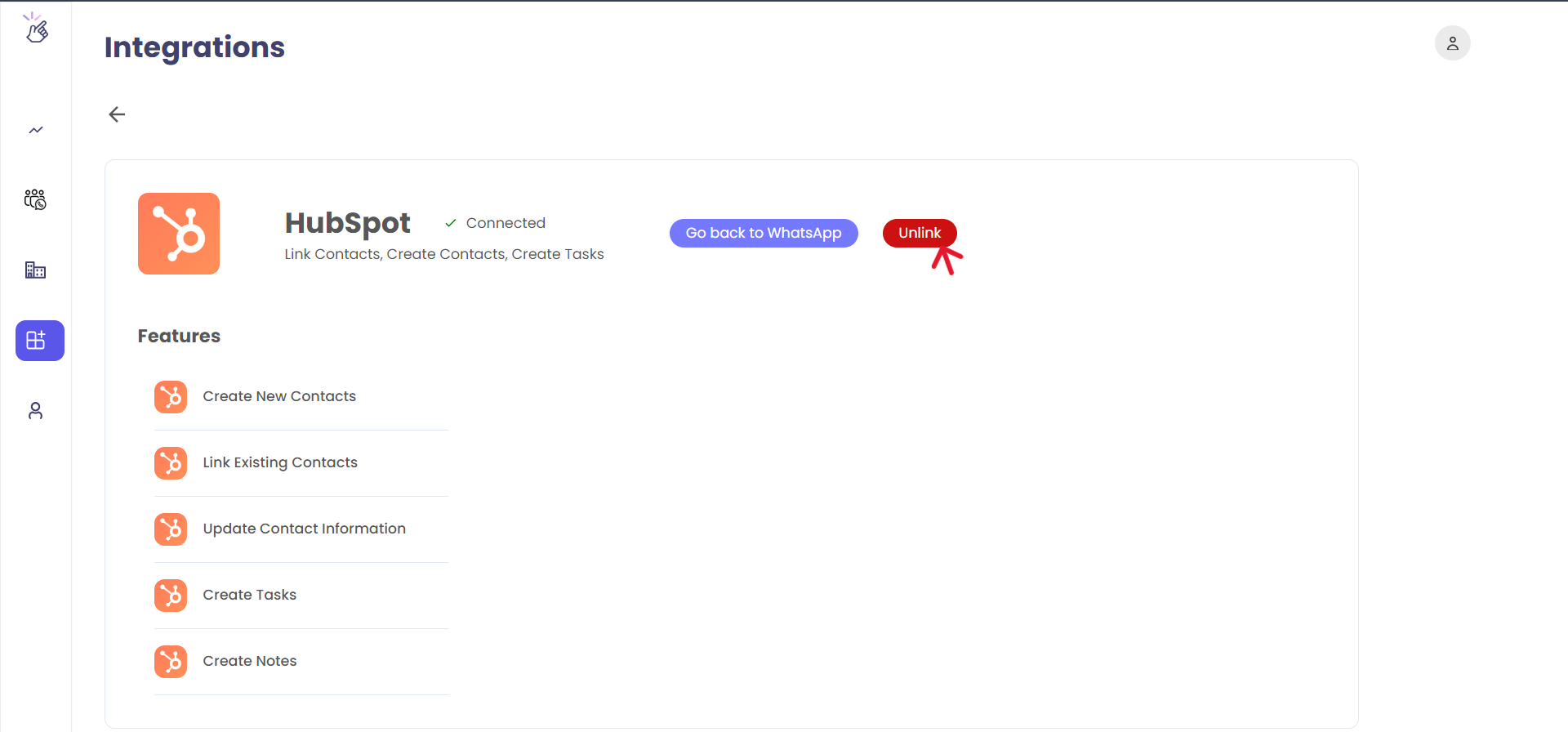
Under **HubSpot CRM integration**, click the **Configure** button to access the HubSpot settings.
Click the red **Unlink** button to disconnect your HubSpot account.
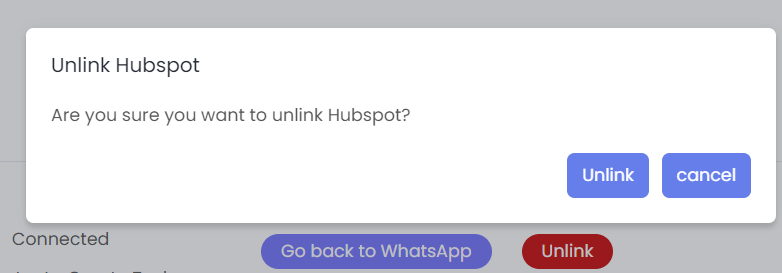
A confirmation popup will appear. Click **Confirm** to complete the unlinking process.
Your HubSpot account has been successfully unlinked from Eazybe Workspace!
***
## After Disconnection
Once you disconnect the HubSpot integration:
* The **HubSpot icon** will disappear from the extension's right sidebar
* All synced data will remain in both systems, but new syncing will stop
* You can reconnect at any time by following the [Account Connection guide](/en/integrations/hubspot/account-connection)
Disconnecting HubSpot will stop all automatic syncing between WhatsApp and HubSpot. Make sure you've completed any important tasks before disconnecting.
***
## Quick Reference
| Method | Best For | Steps |
| ------------- | -------------------------------------- | -------- |
| **Extension** | Quick disconnection | 3 clicks |
| **Workspace** | Full control over integration settings | 5 clicks |
***
## Reconnecting HubSpot
To reconnect HubSpot to Eazybe, follow the step-by-step account connection guide.
***
## Need Help?
If you have any questions or need further assistance, reach out to us at **[hey@eazybe.com](mailto:hey@eazybe.com)**. We're happy to help!