> ## Documentation Index
> Fetch the complete documentation index at: https://help.eazybe.com/llms.txt
> Use this file to discover all available pages before exploring further.
# Analytics Dashboard
> Step-by-step guide to creating a custom analytics dashboard in HubSpot for tracking WhatsApp messaging metrics and performance data.
This guide walks you through creating a custom HubSpot Analytics dashboard to track your WhatsApp messaging metrics and performance data. Build visual reports that help you monitor response times, message volumes, and team effectiveness.
## Creating Your Analytics Dashboard
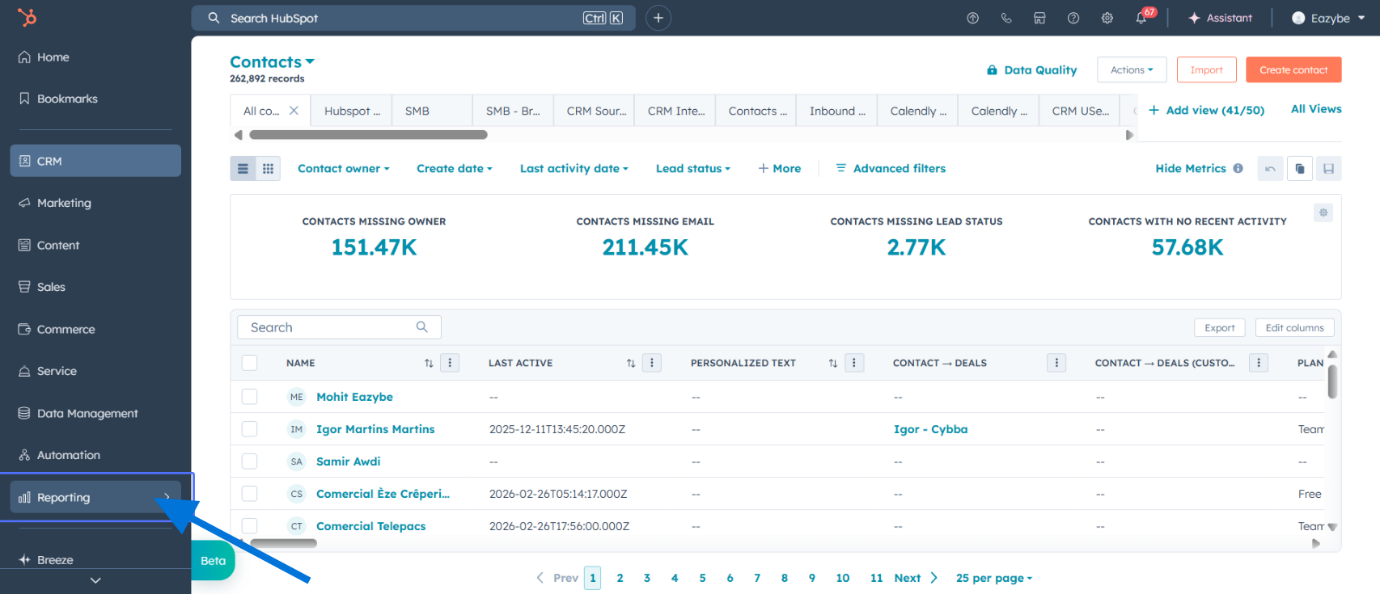
In your HubSpot account, click on **Reporting** in the main navigation menu.
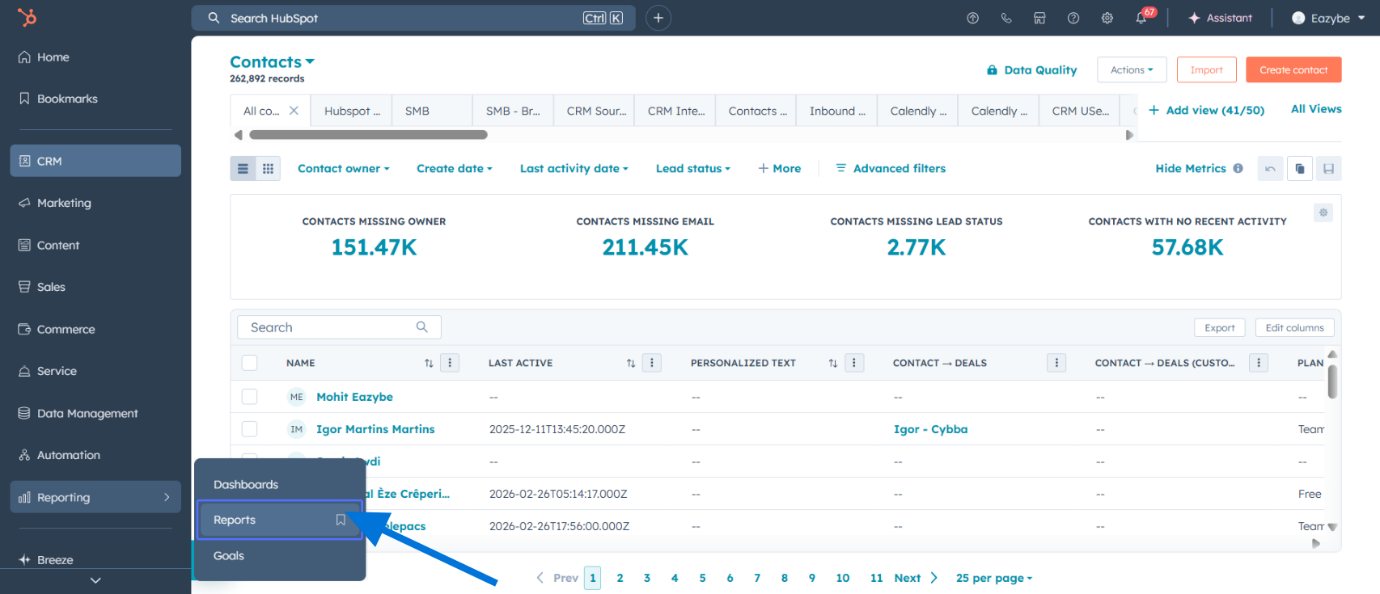
 Click on **Reports** from the dropdown menu.
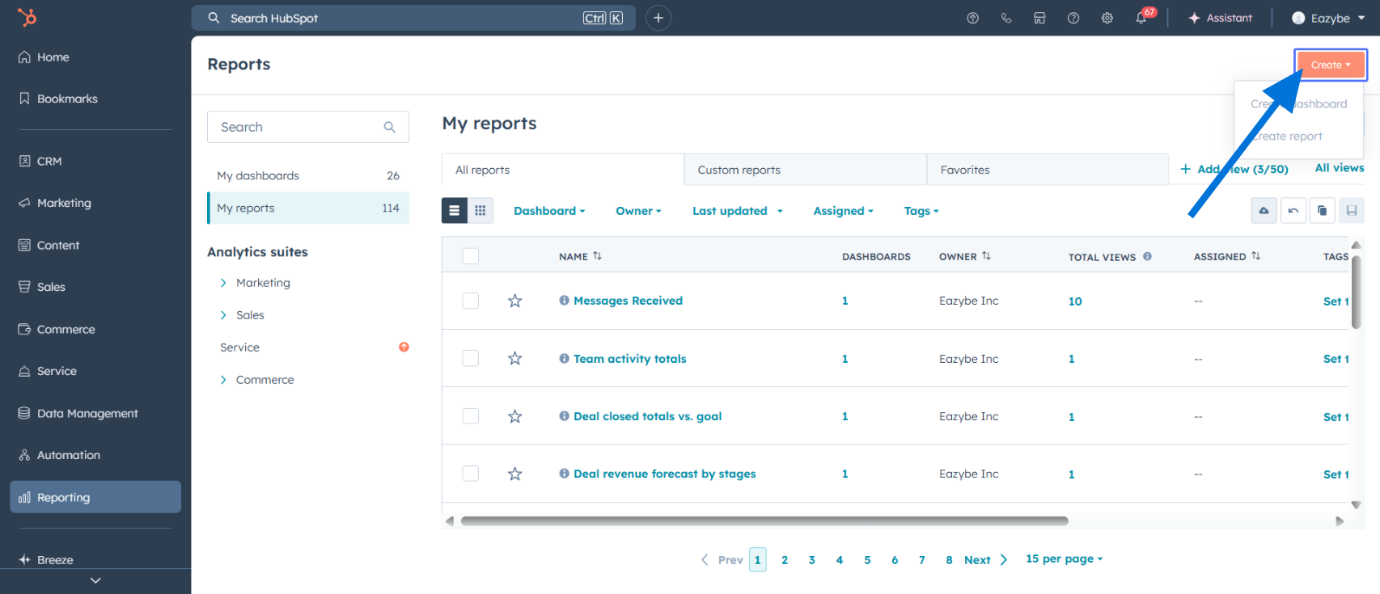
 Click on **Create** button in the top right corner.
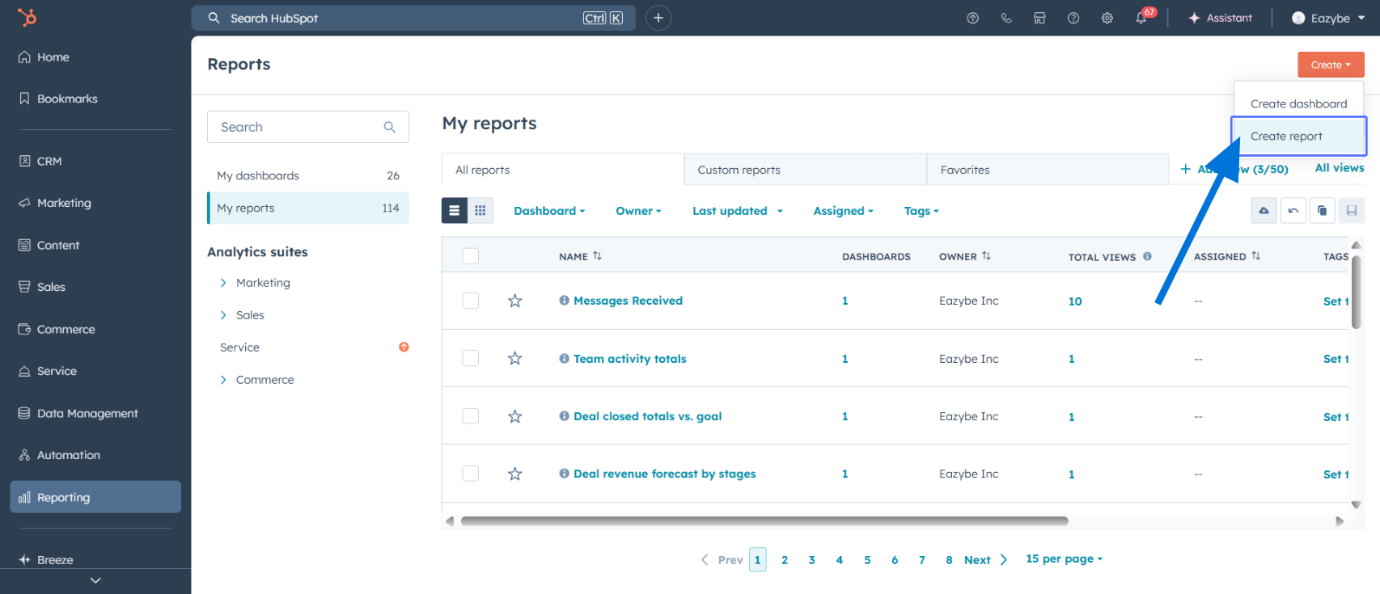
 Click on **Create report** from the options.
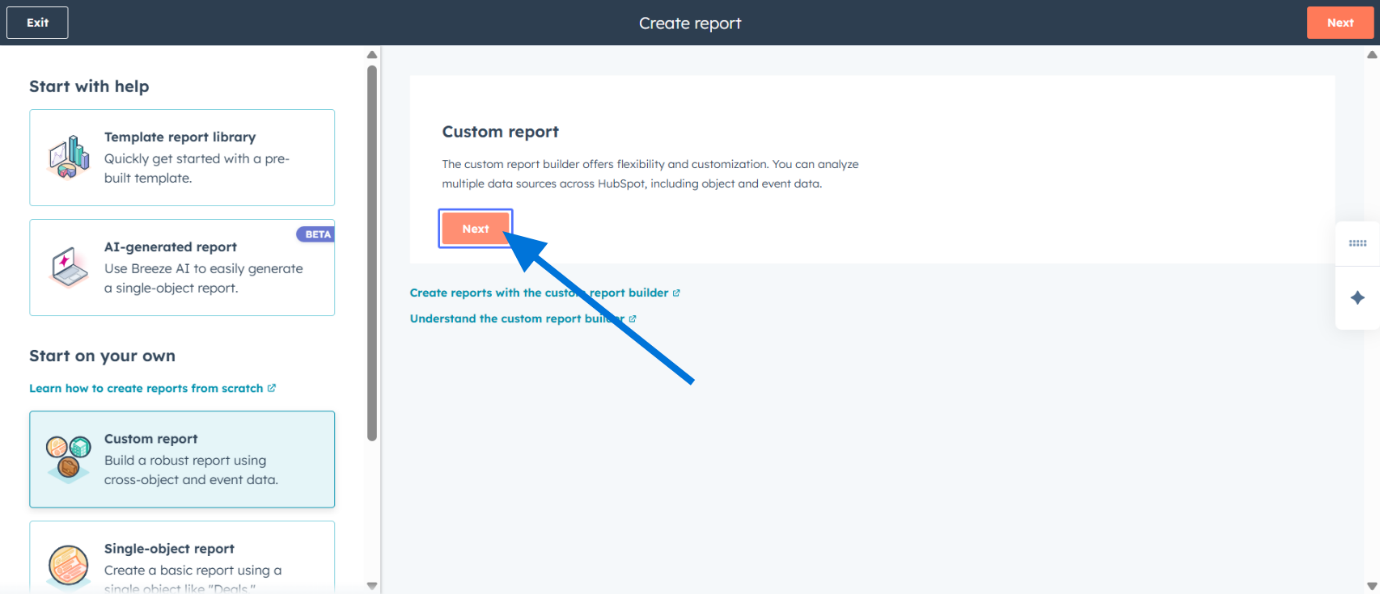
 Click on **Next** to continue to the report builder.
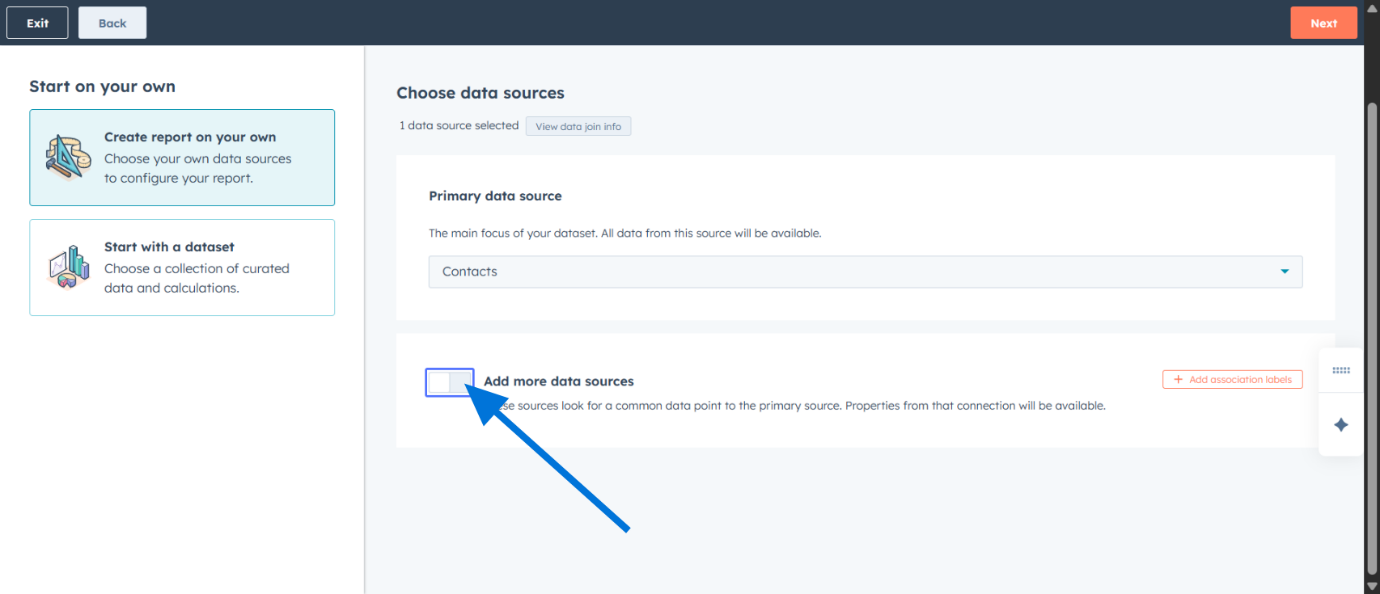
 On the Custom Report Builder screen, turn on **Add more data sources** to access additional metrics.
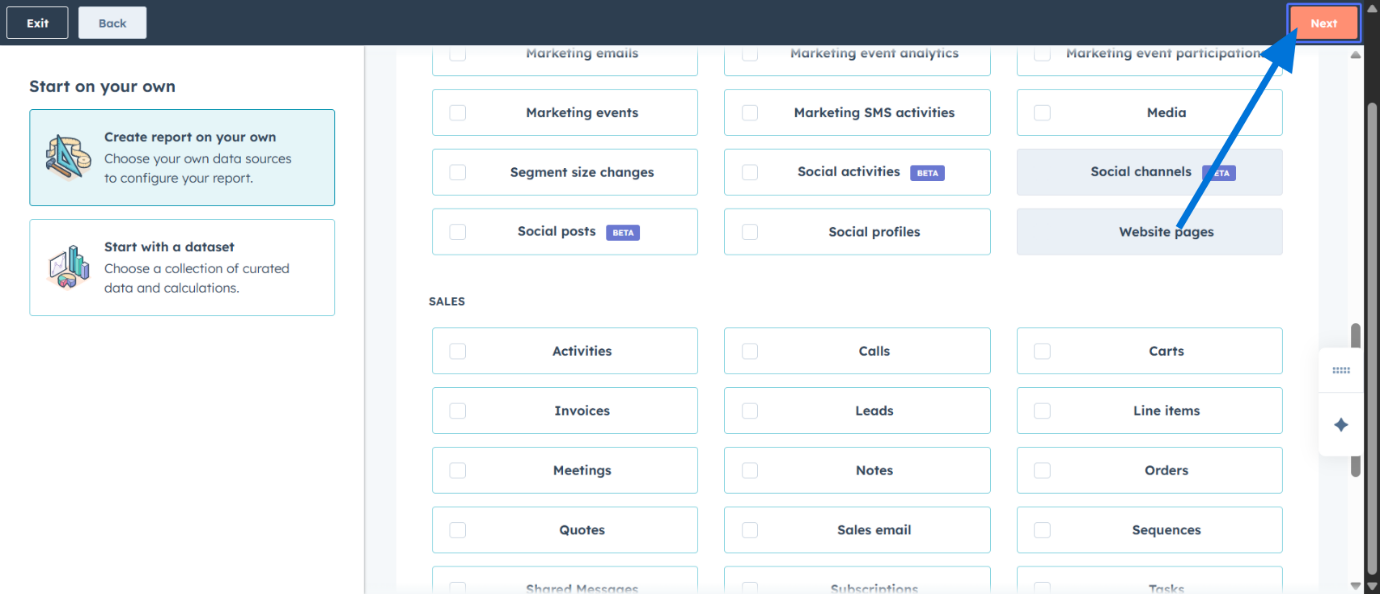
 Click on **Next** to proceed to the data source selection.
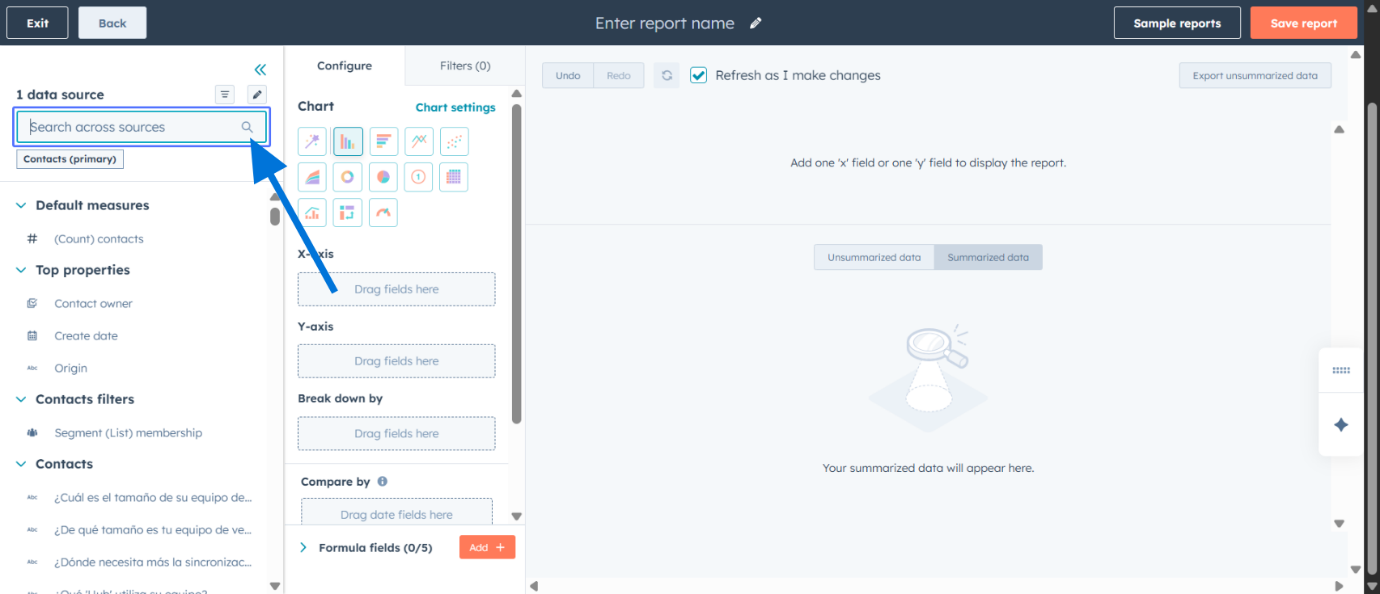
 Use the search bar to find the specific data sources you want to include in your dashboard.
 ## Available WhatsApp Data Sources
You can choose from the following WhatsApp messaging data sources:
| Data Source | Description |
| ---------------------------------- | ----------------------------------------- |
| **Average Response Time** | Average time taken to respond to messages |
| **Client Replied** | Number of client replies received |
| **Current Label** | Current label assigned to conversation |
| **Current Main Label** | Main category label |
| **Current Sub Label** | Subcategory label |
| **First Response Time** | Time to first response |
| **Follow-ups** | Number of follow-up messages sent |
| **Last AI Summary** | Most recent AI-generated summary |
| **Last Message sent by** | Sender of the last message |
| **Message Received** | Total messages received |
| **Message sent** | Total messages sent |
| **Message you got** | Count of incoming messages |
| **Message you sent** | Count of outgoing messages |
| **Time Since Last Client Message** | Elapsed time since last client message |
| **Total Messages** | Combined message count |
The availability of these data sources depends on your Eazybe integration configuration and the data synced from WhatsApp.
## Building Your Dashboard
Click on your desired data source and drag it to the appropriate axis based on your reporting requirements. For example, drag **Total Messages** to visualize message volume.
## Available WhatsApp Data Sources
You can choose from the following WhatsApp messaging data sources:
| Data Source | Description |
| ---------------------------------- | ----------------------------------------- |
| **Average Response Time** | Average time taken to respond to messages |
| **Client Replied** | Number of client replies received |
| **Current Label** | Current label assigned to conversation |
| **Current Main Label** | Main category label |
| **Current Sub Label** | Subcategory label |
| **First Response Time** | Time to first response |
| **Follow-ups** | Number of follow-up messages sent |
| **Last AI Summary** | Most recent AI-generated summary |
| **Last Message sent by** | Sender of the last message |
| **Message Received** | Total messages received |
| **Message sent** | Total messages sent |
| **Message you got** | Count of incoming messages |
| **Message you sent** | Count of outgoing messages |
| **Time Since Last Client Message** | Elapsed time since last client message |
| **Total Messages** | Combined message count |
The availability of these data sources depends on your Eazybe integration configuration and the data synced from WhatsApp.
## Building Your Dashboard
Click on your desired data source and drag it to the appropriate axis based on your reporting requirements. For example, drag **Total Messages** to visualize message volume.
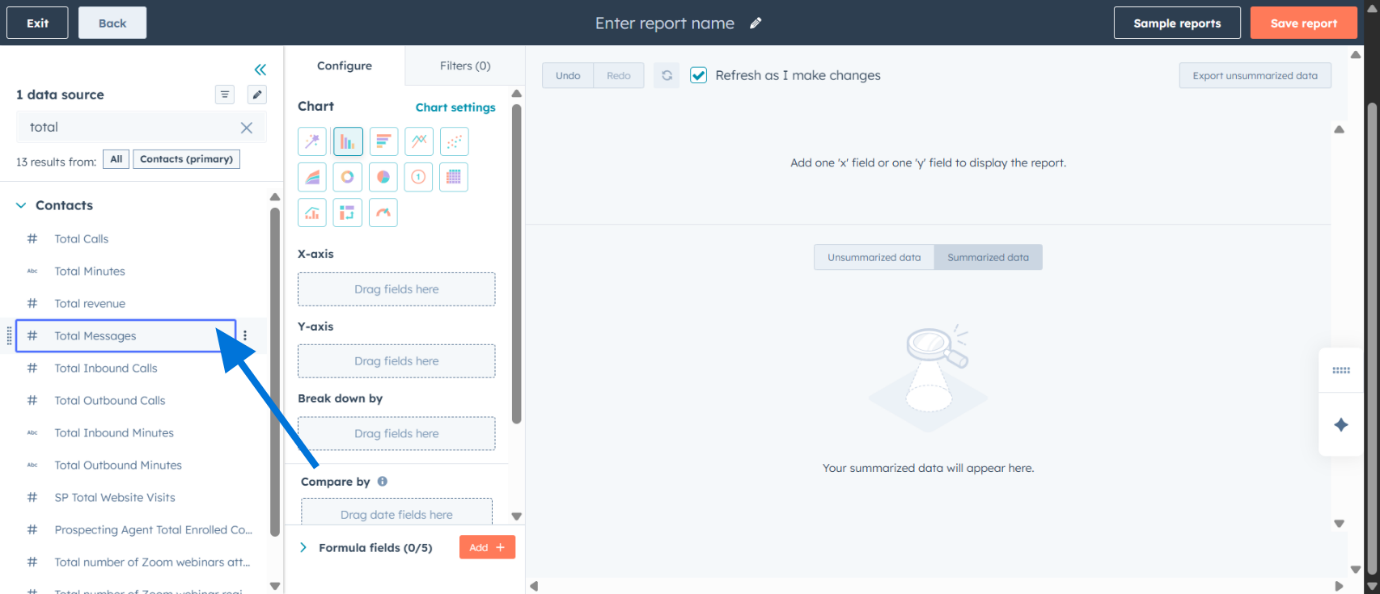 Continue dragging and dropping additional data sources based on your dashboard requirements. Each metric can be configured for different visualization types.
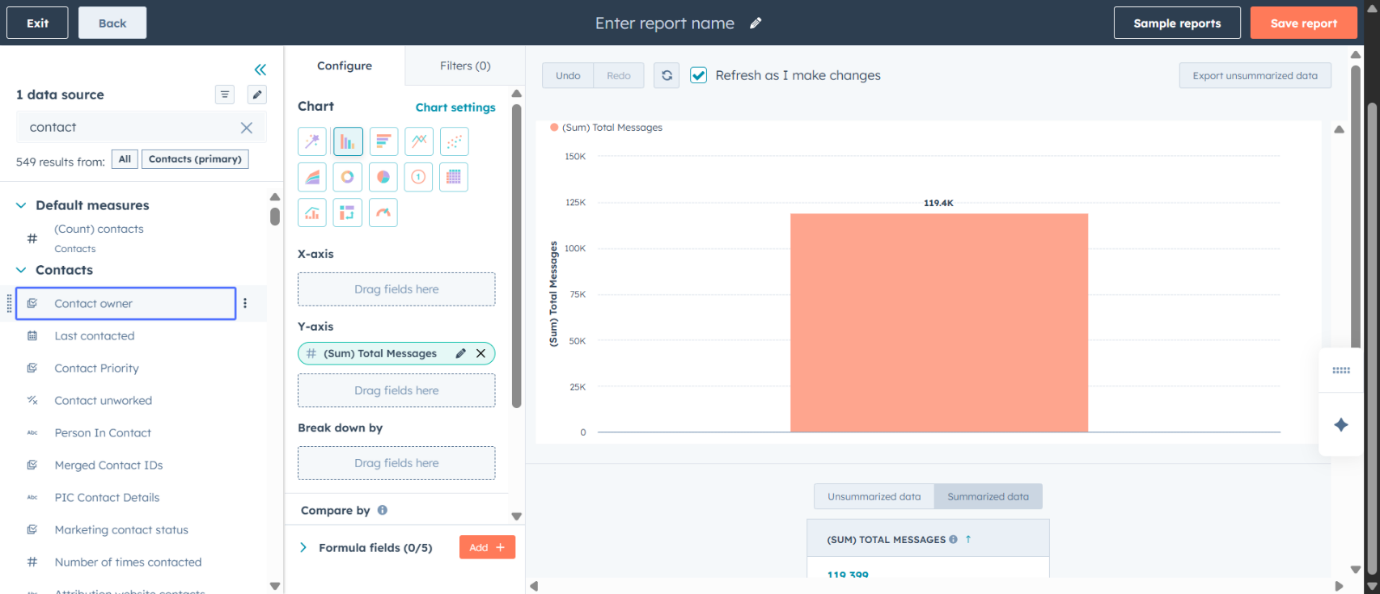 Once you've configured all desired metrics and visualizations, click on **Save report** to finalize your analytics dashboard.
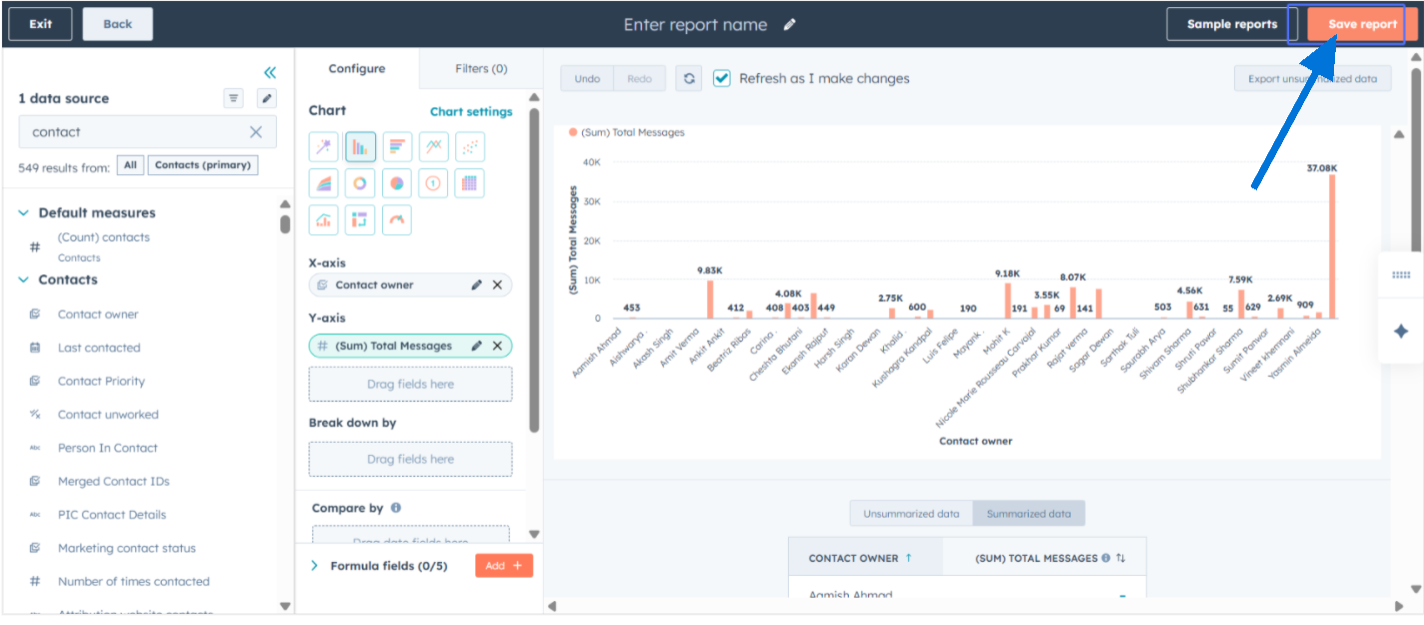 ## Your Analytics Dashboard is Ready
Your custom HubSpot Analytics dashboard is now configured and ready to use. You can access this dashboard anytime to monitor your WhatsApp messaging performance and track key metrics that matter to your team.
**Pro Tip**: Schedule regular dashboard reviews with your team to identify trends, optimize response times, and improve overall customer engagement strategies.
## Related Resources
Learn about tracking team effectiveness and performance KPIs
Deep dive into conversation metrics and insights
Analyze your WhatsApp broadcast campaign performance
Export your analytics data for external analysis
## Need Help?
If you have any questions or need further assistance, reach out to us at [support@eazybe.com](mailto:support@eazybe.com).
## Your Analytics Dashboard is Ready
Your custom HubSpot Analytics dashboard is now configured and ready to use. You can access this dashboard anytime to monitor your WhatsApp messaging performance and track key metrics that matter to your team.
**Pro Tip**: Schedule regular dashboard reviews with your team to identify trends, optimize response times, and improve overall customer engagement strategies.
## Related Resources
Learn about tracking team effectiveness and performance KPIs
Deep dive into conversation metrics and insights
Analyze your WhatsApp broadcast campaign performance
Export your analytics data for external analysis
## Need Help?
If you have any questions or need further assistance, reach out to us at [support@eazybe.com](mailto:support@eazybe.com).