> ## Documentation Index
> Fetch the complete documentation index at: https://help.eazybe.com/llms.txt
> Use this file to discover all available pages before exploring further.
# Admin Workspace Access
> Learn how administrators can access the Eazybe workspace to monitor team performance, view analytics, and manage CRM integrations
## Overview
The Eazybe Admin Workspace provides administrators with a centralized dashboard to monitor team performance, track messaging activity, and manage CRM integrations. This guide walks you through accessing and using the admin workspace effectively.
Admin workspace access is available only to users with administrator privileges. Contact your organization admin if you need access.
***
## Video Tutorial
Watch how to access and navigate the Admin Workspace:
***
## Accessing the Admin Workspace
Follow these steps to access the Eazybe admin workspace:
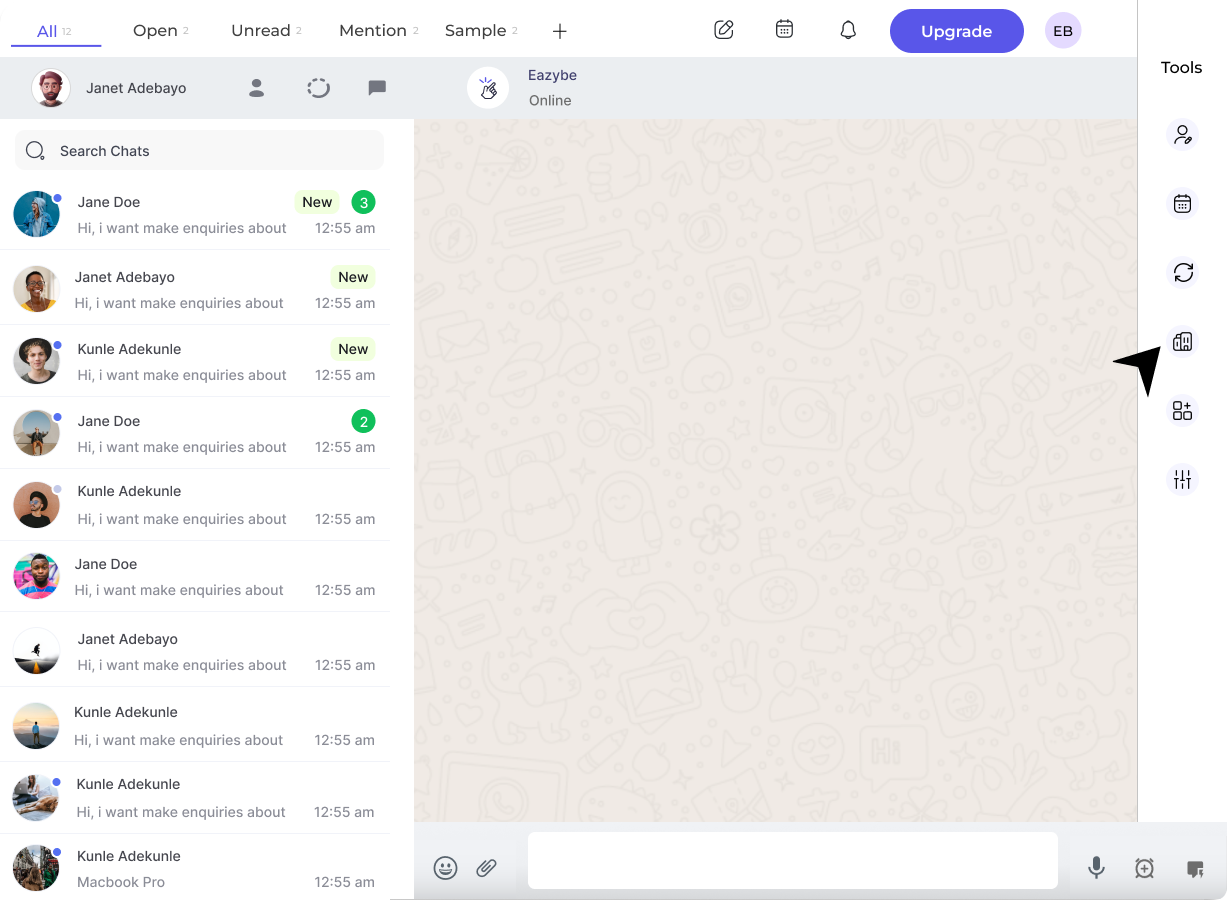
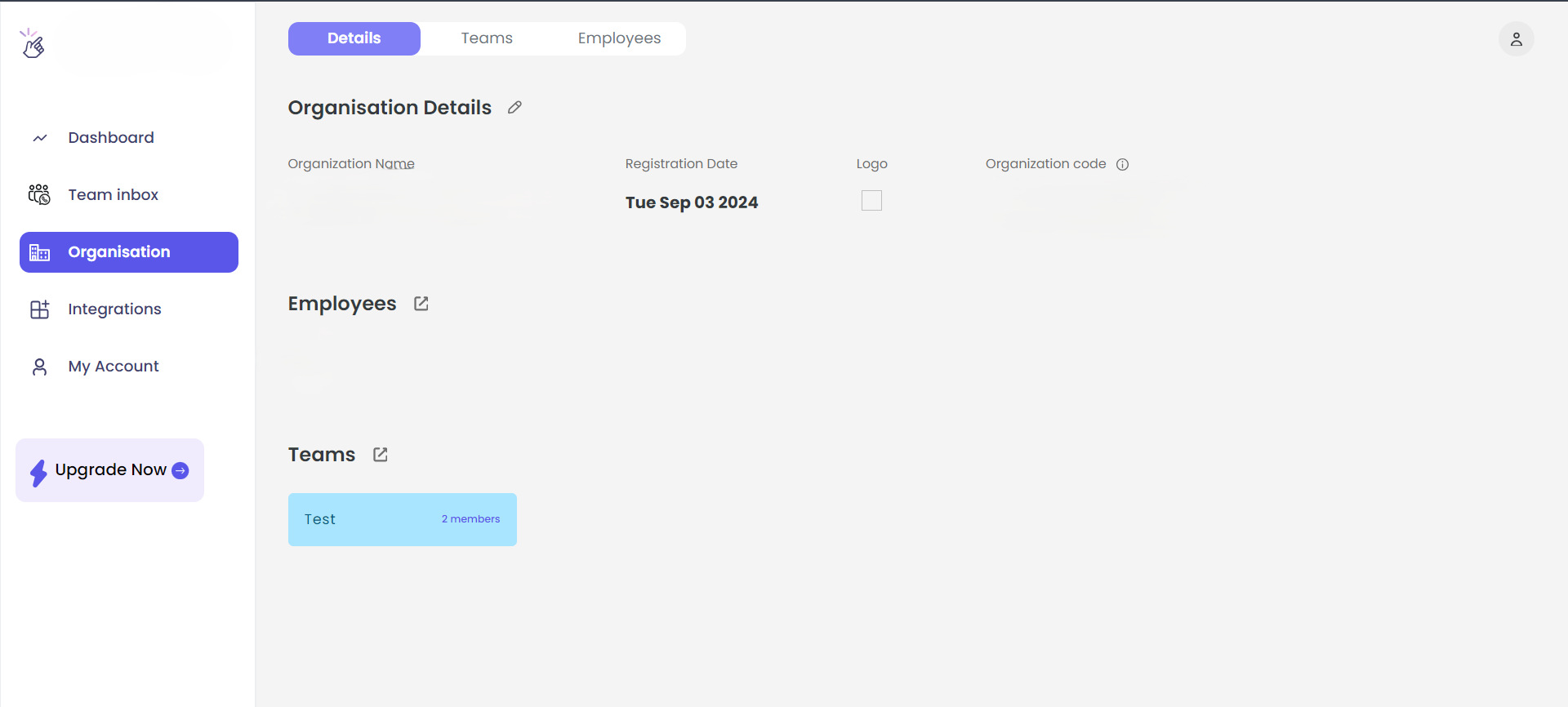
Click on the **Organisation** button in the right sidebar of the Eazybe extension. This will launch a new browser tab.
Enter your credentials to authenticate and access the admin workspace.
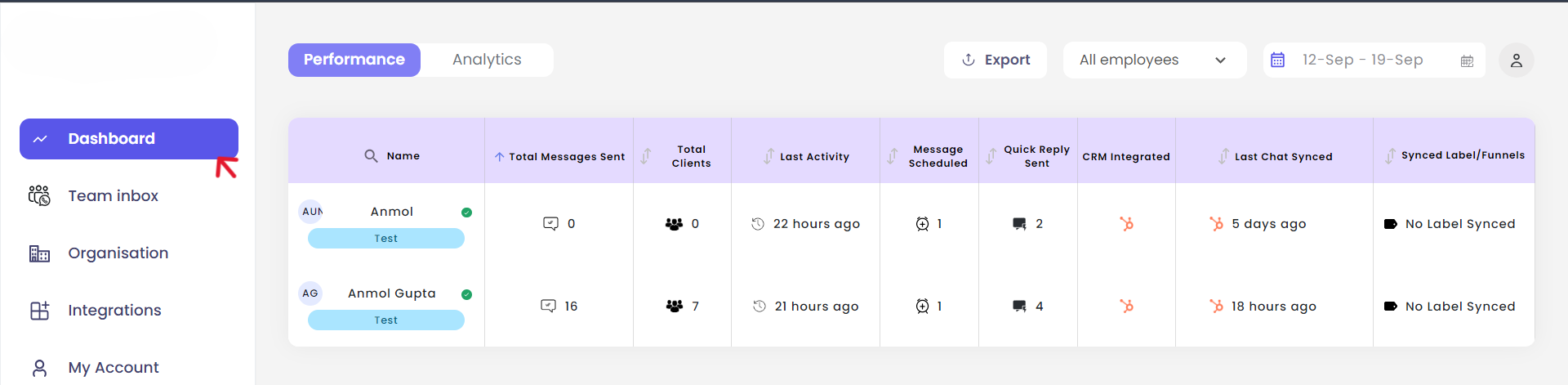
Once logged in, click on the **Dashboard** button in the left sidebar to view your operational metrics and team data.
You now have access to the admin workspace and can view team performance data.
***
## Dashboard Features
The admin dashboard provides comprehensive insights into your team's WhatsApp communication activities.
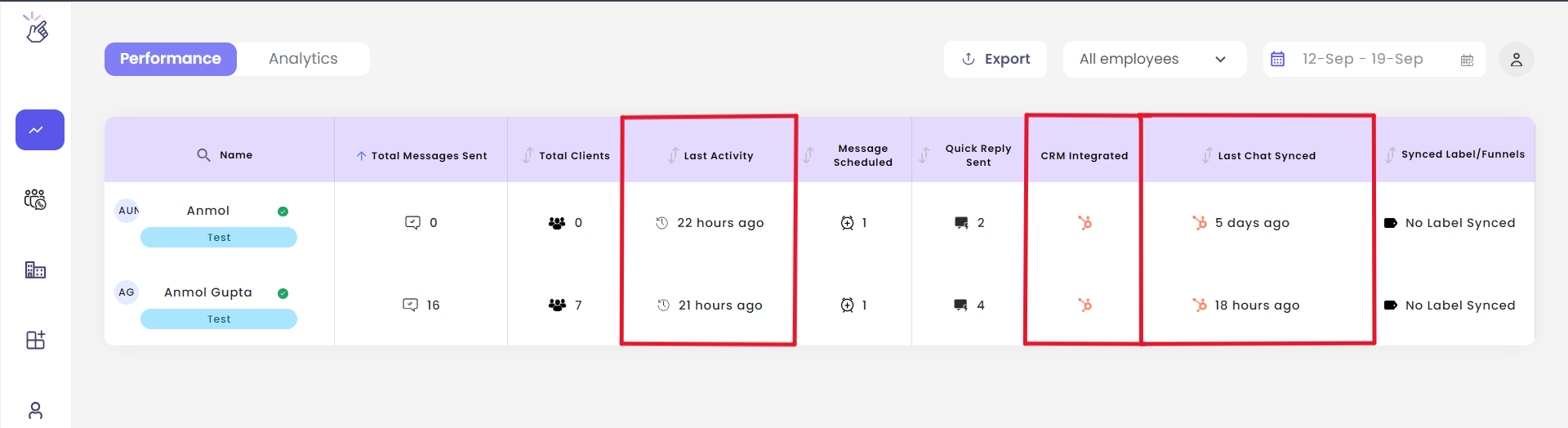
Monitor each team member's:
* Last activity timestamp
* Last chat synced time
* Active CRM integrations
View messaging insights for:
* Individual team members
* Collective team performance
* Communication trends
Track which CRM systems each employee has connected and their sync status.
Access detailed performance metrics to optimize team productivity.
***
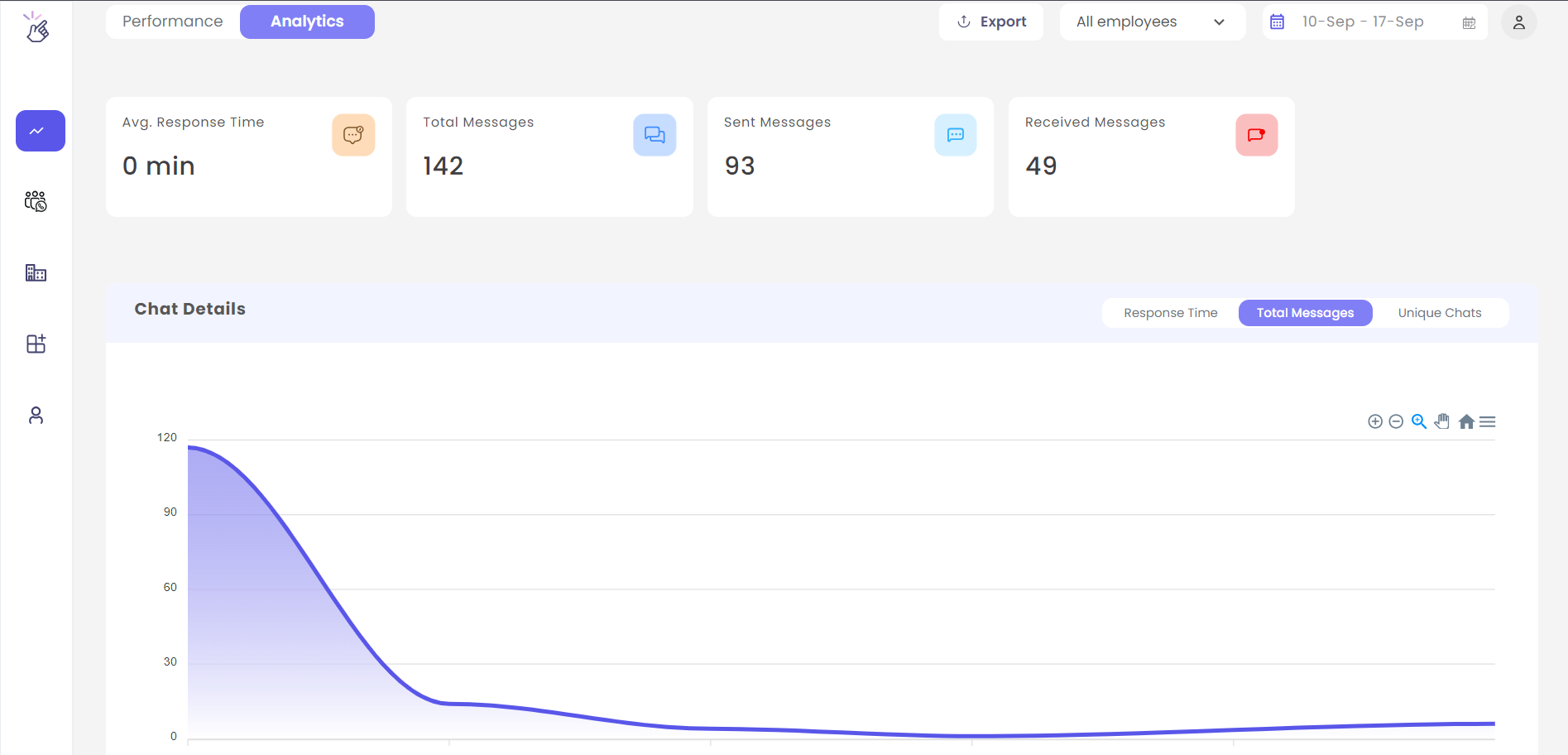
## Team Analytics
The Analytics section provides detailed messaging insights for your entire team.
Review individual team member statistics including message counts, response times, and activity patterns.
Get a bird's-eye view of your entire team's communication performance with aggregated metrics.
Analyze performance trends over different time periods to identify patterns and opportunities for improvement.
***
## Best Practices
Check the dashboard regularly to stay informed about team activity and identify any sync issues early.
Use the analytics section to conduct weekly performance reviews and identify coaching opportunities.
Periodically verify that all team members have their CRM integrations properly connected and syncing.
***
## Need Help?
If you have any questions or need further assistance, reach out to us at **[hey@eazybe.com](mailto:hey@eazybe.com)**. We're happy to help!