> ## Documentation Index
> Fetch the complete documentation index at: https://help.eazybe.com/llms.txt
> Use this file to discover all available pages before exploring further.
# Account Connection
> Learn how to install and connect Eazybe with your HubSpot account for seamless WhatsApp integration
## Overview
Connecting Eazybe to your HubSpot account enables powerful WhatsApp integration, allowing you to manage conversations, sync contacts, and streamline your customer communication workflow directly from HubSpot.
Before proceeding, ensure you have completed all the [prerequisites](/en/integrations/hubspot/prerequisites) for the HubSpot integration.
***
## Video Tutorial
Watch our step-by-step video guide to connect Eazybe with your HubSpot account:
Explore the full [Eazybe Tutorials playlist](https://www.youtube.com/playlist?list=PLi3dUwNVY25MX7Brhu4GXa2dGQ5V7L4NK) on YouTube for more video guides, or visit the [Eazybe YouTube channel](https://www.youtube.com/@eazybe).
***
## Step-by-Step Guide
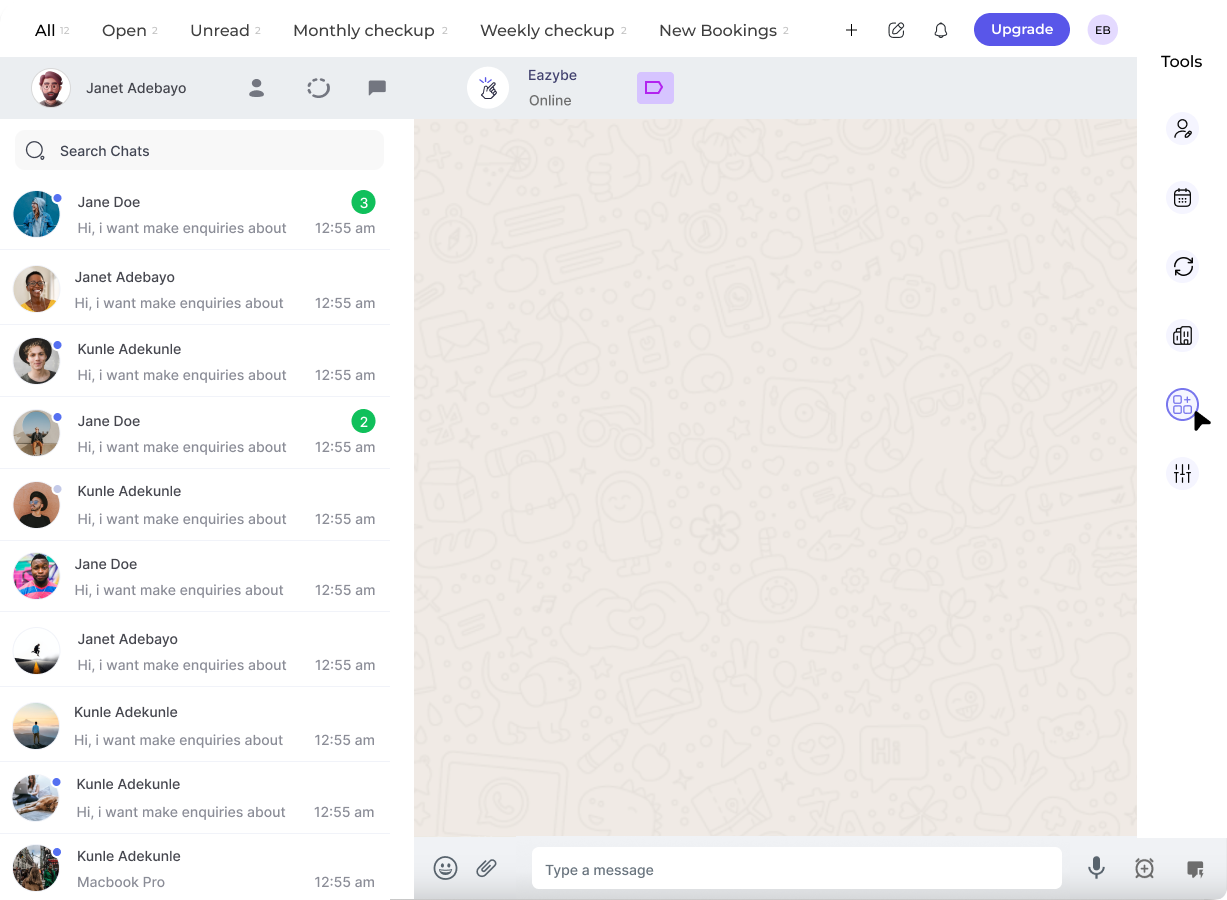
Open WhatsApp Web and click on the Eazybe extension icon to access the extension panel.
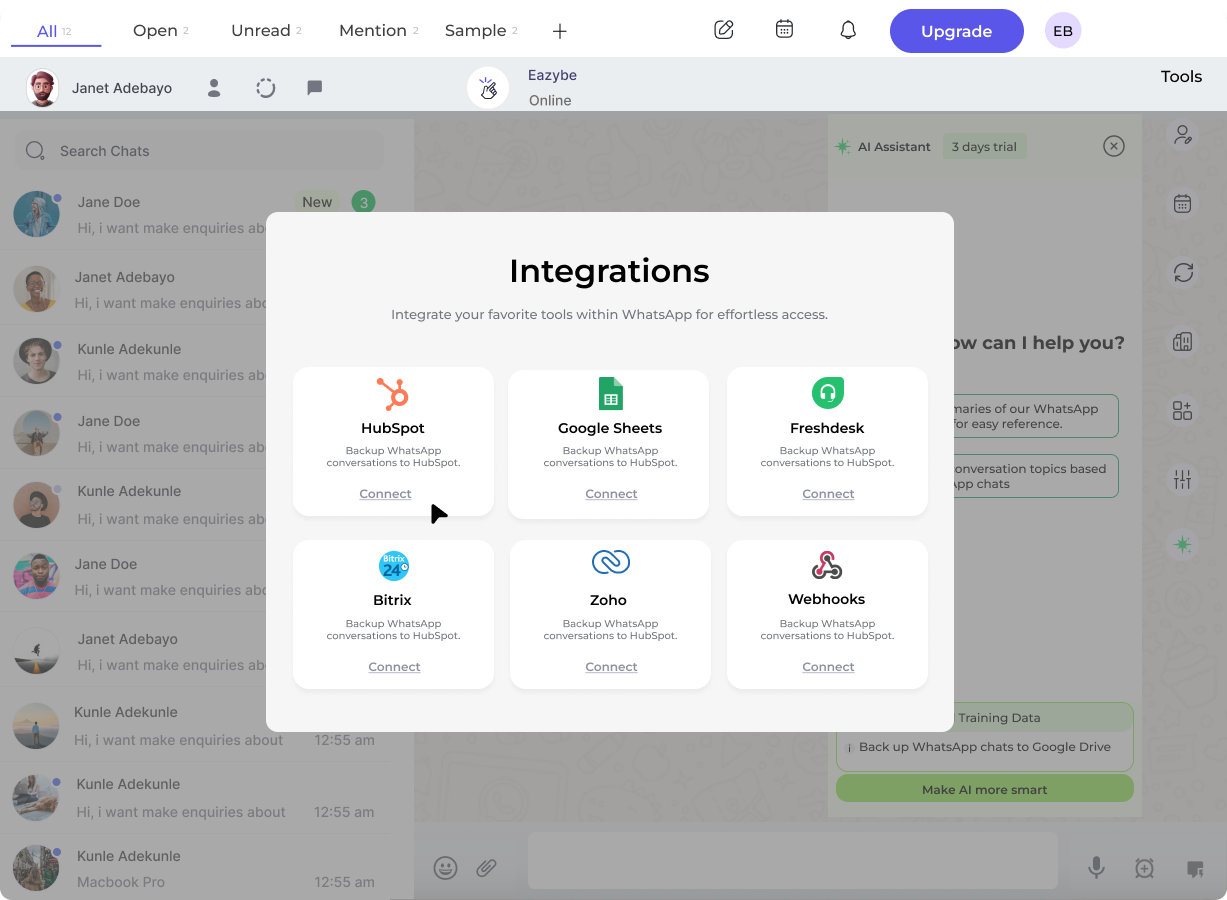
In the Eazybe panel, navigate to the **Integrations** section and select **HubSpot** from the available CRM options.
Click the **Connect HubSpot** button. You will be redirected to the HubSpot login page.
Enter your HubSpot credentials and sign in to your account.
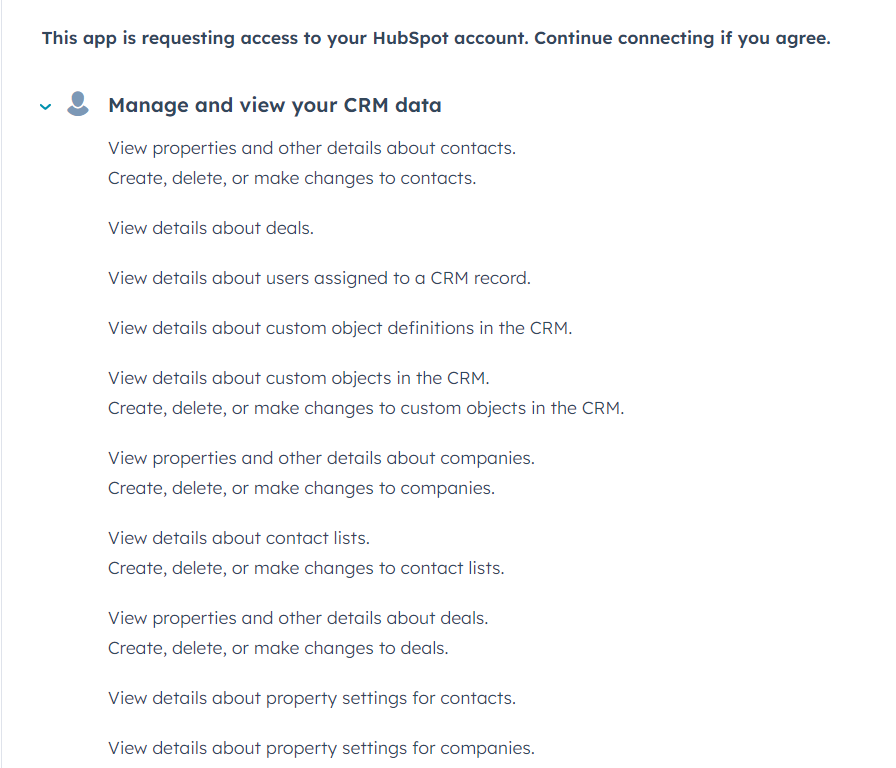
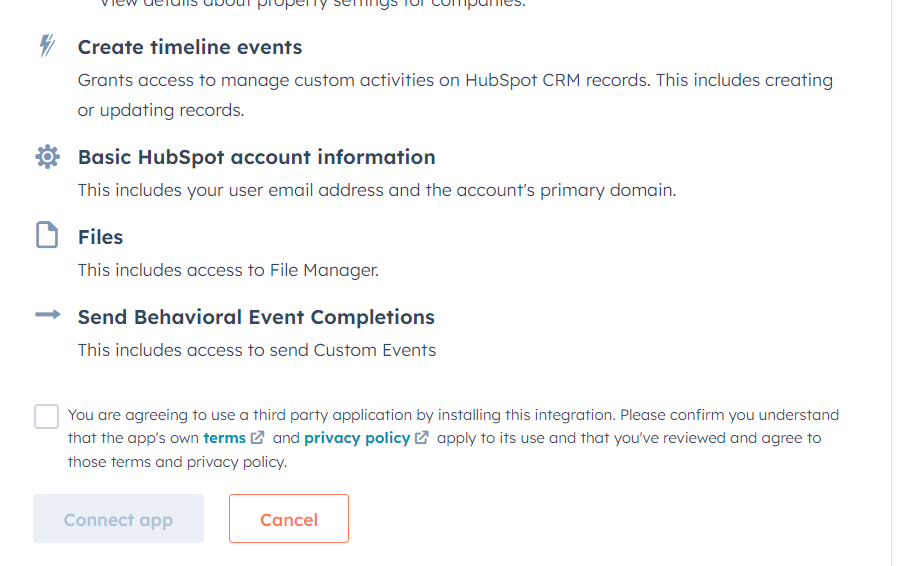
After signing in, HubSpot will ask you to authorize Eazybe to access your account. Review the permissions and click **Connect App** to proceed.
Eazybe requires access to your contacts and files to enable WhatsApp-HubSpot synchronization.
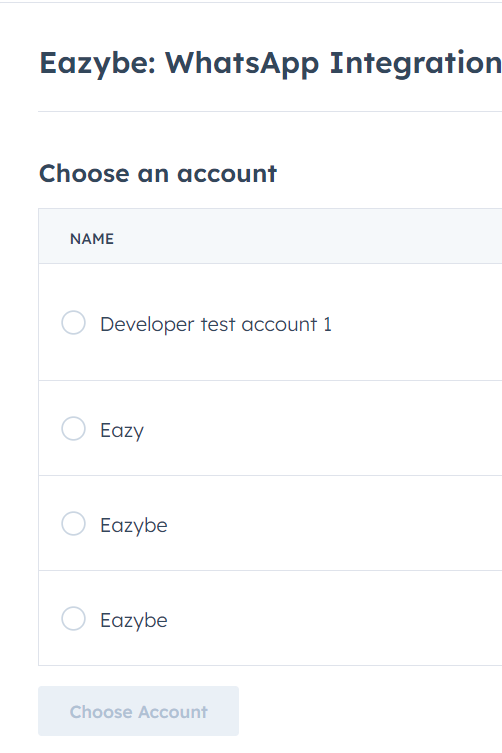
If you have multiple HubSpot accounts, select the account you want to connect with Eazybe.
Once authorized, you'll be redirected back to WhatsApp Web. The Eazybe panel will show a confirmation that your HubSpot account is now connected.
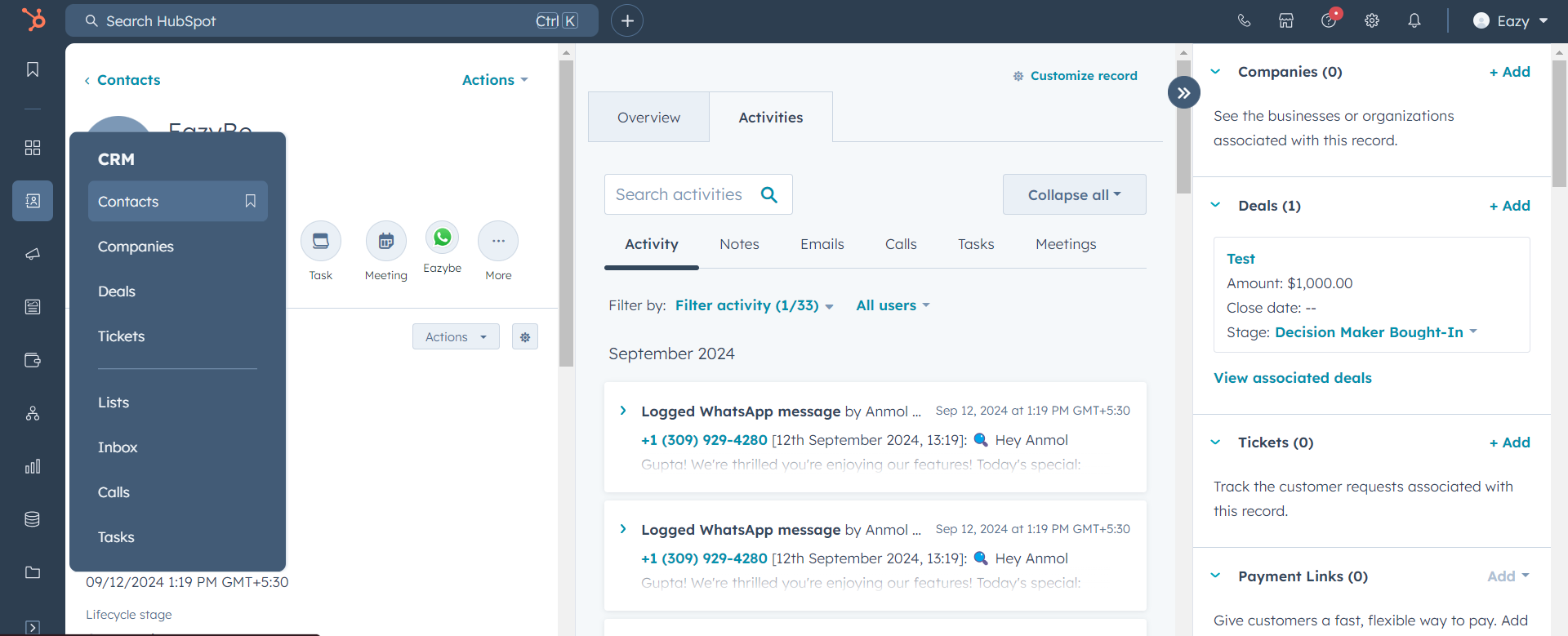
Verify the integration by checking that your HubSpot contacts are accessible from the Eazybe panel.
Your HubSpot account is now successfully connected to Eazybe!
***
## Quick Reference
| Step | Action |
| ---- | ------------------------------------- |
| 1 | Open Eazybe extension in WhatsApp Web |
| 2 | Navigate to Integrations → HubSpot |
| 3 | Click Connect HubSpot and sign in |
| 4 | Authorize Eazybe app permissions |
| 5 | Select your HubSpot account |
| 6 | Confirm the connection |
***
## Troubleshooting
If the connection fails, ensure you have the required permissions in your HubSpot account. Check the [prerequisites](/en/integrations/hubspot/prerequisites) page for details on required permissions.
If you accidentally denied authorization, you can retry by going to Integrations → HubSpot and clicking Connect HubSpot again.
If you have multiple HubSpot accounts, make sure you select the correct account during the connection process.
***
## Next Steps
Learn how to sync your WhatsApp contacts with HubSpot.
Discover how to use the HubSpot sidebar panel in WhatsApp.
***
## Need Help?
If you have any questions or need further assistance, reach out to us at **[hey@eazybe.com](mailto:hey@eazybe.com)**. We're happy to help!
 Enter your HubSpot credentials and sign in to your account.