> ## Documentation Index
> Fetch the complete documentation index at: https://help.eazybe.com/llms.txt
> Use this file to discover all available pages before exploring further.
# Integration
> Learn how to integrate Google Sheets with EazyBe to sync WhatsApp chats, manage contacts, and automate data organization.
EazyBe's Google Sheets integration allows you to seamlessly sync your WhatsApp chats, manage contacts, and automate data organization. Whether you're using Google Sheets as a CRM or for auto chat backups, this guide will walk you through the setup and key features.
## Setting Up Google Sheets Integration
Ensure you have installed the [EazyBe Chrome Extension](https://eazybe.com) in your browser.
Open WhatsApp Web and access the **EazyBe Sidebar**. Click on **Integrations**.
Find **Google Sheets Integration** and click **Connect**.
Log in to your Google account and grant the necessary permissions.
After logging in, you will see the option to **Upload an existing sheet** or **Create a new one**.
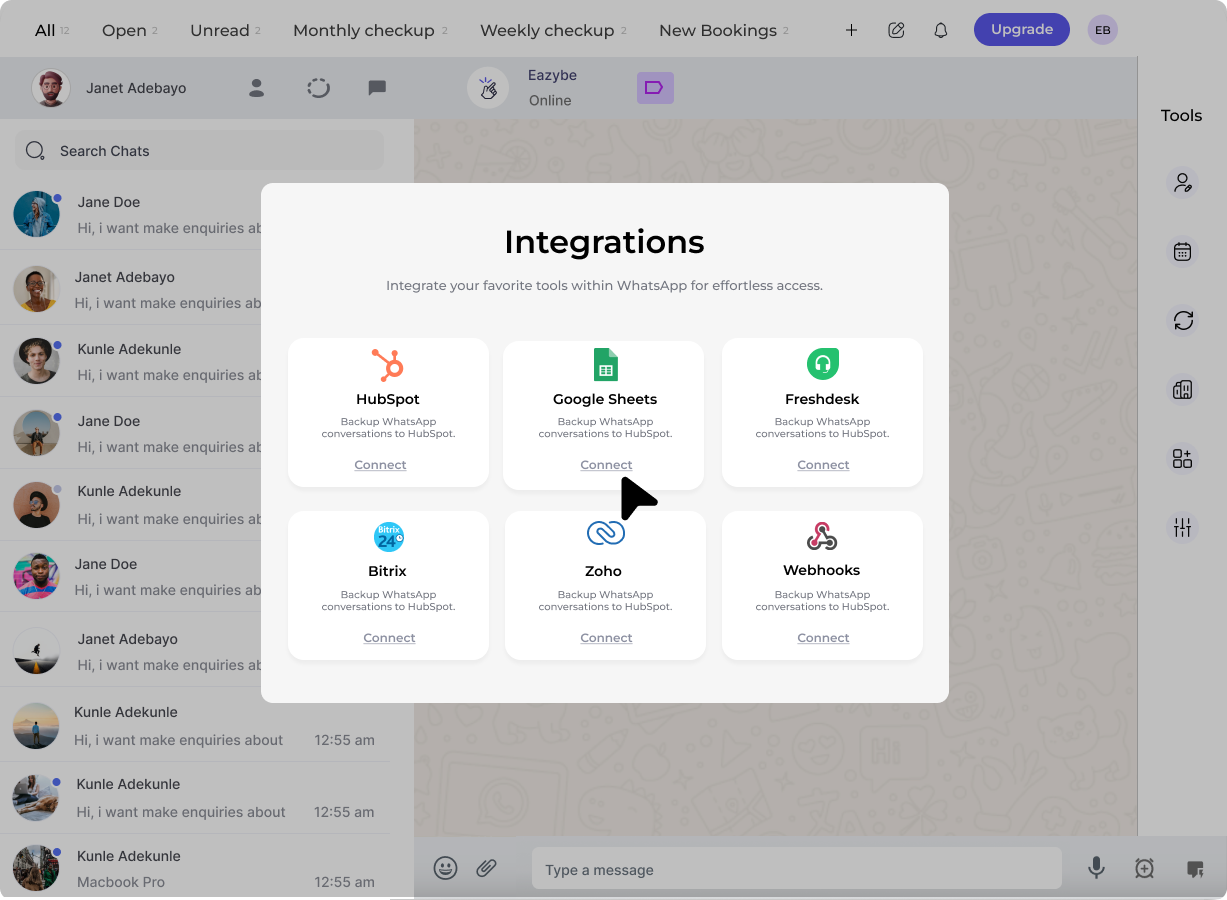 You can view Google Sheets contact information in mini-CRM view and change labels of contacts directly from the sheet itself.
## Features & Benefits
Automatically back up your WhatsApp conversations to Google Sheets in real time. Never lose important customer interactions.
Any changes you make in your Google Sheet will automatically reflect in WhatsApp. Keep your customer data updated without manual effort.
Manage contacts efficiently by storing them in a Google Sheet. Categorize leads and customers using WhatsApp Business Labels.
Upload contact lists in bulk using Google Sheets. Send targeted WhatsApp messages to specific customer segments.
### Download Customer Lists Anytime
Need a backup? Easily export all contacts saved under a specific label. Maintain organized records of your customer interactions.
EazyBe's Google Sheets integration brings automation, organization, and efficiency to your WhatsApp sales and customer management. Get started today and streamline your workflow!
## Need Help?
If you have any questions or need further assistance, feel free to reach out to us at [hey@eazybe.com](mailto:hey@eazybe.com). We're happy to help!
You can view Google Sheets contact information in mini-CRM view and change labels of contacts directly from the sheet itself.
## Features & Benefits
Automatically back up your WhatsApp conversations to Google Sheets in real time. Never lose important customer interactions.
Any changes you make in your Google Sheet will automatically reflect in WhatsApp. Keep your customer data updated without manual effort.
Manage contacts efficiently by storing them in a Google Sheet. Categorize leads and customers using WhatsApp Business Labels.
Upload contact lists in bulk using Google Sheets. Send targeted WhatsApp messages to specific customer segments.
### Download Customer Lists Anytime
Need a backup? Easily export all contacts saved under a specific label. Maintain organized records of your customer interactions.
EazyBe's Google Sheets integration brings automation, organization, and efficiency to your WhatsApp sales and customer management. Get started today and streamline your workflow!
## Need Help?
If you have any questions or need further assistance, feel free to reach out to us at [hey@eazybe.com](mailto:hey@eazybe.com). We're happy to help!