> ## Documentation Index
> Fetch the complete documentation index at: https://help.eazybe.com/llms.txt
> Use this file to discover all available pages before exploring further.
# Prerequisites
> Learn the prerequisites required to connect Bitrix24 with WhatsApp using the Eazybe extension.
Before integrating Bitrix24 with the Eazybe WhatsApp extension, ensure you meet the following requirements.
## Requirements
Ensure that your Bitrix24 account is set up and functioning properly.
Ensure that your Eazybe WhatsApp Extension is properly connected to WhatsApp Web.
Ensure you have the necessary permissions to connect Bitrix24 with WhatsApp.
## Integration Overview
To integrate Bitrix24 with Eazybe, ensure that the extension is linked to your Bitrix24 account.
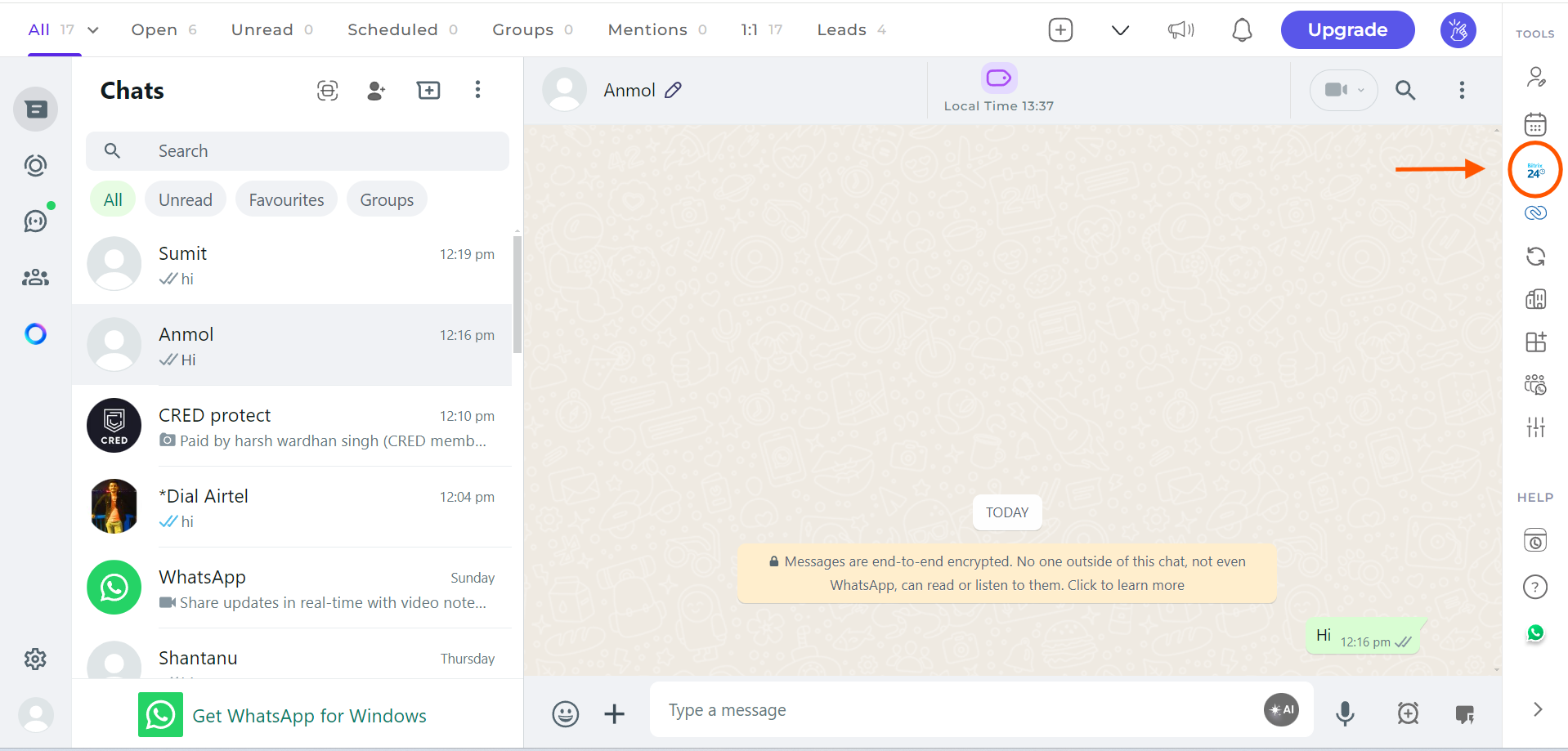 The necessary permissions will be prompted during the integration process. Make sure to accept all required permissions for seamless functionality.
## Next Steps
Once you have met all prerequisites, proceed to the [Setup Guide](/en/integrations/bitrix/setup) for detailed step-by-step instructions.
## Need Help?
For questions or assistance, contact us at [hey@eazybe.com](mailto:hey@eazybe.com).
The necessary permissions will be prompted during the integration process. Make sure to accept all required permissions for seamless functionality.
## Next Steps
Once you have met all prerequisites, proceed to the [Setup Guide](/en/integrations/bitrix/setup) for detailed step-by-step instructions.
## Need Help?
For questions or assistance, contact us at [hey@eazybe.com](mailto:hey@eazybe.com).